We’ve made two big updates this month: launching Custom Connect to give you more control over how you reach leads, and moving the Loadlink Portal into the Load Board so everything you need lives in one place. This page covers what’s new and what’s moving. Use the buttons below to jump straight to a guide, or read on for the full overview.
What's New: Custom Connect
Connected Email gave you a fast, verified way to email leads without leaving Loadlink, using a default message we provided. Custom Connect builds on that. Now you can write your own personalized email templates directly inside the Connected Email interface.
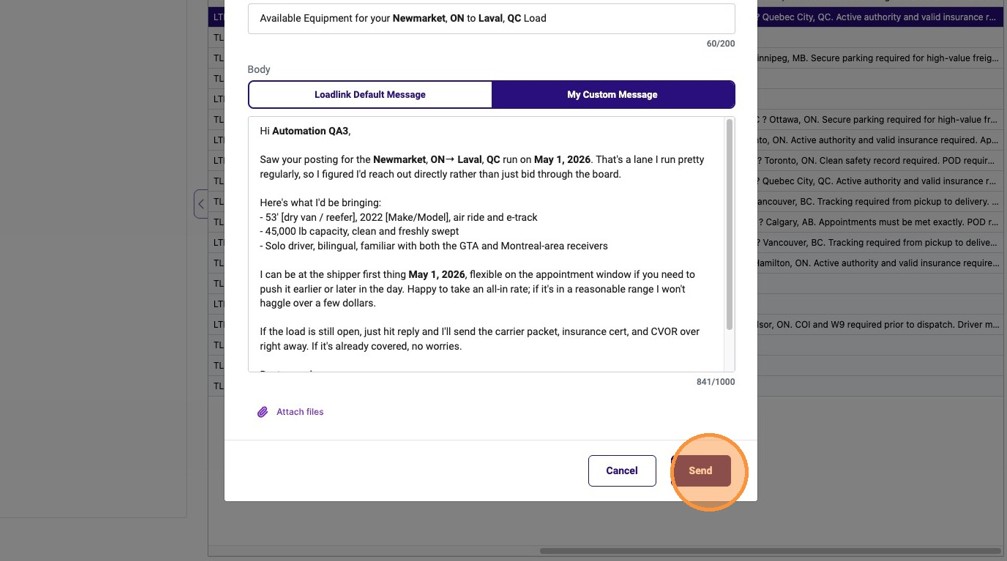
Add your tone, your brand keywords, and your own call to action. Use dynamic placeholders like Contact Name, Origin, Destination, and Available Date, and they’ll auto-fill with each posting’s details when you hit send. One template, every lead, personalized automatically.
That means faster outreach without sounding like everyone else.
What's Moving: The Loadlink Portal
We’re consolidating Loadlink into a single hub. By the end of 2026, portal.loadlink.ca will be fully retired, and the tools you’ve been using there are being brought into the Load Board where the rest of your workflow already lives.
Here’s where to find everything going forward:
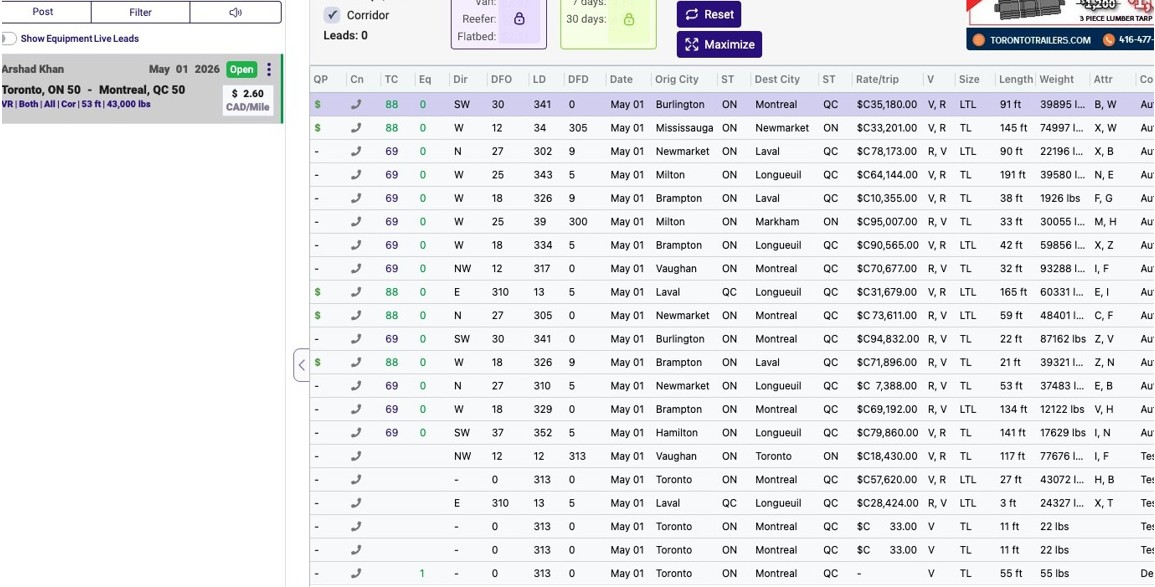
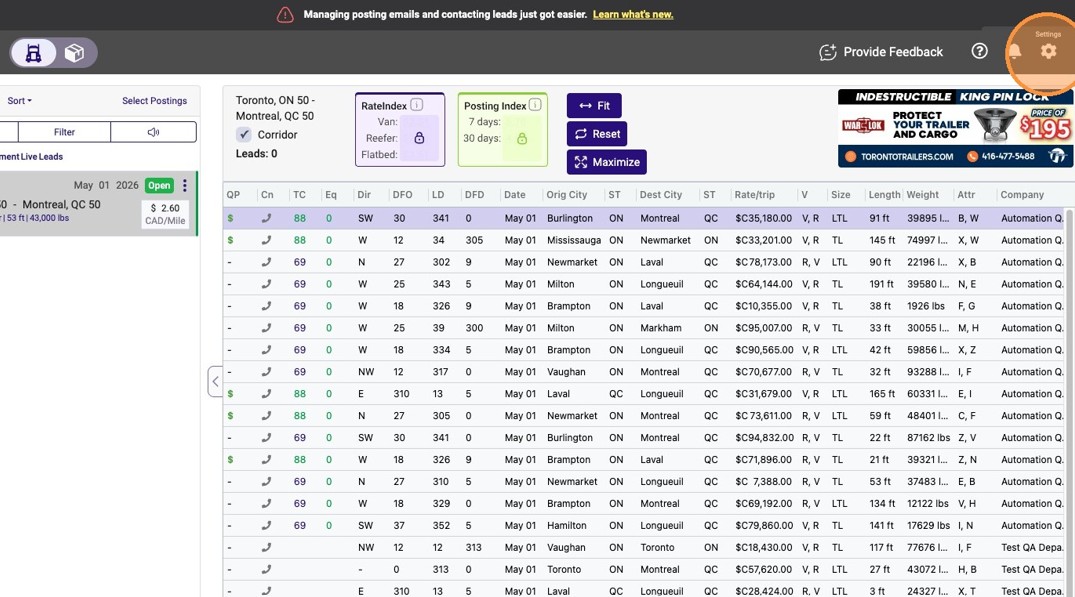
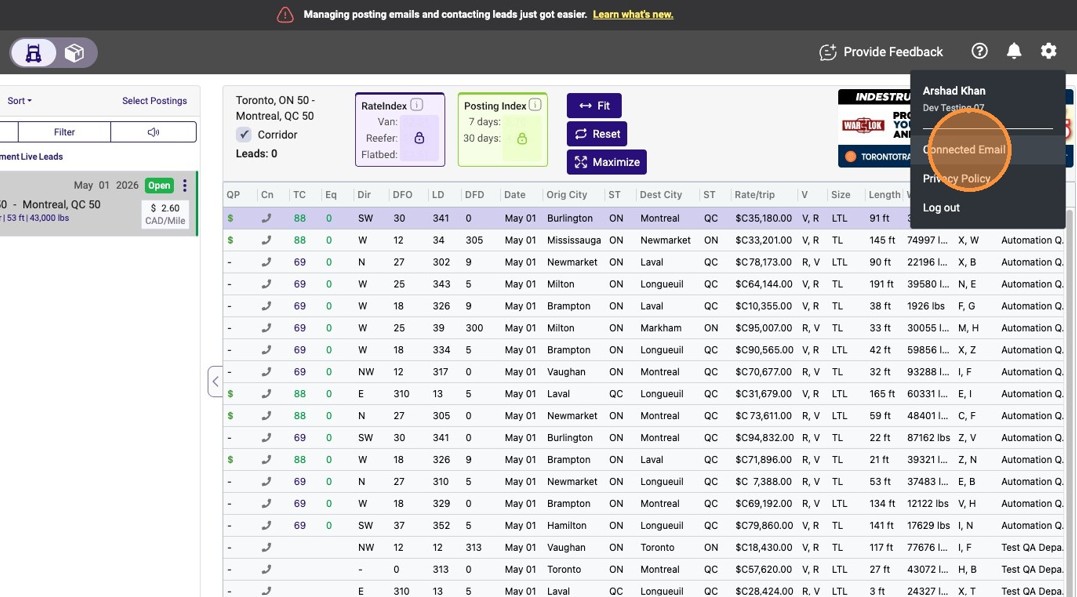
- Account settings, Connected Email, and Security Agent have moved behind the gear icon in the top right of the Load Board.
- Member Verification and Fraud Alerts are now part of the notification panel, also in the top right.
- Dispatch stays where it is. It will continue to live at dispatch.loadlink.ca and remains accessible from the login dropdown on loadlink.ca.
- Set the Load Board as your bookmark so you land here directly instead of routing through the portal.
No action is required from you. Everything in your account carries over automatically. If you can’t find something that used to live in the portal, the walkthrough video below covers where each tool now lives.
Portal Deprecation Walkthrough
Watch this short video for a full tour of where everything has moved. We’ll show you exactly where to find Connected Email, Security Agent, account settings, Member Verification, and Fraud Alerts in the Load Board, so you can get back to work without missing a beat.
Step-by-Step Guides: Custom Connect
How to Configure Your Loadlink Connected Email
Learn the necessary steps to configure connected email within the Loadlink platform. Reach out to the customer success team for professional assistance if your connected email account is not provisioned.
1. Navigate to Loadlink Load Board
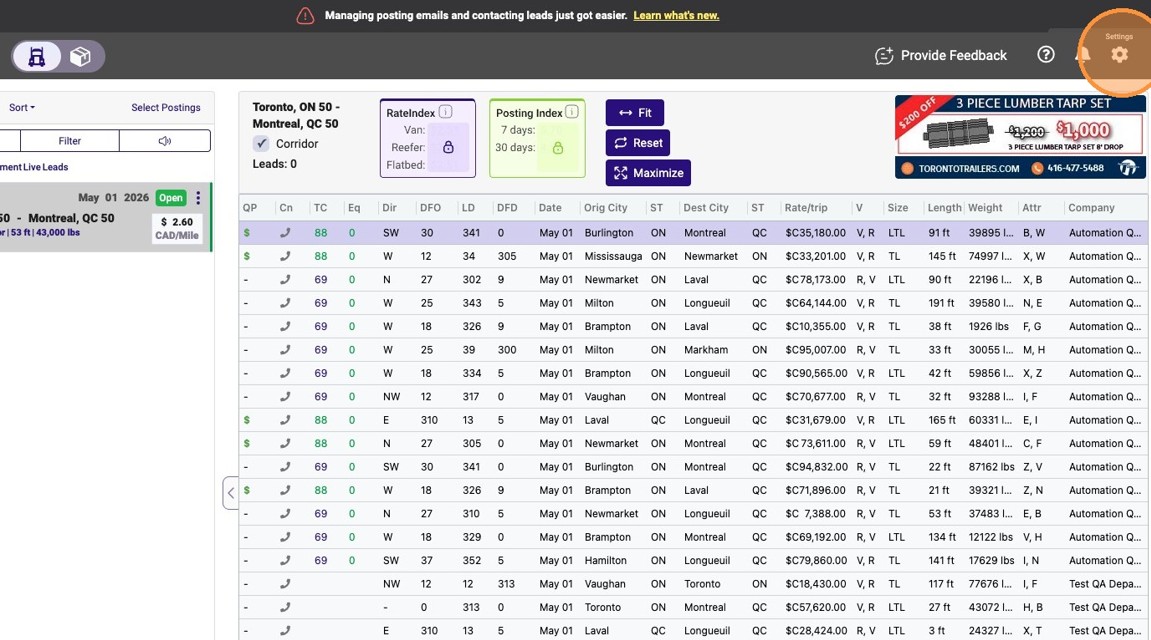
2. Click on the settings icon on the top right corner of your loadboard screen.
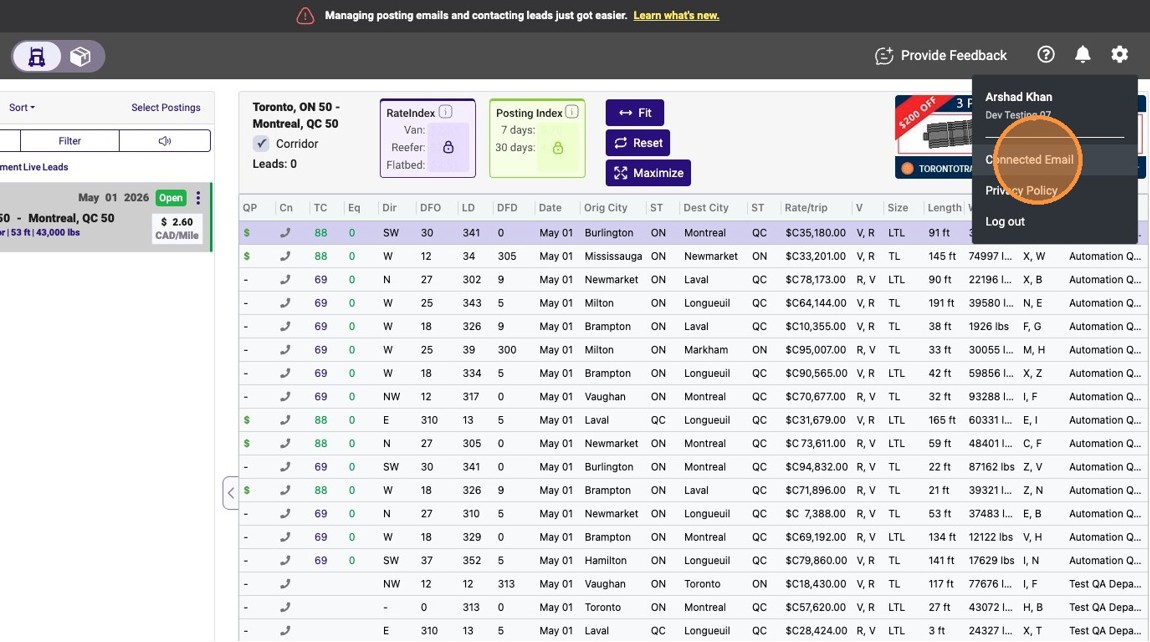
3. Click on “Connected Email” menu option.
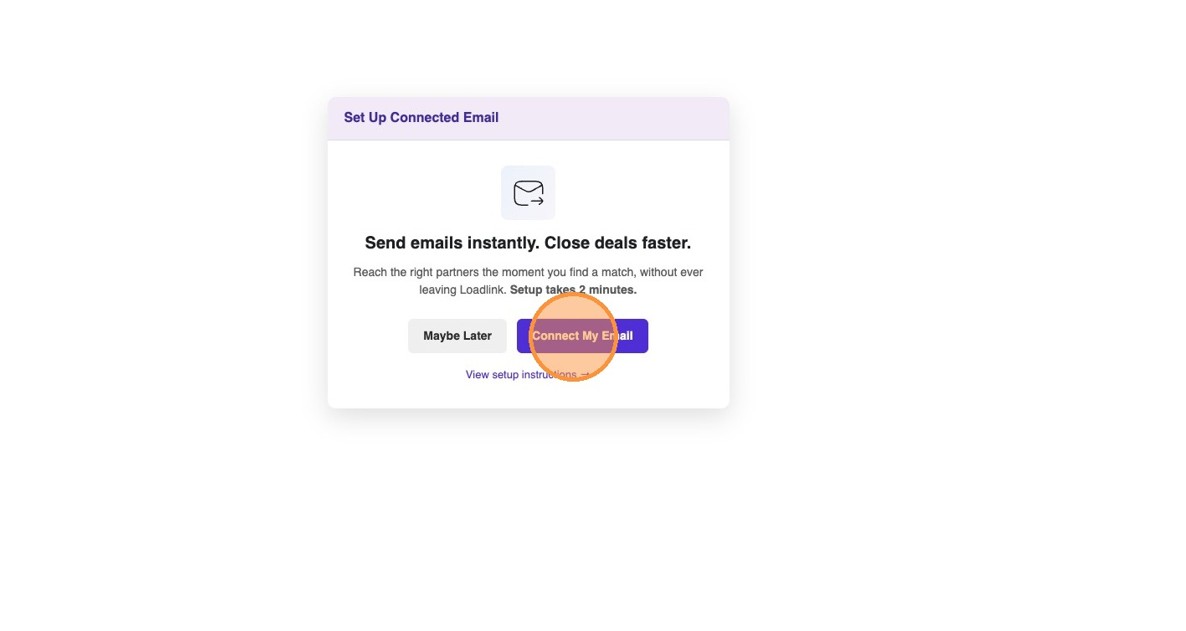
4. Click on “Connect My Email” button.
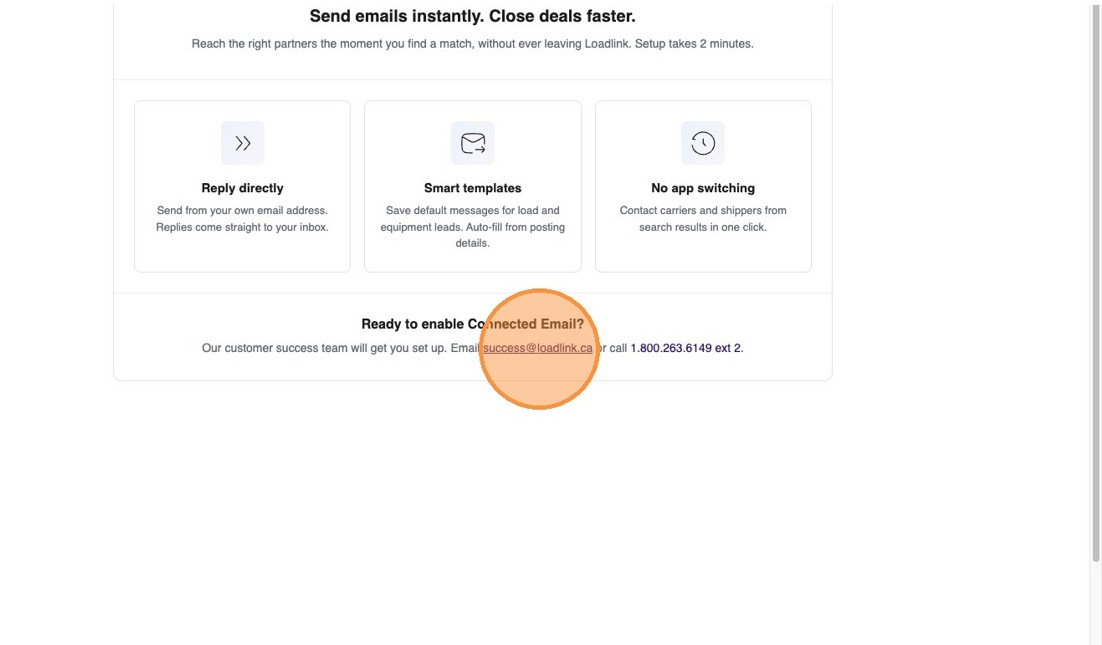
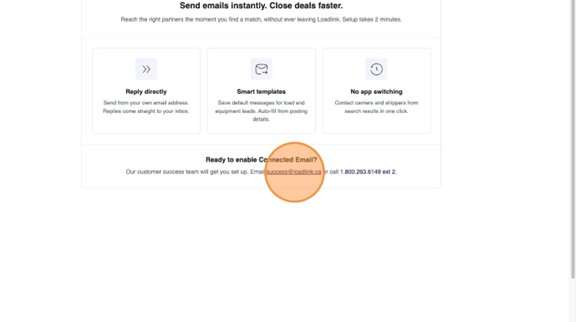
5. Click on success@loadlink.ca or call 1.800.253.6149 to contact Customer Success for setup assistance if Connected Email has not been provisioned for you.
How to Configure and Test Your Connected Email in Loadlink
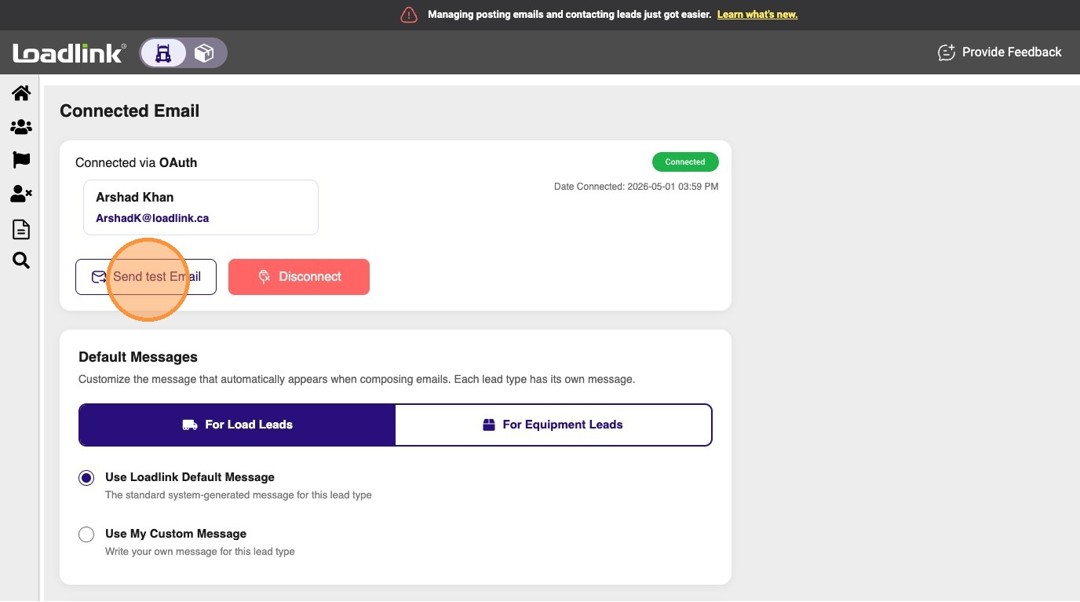
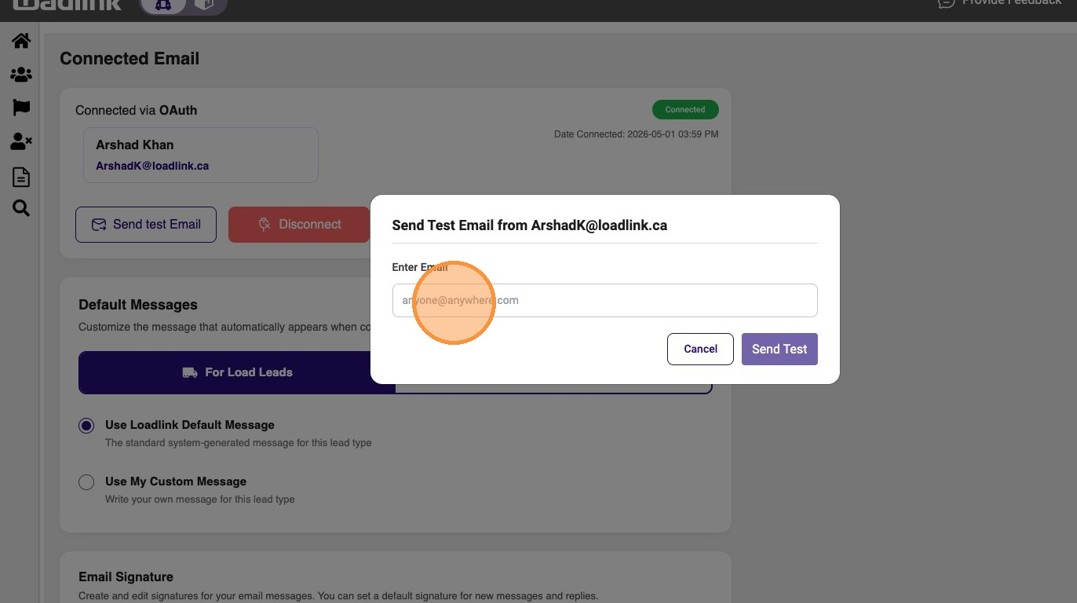
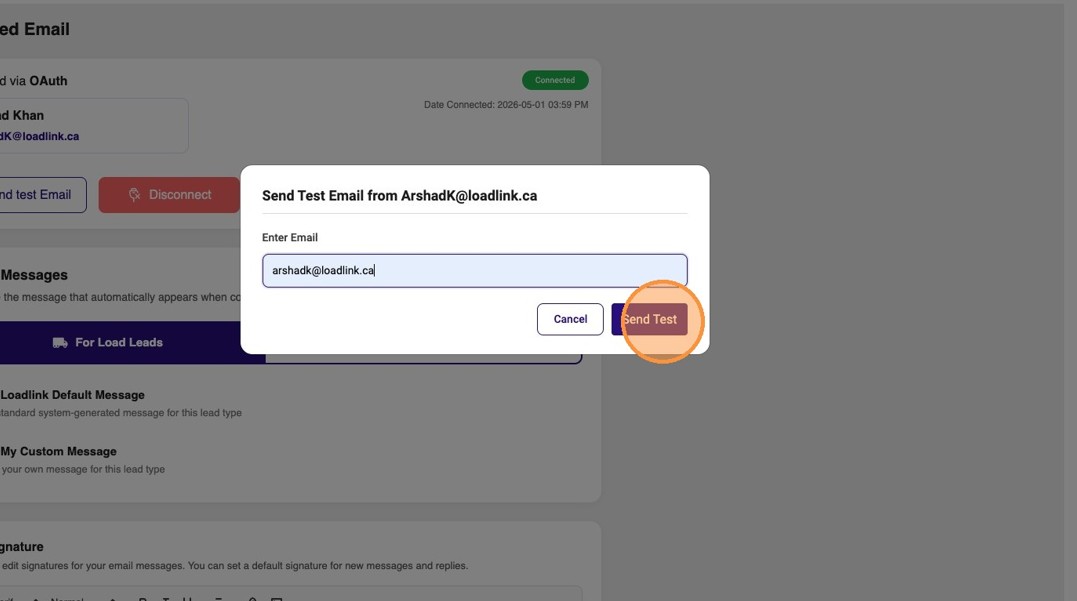
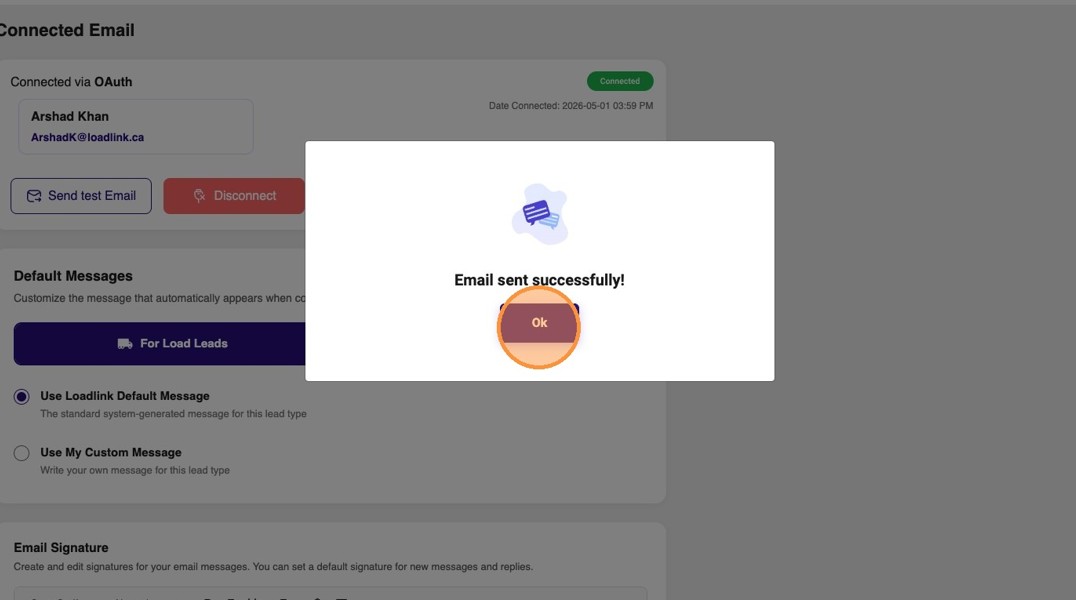
Learn how to link your professional email account to the Loadlink platform for seamless communication. This guide walks you through the authorization process and shows you how to verify your connection by sending a test email.
1. Navigate to Loadlink Load Board
2. Click profile gear icon in the top right corner.
3. Click “Connected Email”
Email Configuration
4. Click “Connect My Email”
5. Click here.
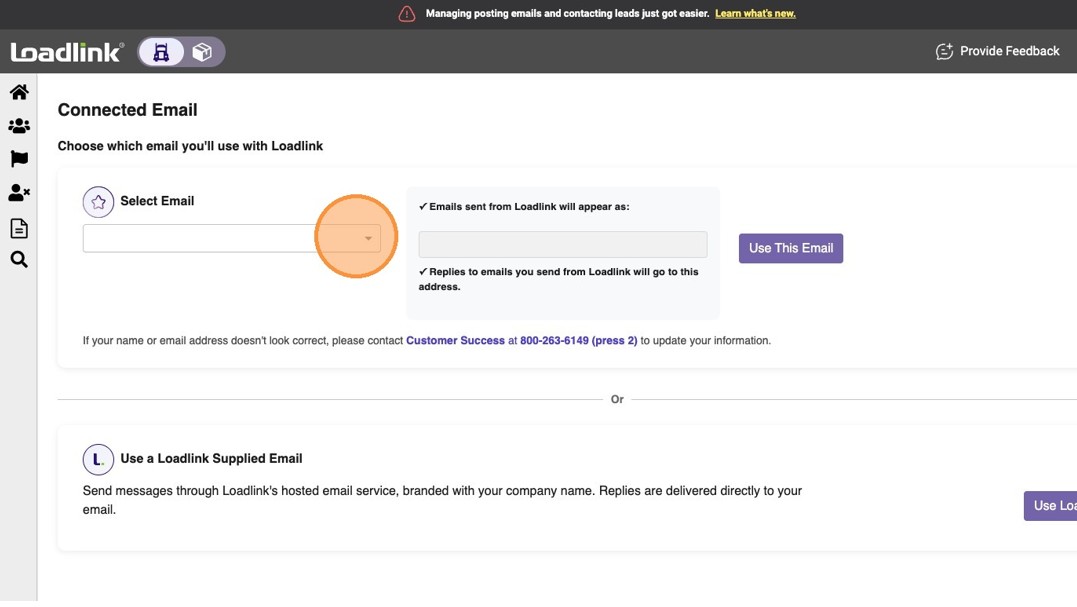
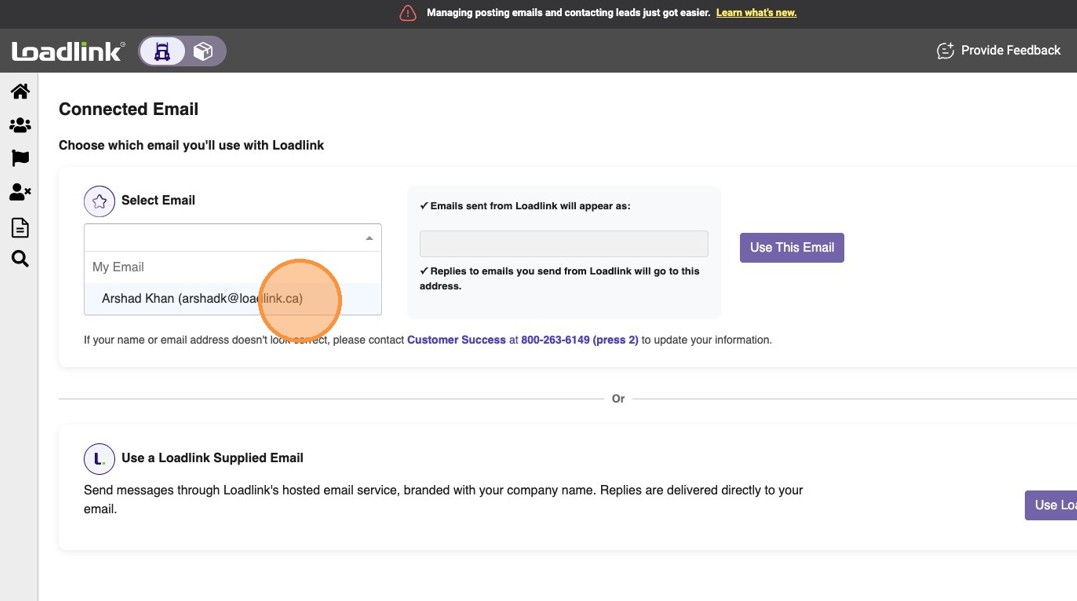
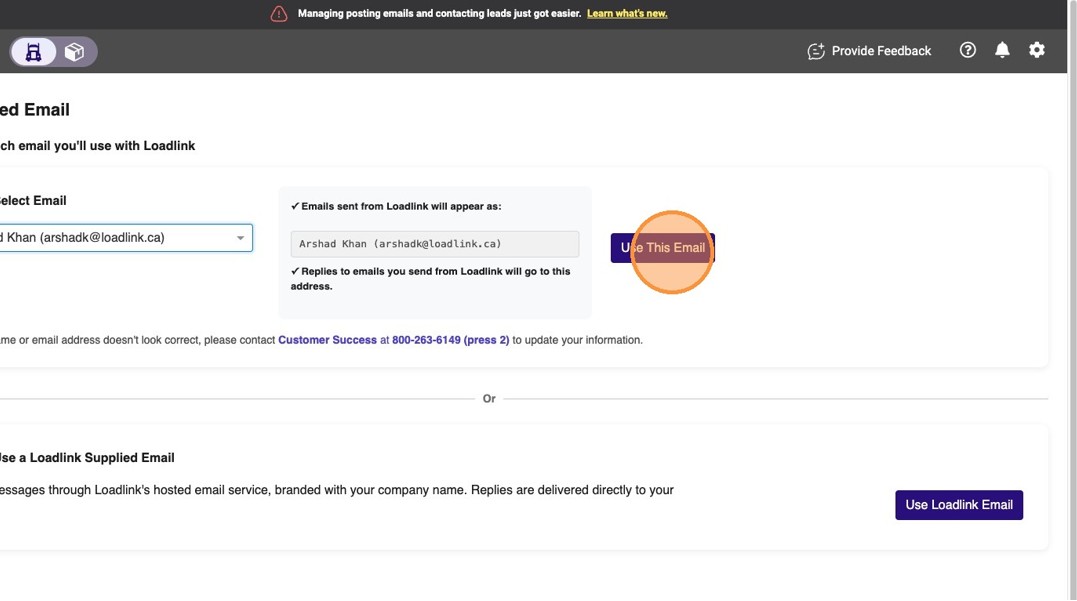
6. Select Email Address from “Select Email” Dropdown.
7. Click “Use This Email”
External Authentication
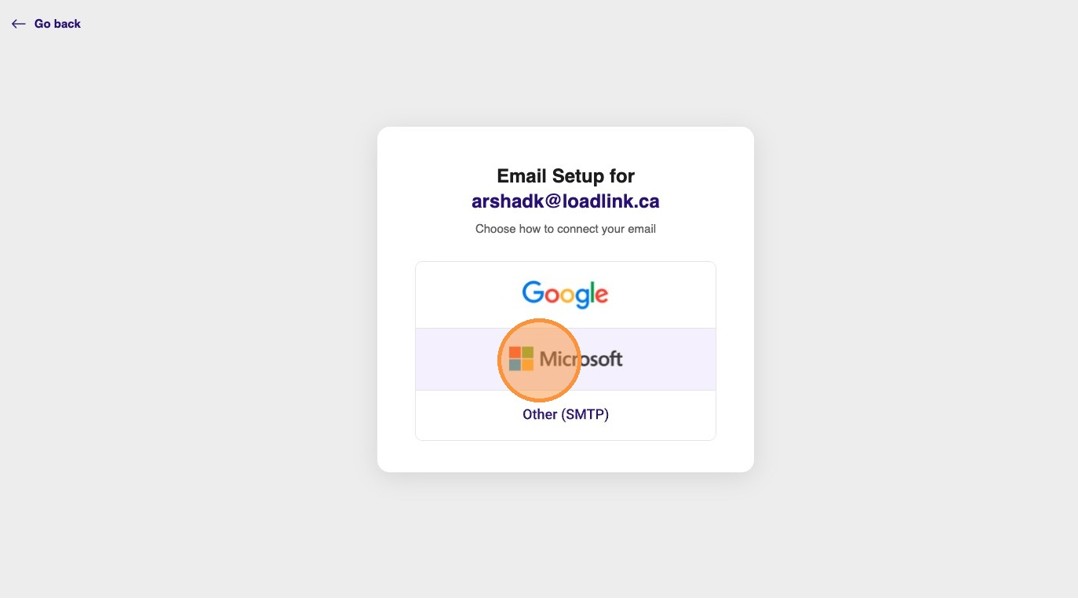
8. Select Email Provider to proceed with email authentication.
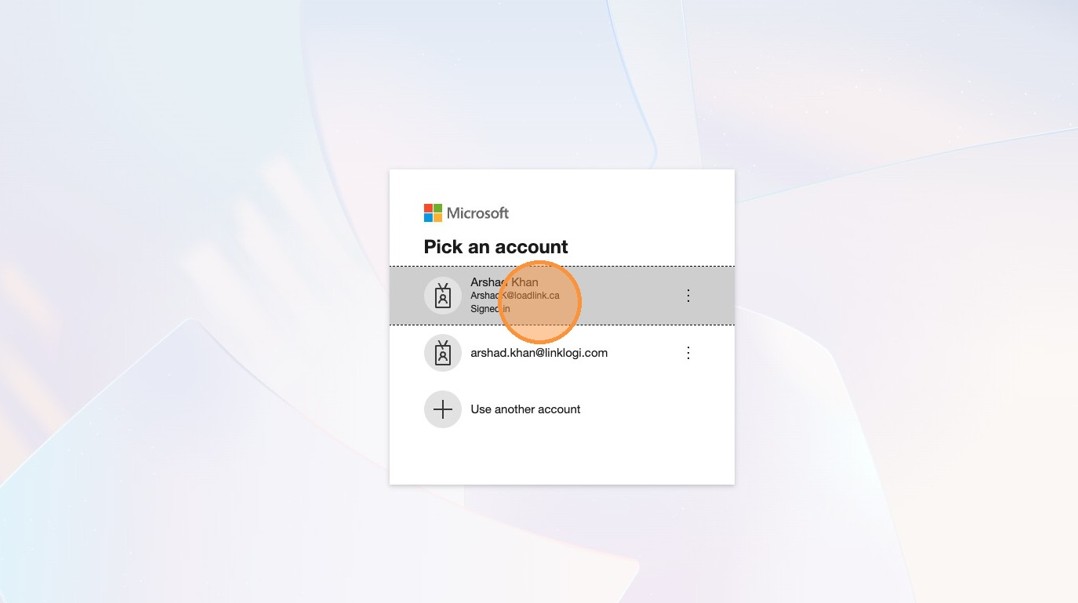
9. Select your account to sign in.
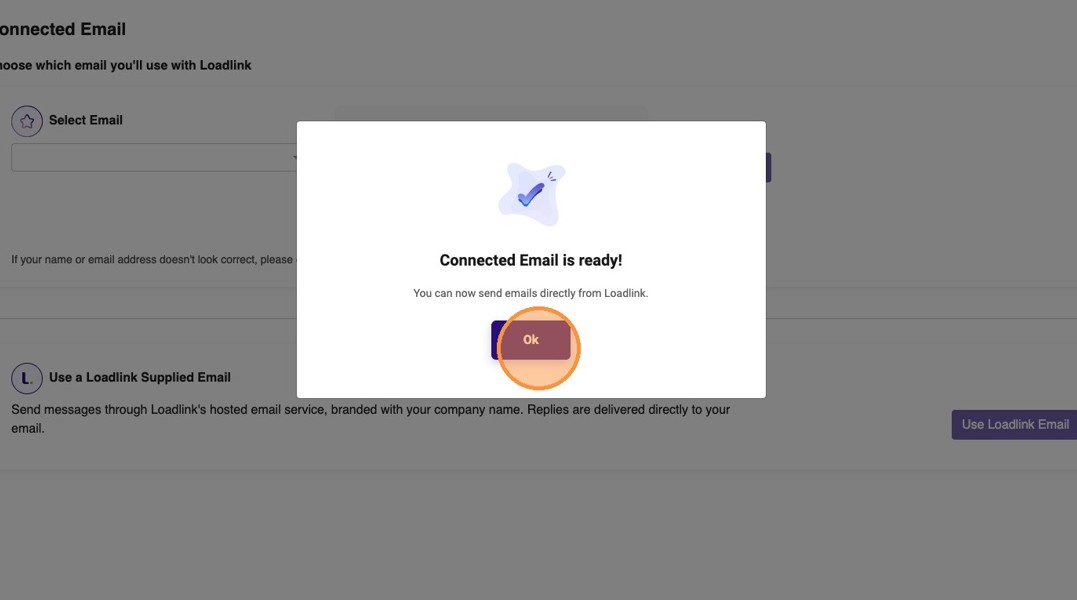
10. Click ‘Ok’ to confirm the email connection is ready.
Verification Test
11. Click “Send test Email”
12. Type the recipient’s email address in the Enter Email field.
13. Click “Send Test”
14. Click ‘Ok’ to dismiss the success notification.
How to Send Custom Messages on Loadlink
Learn how to personalize and automate your communication by setting up custom message templates on the Loadlink platform. This guide helps you streamline your workflow by saving frequently used text for quick and efficient dispatching.
Lead Dashboard Navigation
1. Login to Loadlink Load Board
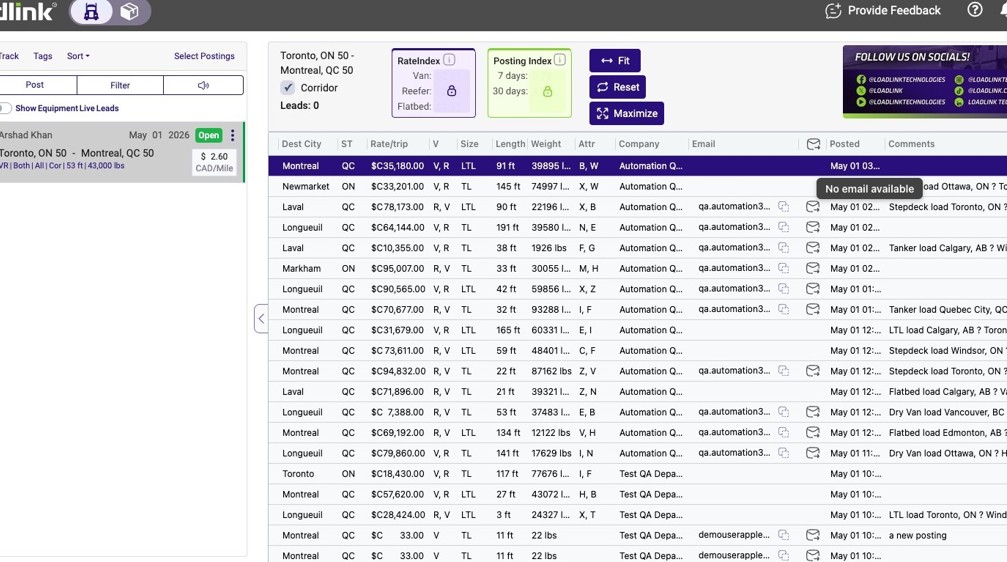
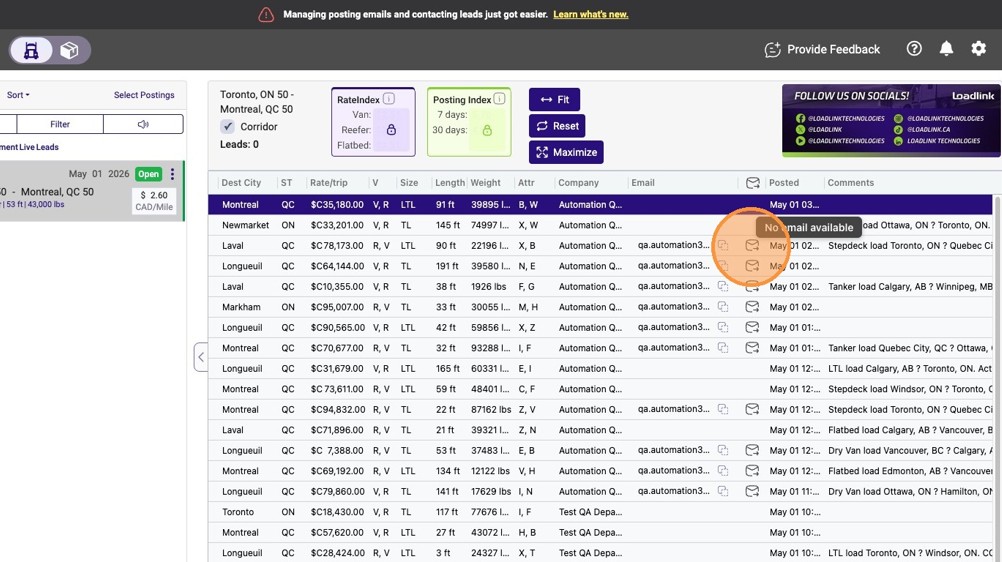
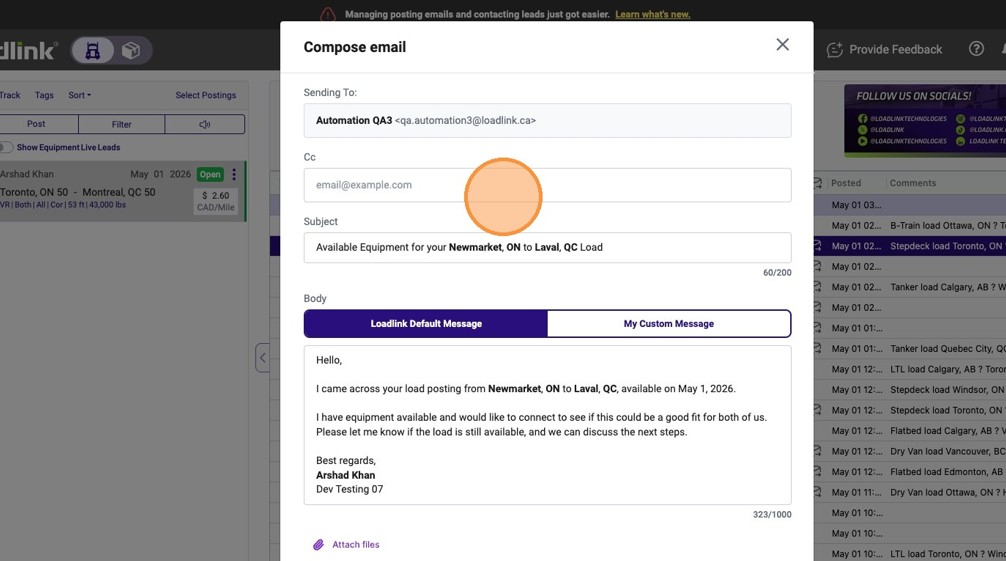
2. Click the envelope icon next to a lead to open the email composer.
3. Click the “email@example.com” field.
4. Click “Connect My Email”
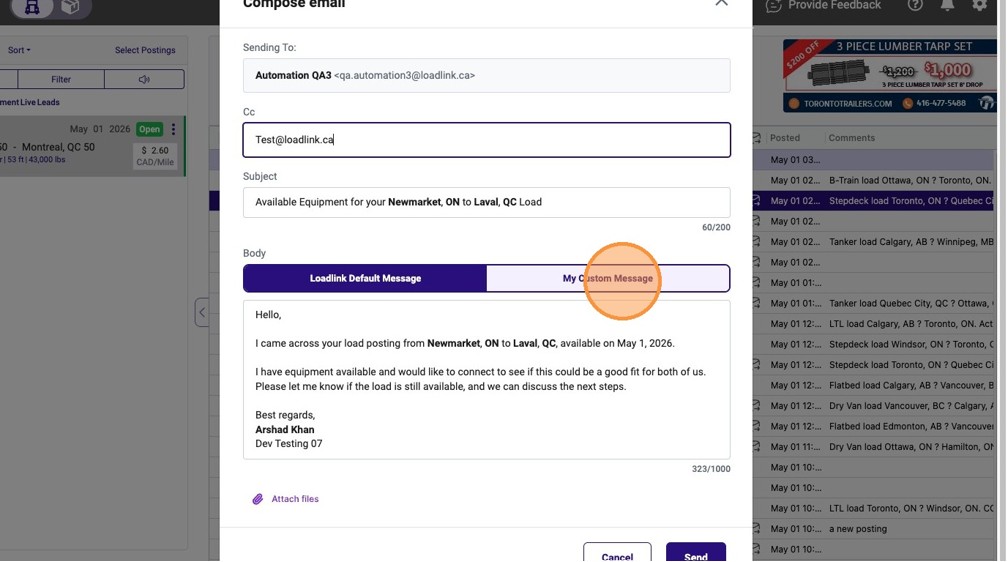
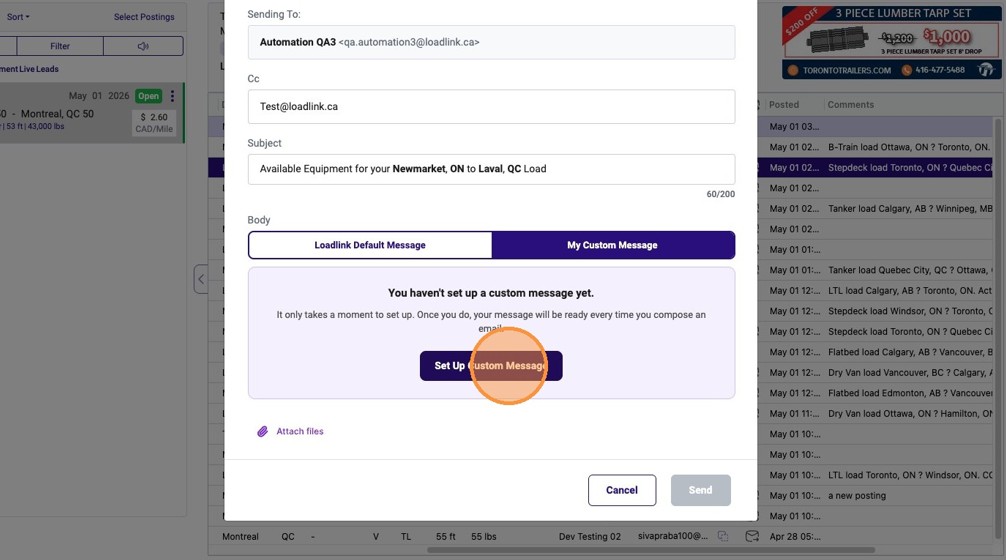
5. Select the My Custom Message tab.
5. Click here.
Email Template Configuration
6. Click Set Up Custom Message to begin configuring your email template.
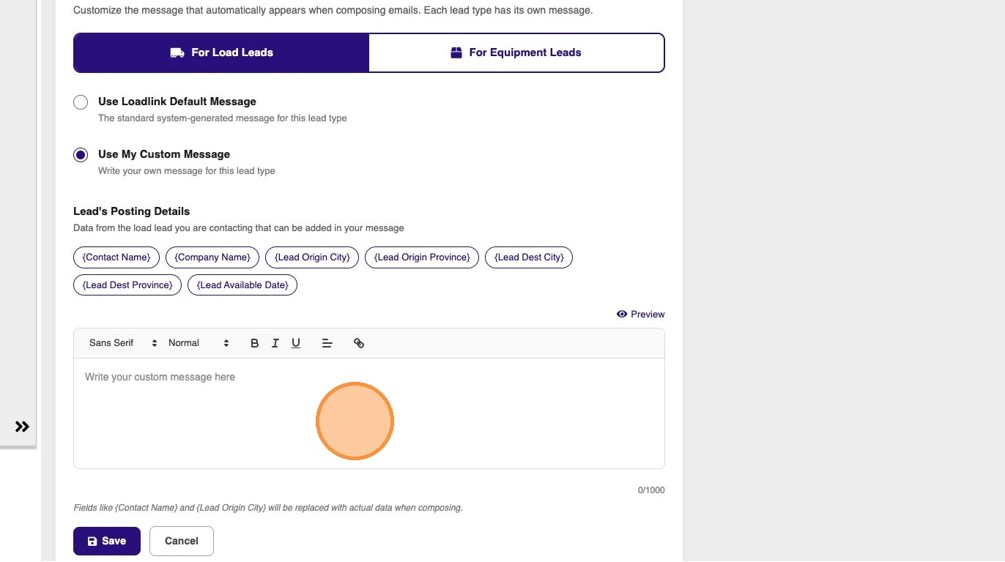
7. Navigate to the Email Settings configuration page.
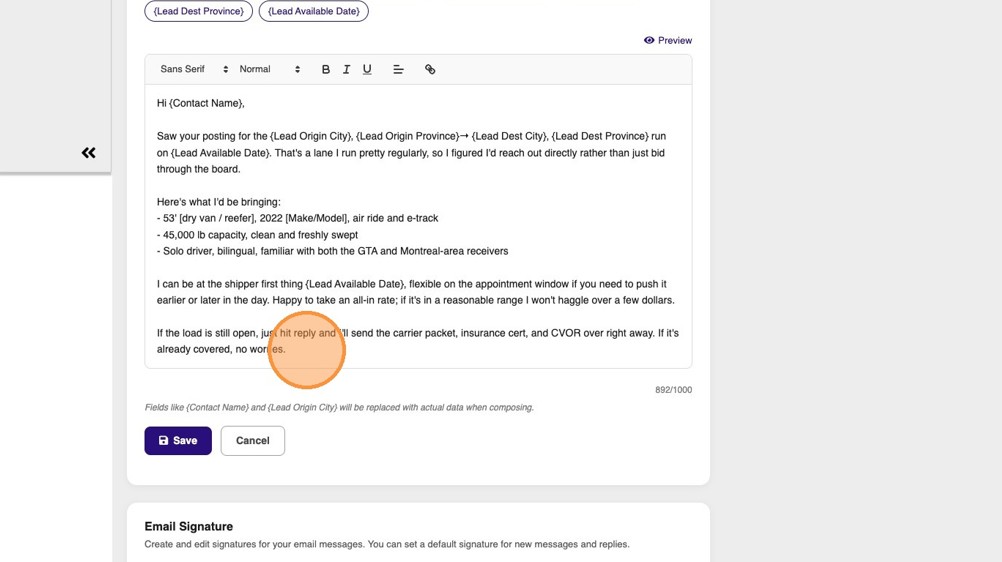
8. Compose your template in the editor below.
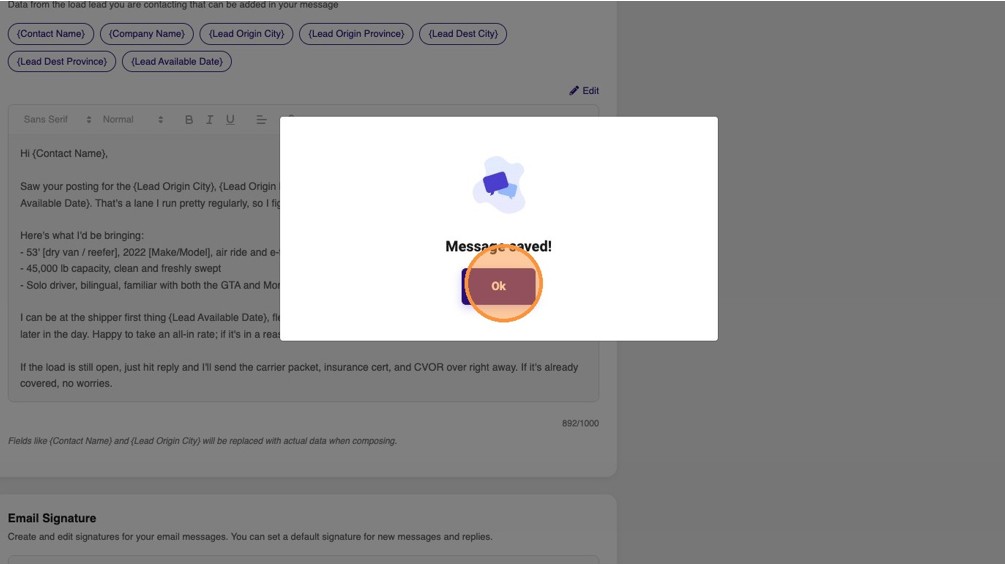
The tags at the top of the page act as placeholders. Insert them anywhere you want a dynamic value (Contact Name, Origin City and Province, Destination City and Province, Available Date). Each time you send the message from a posting, the placeholders are replaced with that posting’s actual values.
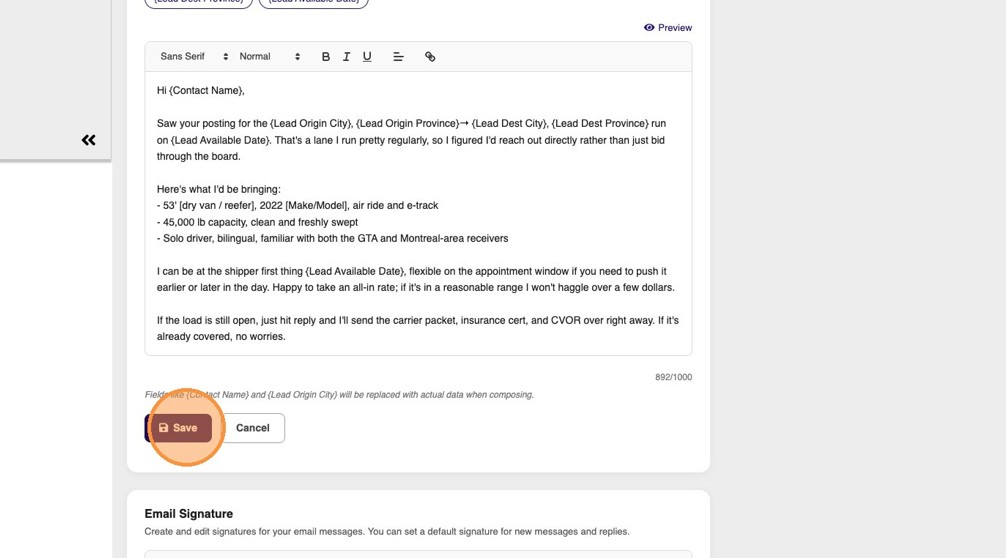
9. Click “Save”
10. Click ‘Ok’
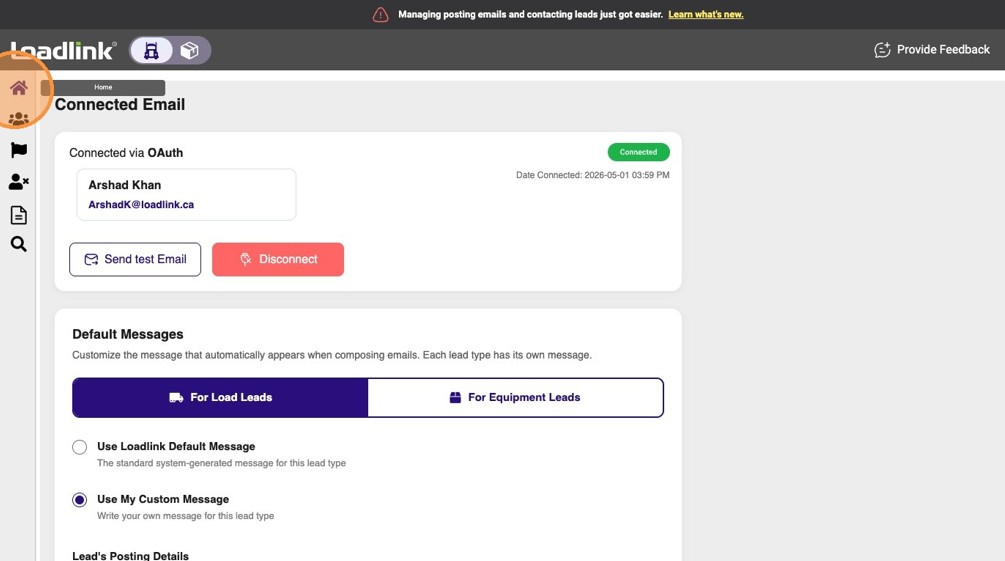
11. Click the Home icon to return to the lead dashboard.
Finalizing and Sending
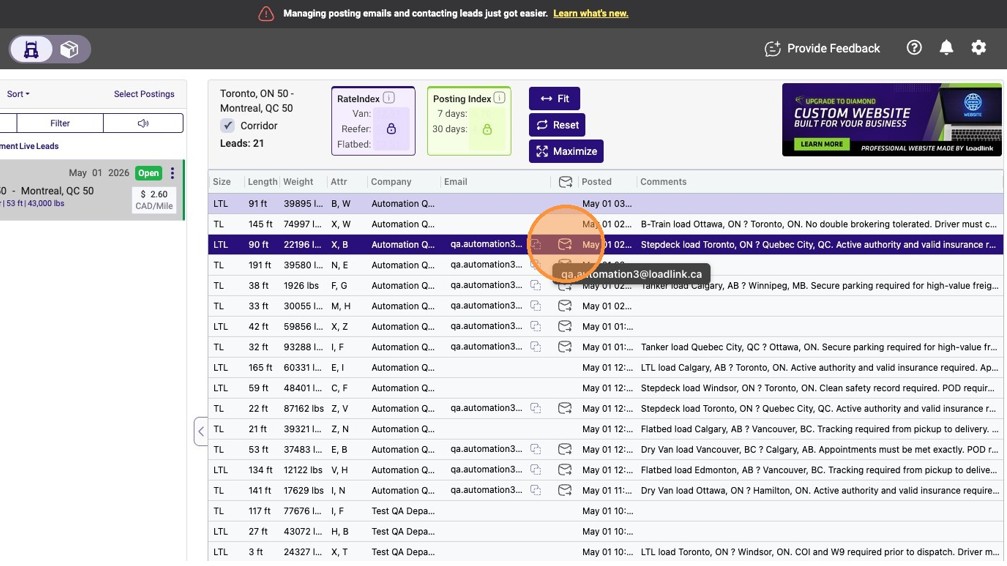
12. Click the email icon for the specific lead you want to contact.
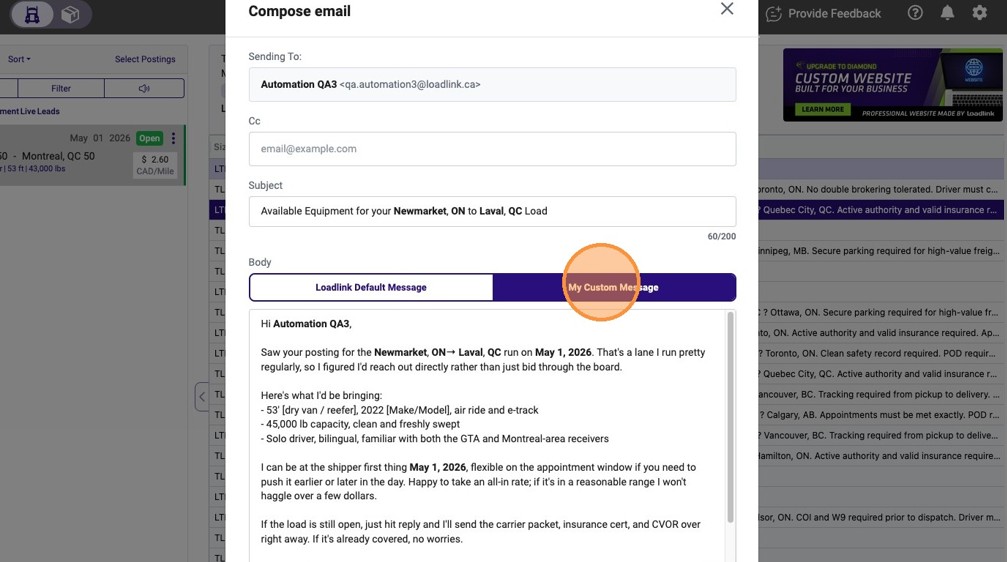
13. Select the My Custom Message option to load your saved template.
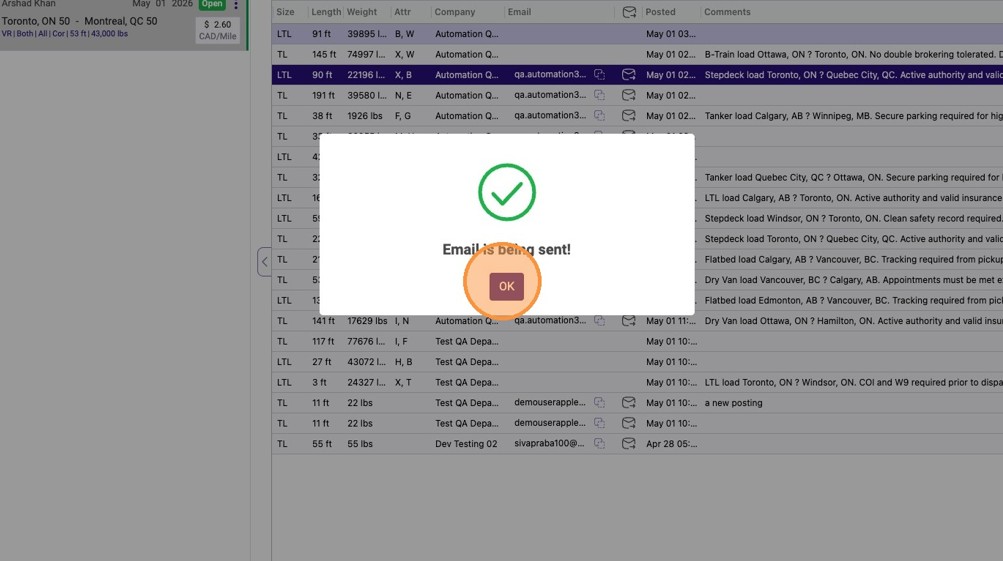
14. Click Send.
15. Click ‘OK’ to acknowledge that the email is being sent.