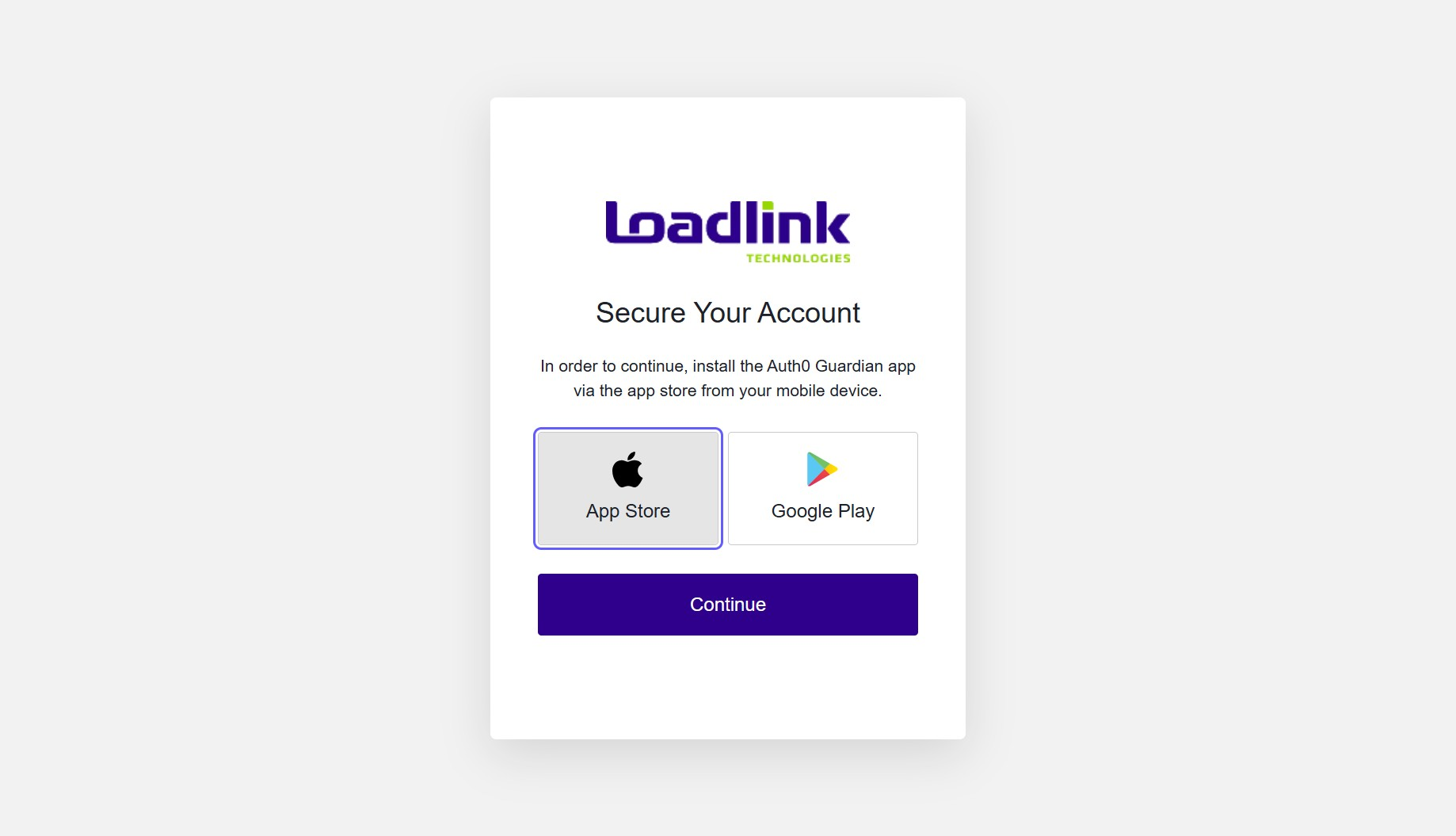
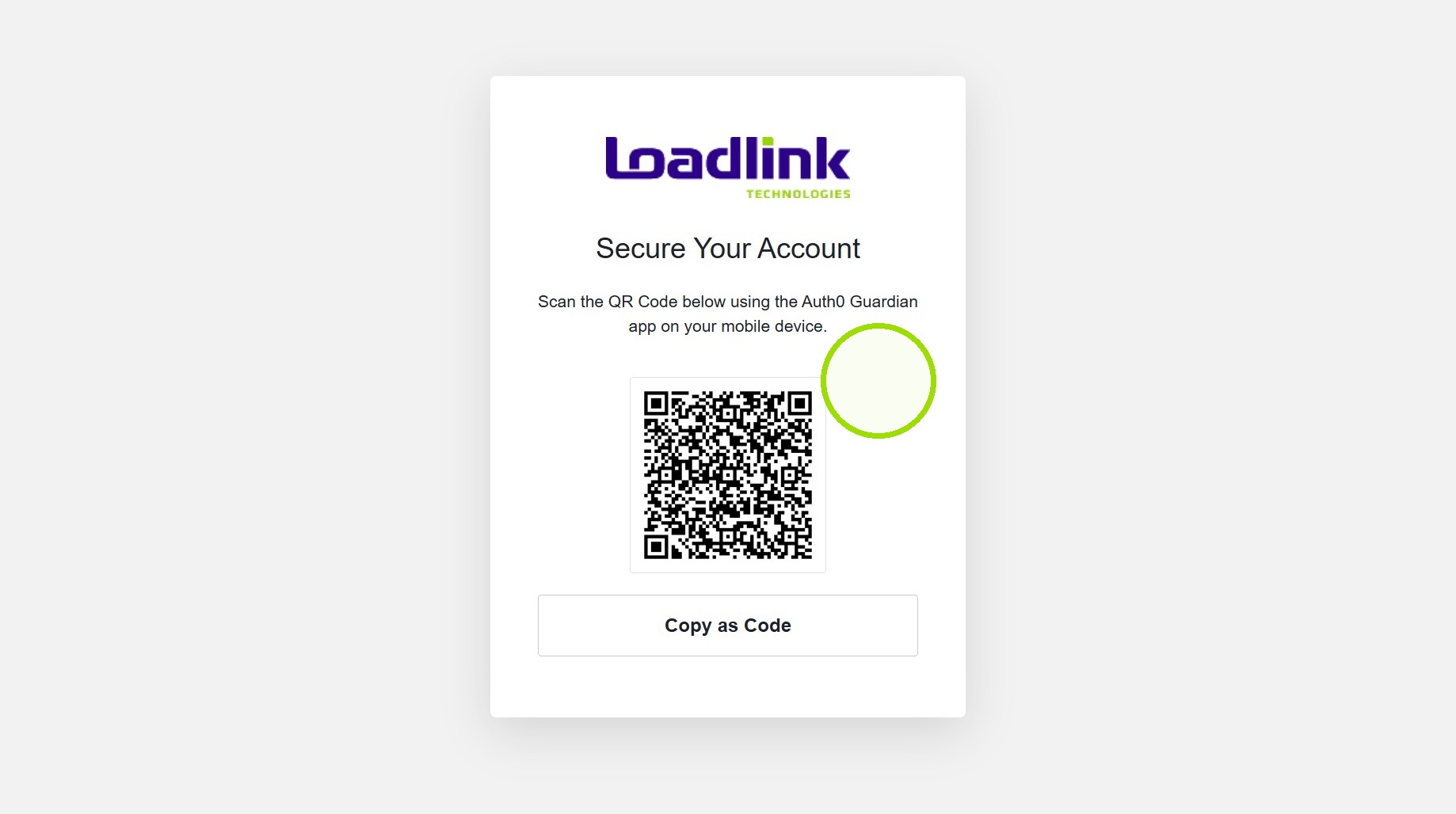
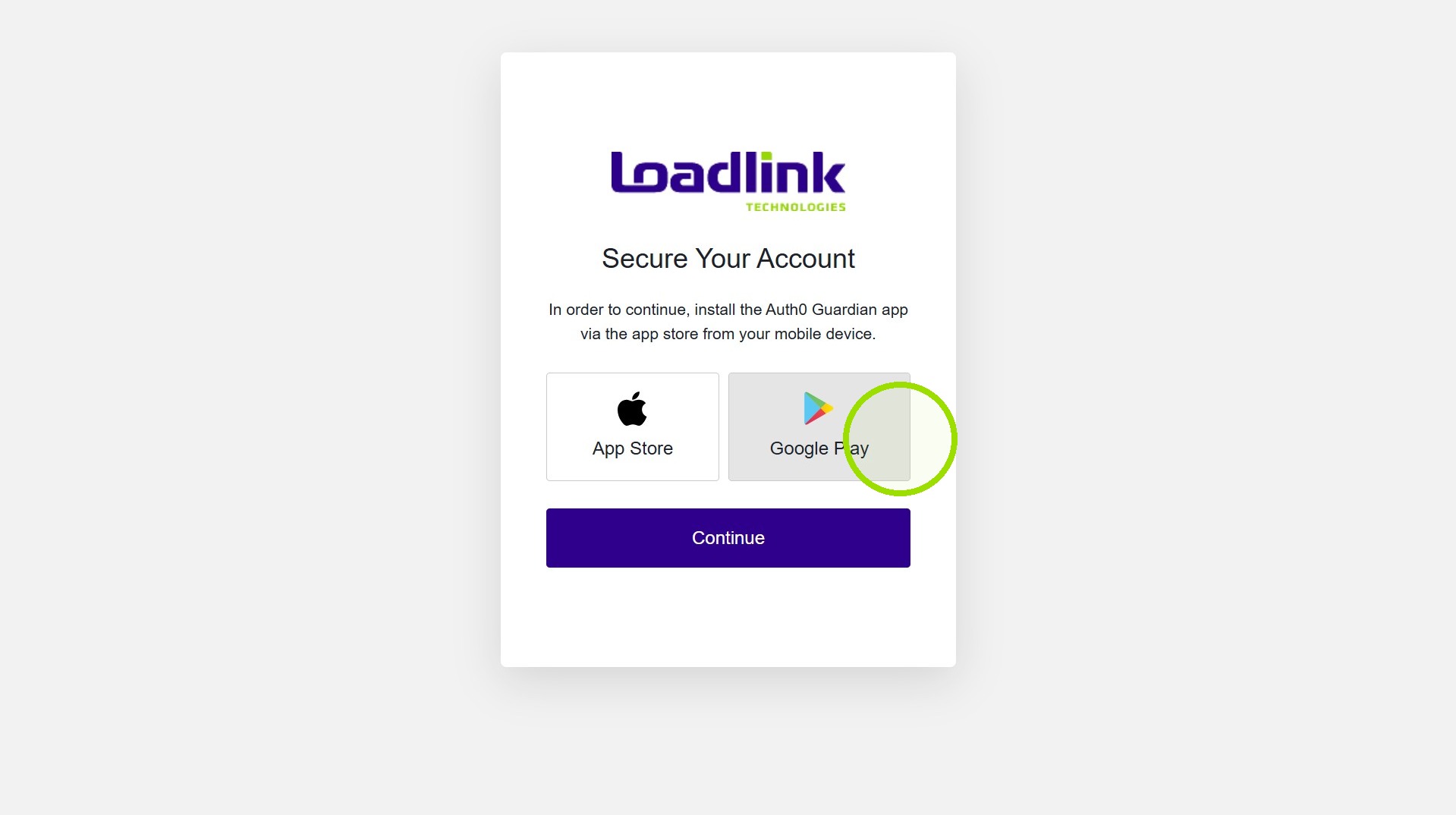
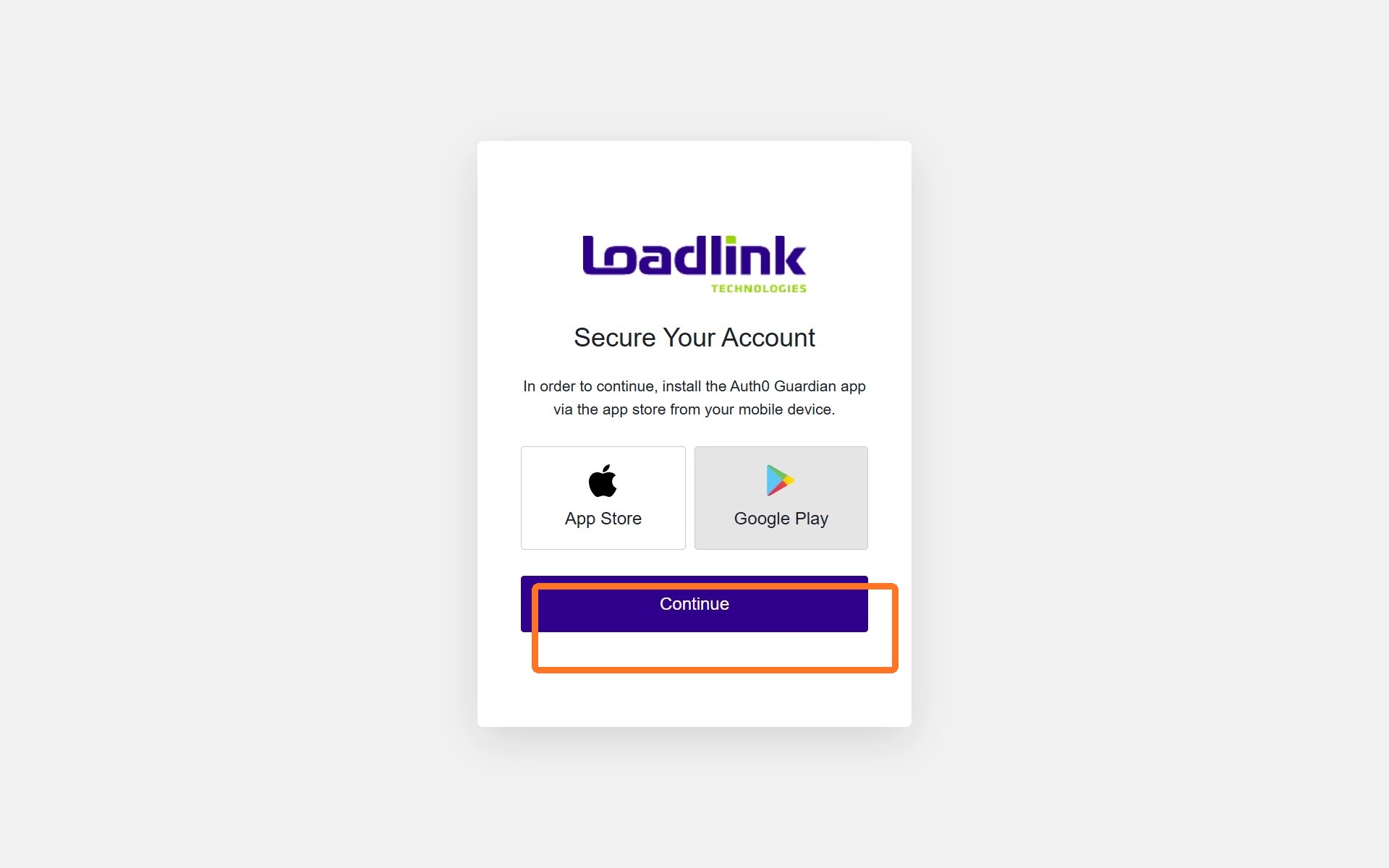
When MFA is ready to be enrolled, you will be taken to the following screen to “Secure Your Account”.
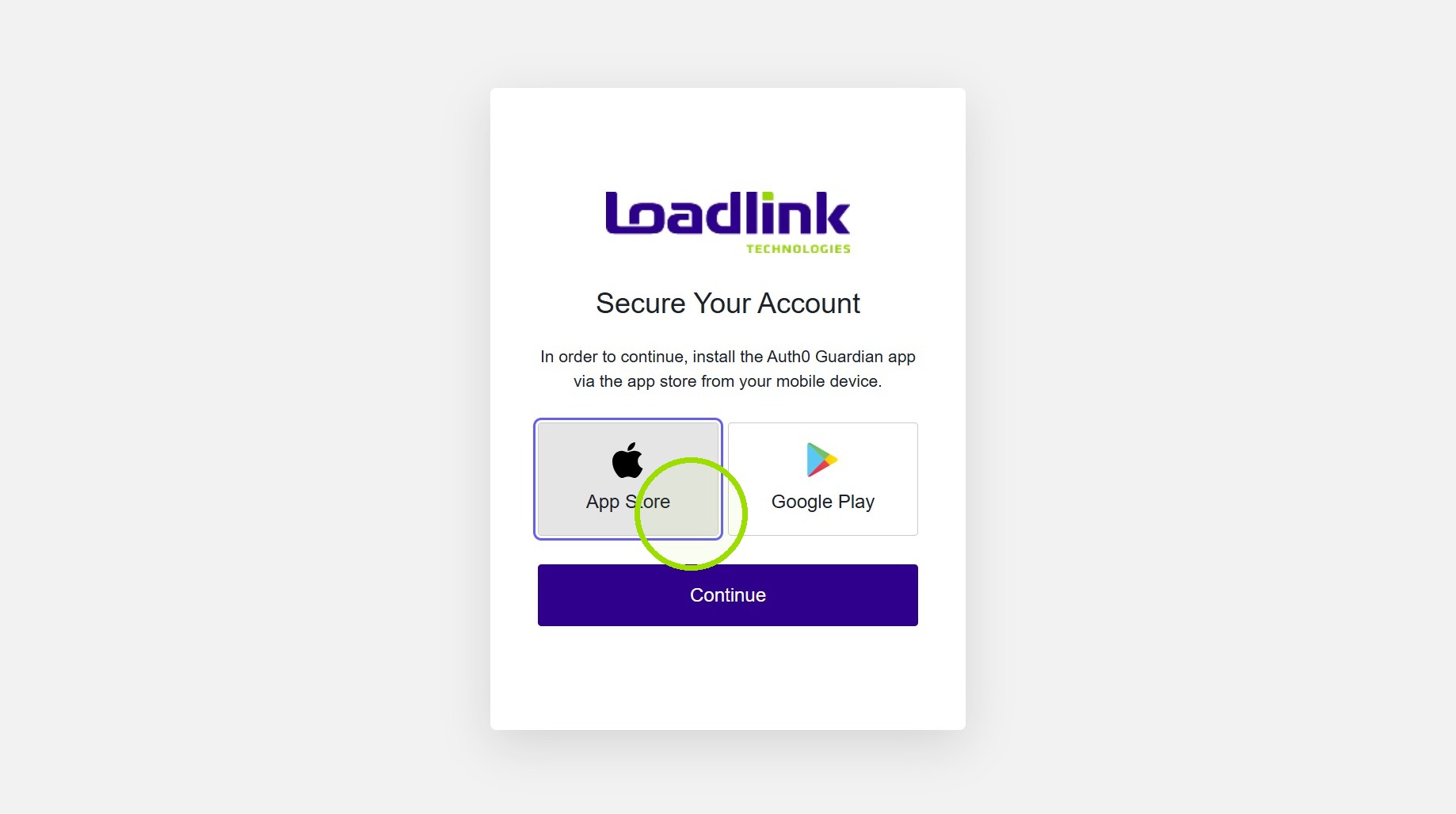
Click “App Store”
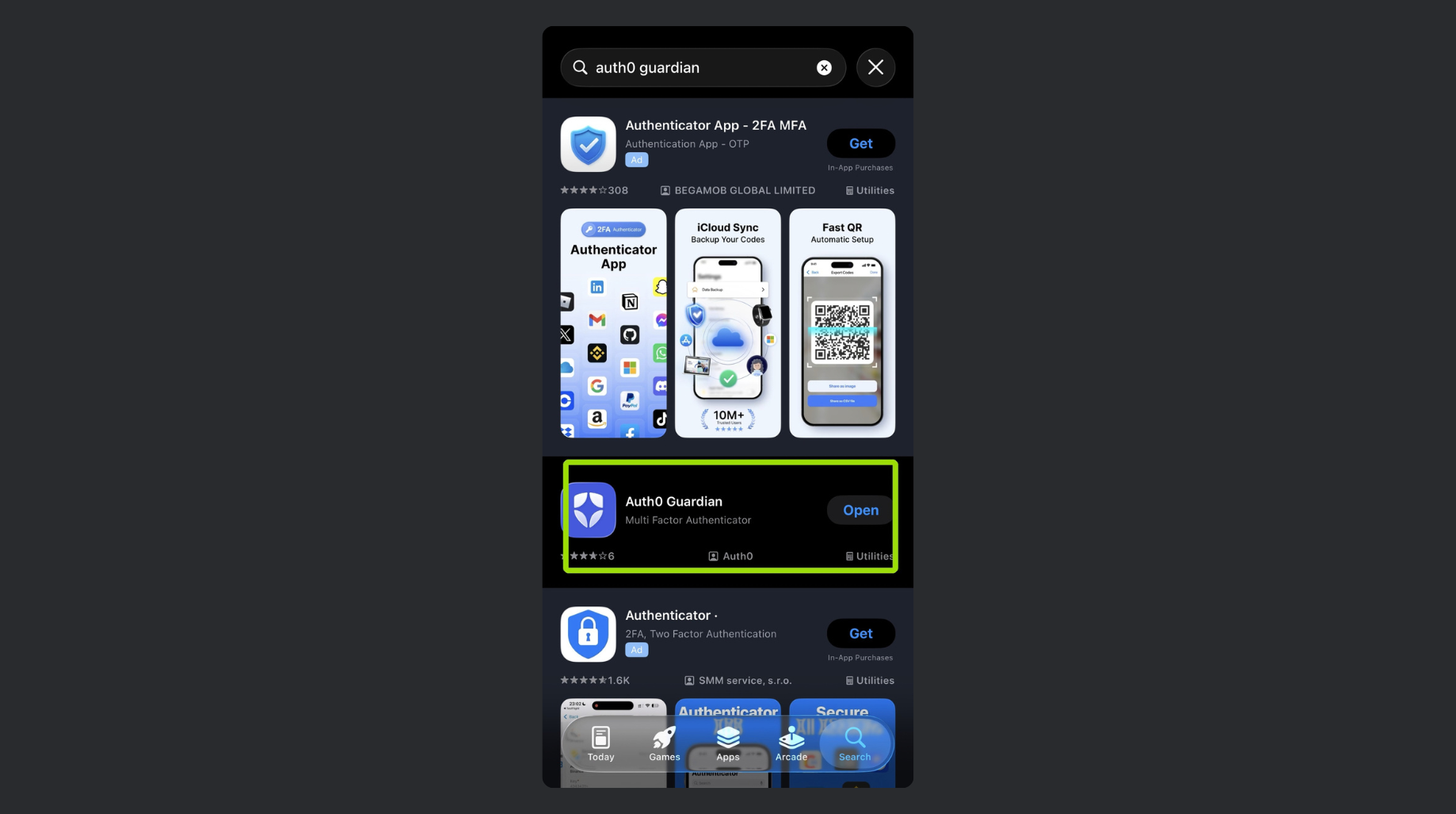
At this step, you will need to open the Apple App Store on your mobile device. Type “Auth0 Guardian” into the App Store. The correct app will be titled “Auth0 Guardian”.
Alert!
It’s important to select “allow” when the Auth0 Guardian app requests access to your Location and Notifications.
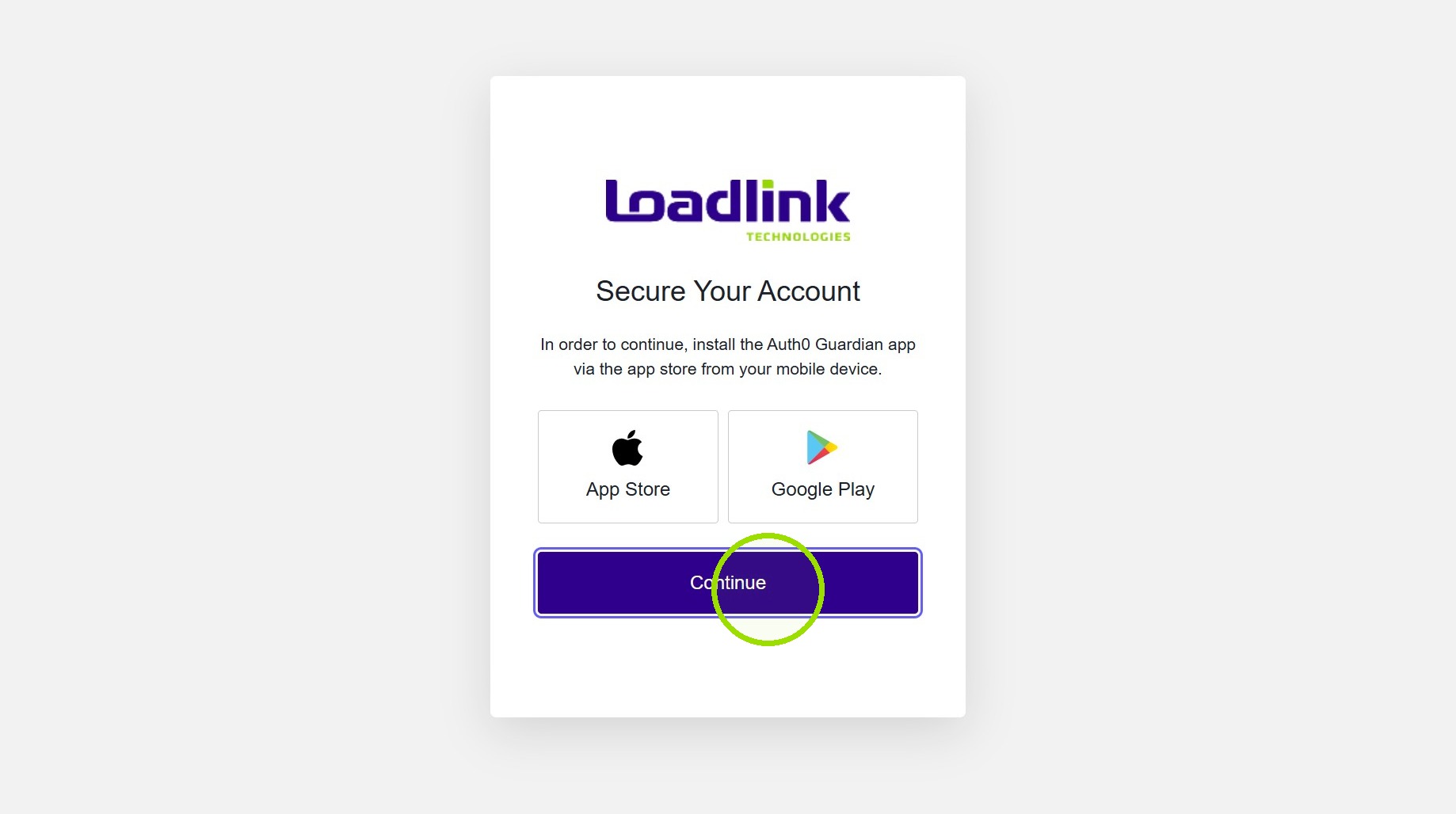
Once the app has been downloaded, select “Continue”.
The next page will be a QR code that will be used to link your account to the Auth0 Guardian app.
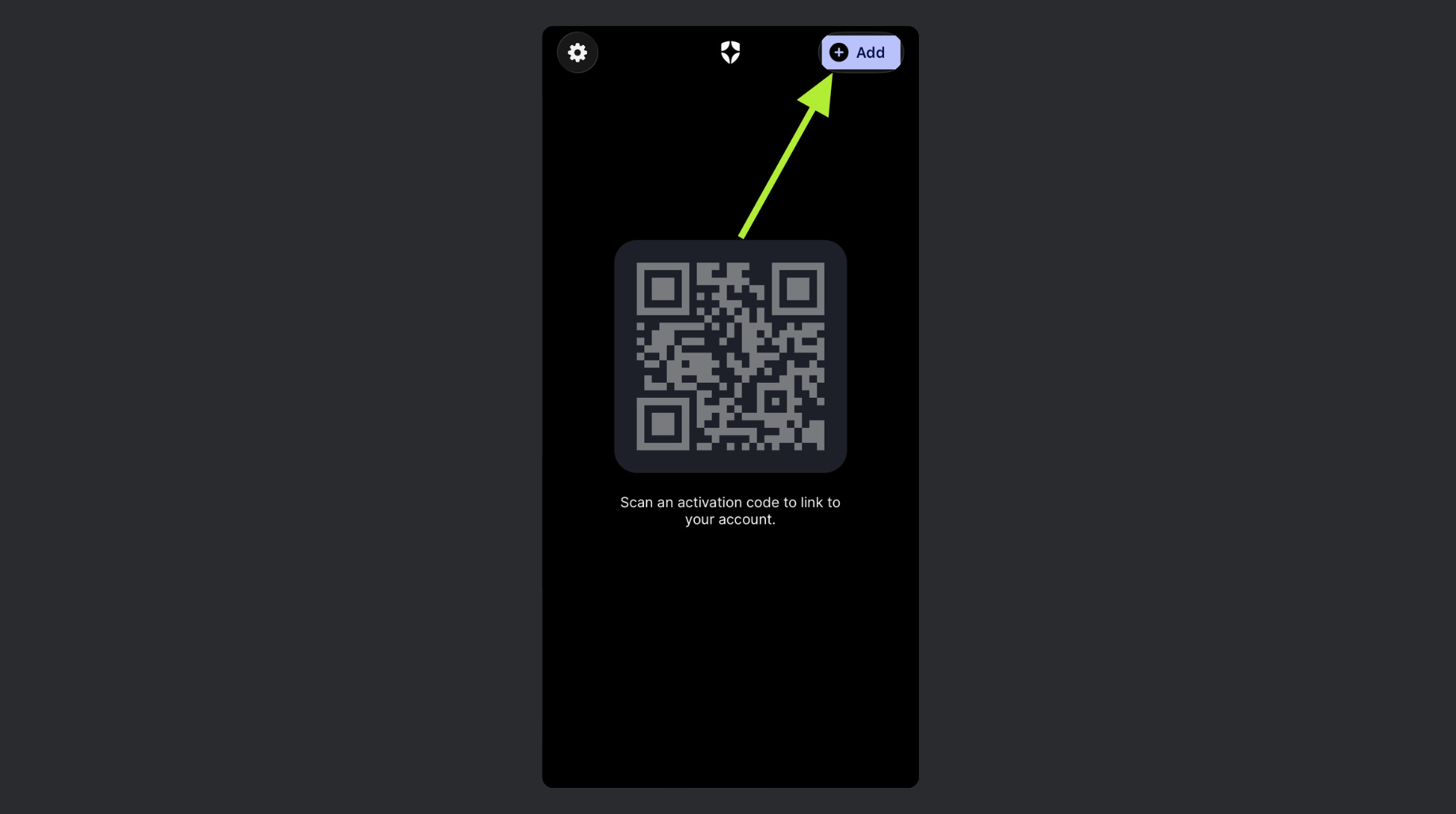
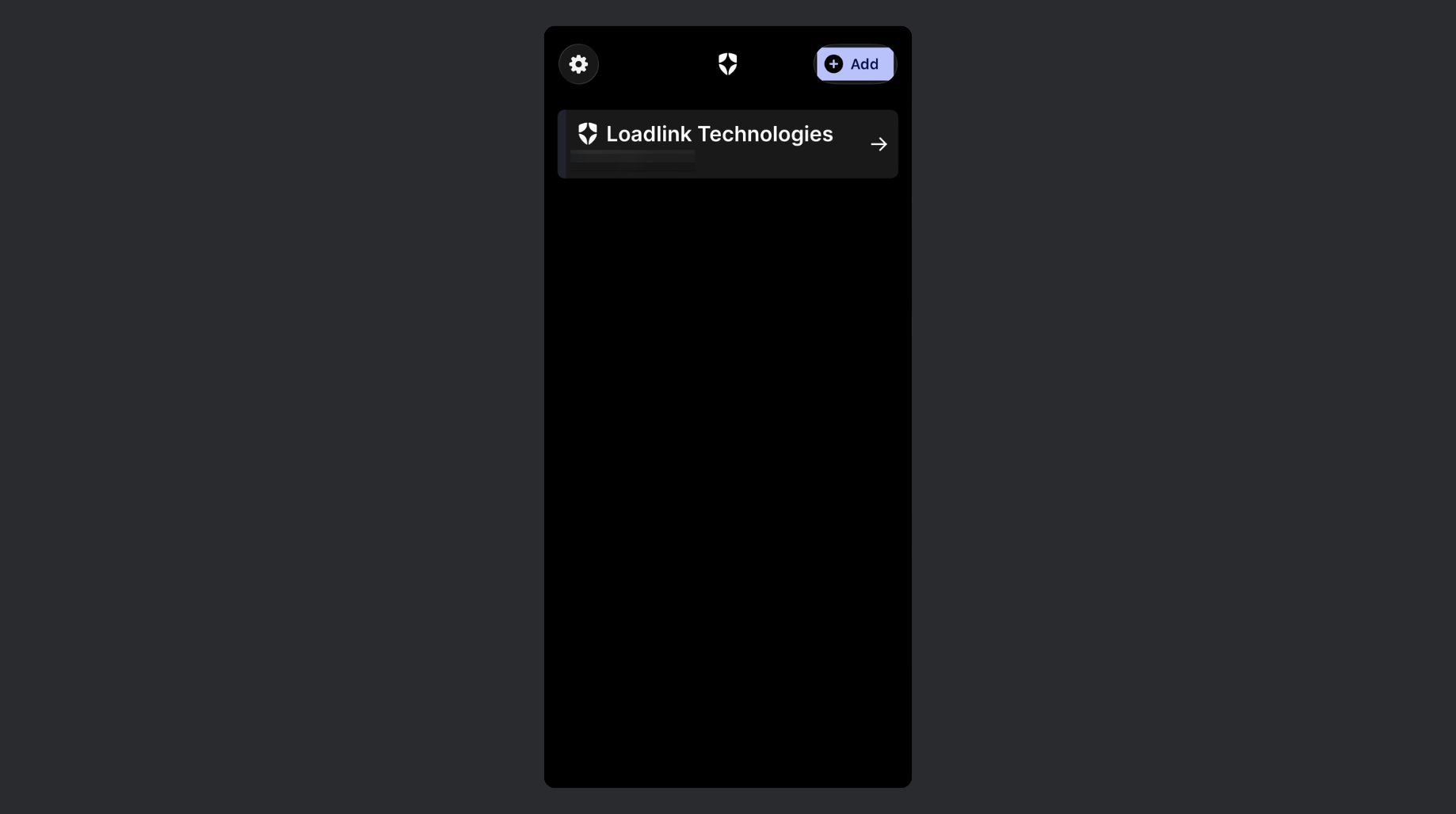
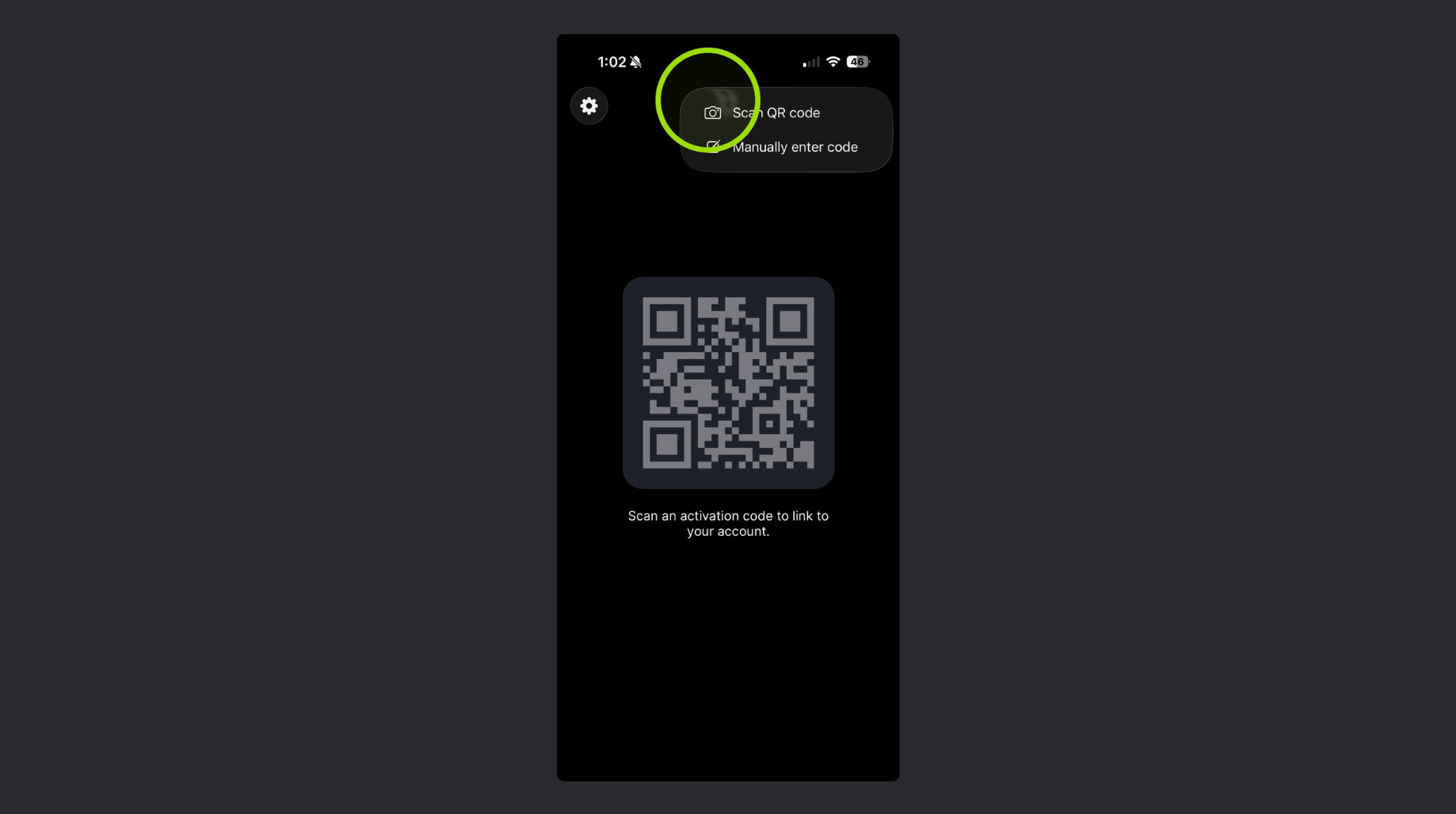
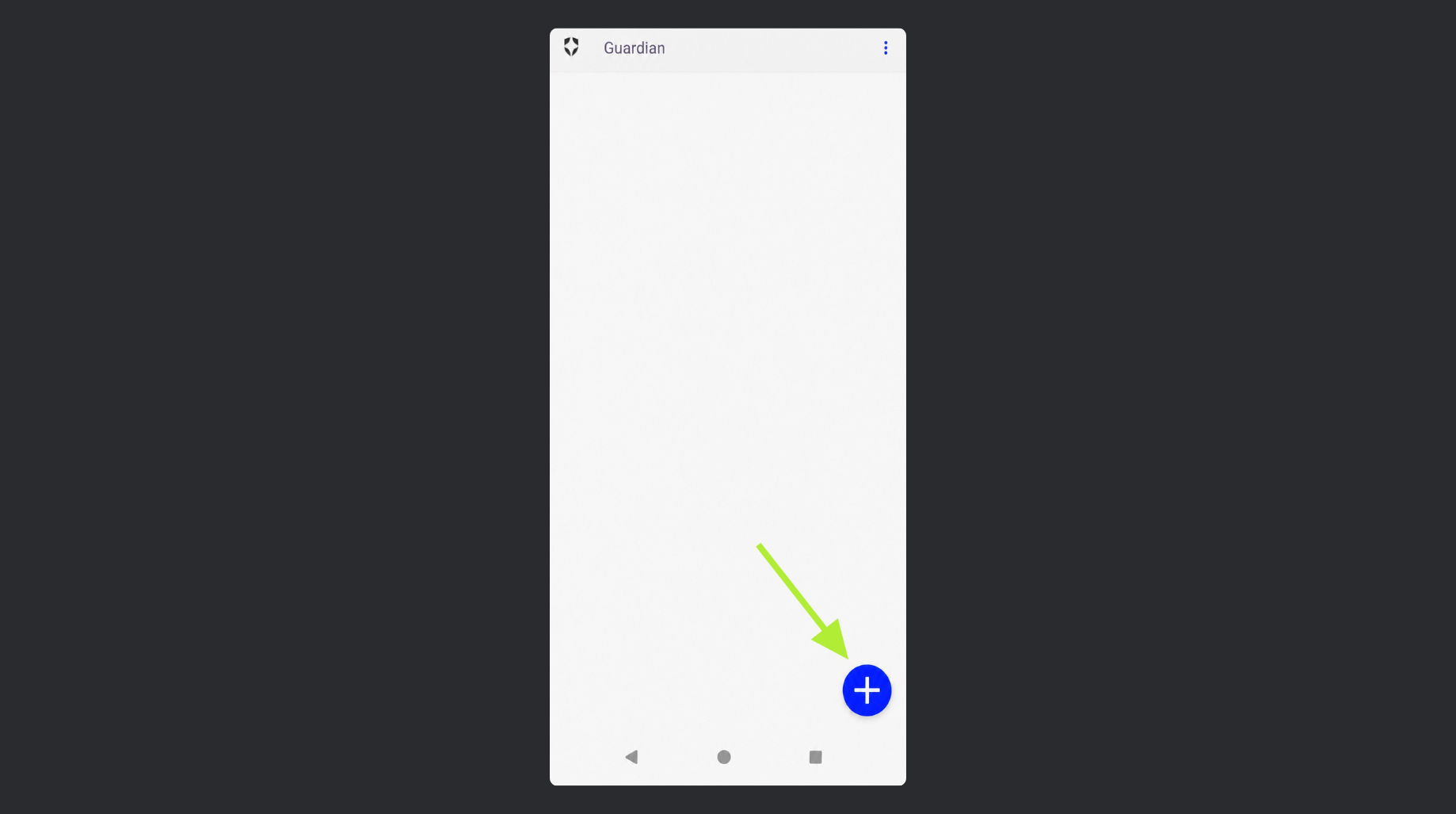
Click “Add”
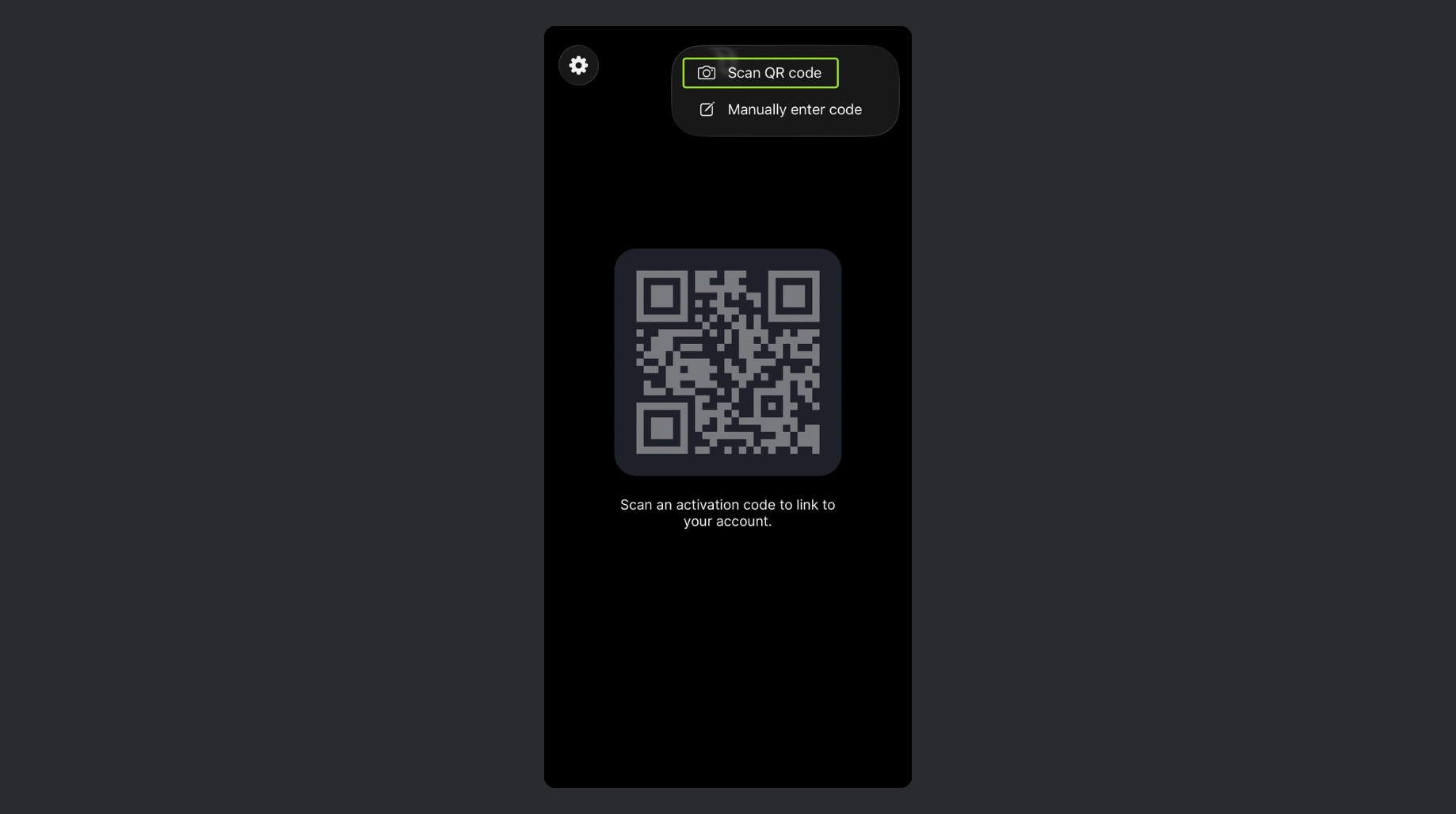
Next, select “Scan QR code”
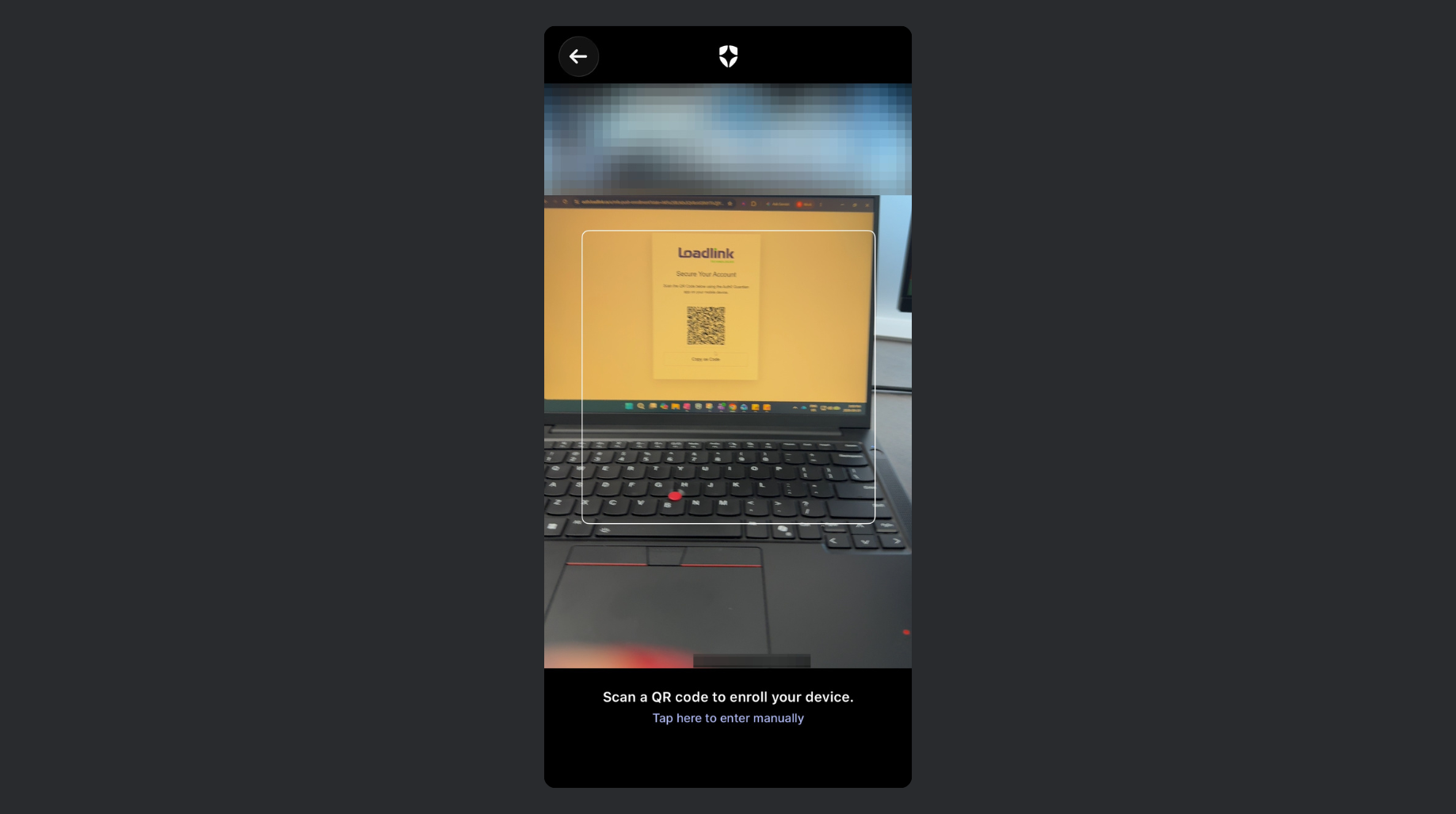
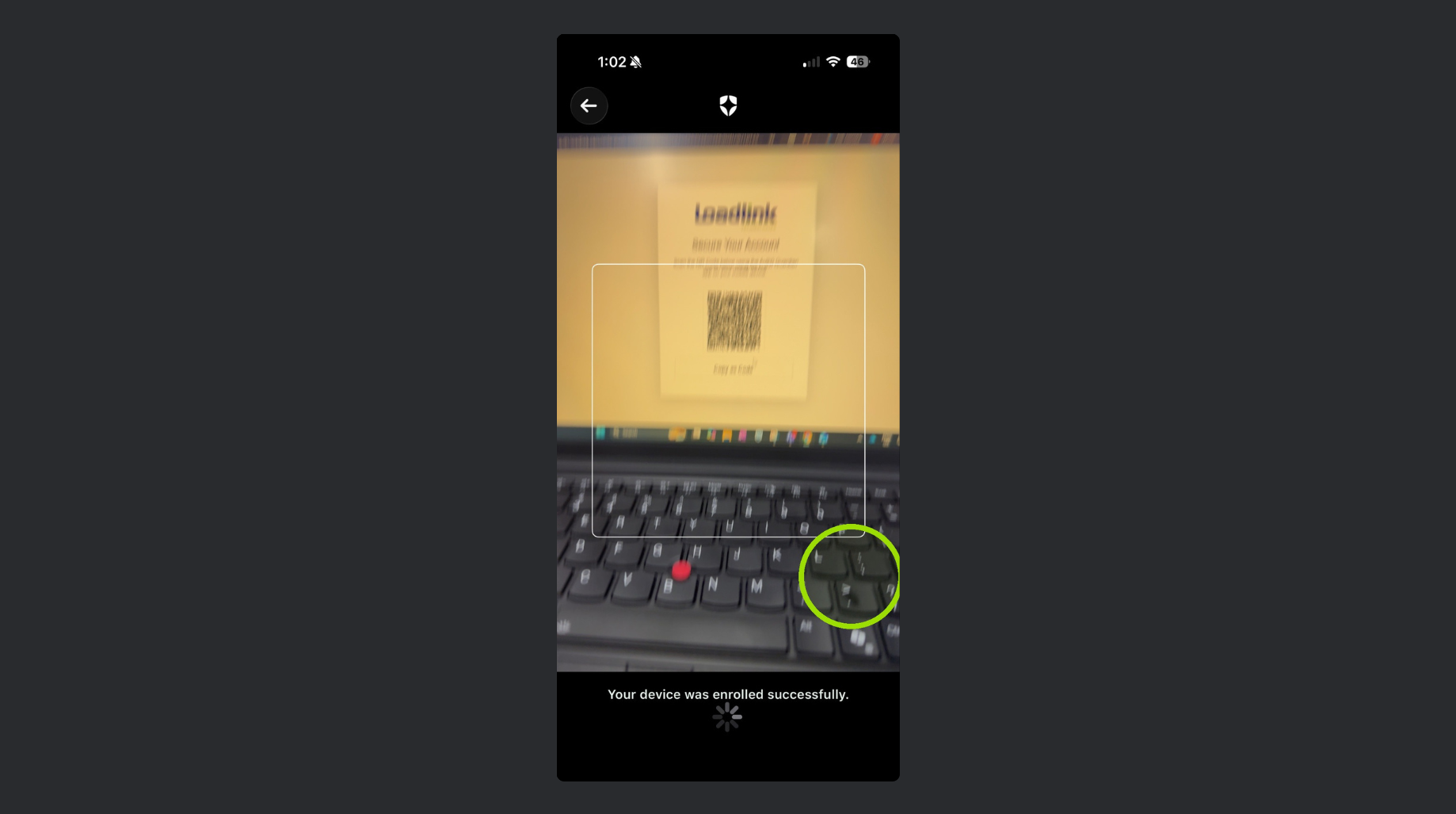
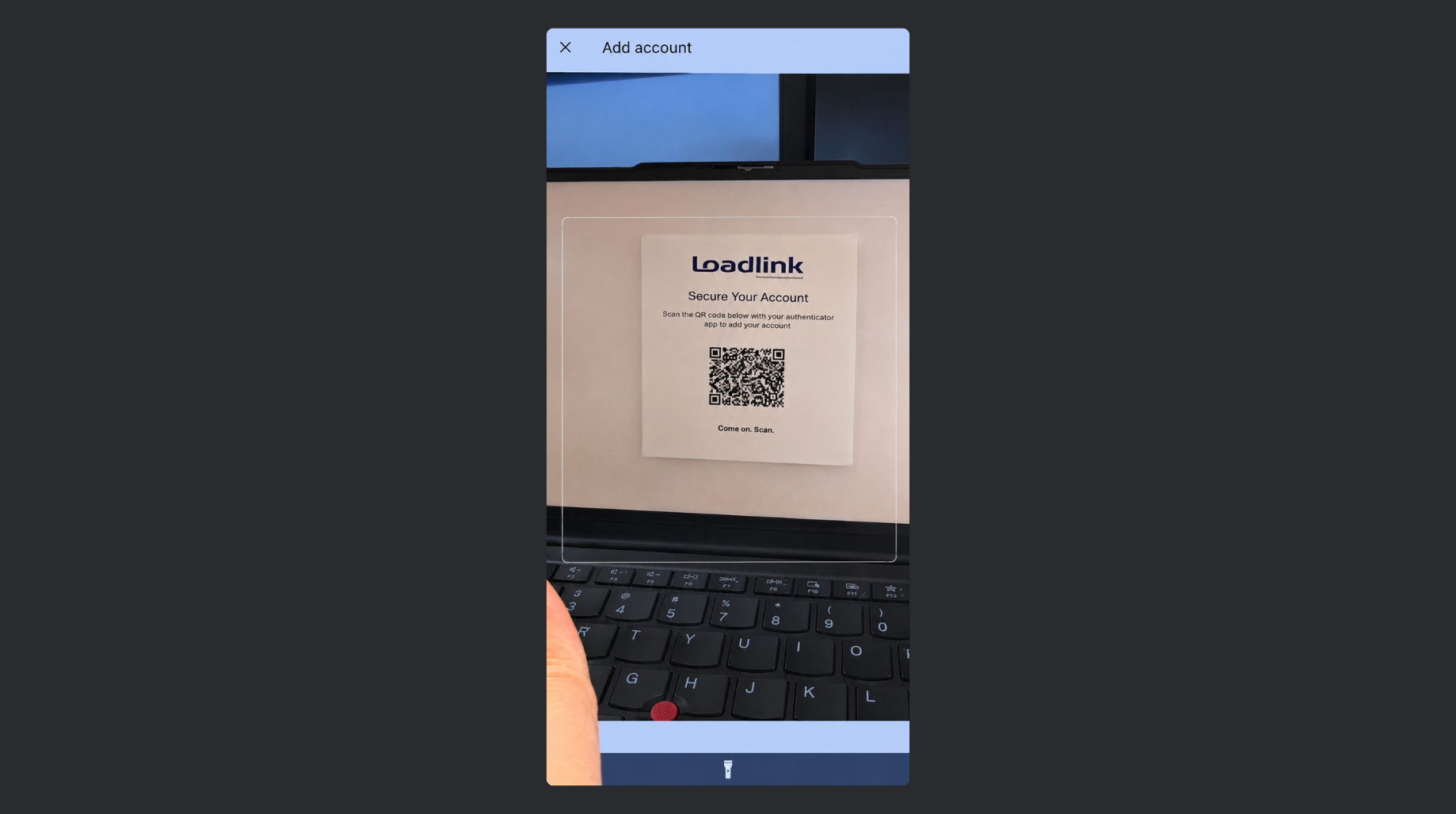
You will now hover your camera over the QR code which will be instantly scanned.
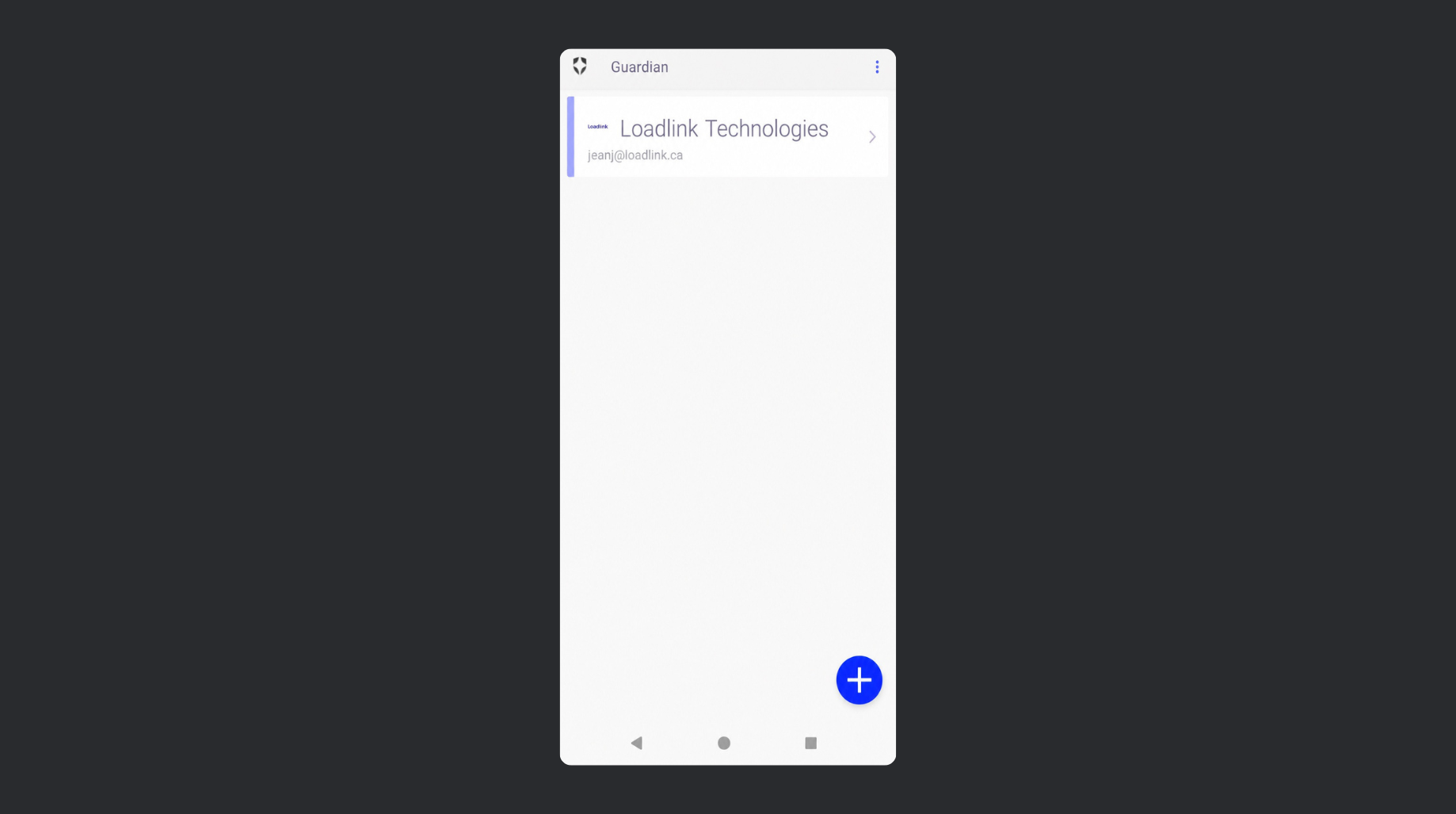
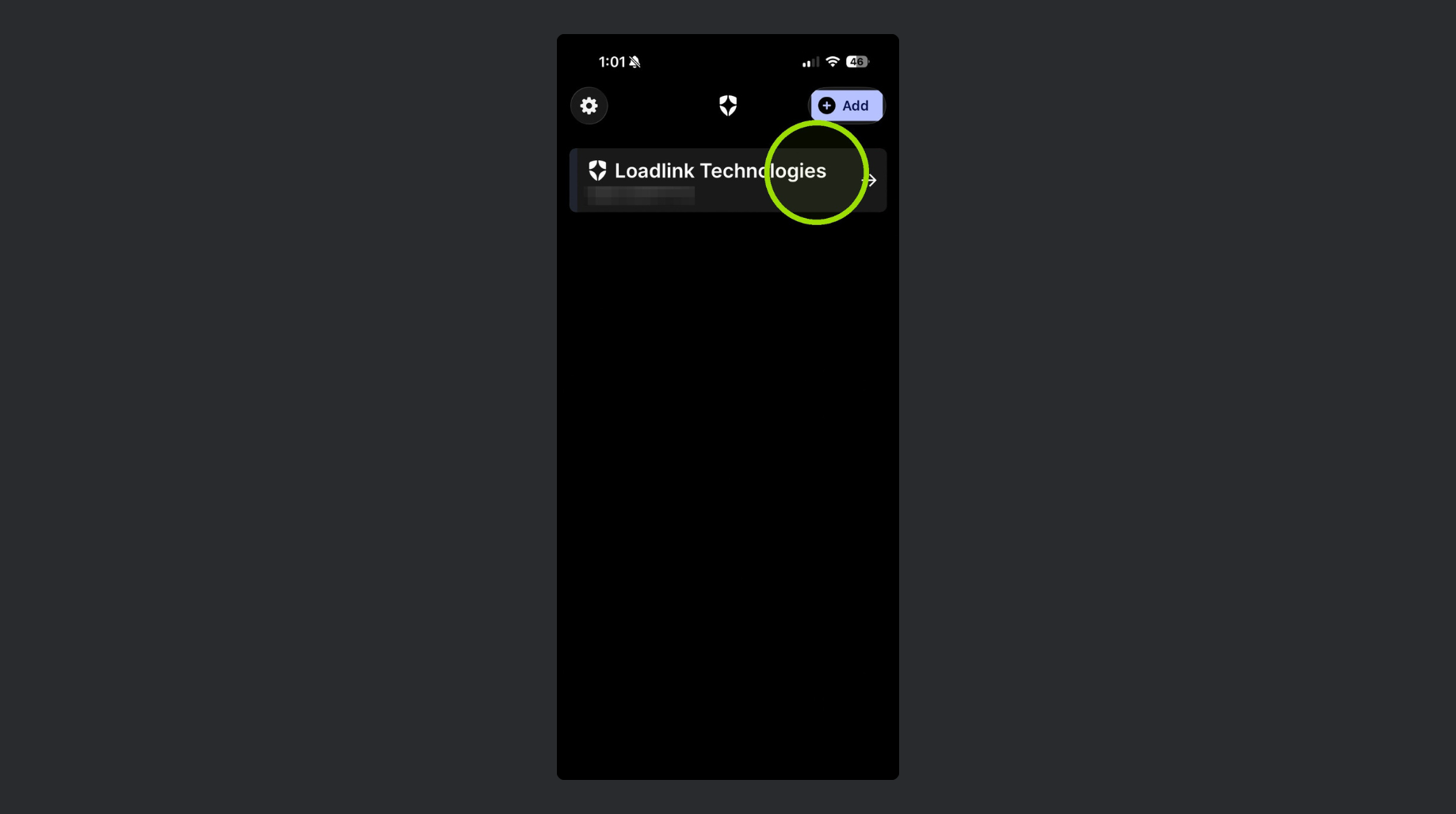
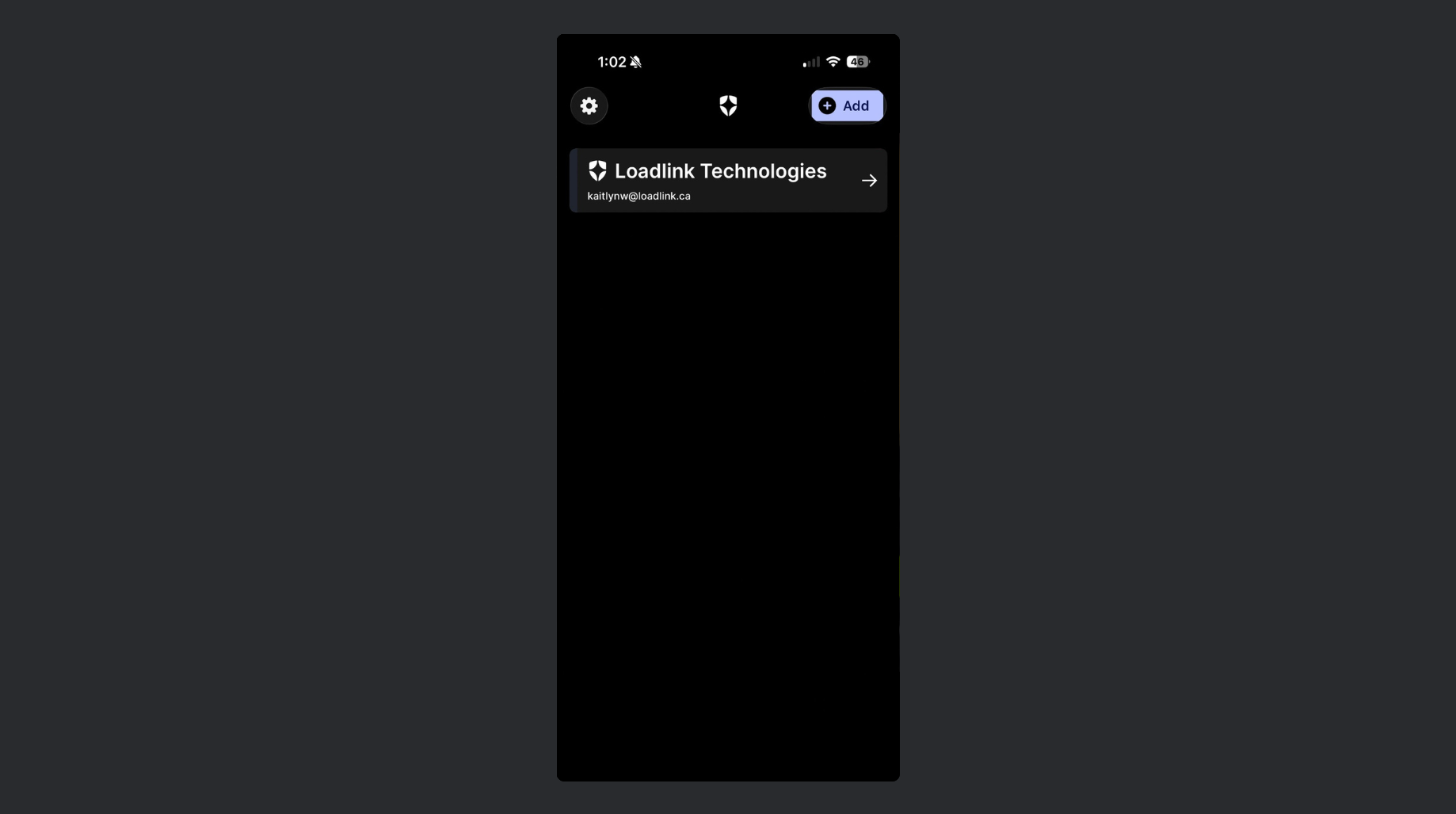
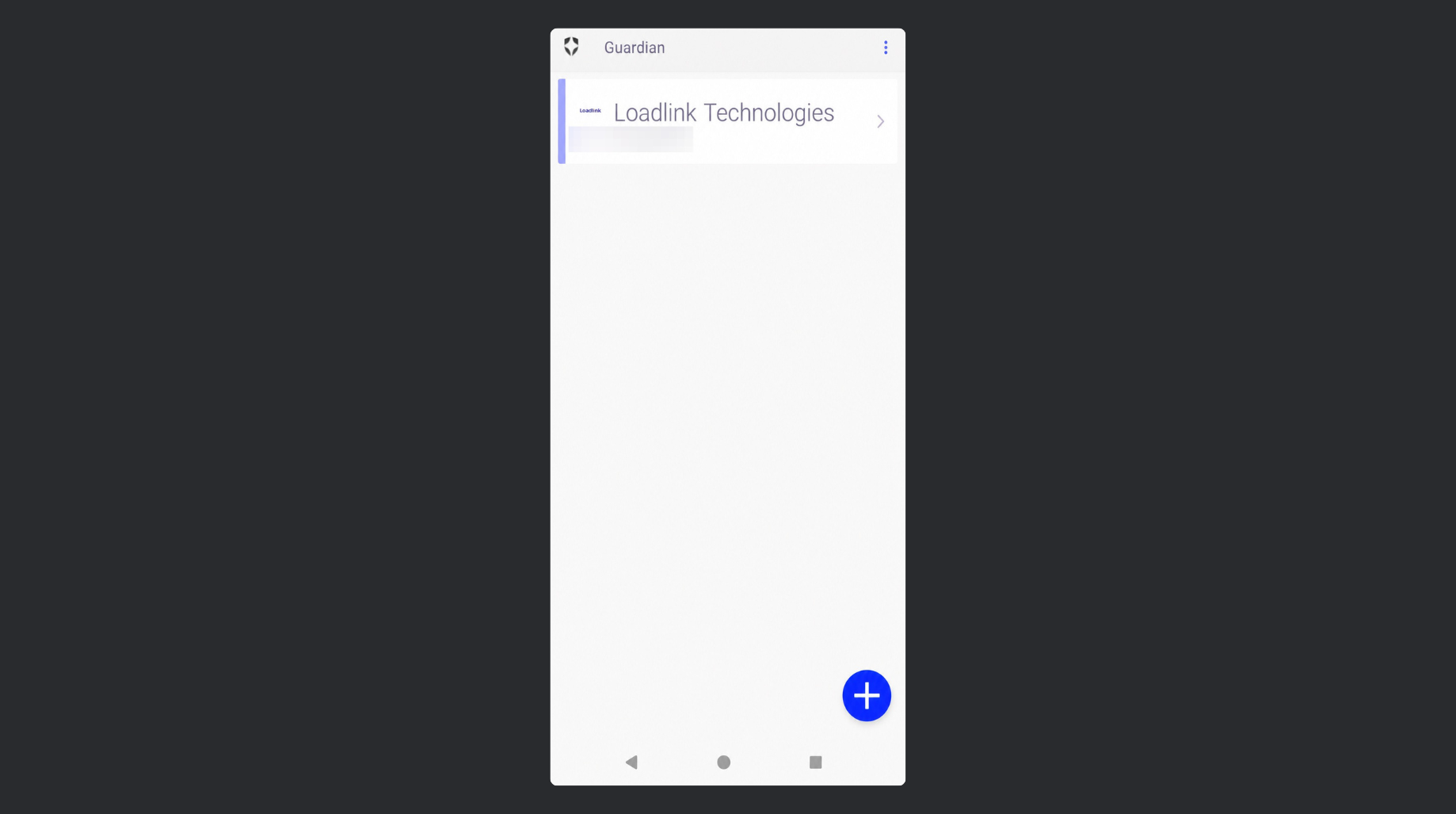
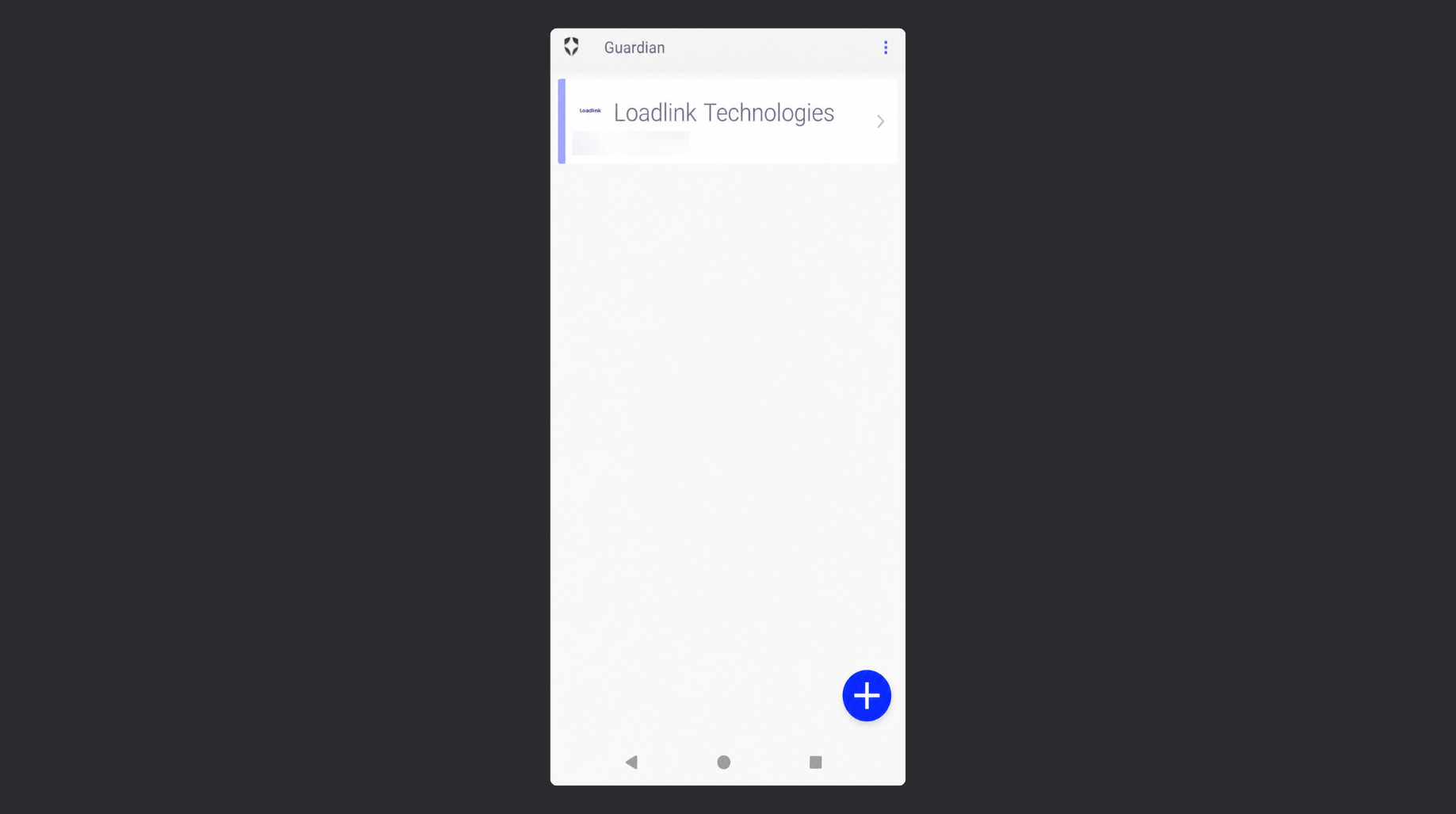
When the phone has been successfully enrolled, you will now get a registration in the Guardian app. This app will now serve as your second key for accessing Loadlink.
How MFA Works
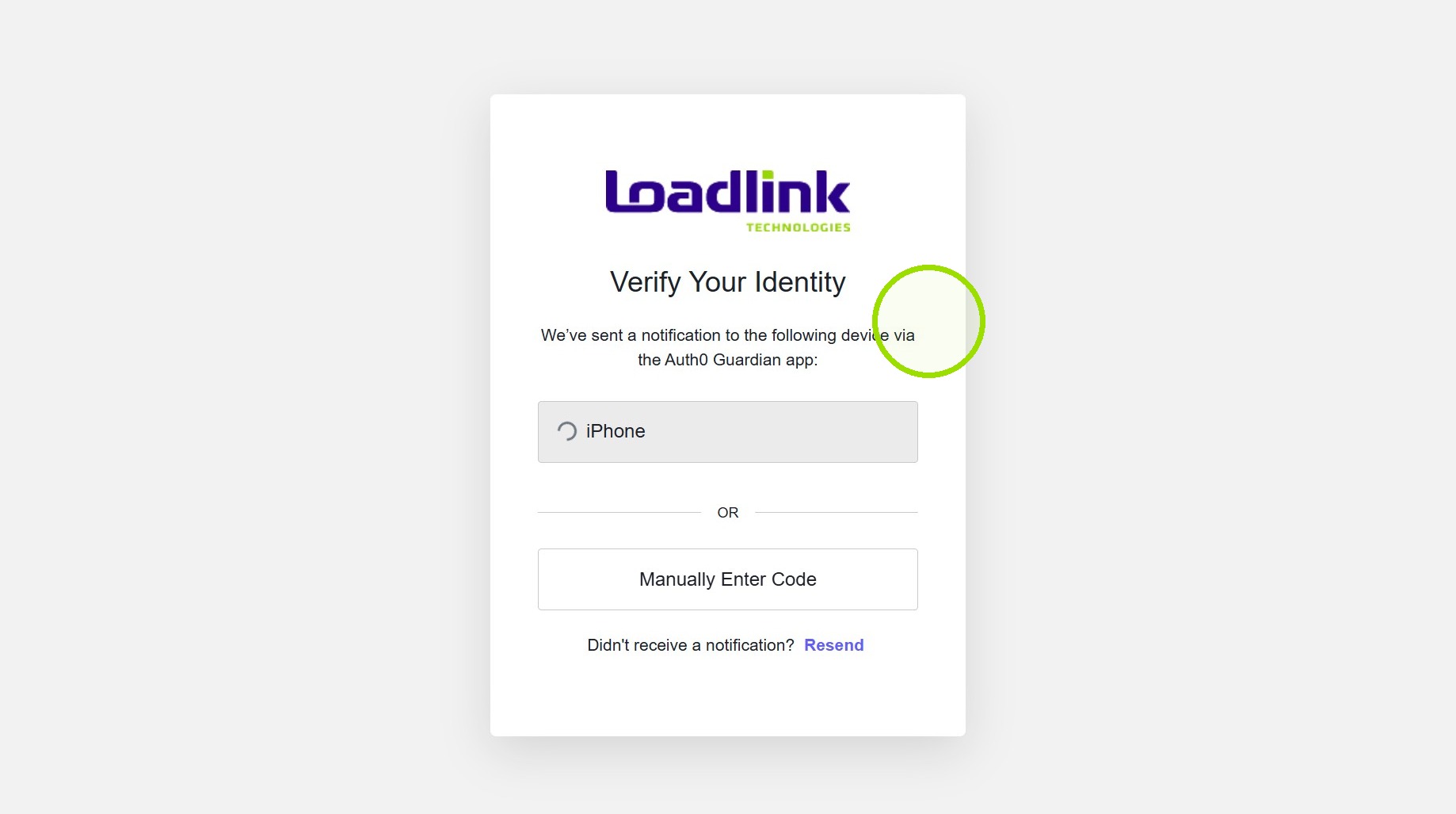
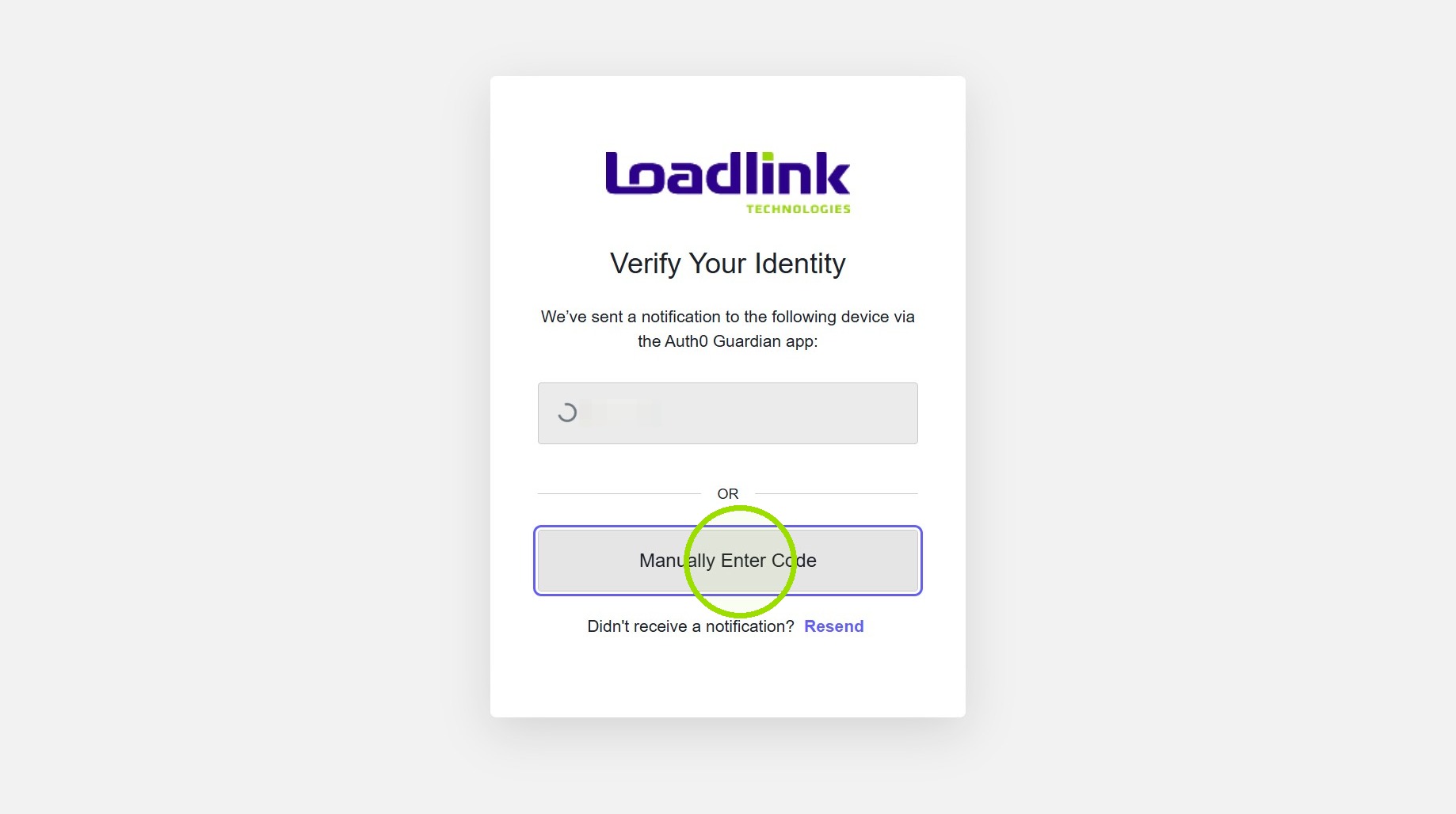
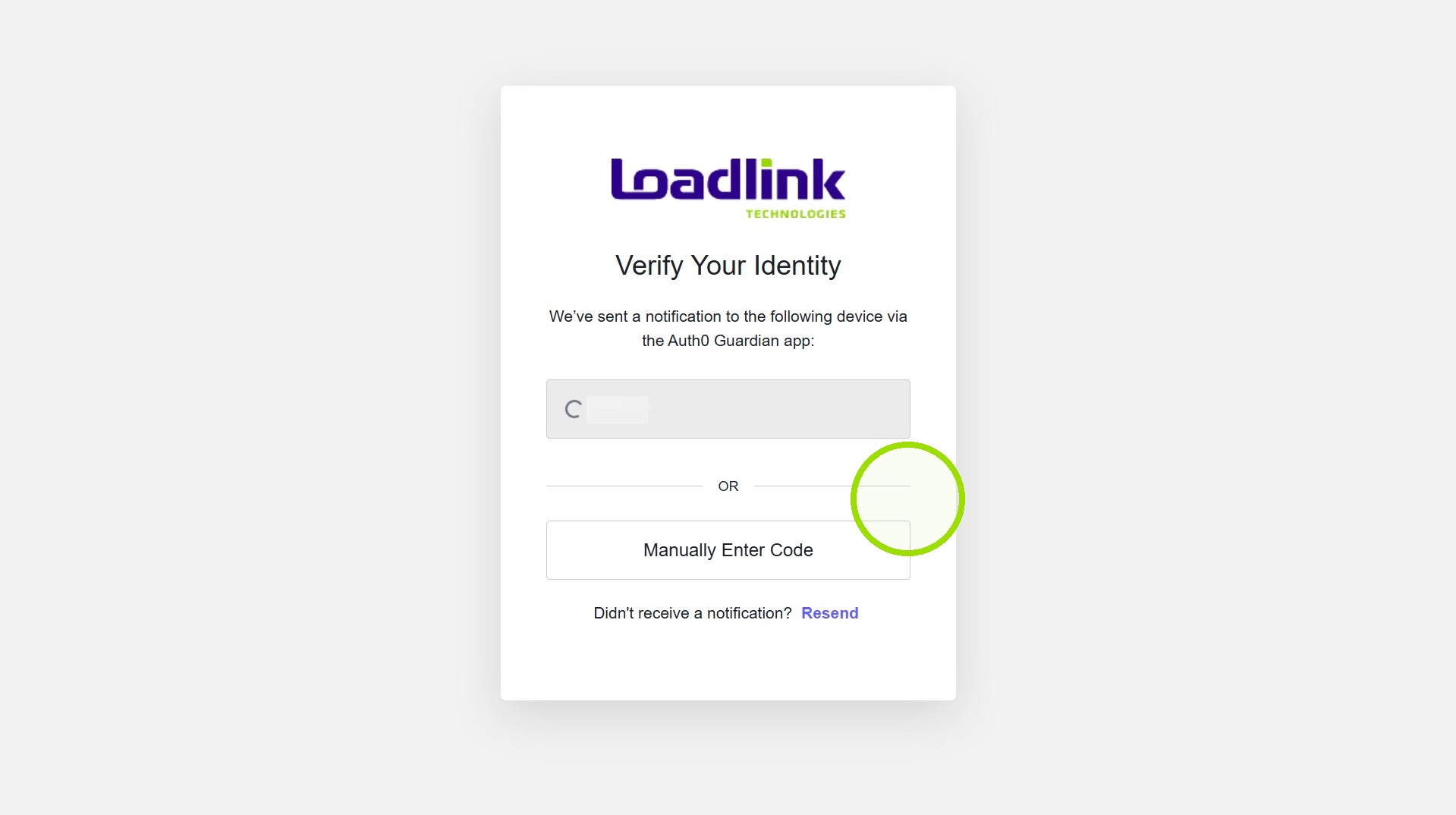
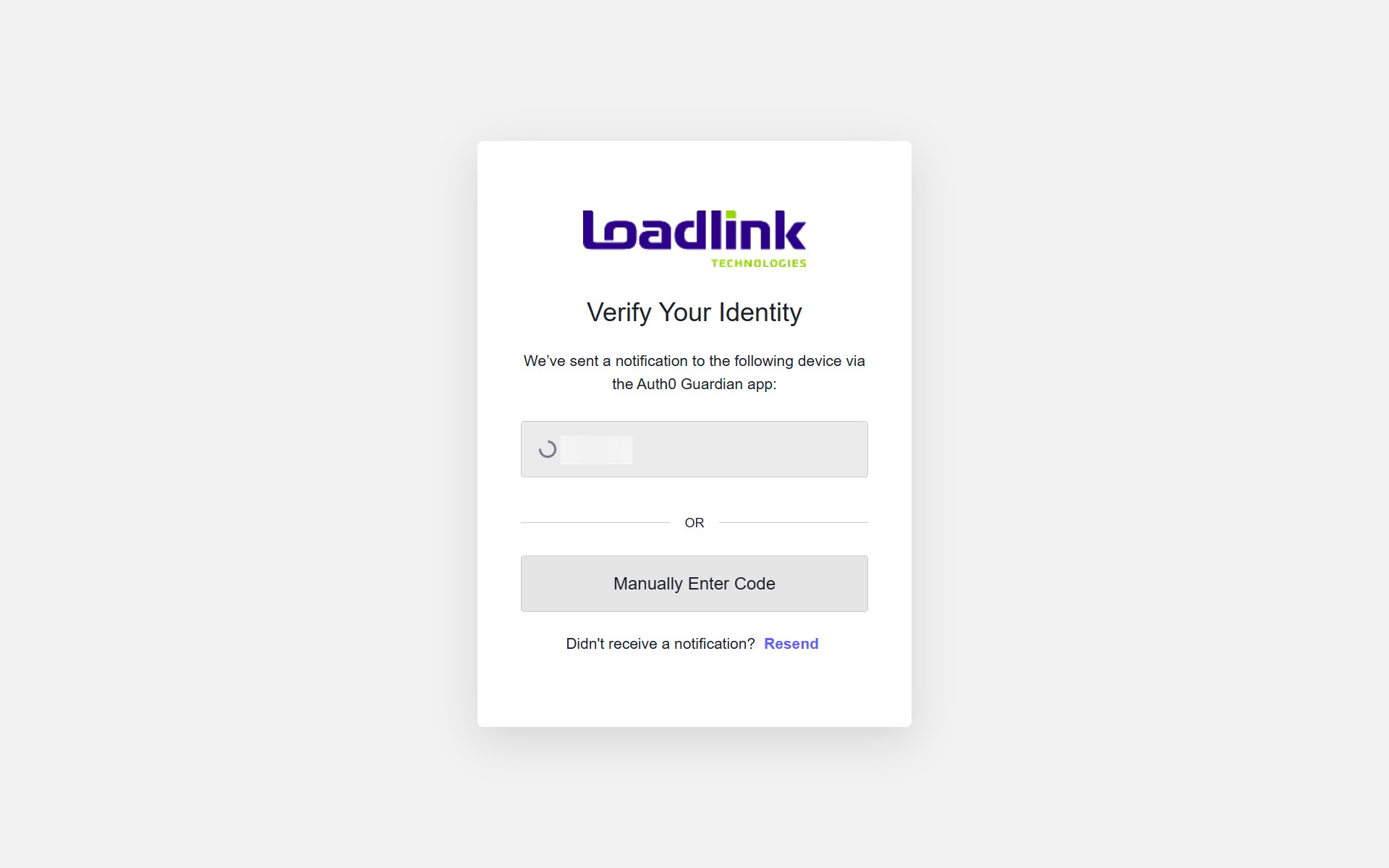
After your email and password is inputted, you will be prompted to Verify Your Identity.
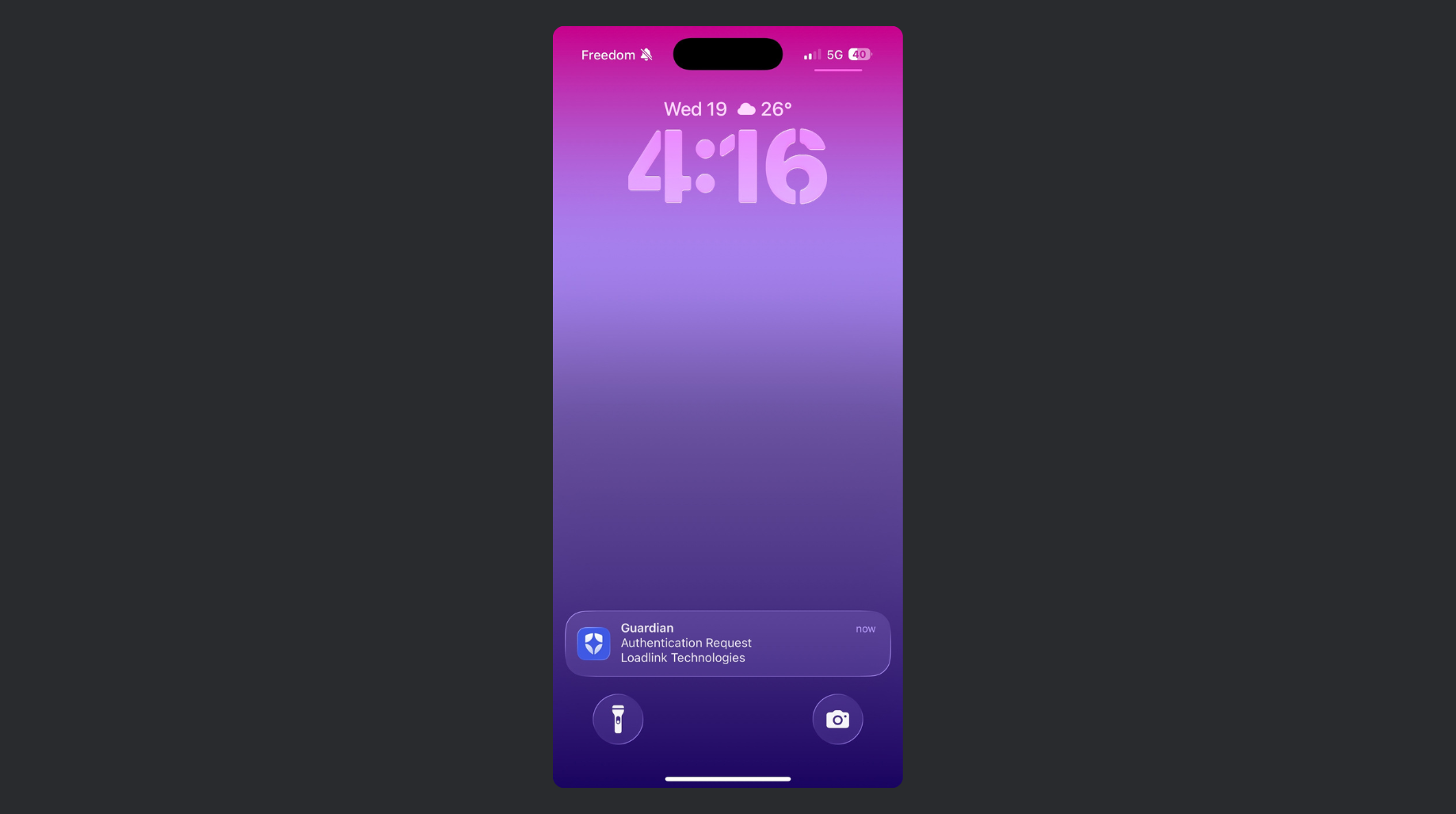
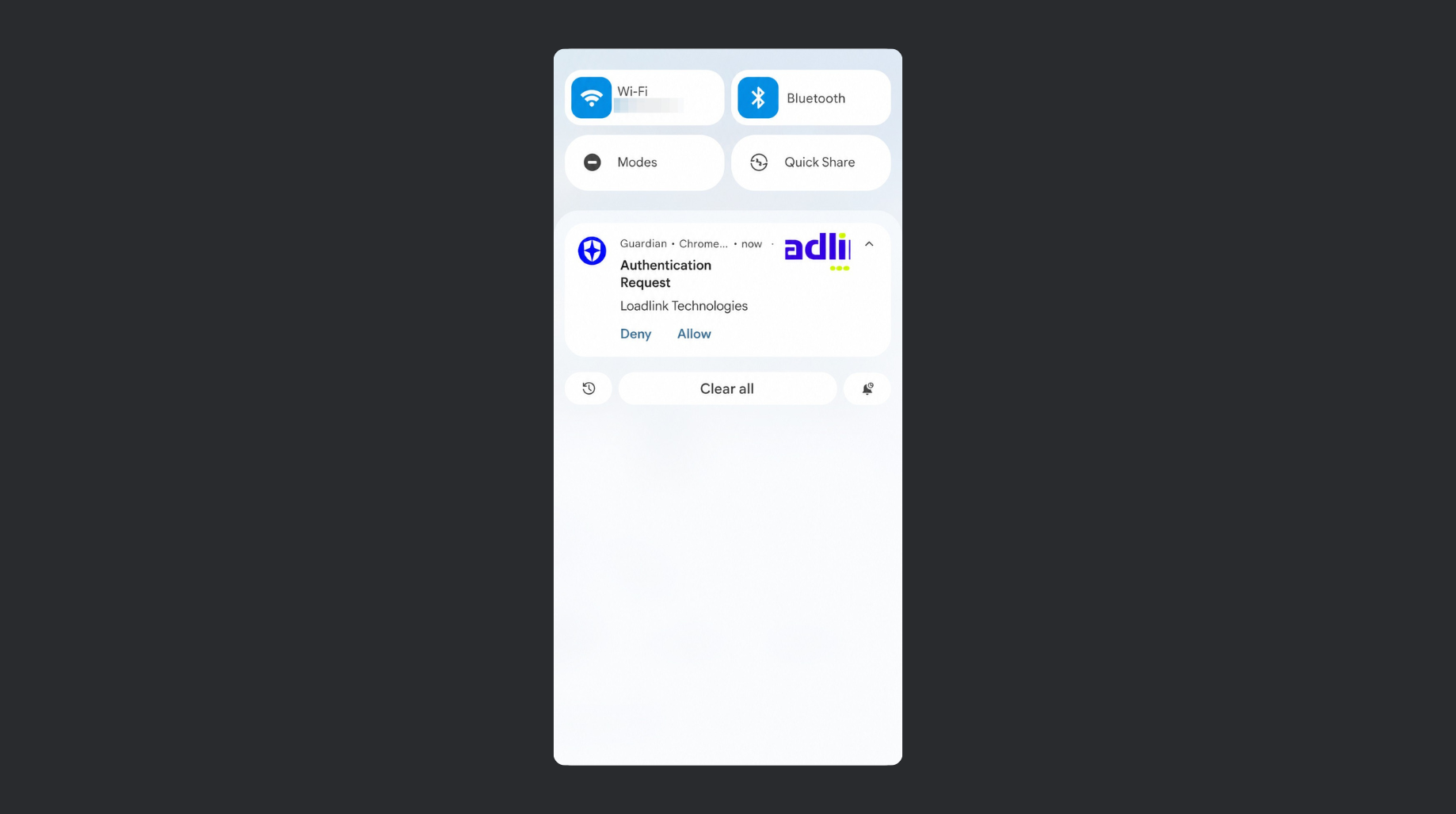
The first option here is you will get a push notification that will appear on your notification center.
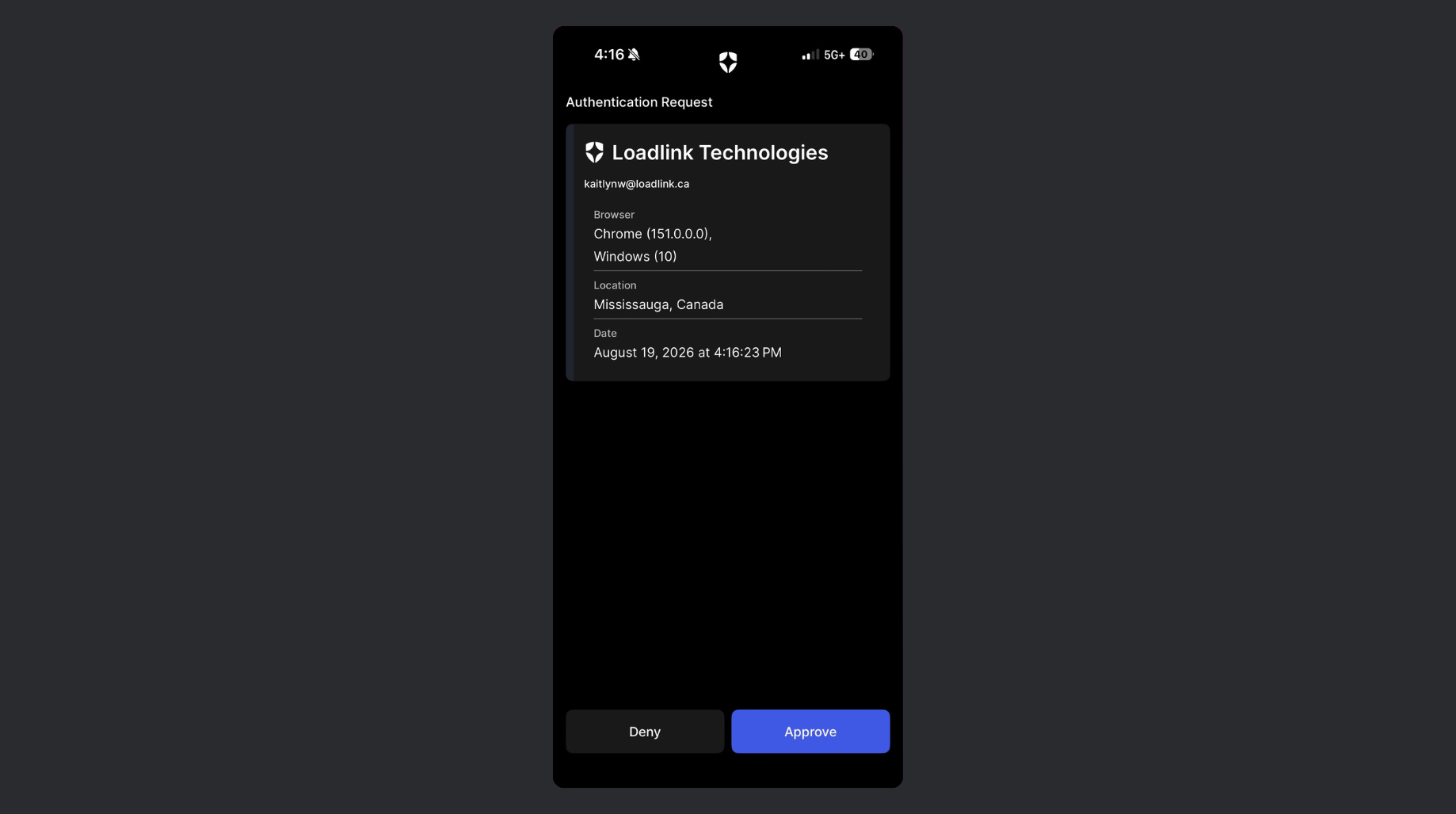
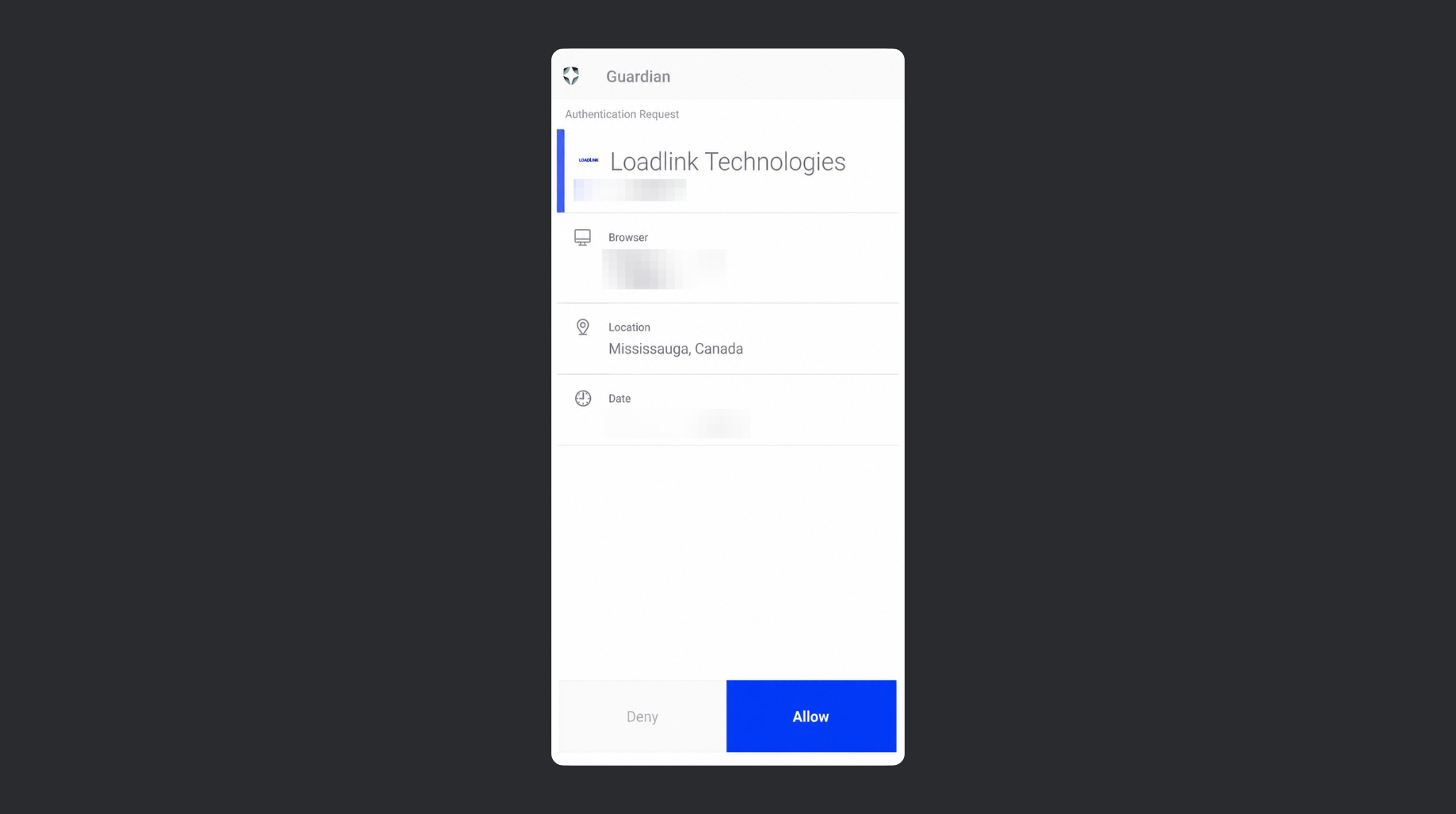
Click here and if everything aligns with your login position, select “Approve”
An alternate method for Authentication is by clicking “Manually Enter Code”
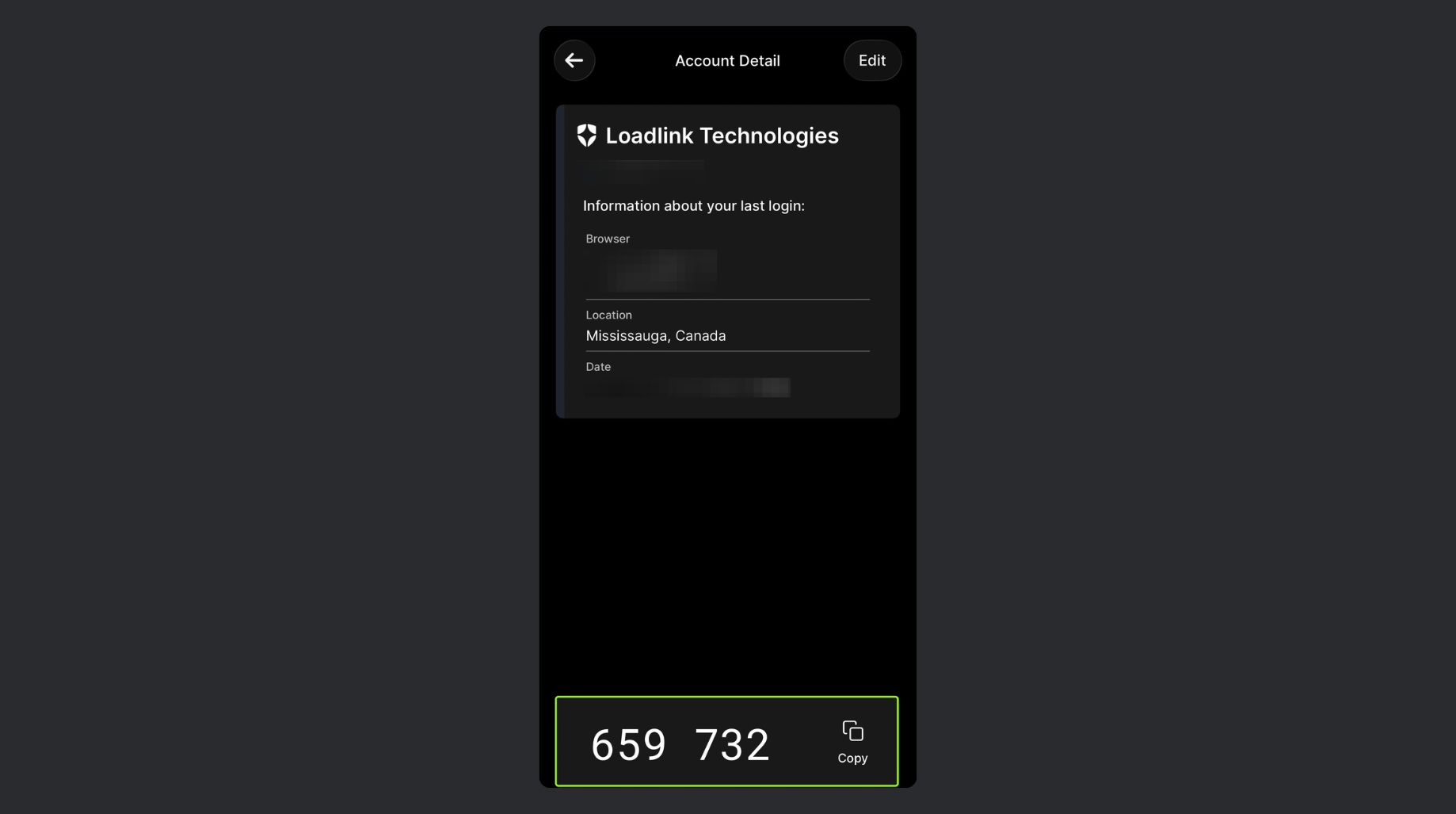
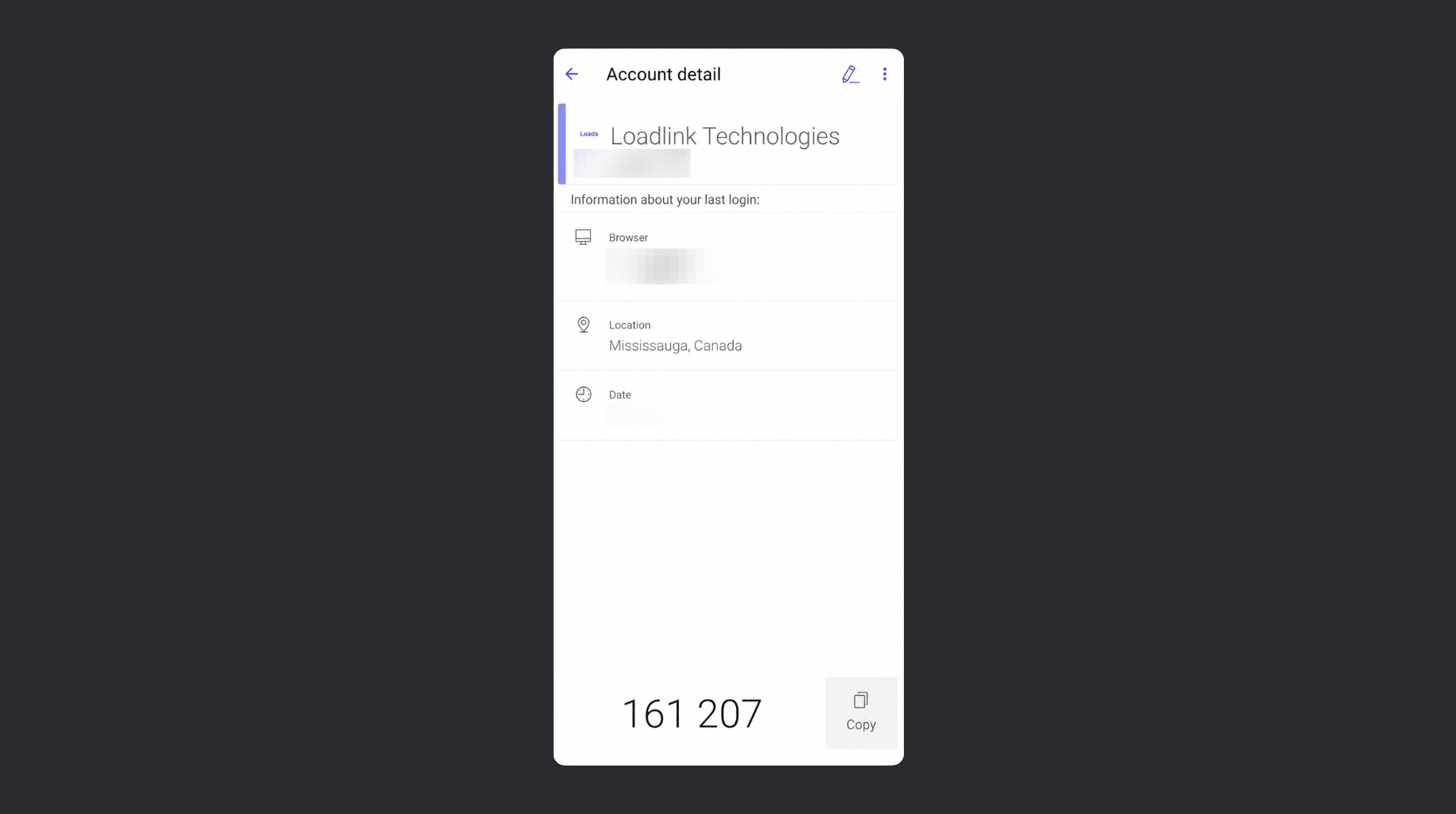
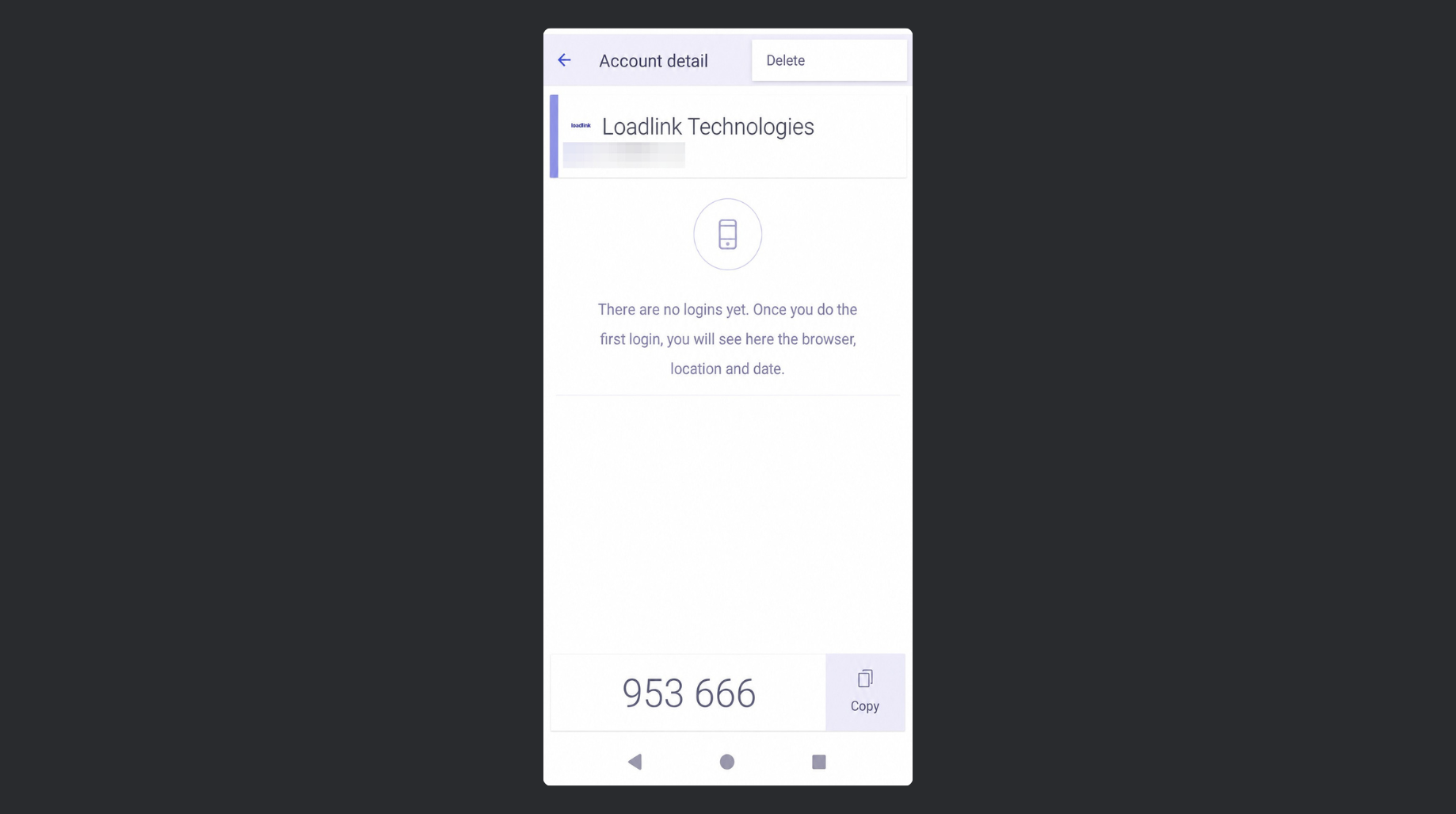
This manual code will be available in your Auth0 Guardian app. Click on your registration to pull up the Account Detail page. Your manual code will be available at the bottom of the screen
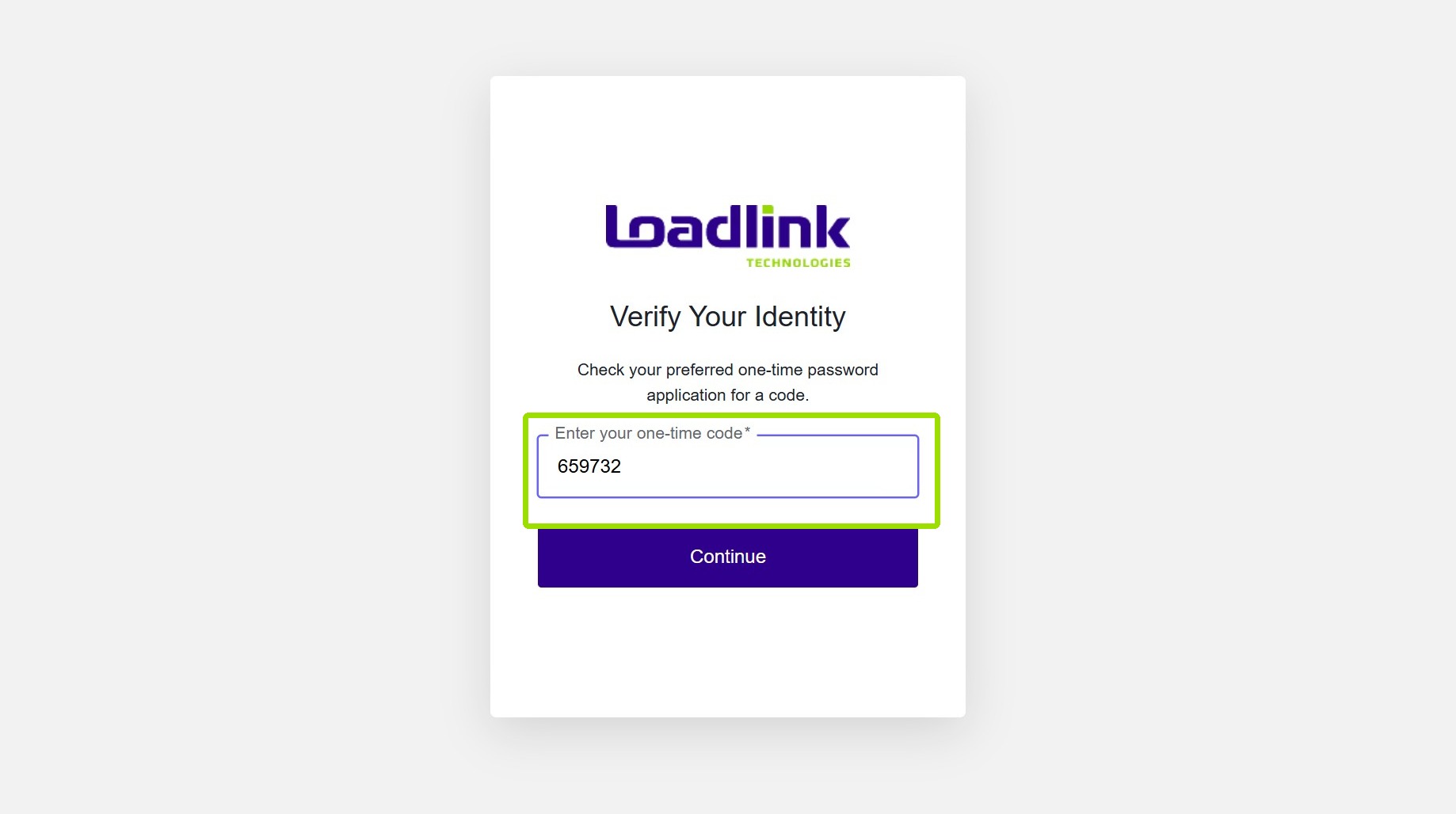
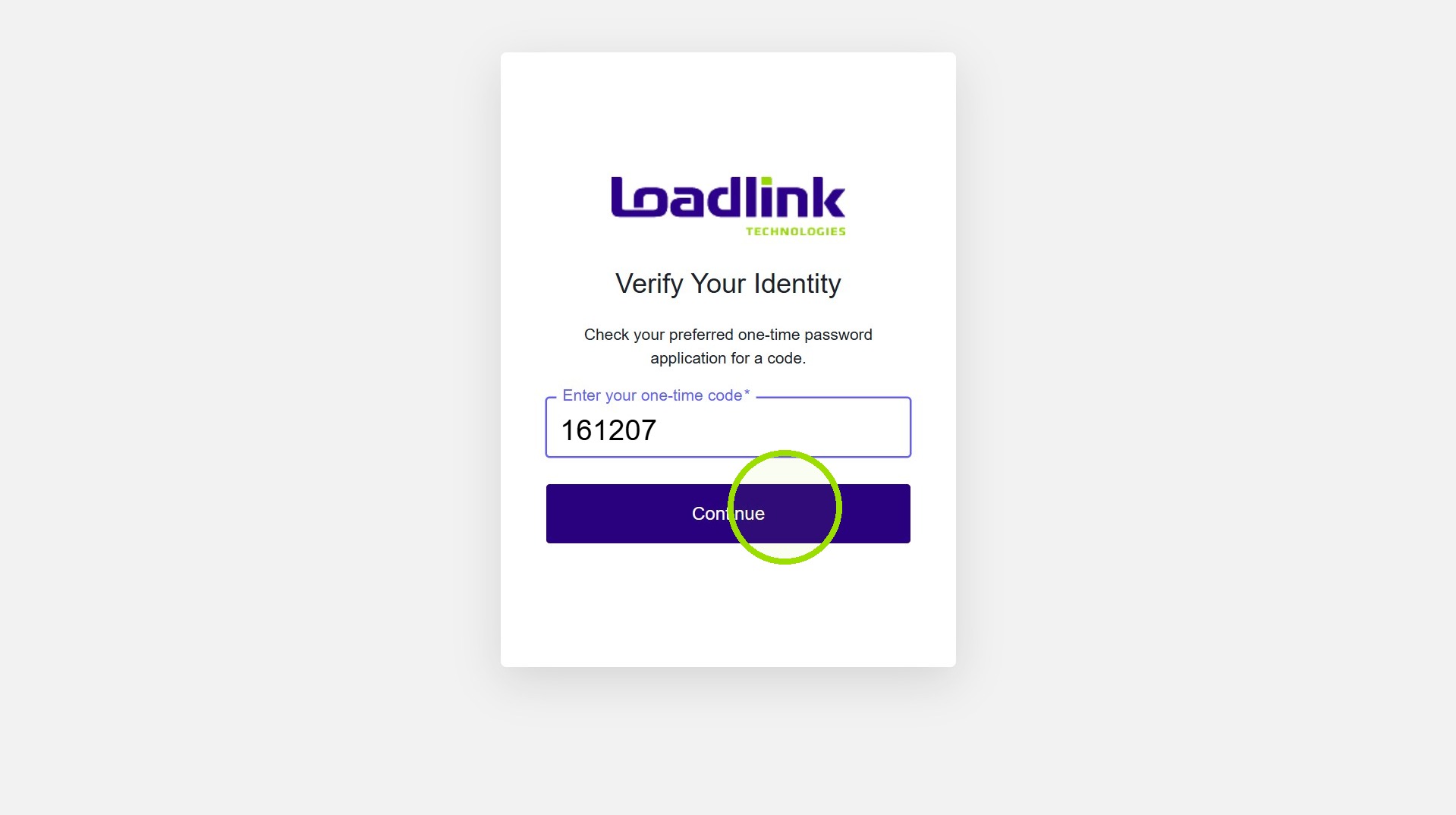
Enter this code and select continue.
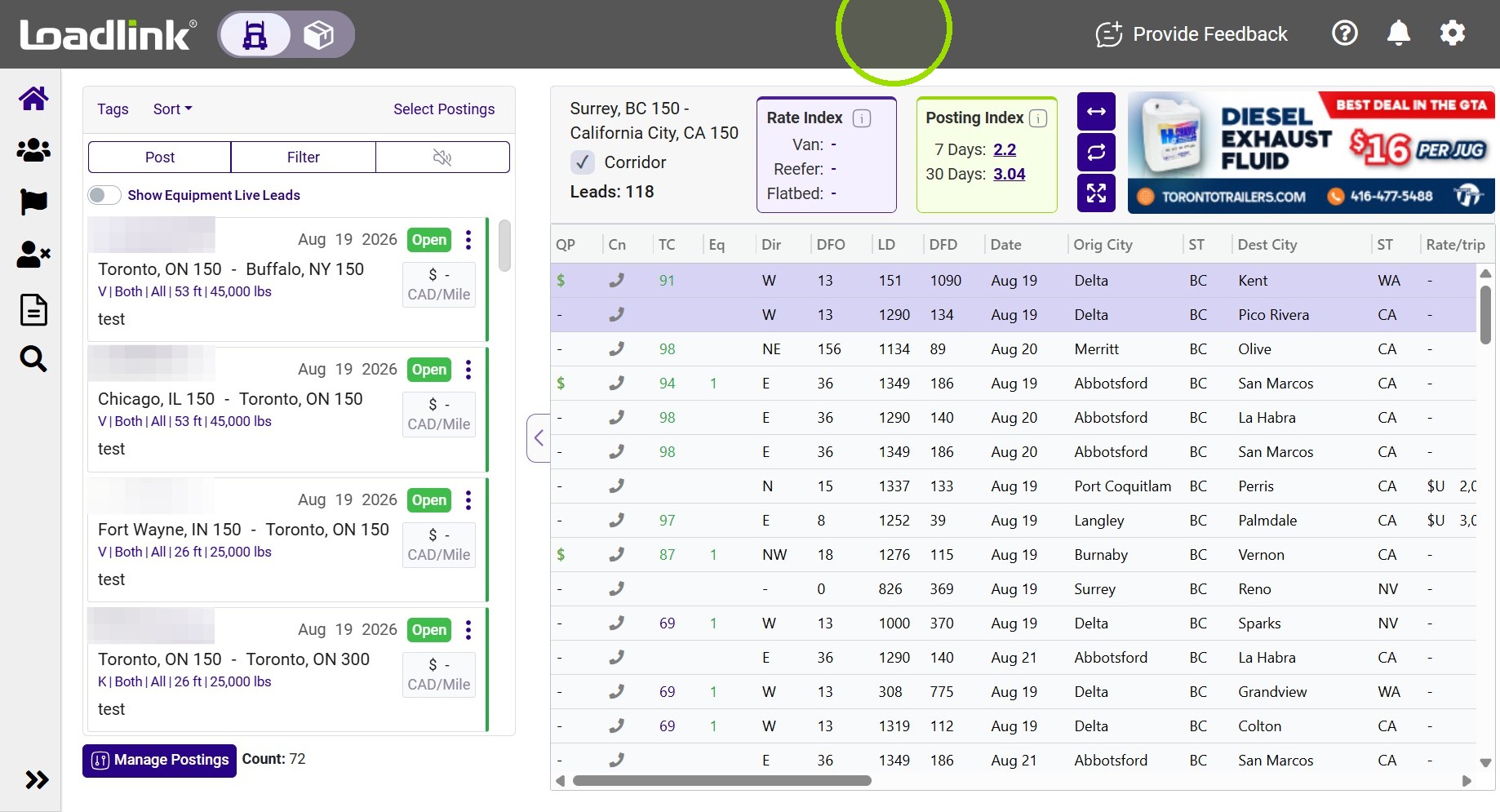
Congratulations! You’ve successfully completed Second Factor Authentication on your Loadlink Account!
When your Multi Factor Authentication is ready to enroll, you will be prompted with the “Secure Your Account” page.
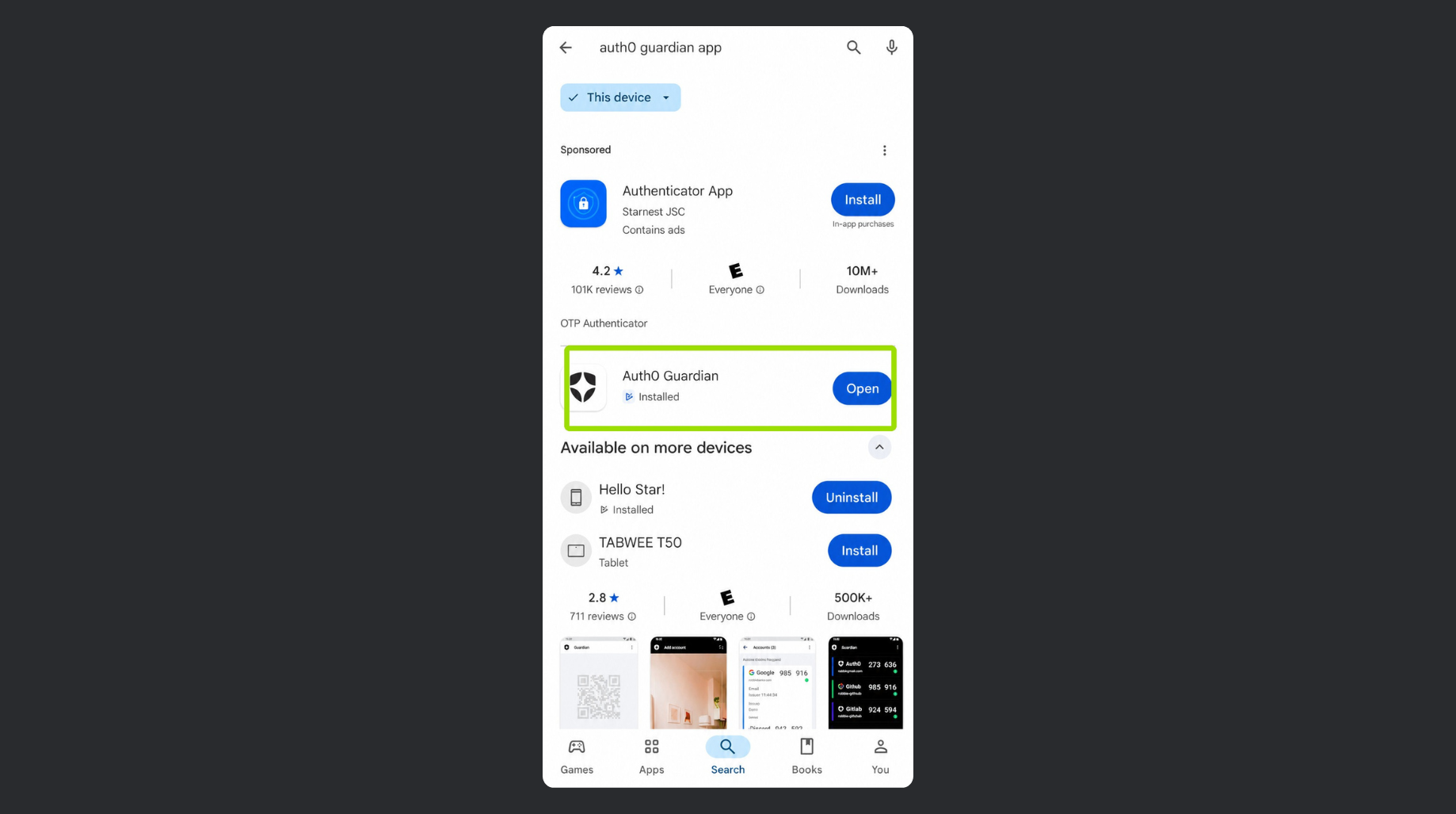
Referring to your Android device, type “Auth0 Guardian” into the search bar on your Google Play App. The Correct app will be listed under Auth0 Guardian
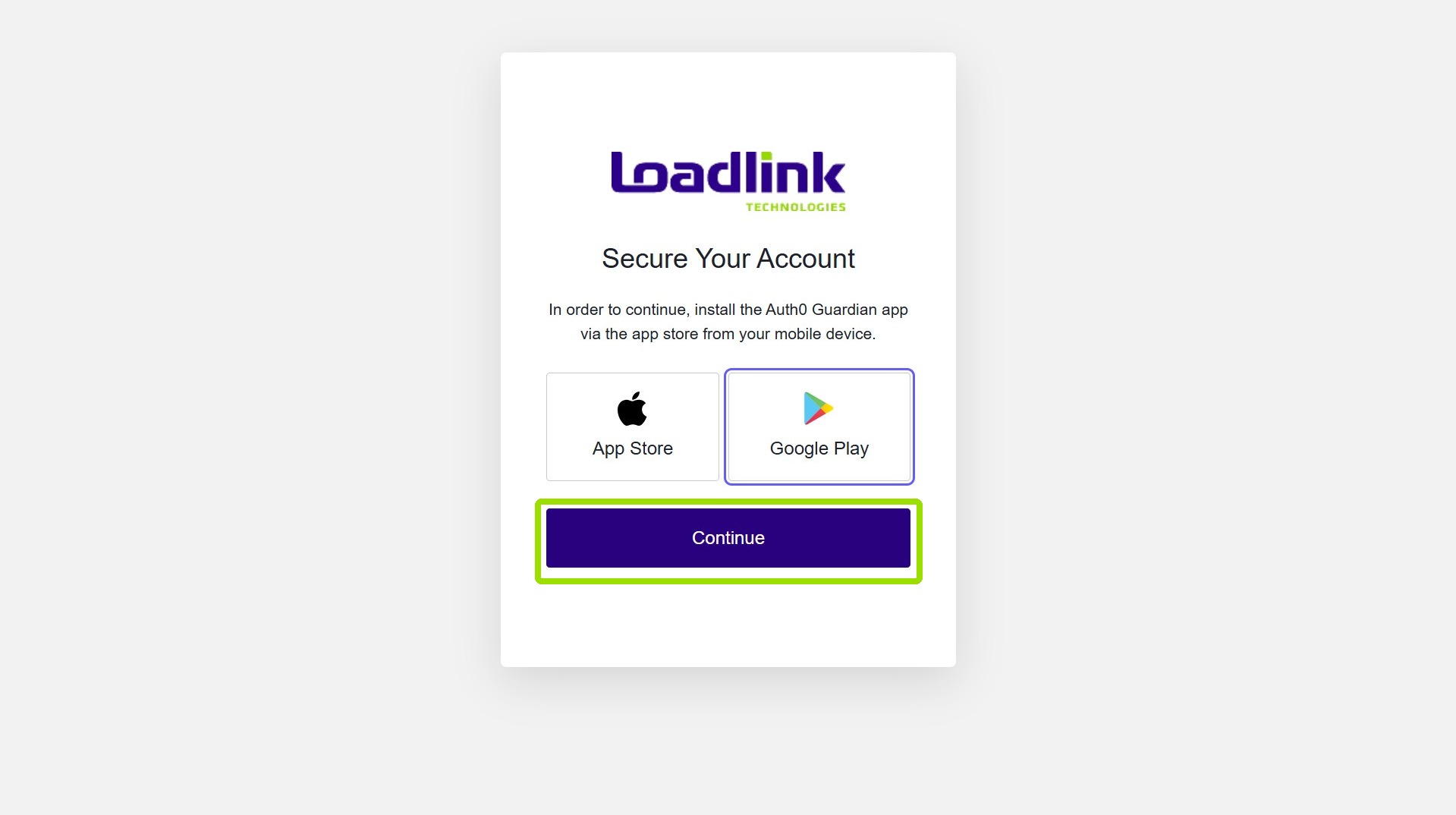
Click “Continue” on the Secure Your Account prompt.
Click “Continue” on the Secure Your Account prompt.
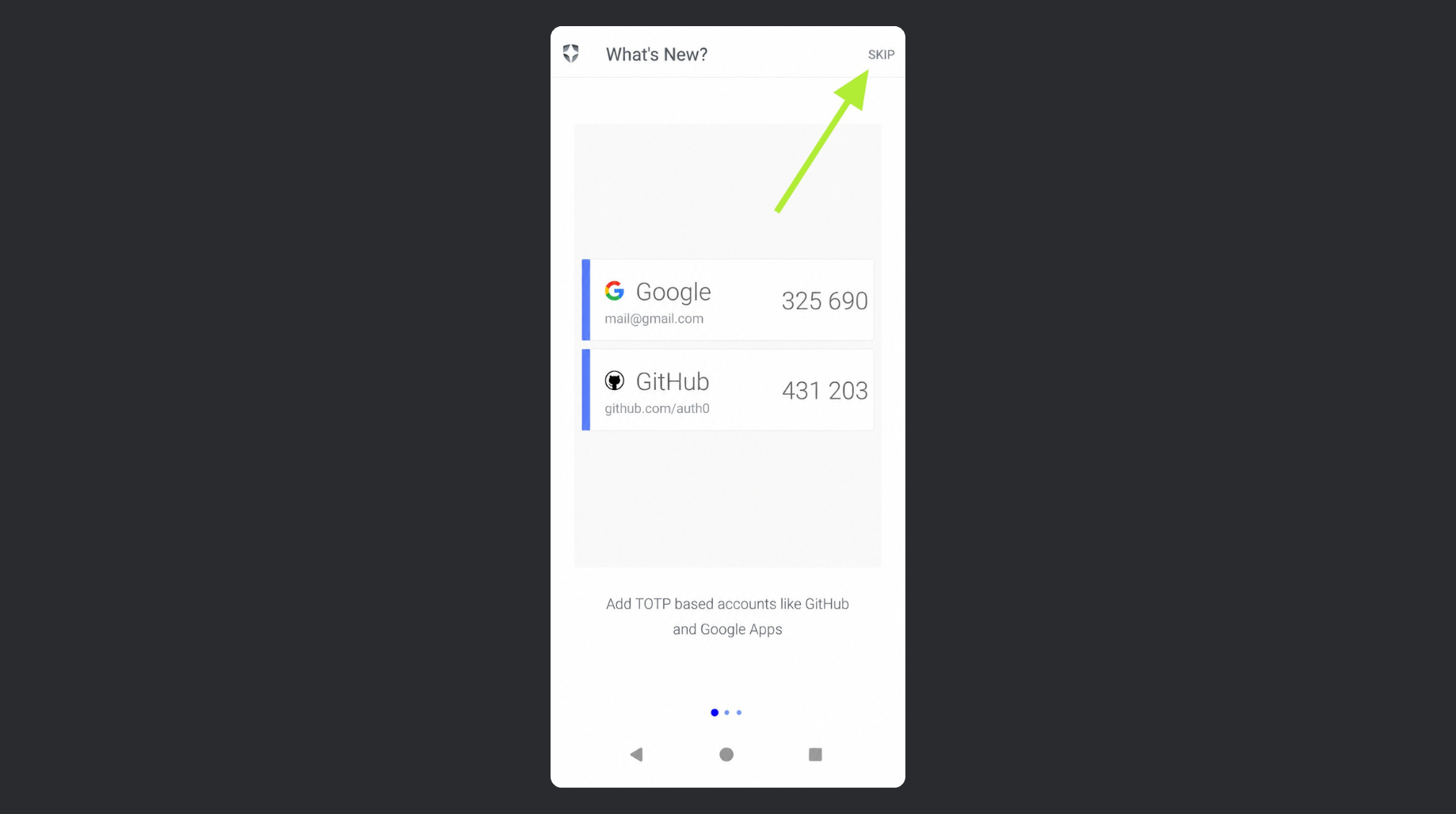
When you first open the app, the app will let you know about other common programs that are compatible with the authenticator. Click “Skip”
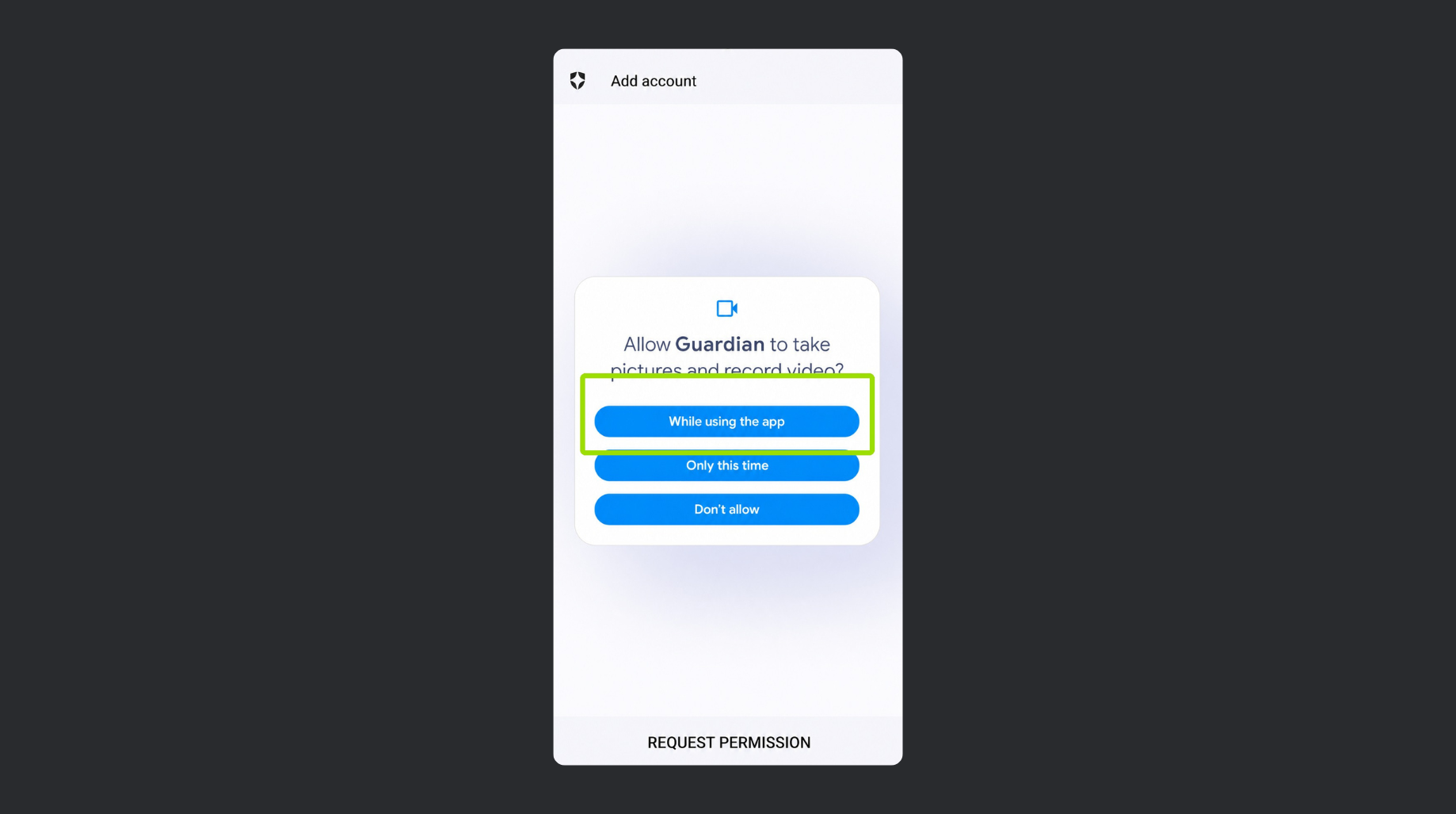
Alert!
It’s important in this step to allow the app to use your Camera and to allow Notifications. This is because the app will now serve as your second key for accessing Loadlink.
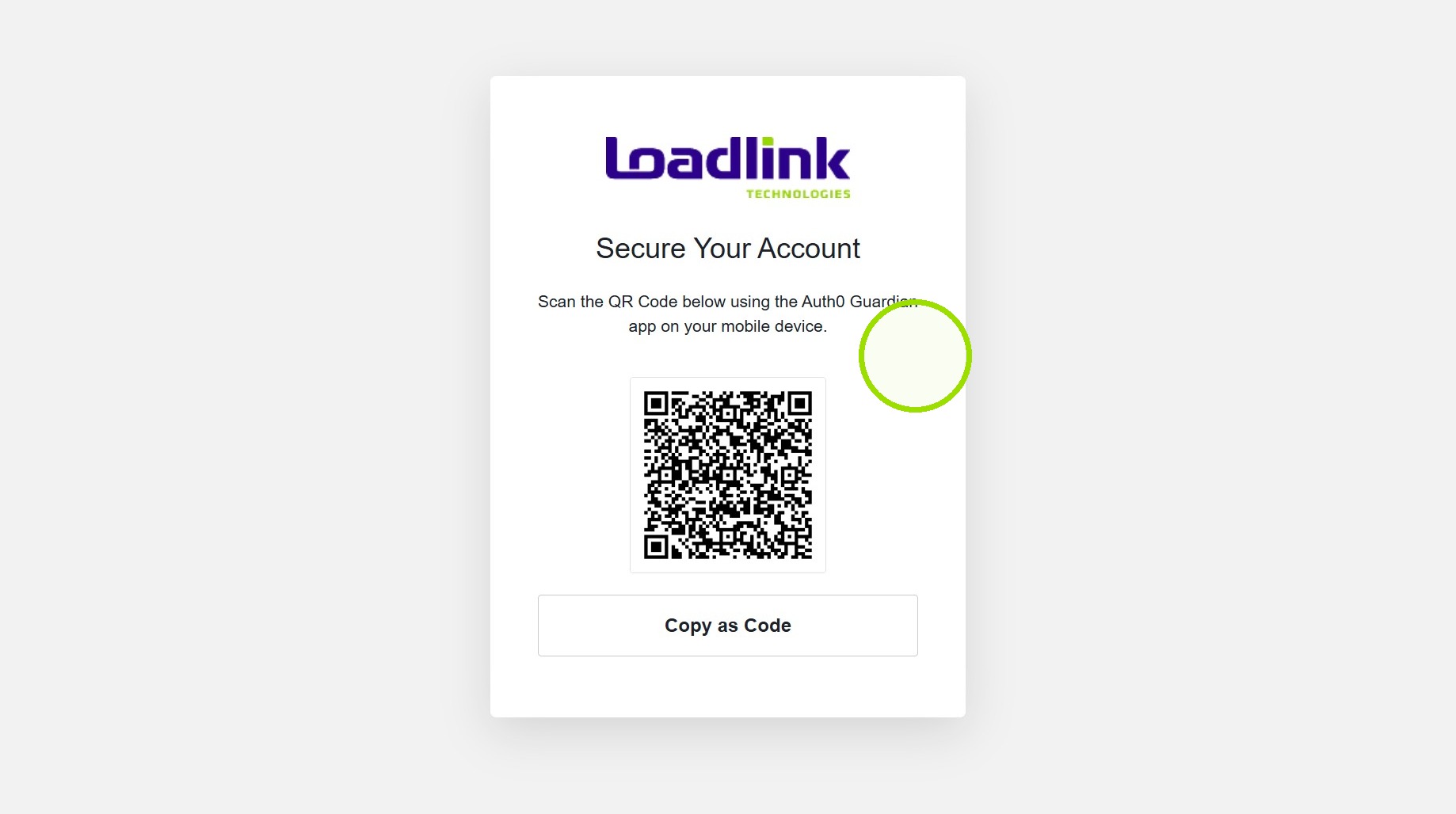
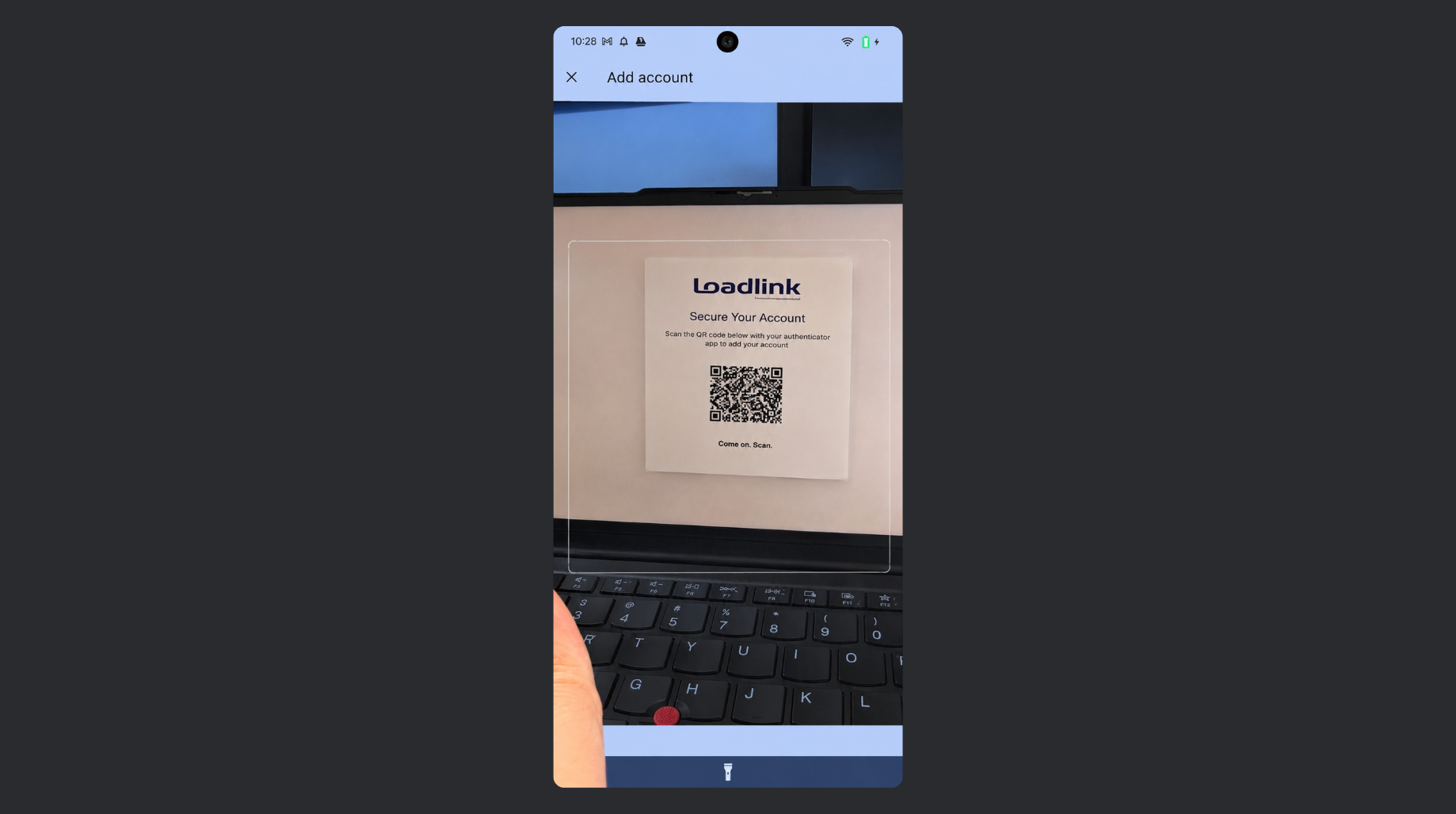
Next, the camera will open on your device. Hover the camera over the QR code on screen. The QR code will scan automatically.
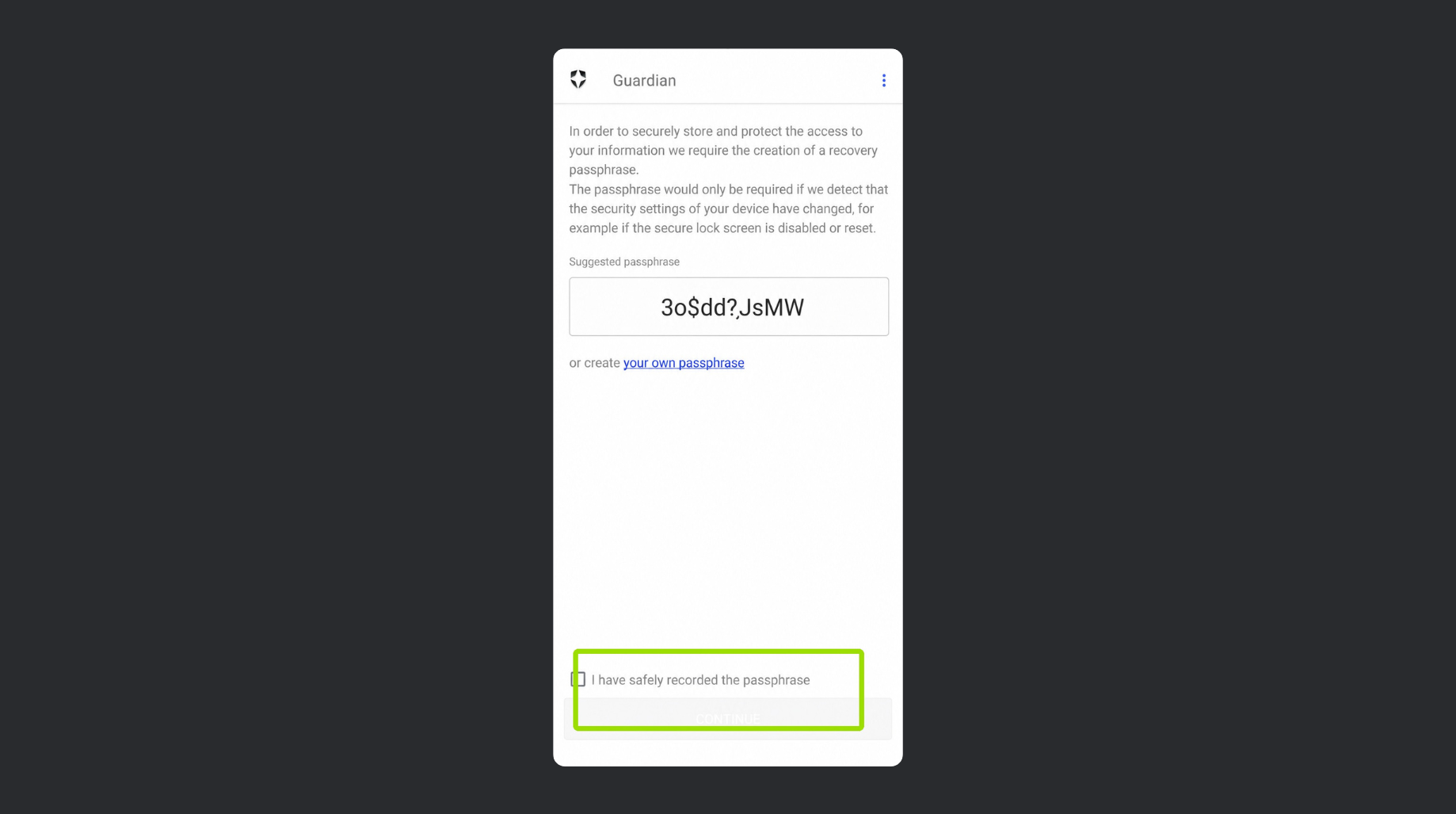
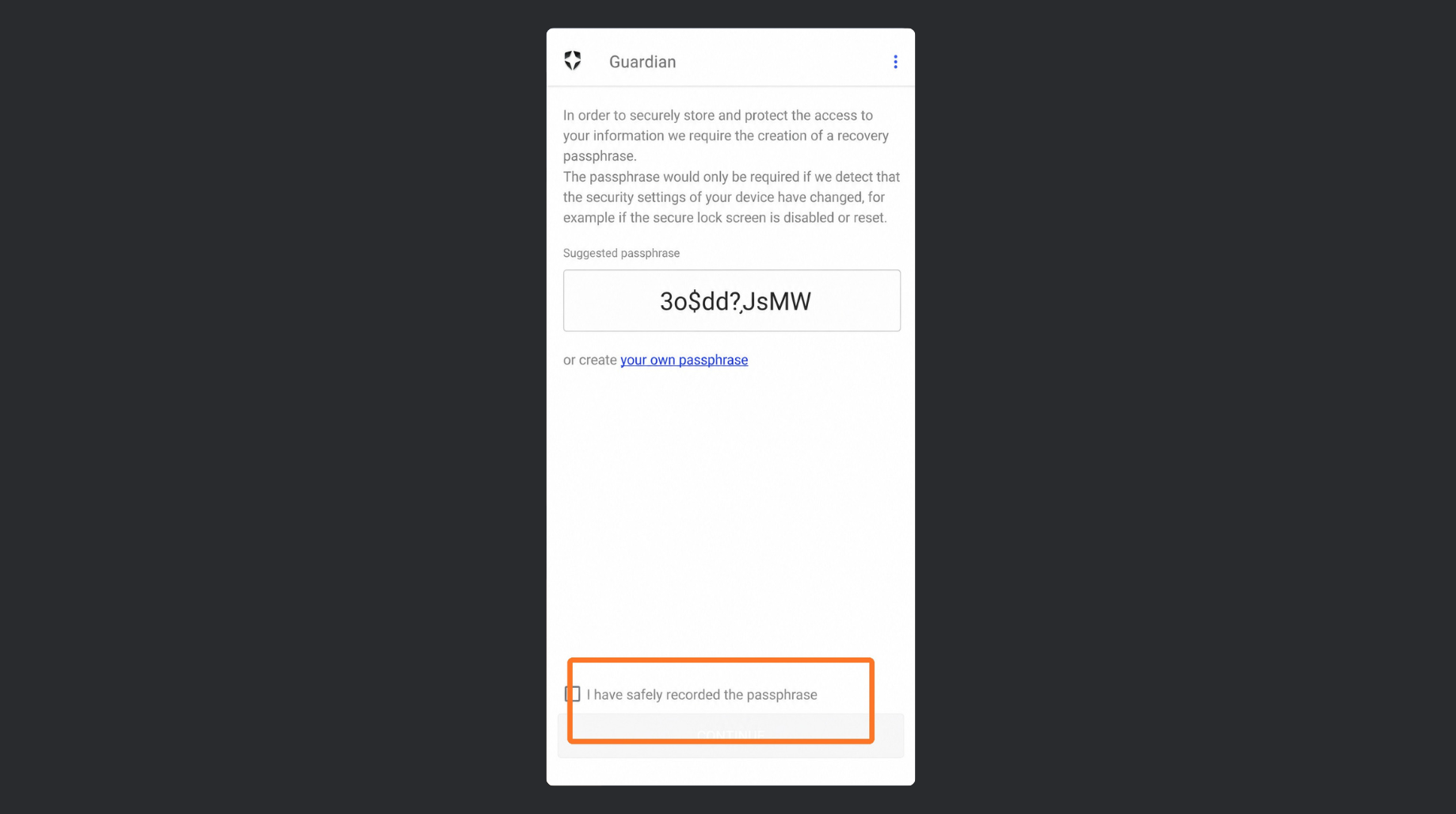
Once scanned, you will be prompted to save a passphrase. This phrase will only be required when a new device has been detected. You can save the auto-generated passphrase or create your own. once complete, click “I have safely recorded the passphrase” and continue.
Once scanned, you will be prompted to save a passphrase. This phrase will only be required when a new device has been detected. You can save the auto-generated passphrase or create your own. once complete, click “I have safely recorded the passphrase” and continue.
How to Use MFA (Android)
Whenever you do login to Loadlink you will be prompted with the “Verify Your Identity” Screen after you enter your email and password.
To proceed, click on the notification on your device from the Auth0 Guardian app.
The notification will share location and machine details in addition to the login email you are logging in with. Click Allow to continue.
An alternate way to authenticate is with the Manual Code.
To retrieve your manual code, open the Auth0 Guardian app on your device, click on you
Enter your one-time code now from the Auth0 Guardian app on your mobile.
When changing the device, it is important to un-enroll you registration from the device
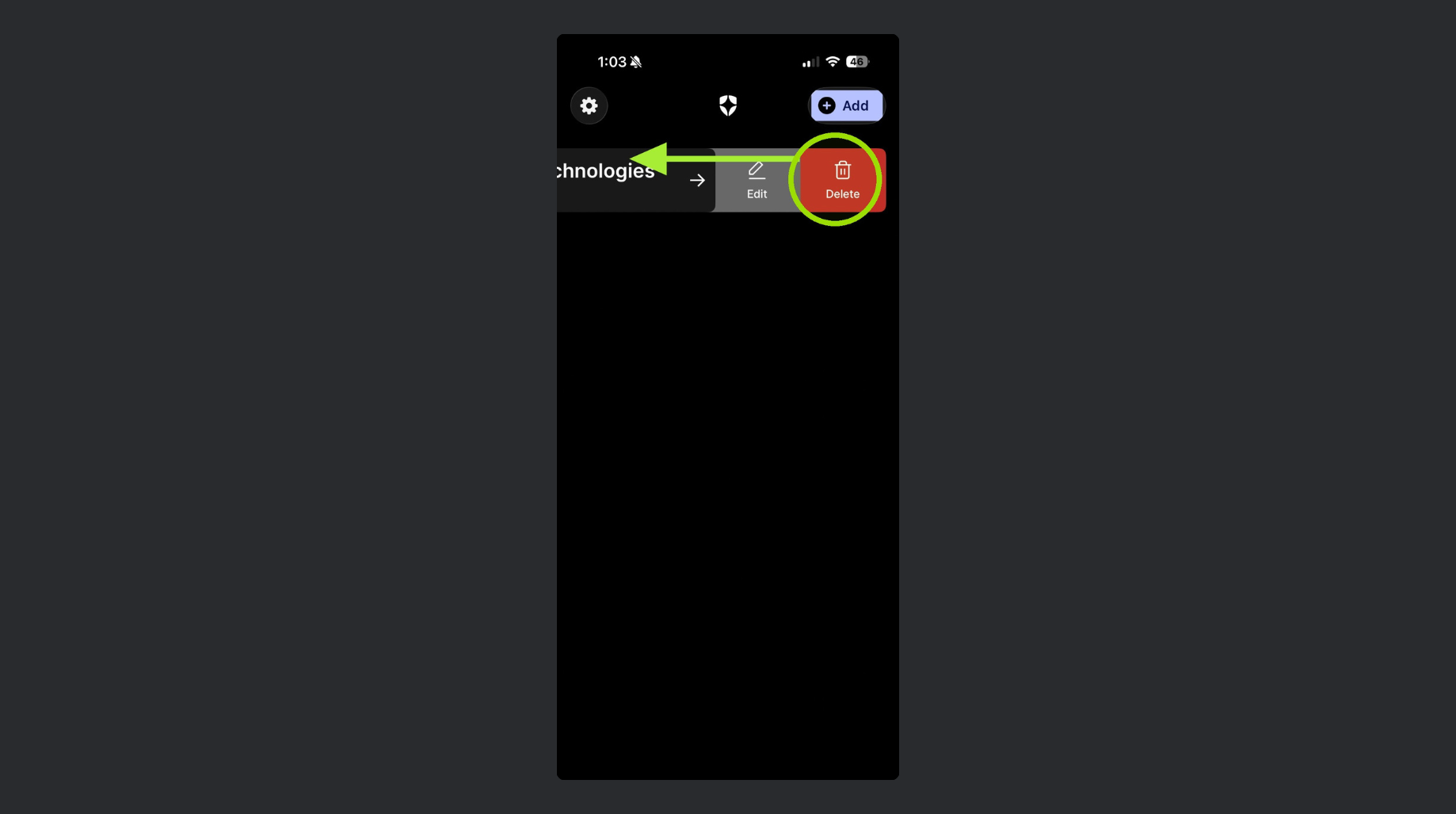
To un-enroll, click on registration card. On this page, you will have an option in the top right-hand corner with three dots. Click here and an option to “Delete” will prompt. Click “Delete”.
Once un-enrolled, start a new login to Loadlink. You will be prompted to “Secure your Account”. Make sure the app is downloaded to your new device and select “Continue”.
To Re-Enroll, Tap the “Plus” button here.
Next, the camera will open on your device. Hover the camera over the QR code on screen. The QR code will scan automatically.
Once scanned, you will be prompted to save a passphrase. This phrase will only be required when a new device has been detected. You can save the auto-generated passphrase or create your own. once complete, click “I have safely recorded the passphrase” and continue.
Once successfully enrolled, the authentication will show as a card on your app!