
ACCOUNT SECURITY
Passkeys: a simpler way to protect your account
Learn what passkeys are, how they help protect against phishing, and why Loadlink is moving toward easier, passwordless access.
Need help? Contact Customer Success at 1-800-263-6149 (press 2) or email success@loadlink.ca for assistance.
FAMILIAR TO USE. STRONGER BY DESIGN.
Your device helps confirm it’s you.
A passkey uses the way you already unlock your device. Your fingerprint, face scan, or device PIN stays private.
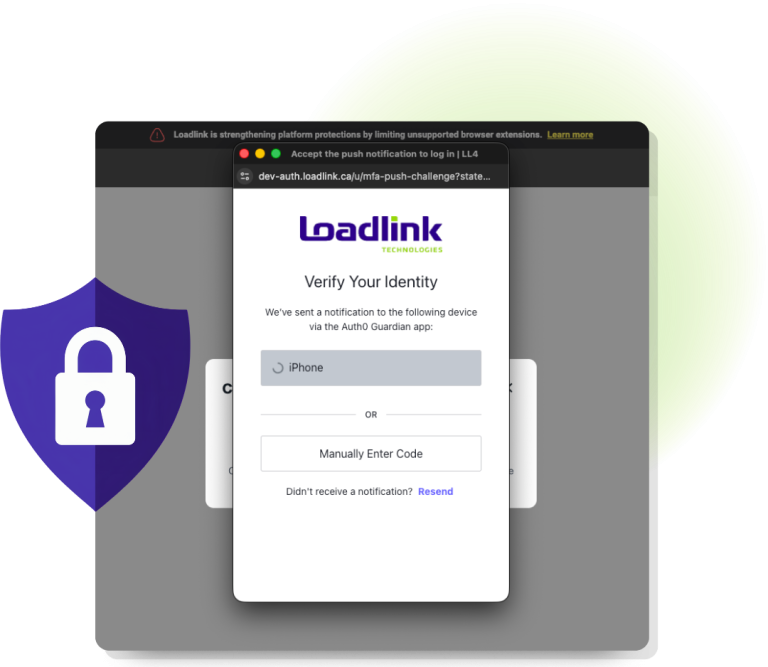
What is a passkey?
A passkey lets you sign in without typing a password. You confirm it’s you using your fingerprint, face, or device screen-lock PIN—the same way you unlock your device.
Your device, or an app that saves passwords and passkeys, keeps it for you. That app or service is sometimes called a passkey provider. Loadlink doesn’t receive your fingerprint, face scan, or device PIN.
It’s your choice.
Creating a passkey is optional. Your password still works, and you can continue signing in with your password and Guardian.
Why Loadlink is adopting passkeys
Your Loadlink account connects you to your business, contacts, and daily work. Passkeys help protect your account and make everyday sign-ins easier, with less switching to your phone for approval.

Stronger Protection
Passkeys resist fake sign-in pages designed to steal passwords.

Less Switching to Your Phone
Use your fingerprint, face, or screen lock for routine sign-ins. Extra checks may still be needed.

Your Password Still Works
Passkeys are optional. Keep your password and Guardian available as another way to sign in.
Guardian is the phone app you use to approve Loadlink sign-ins. Keep it available for first-passkey setup, extra checks, and recovery.
Why are passkeys phishing resistant?
Phishing is when someone tricks you into entering your password on a fake website. A convincing message or link can take you to a page that looks like a service you trust.
A passkey is designed to work only with the website it was created for. Your browser checks the website before using it. A lookalike page on a different website can’t use your Loadlink passkey to sign in to Loadlink.
A simple example.
With a password: a fake sign-in page could capture what you type and let someone try it on the real site.
With a passkey: there is no password to type into that fake page. The passkey checks that you’re using the right website.
Passkeys protect authentication. Keep your devices and browser secure, be cautious with links, and only approve requests you started. No sign-in method removes every security risk.
How it works, in plain language
1. You create a passkey in Loadlink.
Loadlink first checks that it’s you. Your device or provider then saves the passkey.
2. Your device asks for your approval.
Use your fingerprint, face, or screen lock when you’re asked to verify.
3. Loadlink confirms the match.
The passkey proves it belongs to your account without sending Loadlink your fingerprint, face scan, or PIN.
An easier way to sign in
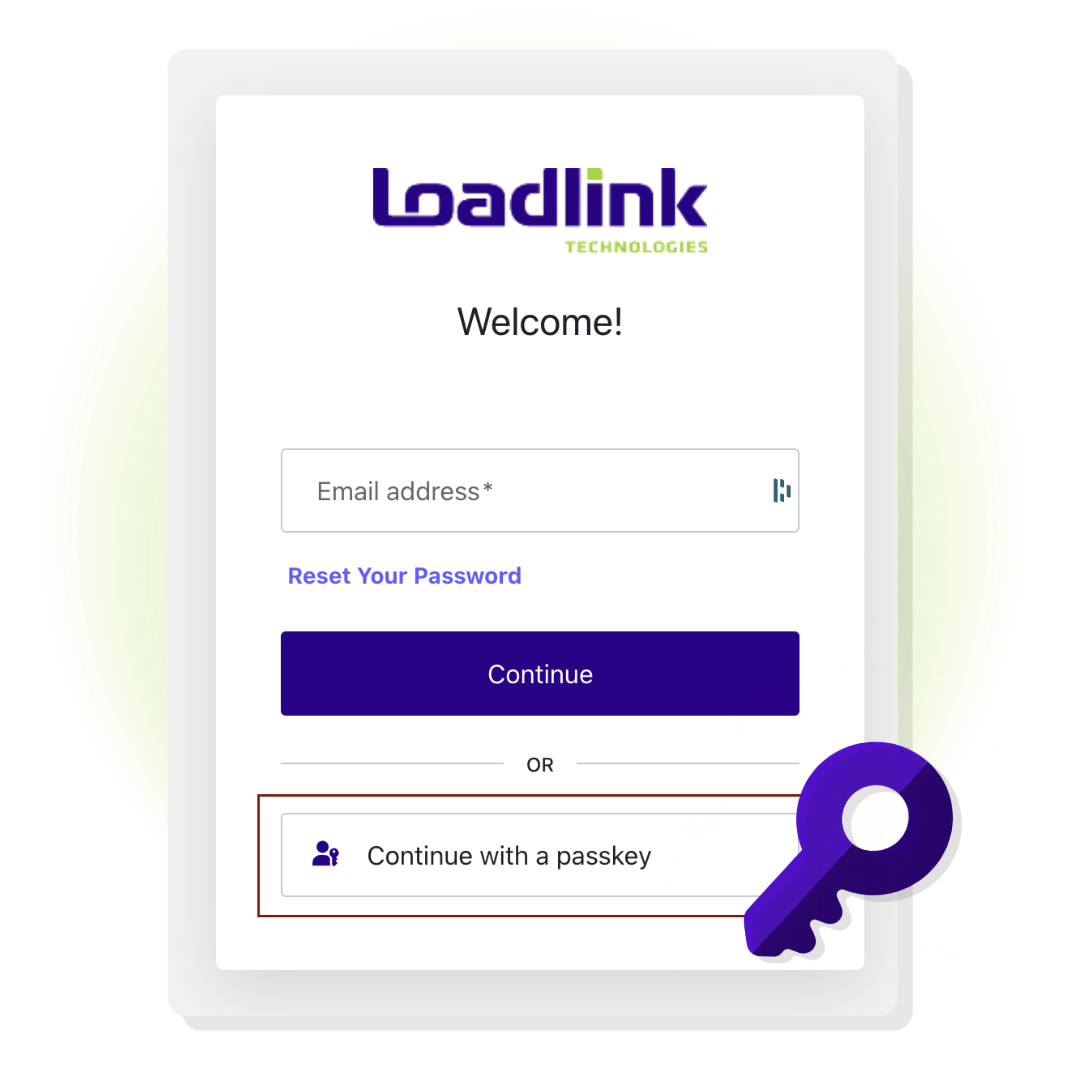
When you choose ‘Continue with a passkey’ on Loadlink’s sign-in page, confirm with your fingerprint, face, or screen lock. For routine passkey sign-ins, you won’t need to type your password or switch to your phone to approve a Guardian request.
Loadlink may still ask for extra verification when needed to protect your account.
- Keep Guardian available.
Guardian is the phone app you use to approve Loadlink sign-ins. You’ll need it to create your first passkey, and it remains available for extra checks and recovery.
You can still choose your password and Guardian instead. Learn the steps in our Loadlink passkey guide.
Keep your passkeys and account safe
✔ Use your own device or secure user profile. Anyone who can unlock that profile may be able to use passkeys saved there.
✔ Know where your passkey is saved. Some stay on one device; others are copied securely to your other devices by the app or account that saves them.
✔ Keep a way back in. Maintain Guardian access and consider another passkey before replacing a device.
✔ Keep your software up to date. Protect the account that saves your passkeys too, especially if it makes them available on other devices.
✔ Check account-change emails. Loadlink emails you when a passkey is added or removed. If you didn’t add a passkey, sign in to Loadlink immediately and remove it in Settings → Passkeys. If you can’t complete verification or recover access, contact Customer Success.
✔ Use your own Loadlink login. Keep your device PIN and account access private.
For more ways to protect your work, read our browser extension security guidance.
Questions you may have
Passkeys is available in Settings for companies that require Guardian approval when signing in with a password, once the feature is enabled for them. If you don’t see it, contact Customer Success to check availability.
No. A passkey is a digital credential. Your fingerprint, face, or screen lock is how your device checks that you’re allowed to use it. Loadlink does not receive your biometric information.
There is no separate Loadlink passkey app to install. Many current devices support passkeys using their built-in security or a supported provider. Whether your device works depends on its software and your company’s settings.
Not automatically. A synced passkey may be available on other devices connected to the same provider account. A device-only passkey stays on its original device. Use the options your browser shows, and keep another way to access your account.
Keep both available. A passkey gives you another way to sign in; it doesn’t remove your password. Guardian may still be needed for extra checks, managing passkeys, and recovery.
Use another passkey linked to your account, or use Guardian verification to make the change yourself. Passkeys and Guardian give you self-service options for managing your passkeys. If neither method works or you still can’t recover access, contact Customer Success for help. Keep any working access method while you troubleshoot.
Sign in to Loadlink (LL4) immediately using your usual bookmark or address. Go to Settings → Passkeys and remove any passkey you didn’t add. Complete verification with a passkey you trust or Guardian. If the email is about a removal you didn’t make, review your remaining passkeys, remove any you don’t recognize, and change your password as the notice advises. If you can’t sign in, complete verification, or recover access, contact Customer Success. Only approve verification requests you started.
Learn more about passkeys
- Where can I save a passkey? View the options.
Passkey providers and credential managers.
Your passkey is saved by a device, a credential manager, or a physical security key. These options fall into three main categories.
Use the options offered in your browser’s passkey prompt and follow your company’s device and software policies. Availability depends on your device, browser, provider, and Loadlink’s supported configuration.
1. Built-in operating system & ecosystem providers
These options are part of the devices and accounts you may already use.
Apple Passwords / iCloud Keychain
Built into Apple’s ecosystem to save and sync passkeys across your approved iPhone, iPad, and Mac devices.
Google Password Manager
Saves passkeys through Android and Chrome and syncs them through your Google Account on supported devices.
Microsoft Password Manager / Windows Hello
Microsoft Password Manager can sync passkeys through your Microsoft account. Windows Hello can save a passkey locally on your Windows device and let you use it with a PIN, fingerprint, or face recognition.
2. Third-party password & credential managers
These services can store passkeys in a vault and make them available across supported devices and browsers.
1Password
Stores and uses passkeys for supported websites, alongside your other saved sign-in details.
Bitwarden
An open-source password manager with passkey storage and autofill on supported platforms.
Dashlane
Lets you save, use, and manage passkeys across supported devices.
NordPass
Provides passkey storage and management through supported apps and browser extensions.
Keeper
Saves passkeys in an encrypted vault and makes them available on supported devices.
RoboForm
Stores passkeys with your saved logins for use in supported apps and browsers.
Proton Pass
An encrypted password manager that can save and use passkeys on supported platforms.
3. Hardware security keys (device-bound)
A compatible FIDO2 security key keeps the passkey on the physical key instead of syncing it through a cloud account. When this option is available, connect the key by USB or tap it using NFC, depending on the model, and follow any PIN or touch prompts.
Yubico YubiKey
Examples include the Yubico YubiKey (USB-C and NFC) and YubiKey 5 Nano (USB-A).
Google Titan Security Key
A physical FIDO2 security key with USB and NFC options, depending on the model.
Thetis FIDO2 Security Keys
Physical security keys for storing passkeys, with connection options that vary by model.
Keep your security key safe and maintain another way to verify, such as Guardian or a separate passkey, in case the key is lost.
More about passkey security
These independent resources explain passkeys in more detail. Loadlink’s setup and verification rules are described in our customer guide.
✔ Google · Sign in with a passkey
✔ Apple · About the security of passkeys
✔ Microsoft · What passkeys are and why they matter
✔ FIDO Alliance · Synced and device-bound passkeys

We’re here to help!
Use a passkey you trust or Guardian to manage your passkeys yourself. If you can’t finish setup, complete verification, or recover access using either method, our Customer Success team is here to help. Contact us at 1-800-263-6149 (press 2) or email success@loadlink.ca for assistance.
Ready to get started? Click here to set up and manage your passkeys.