
GETTING STARTED
Set up and manage your passkeys
Use your fingerprint, face, screen lock, or other available passkey options to make signing in easier. Your password still works.
Need help? Contact Customer Success at 1-800-263-6149 (press 2) or email success@loadlink.ca for assistance.
A simpler way to sign in
A passkey lets you sign in without typing your password. You confirm it’s you using the same fingerprint, face, or screen lock you use to unlock your device. For everyday sign-ins, this means less switching to your phone to approve a request.
It’s optional. Your password still works. Keep Guardian available: it’s the phone app you use to approve Loadlink sign-ins. You’ll use it to set up your first passkey, and Loadlink may still ask for an extra check to protect your account.
1. Your phone with Guardian already set up for Loadlink.
2. Your own computer or device, signed in to your personal or work profile.
3. A screen lock, such as a PIN, fingerprint, or face recognition.
Passkeys is available in Settings for companies that require Guardian approval when signing in with a password, once the feature is enabled for them. If you don’t see it, contact Customer Success to check availability.
Set up your first passkey
Follow these steps on your computer. You’ll use your phone for the Guardian check, then return to Loadlink. Screen names and device prompts may vary.
Device Fingerprint, FaceID or PIN
Mobile Device Passkey Setup
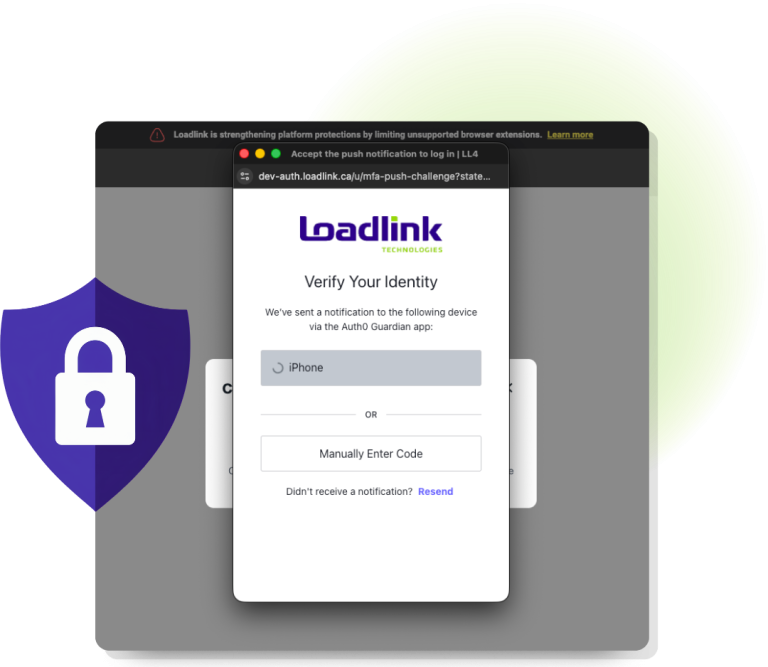
Need help with the Guardian check?
Signing in vs confirming a change inside Loadlink
On the sign-inpage: On the sign-in page: your browser or password manager may show several saved Loadlink passkeys, including another account’s or an old one. Choose the entry with your sign-in email. If it fails, choose the correct entry or use your password and Guardian.
Inside Loadlink, when you add or remove a passkey: the verification prompt offers only passkeys linked to the account you are signed in to. If none is available, cancel the prompt and choose Verify with Guardian when offered.
1. Open Guardian on your phone and check for a waiting Loadlink request.
2. Make sure your phone is online and notifications are allowed for Guardian. Check whether a Focus or Do Not Disturb setting is silencing them.
3. On your computer, select Resend in the verification window, then check Guardian again.
4. If you still don’t receive a request, use Manually Enter Code if it appears in that window.
1. In the verification window on your computer, select Manually Enter Code.
2. On your phone, open Guardian and find your Loadlink entry.
3. Enter the current code shown in Guardian into the window on your computer, then follow the prompt to complete the check.
4. Return to Loadlink and continue setup.
If no code is available or the check still fails, contact Customer Success. Don’t send your code to anyone.
Look for a blocked pop-up icon in your browser’s address bar. Allow pop-ups for the Loadlink sign-in site, then return to Loadlink and start the create-passkey step again.
If your company manages your browser and you can’t change that setting, ask your IT team for help.
You need Guardian verification to set up your first passkey. Contact Customer Success for help recovering access before continuing.
Next time you sign in
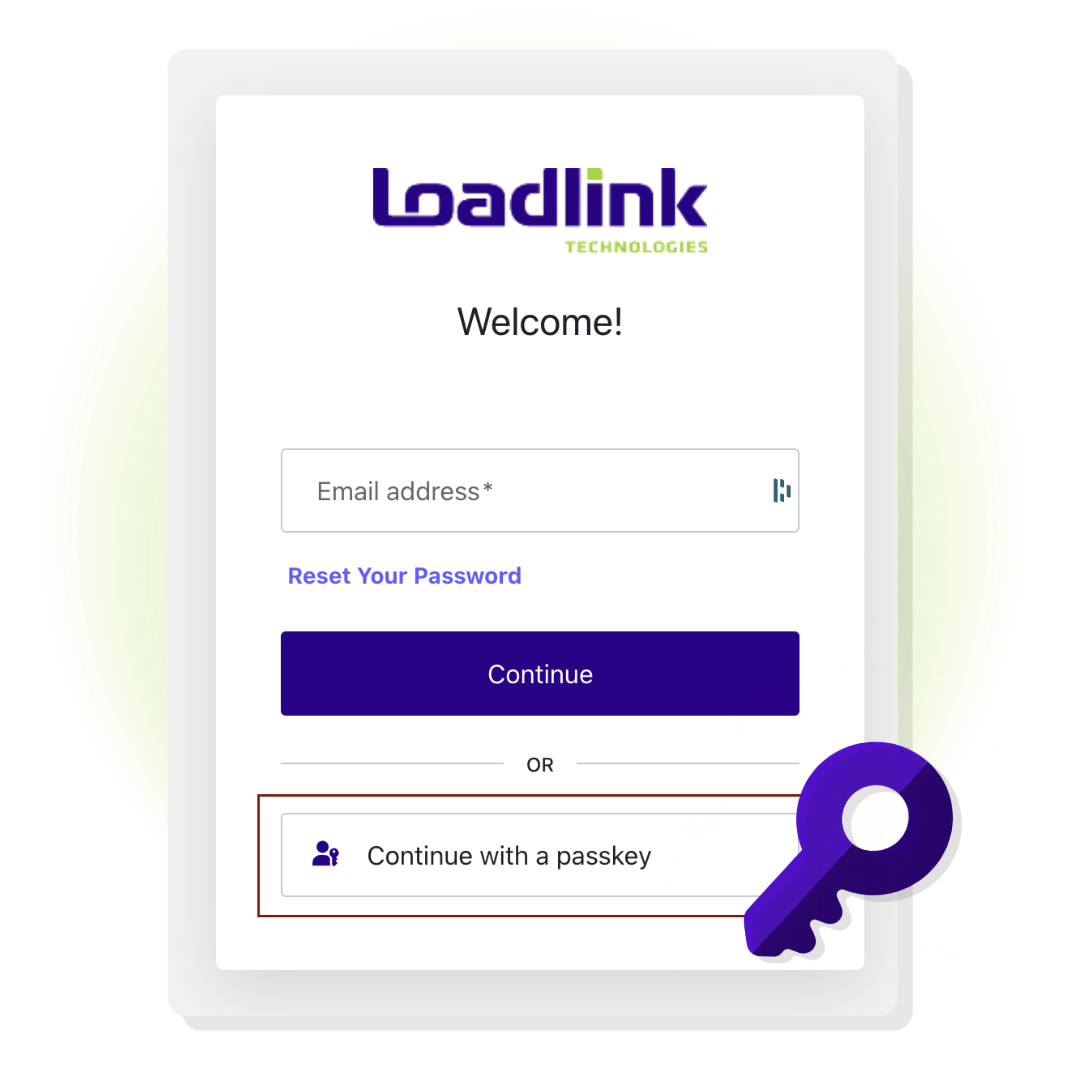
1. Open the Loadlink sign-in page and choose ‘Continue with a passkey.’
2. Select a passkey for your Loadlink account, then confirm with your fingerprint, face, or screen lock.
3. Follow any extra verification prompt shown by Loadlink.
See the passkey sign-in button.
Biometrics
Password Manager
Mobile Device
Using your phone’s passkey through a QR code? Bluetooth must be on for both devices, and your phone must stay next to the computer. Phone QR-code help.
Fingerprint or face not recognized on the first try? If this is your correct passkey, try again once or twice, or use the device PIN if offered. Help with an unrecognized scan.
Your password is still an option.
A routine passkey sign-in doesn’t require typing your password or approving a Guardian notification. Loadlink may ask for extra verification when needed. You can still use your password with Guardian instead.
Quick questions
No. Creating a passkey is optional. Your Loadlink password still works, and you can keep signing in with your password and Guardian.
Passkeys is available on Loadlink web for companies that require Guardian, once enabled. The Settings option may be hidden during your company’s open-access periods. If it is missing, use your normal sign-in and ask Customer Success to check availability.
This guide covers Loadlink web. The Loadlink mobile app keeps its existing sign-in method.
Passkeys is available in Settings for companies that require Guardian approval when signing in with a password, once the feature is enabled for them. If your company uses Guardian and the option is missing, contact Customer Success to check your company’s access.
No. If your device supports it, you can use its screen-lock PIN. Follow the choices shown by your device.
Make sure your device has a screen lock and your browser is up to date. Try a normal browser window instead of private browsing. On a company-managed device, ask your IT team whether passkeys are allowed. Customer Success can help if you’re still stuck.
1. Turn on Bluetooth on both your phone and computer.
2. Keep the phone next to the computer while you scan the QR code and complete the prompts.
3. Confirm on your phone with its fingerprint, face, or screen lock.
Bluetooth helps confirm that your phone is nearby for this QR-code flow. This applies when saving or using a phone’s passkey from a computer; it is separate from approving a Guardian notification.
Yes. A fingerprint or face scan can miss on the first attempt. If you selected your correct Loadlink passkey, try once or twice more—two or three careful attempts in total.
For a fingerprint reader such as Touch ID, place your enrolled finger fully on the sensor and keep both clean and dry. For face recognition such as Face ID, face the camera and keep it uncovered. You can use your screen-lock PIN instead if your device offers it.
A missed scan does not necessarily mean your passkey is invalid. If the message says “Passkey credential not found” or you are using a passkey from before the update, follow the old-passkey replacement guidance. If asked to wait, stop retrying for a full minute.
If it still fails, use your password and Guardian and contact Customer Success.
Chrome, Edge and Safari can show different device or password-manager windows. Seeing one is a normal part of using a passkey.
• Fingerprint, face, Windows Hello or PIN: use the way you normally unlock that device. If a scan misses, try once or twice more.
• A QR code: scan it with your phone’s camera. Keep Bluetooth on for both devices and keep the phone beside the computer.
• A password manager, such as Dashlane or 1Password: unlock the app if needed, then choose the Loadlink entry with your email.
• A different option is needed: look for Other options, Use another device or Try again, if offered. The label depends on your browser.
You can cancel the passkey prompt. Back in Loadlink, use your password and Guardian to sign in, or Verify with Guardian for a change when offered.
View an example browser prompt:
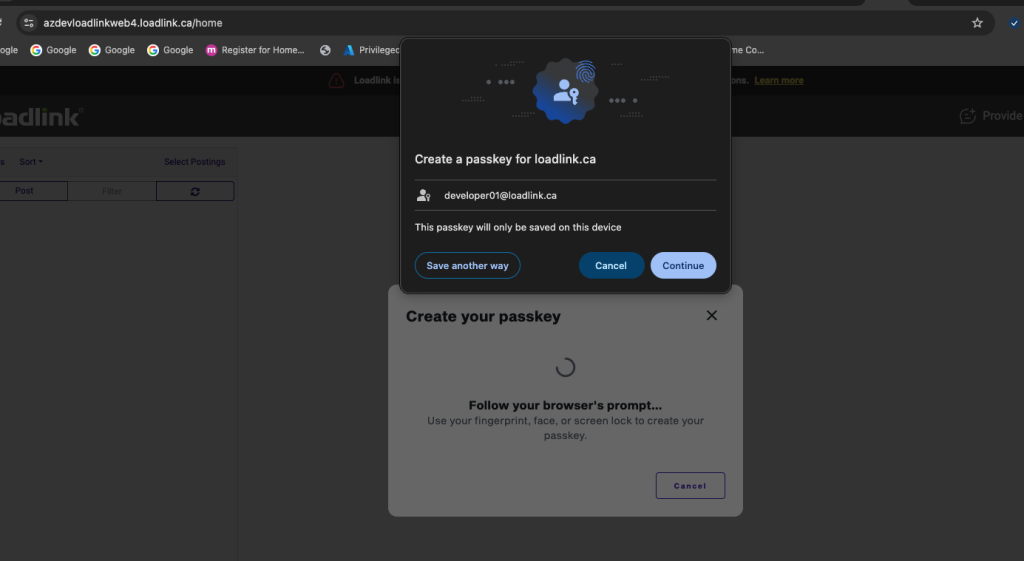
Your window may look different.
Guardian can still be a safety check. For example, a new device or browser, a different location, a VPN or an unfamiliar network may lead to another check. It does not mean your passkey failed. Approve only the sign-in you started.
| What you see | What it means | What to do |
|---|---|---|
| “Please wait a moment. For your security, passkey requests are limited…” | Too many recent attempts. | Wait a full minute without clicking or refreshing, then try once. |
| “That passkey isn’t linked to your account. Try again and choose a different one.” | The selected passkey does not match this account. | Choose the entry with your Loadlink email, or use Guardian when offered. |
| “Passkey credential not found” | The saved passkey may be old or removed. | Use password and Guardian, then remove the old copy in both places and create a new one. |
| “Confirm it’s you” | Loadlink needs to verify a change. | Use an existing account passkey, or Verify with Guardian when offered. |
| “Couldn’t load your passkeys” | The list could not load. | Wait a moment, then select Try again once. |
| “We couldn’t reach the sign-in service just now. Please try again in a moment.” | A temporary connection or service problem. | Check your connection, wait briefly, then retry once. |
| “The request was cancelled or timed out. Try again.” | The verification did not finish. | Start it again and complete the device prompt before it closes. |
| “This passkey has already been added to your account. Try a different one.” | That passkey is already registered. | Use the existing one. To add a backup, choose a different available saving option. |
| “Something went wrong. Try again.” | The browser or passkey check could not finish. | Retry once; use another offered option or Guardian if it still fails. |
If a message keeps appearing after its suggested step, contact Customer Success. Don’t keep clicking through a wait message.
Manage your passkeys
In Loadlink, open the Settings gear → Passkeys. You can add another passkey, give one a recognizable name, or remove one you no longer use.
Use a passkey you trust to confirm a change. If you can’t use it, follow the Guardian alternative offered on screen. Customer Success can help if neither method works.
1. Select Add another passkey.
2. Verify with a passkey already linked to your Loadlink account, or use Guardian if that alternative is offered.
3. Follow your device’s prompt to save the new passkey.
4. Check that it appears in the list. You’ll receive a confirmation email.
Before replacing a device, make sure you have another way to sign in, such as another passkey or your password and Guardian.
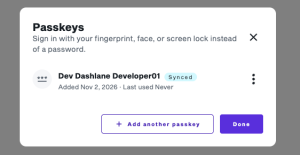
Select Add another passkey to save an additional one.
1. Open the three-dot menu next to the passkey and select Rename.
2. Enter a name you’ll recognize, such as “My work laptop.”
3. Select Save.
A name is just a label. Renaming does not move the passkey or change where it is saved.
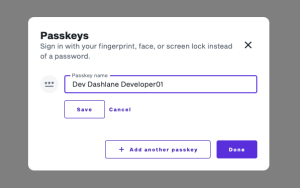
Enter a recognizable name, then select Save.
1. Open the three-dot menu beside the passkey and select Delete.
2. Read the confirmation message and select Delete.
3. Complete the verification requested by Loadlink.
After removal, that passkey can no longer be used for your Loadlink account. You’ll receive a confirmation email.
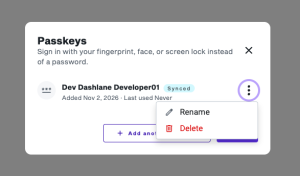
Open the menu beside the passkey you want to remove.
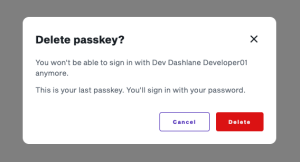
If this is your last passkey, make sure you can sign in with your password and Guardian first.
Adding or removing a passkey changes how your account can be accessed, so Loadlink checks that it’s you. You can normally use an existing passkey, with Guardian as the alternative where offered.
Viewing the list does not normally prompt you to approve another Guardian request. If a verification fails or you cancel it, the requested addition or deletion is not completed.
1. Keep your current sign-in method available. A synced passkey may already appear when you use the same password-manager account on the new device.
2. If you need a new passkey, add it on the new device and check that it works before deleting the old one.
3. Remove the old passkey from Loadlink Settings → Passkeys, then remove its saved copy from the old device or password manager. Otherwise, it may keep appearing in the chooser. See removal steps.
A passkey does not move Guardian to a new phone. If Guardian is required and you no longer have a working Guardian phone or recovery option, contact Customer Success for an MFA reset.
For a lost or stolen device, remove the affected passkey promptly.
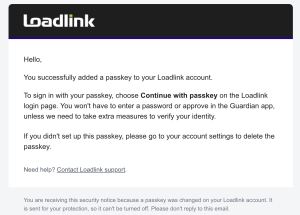
Loadlink emails you whenever a passkey is added or removed, including your first passkey. These security notices help you spot changes you didn’t make.

Example of the email after a passkey is added.
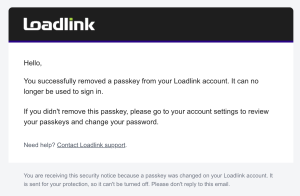
Example of the email after a passkey is removed.
Customer Success does not need your passkey, device PIN, Guardian code or recovery code. Enter codes only in the verification window you opened yourself; do not read them out or send them to another person.
If an unexpected email or caller asks for these details or asks you to share your screen, stop and contact Customer Success directly. Open Loadlink using your usual bookmark or address to review a passkey email.”
Sign in to Loadlink immediately using your usual bookmark or address. Go to Settings → Passkeys and delete any passkey you didn’t add. Verify with a passkey you trust or Guardian.
If you can’t sign in, complete verification, or recover access, contact Customer Success. Only approve verification requests you started.
Sign in to Loadlink, review your remaining passkeys, remove any you don’t recognize, and change your password as the notice advises. Use a trusted passkey or Guardian to verify. If you can’t complete these steps or recover access, contact Customer Success.
Try another passkey linked to your account, or use your password and Guardian to sign in. In Settings → Passkeys, use the Guardian alternative offered if you can’t verify with a passkey.
If neither method works or you still can’t recover access, contact Customer Success. Keep any working way to sign in while you troubleshoot.
The app or account that saved your passkey may make it available on other devices signed in to the same account. For example, Apple Passwords can sync through iCloud Keychain. A device-only passkey stays on its original device.
The provider is the app or service that saves the passkey. See examples and saving options.
Keep Guardian available. You may need it for extra checks, managing passkeys, or recovering access. Your password remains available as an alternative sign-in method.
Do not create or save a passkey on a computer other people use. Someone who can unlock the profile or password manager holding it may be able to use it. On a shared computer, sign in with your own password and Guardian.
On a computer assigned only to you, use your own device profile and password-manager account. If several Loadlink entries appear, always choose your own email.
No. You can use a device PIN, a password manager or a security key if that option is offered for your setup. A screen-lock PIN is the number you type to unlock your computer or phone. Your password and Guardian remain available.
Keep your browser and device software up to date. Available passkey choices depend on your device, browser and company settings. Customer Success can help check your setup.
If a prompt will not open or an option is missing, ask your IT team to check that pop-ups are allowed for the Loadlink sign-in site and that company policy permits passkeys. Customer Success can check whether Passkeys is available for your company.
Need a hand?
Use a trusted passkey or Guardian to manage your passkeys yourself. If you can’t complete verification or recover access, our Customer Success team is here to help. Contact us at 1-800-263-6149 (press 2) or email success@loadlink.ca for assistance.
Want to learn more about account security? Click here to learn more about passkeys and why they help.