Block or Unblock a Company Using Exclude: Carrier Guide
Use Exclude to block a carrier you do not want to work with. After a broker is excluded, their leads will no longer appear in your results, and they will no longer be able to view your equipment postings. This guide explains how to exclude a broker and how to re-include them later.
Exclude a Broker From the Leads Grid
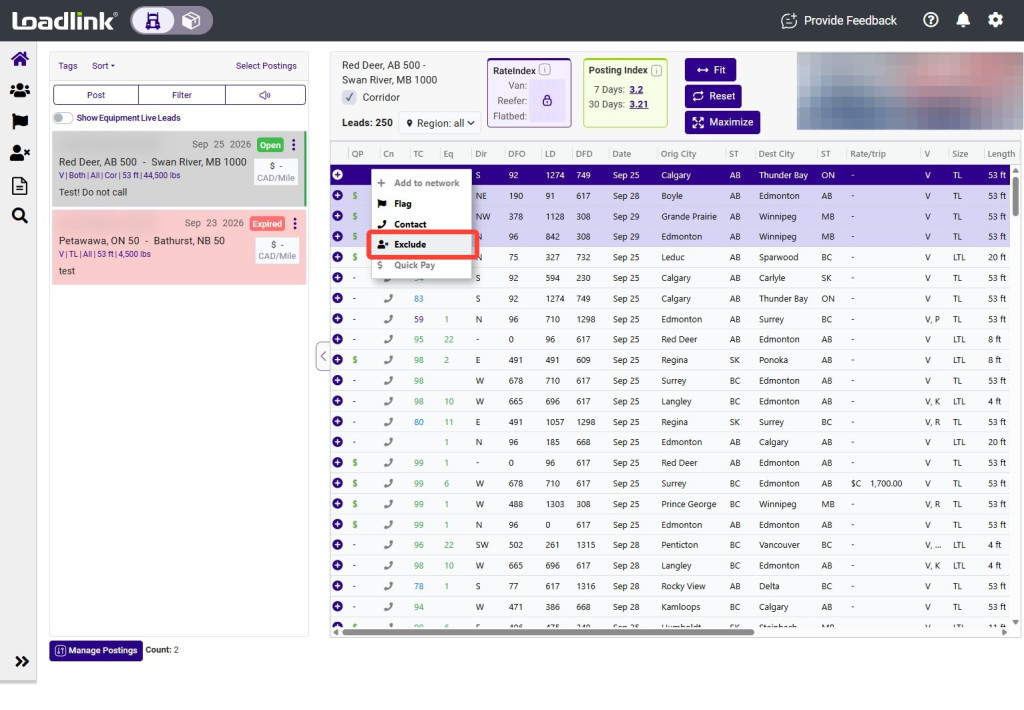
Right-click a lead from the broker you want to exclude.
Select “Exclude.”
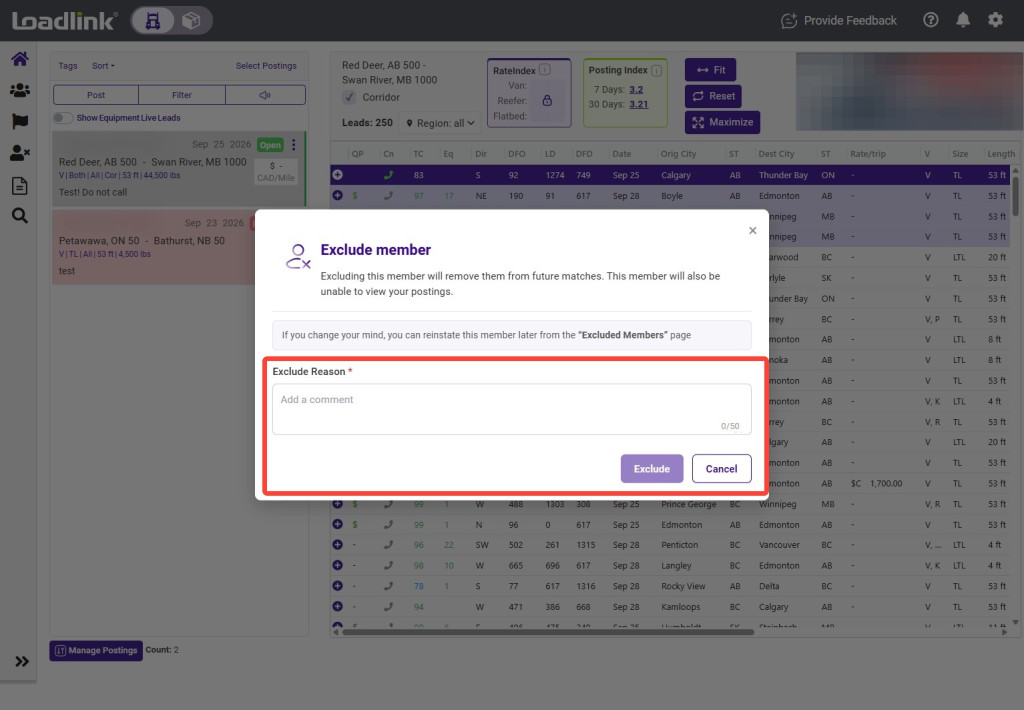
Enter the reason for excluding the broker, then select “Exclude.”
Important:
Excluding the broker removes their leads from your results and prevents them from viewing your equipment postings.
Excluding from Member Search
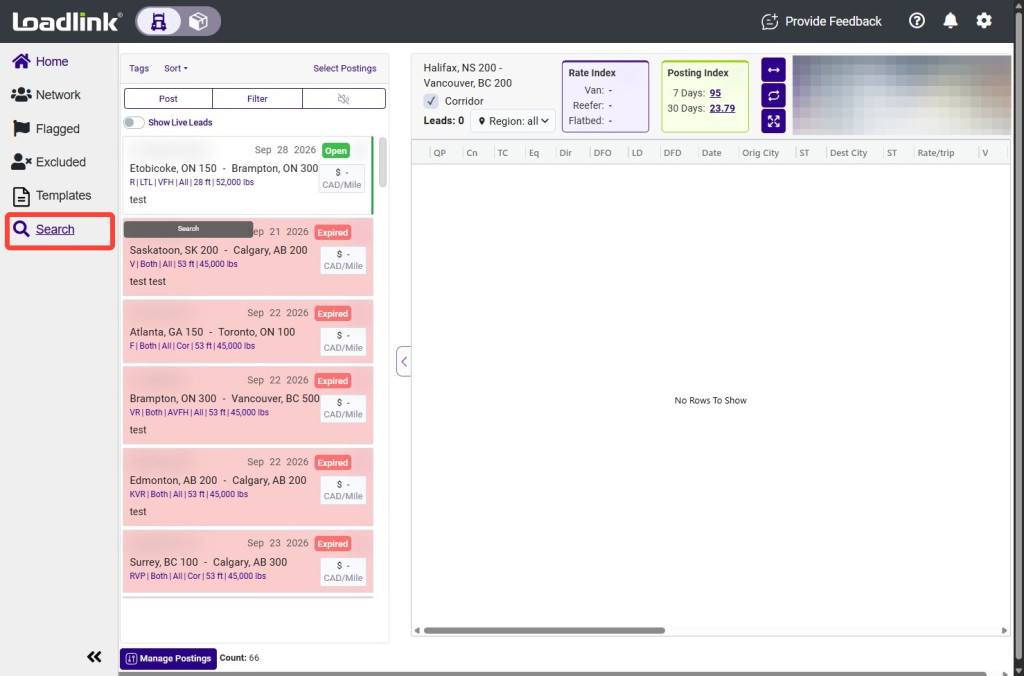
From the left navigation menu, select “Search.”
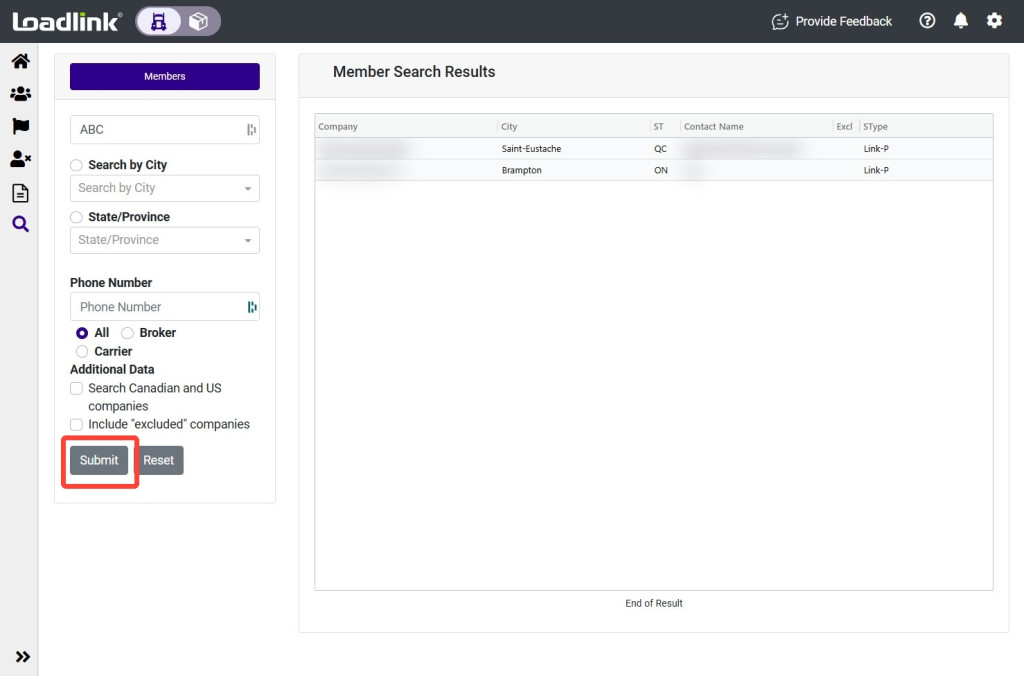
Enter your search criteria to find the broker you want to exclude.
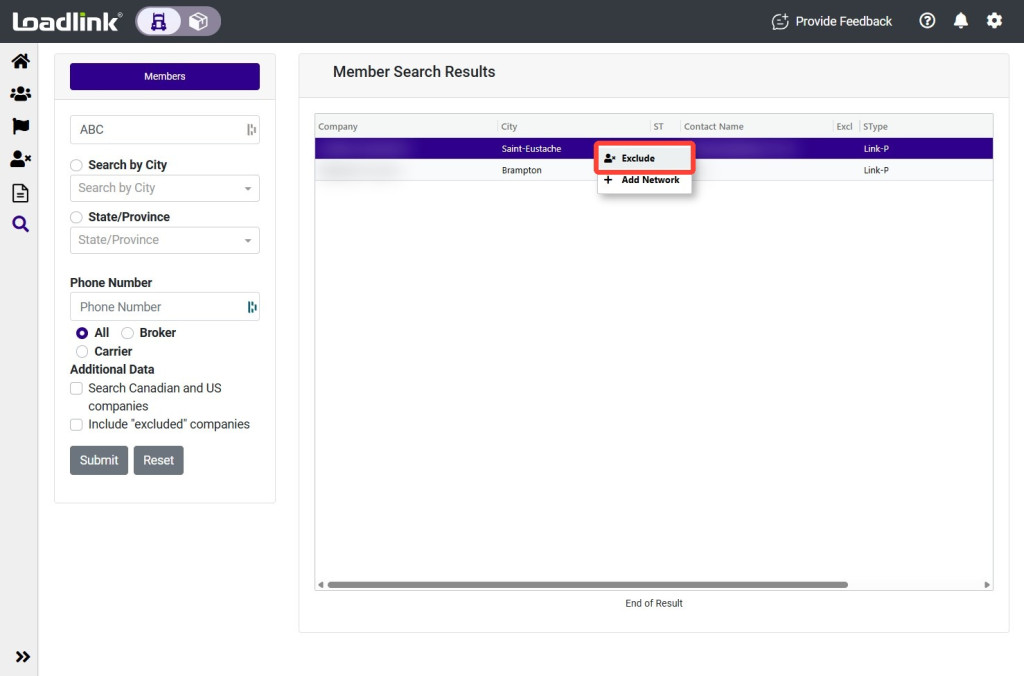
Right-click the broker in the search results and select “Exclude.”
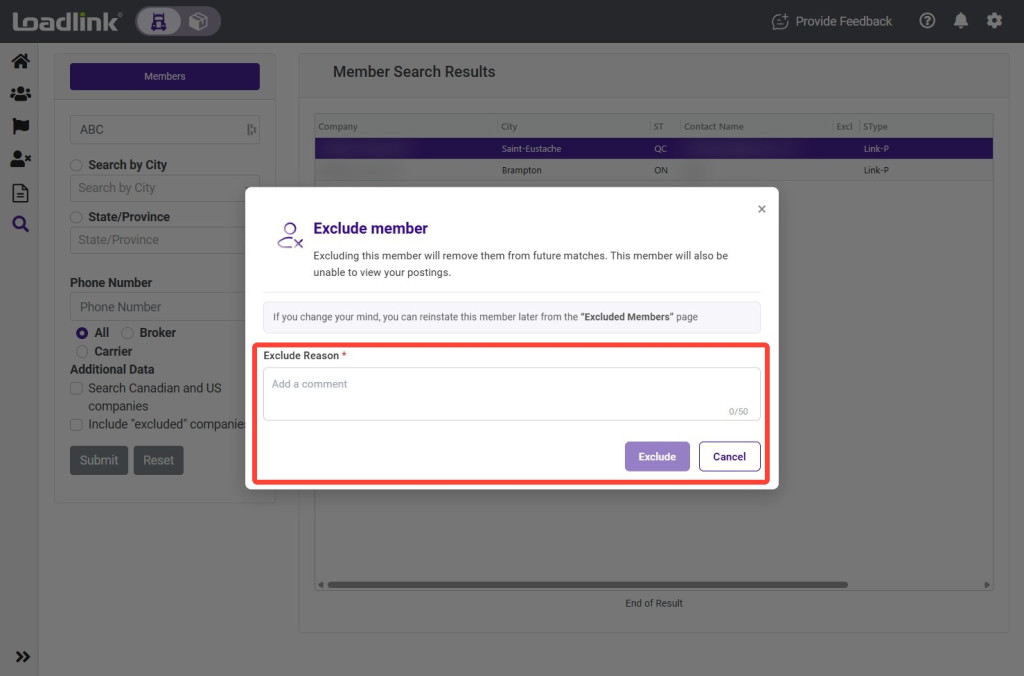
Enter the reason for the exclusion, then select “Exclude.”
Review or Re-Include an Excluded Member
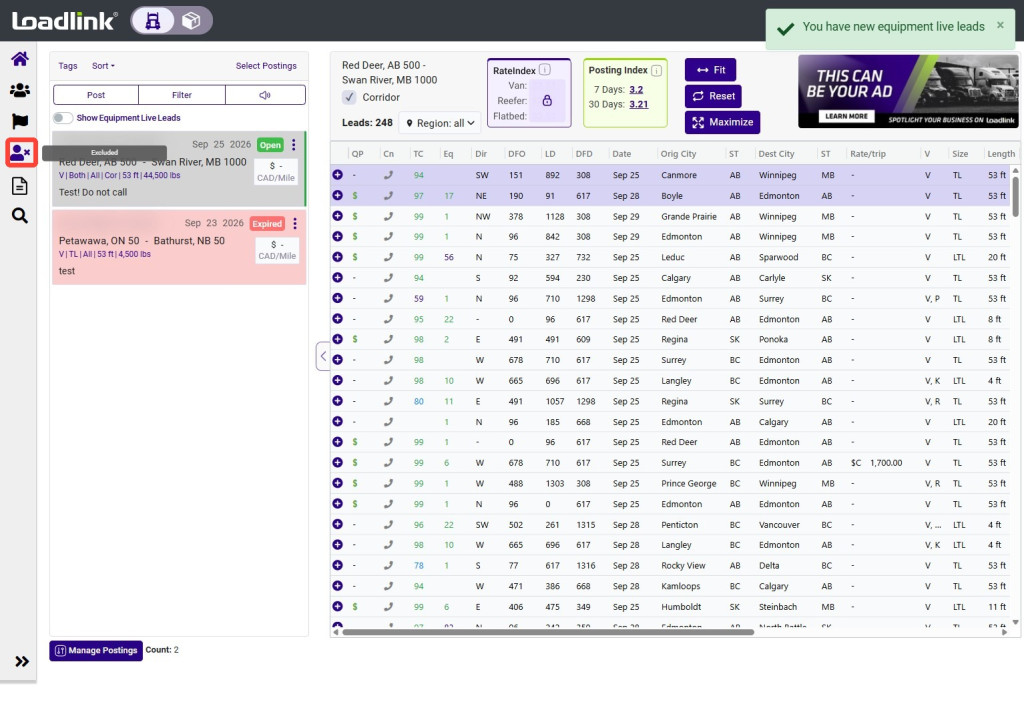
From the left navigation menu, select “Excluded.”
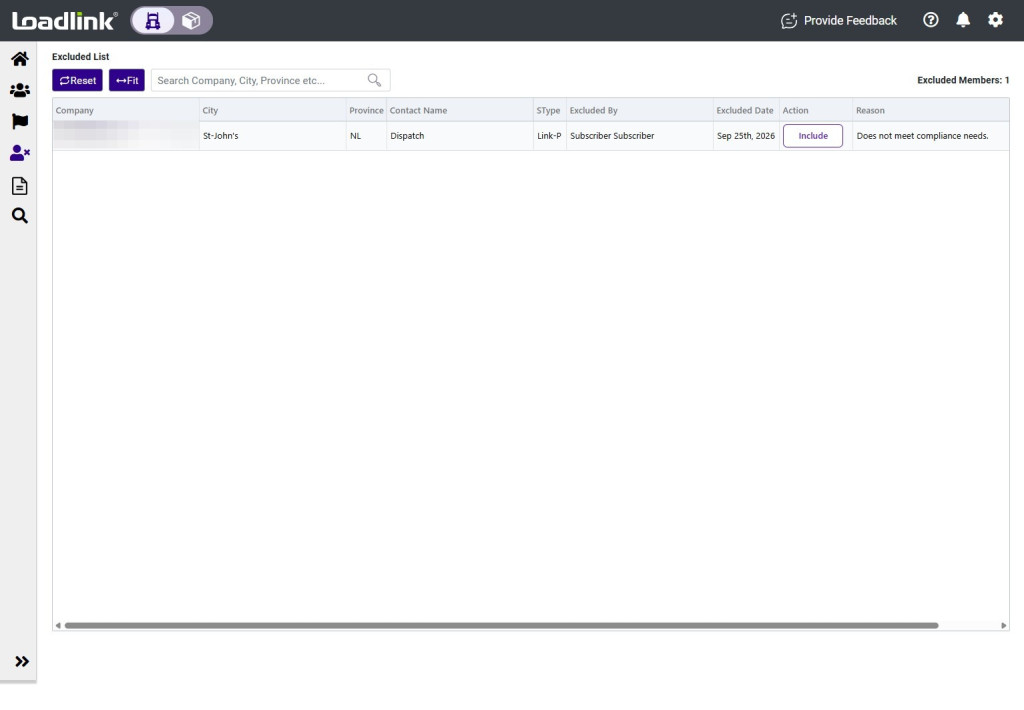
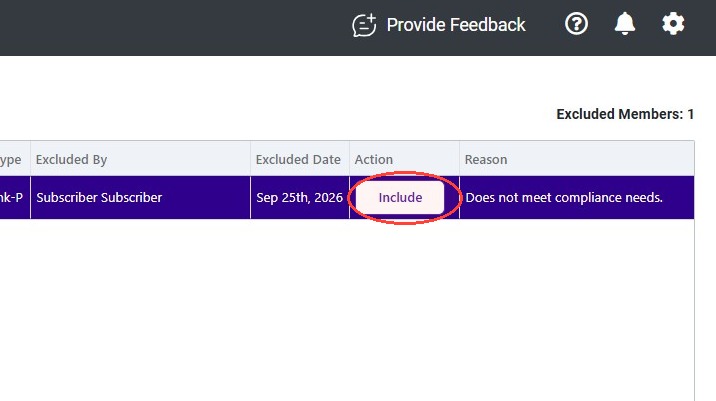
Review your excluded companies. The list shows who excluded each company, when it was excluded, and the reason provided.
To unblock a broker, select “Include” beside the company.
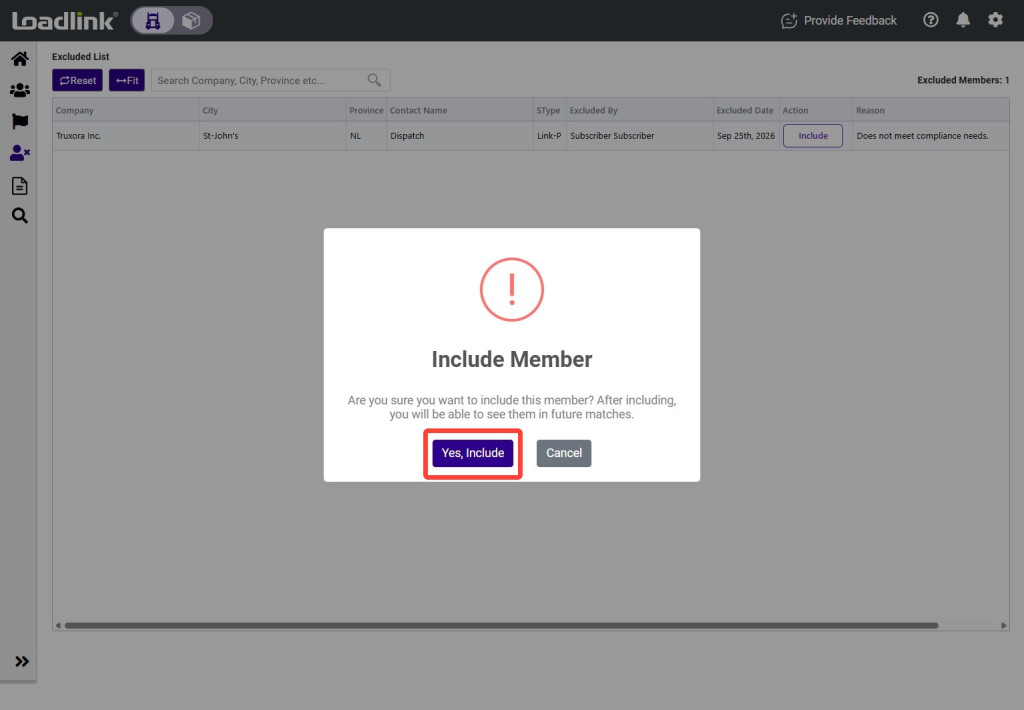
Select “Yes, Include” to confirm.
Note:
When the broker is removed from your Excluded list, their leads will now appear in your results again. They will be able to view your equipment postings.