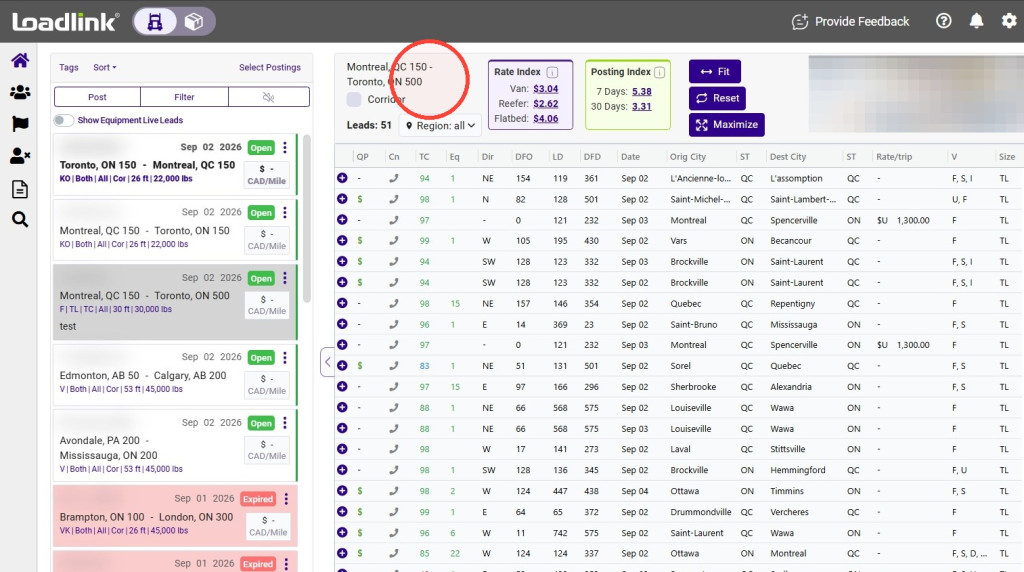
Customize your Leads Grid to focus on the load and broker information most useful to you. Learn how to filter and sort leads, use quick actions, resize or pin columns, and arrange the grid to match your workflow
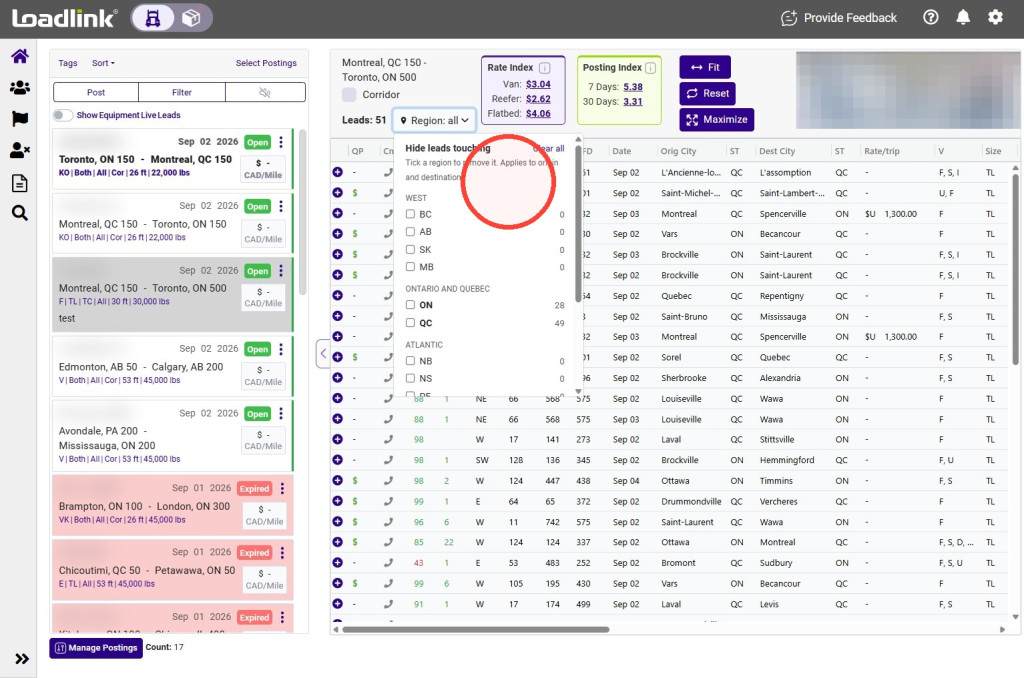
Filter leads by Region
Use Region filters to control which load leads appear in your results.
Select the origin or destination regions you want to exclude. Leads matching the excluded regions will no longer appear in the grid.
Use lead quick actions
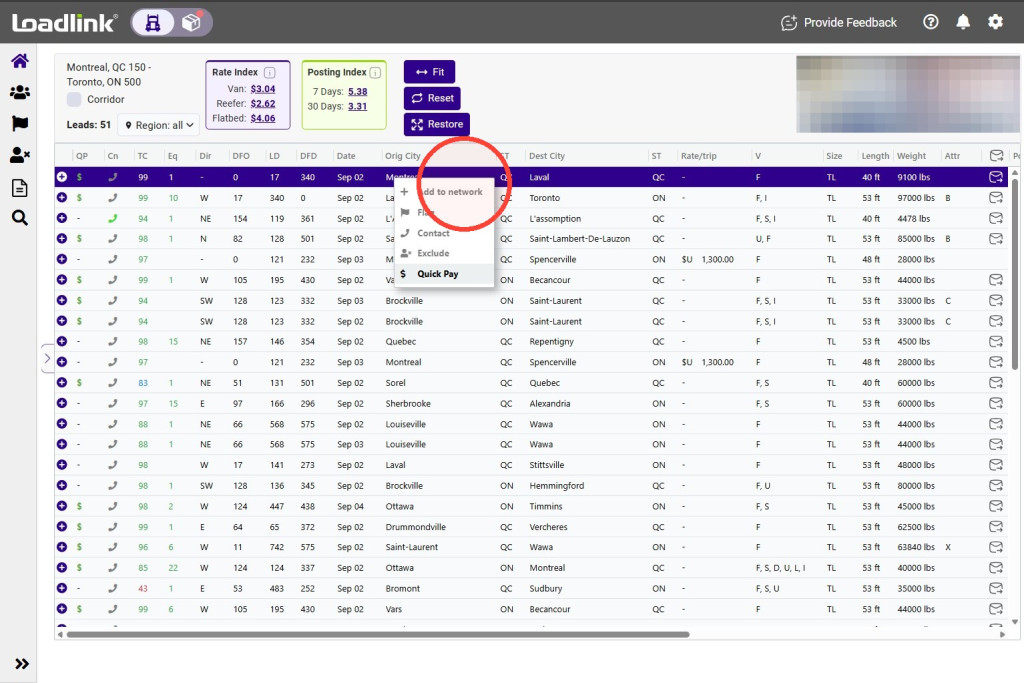
Right-click a lead to view the available quick actions:
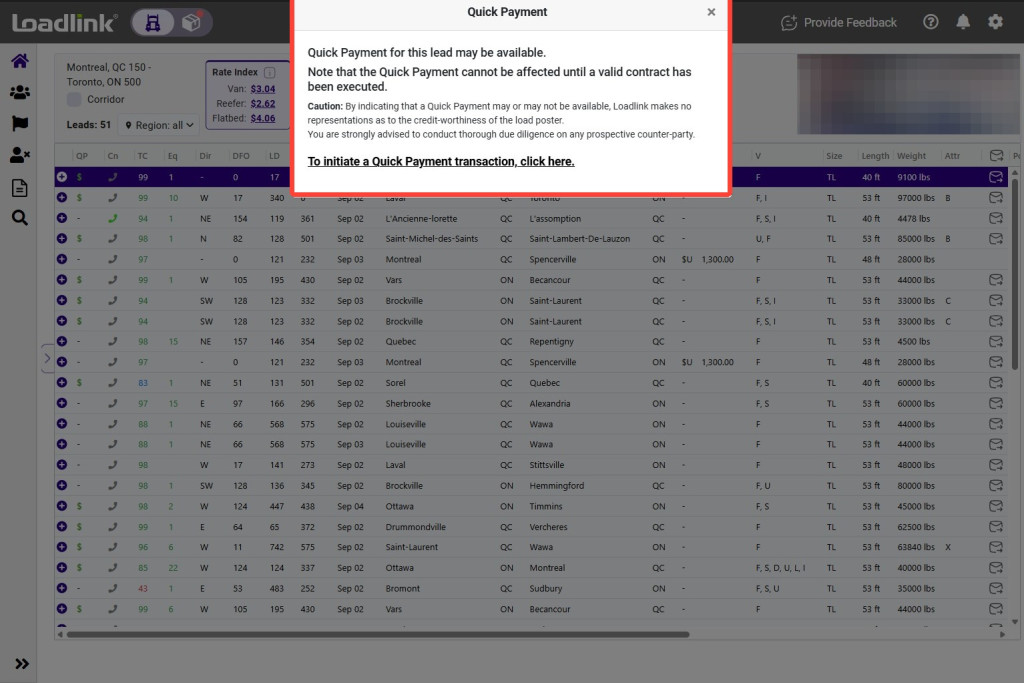
– Add to Network: Add the broker to one of your Networks. – Flag: Save the lead to your Flagged list for later. – Contact: Record that you contacted the carrier. – Exclude: Remove the broker’s leads from your results and prevent the broker from viewing your postings. – Quick Pay: Check available factoring options through Riviera Finance.
If Quick Pay is included with your plan, select “Quick Pay” to check whether the broker qualifies. A green dollar-sign icon identifies leads that are pre-approved for factoring through Riviera Finance.
Sort Your Leads
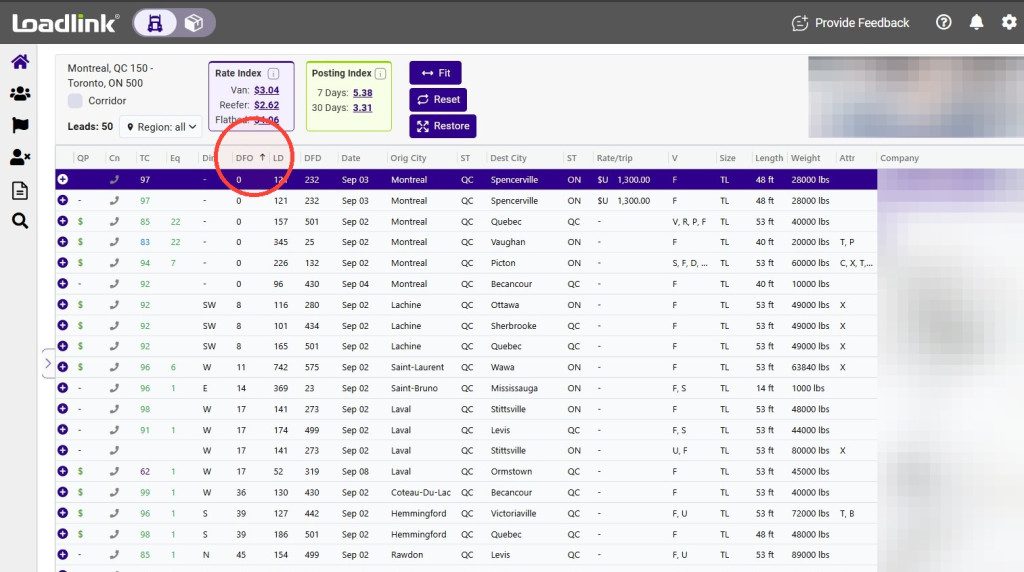
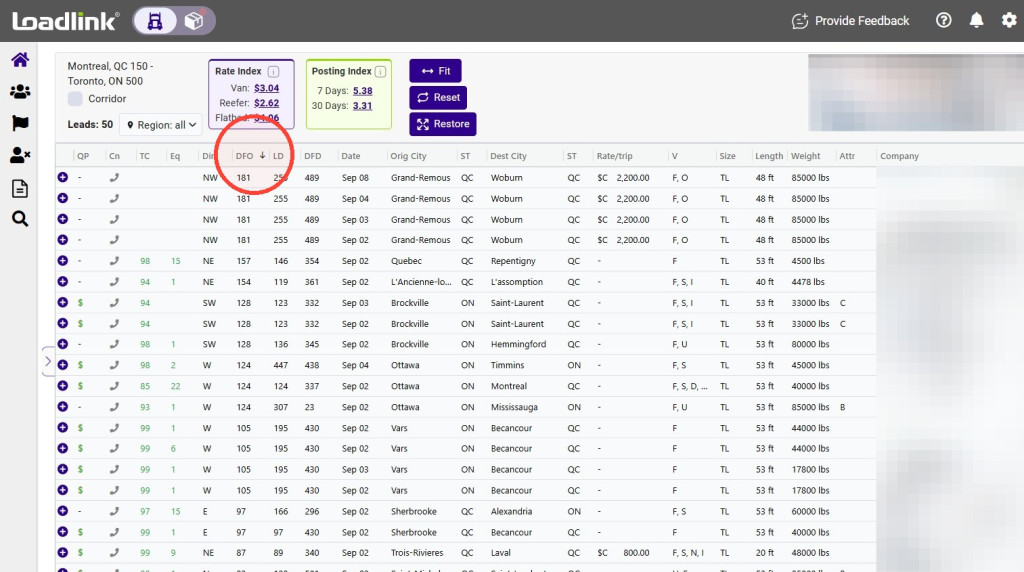
Sort the grid to bring the most useful load leads to the top. For example, you can sort by city, posting date, or deadhead distance.
Select a column heading once to sort in ascending order. Select it again to sort in descending order. Select it a third time to remove the sort.
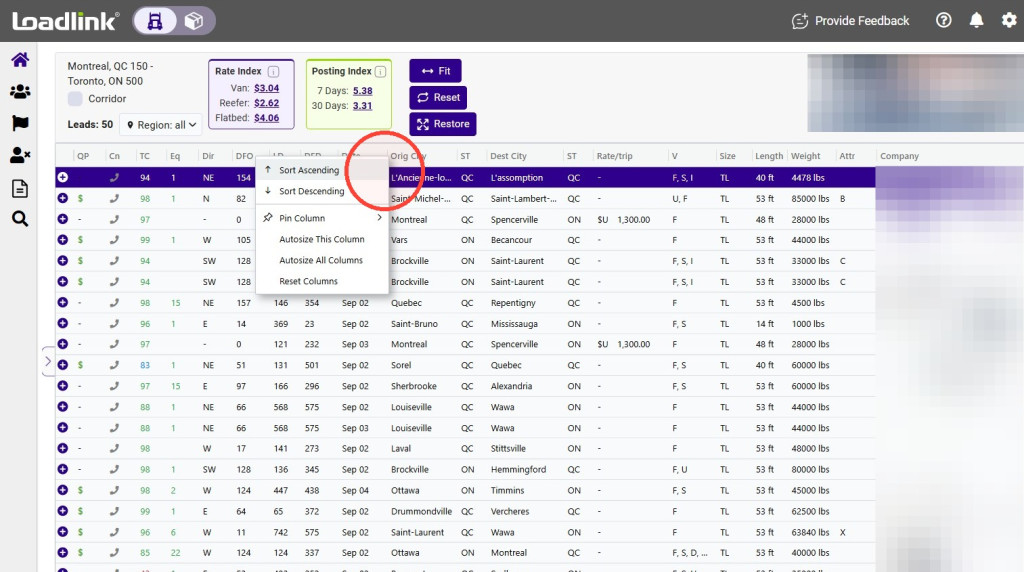
You can also right-click a column heading and select “Sort Ascending” or “Sort Descending.”
Resize and Pin Columns
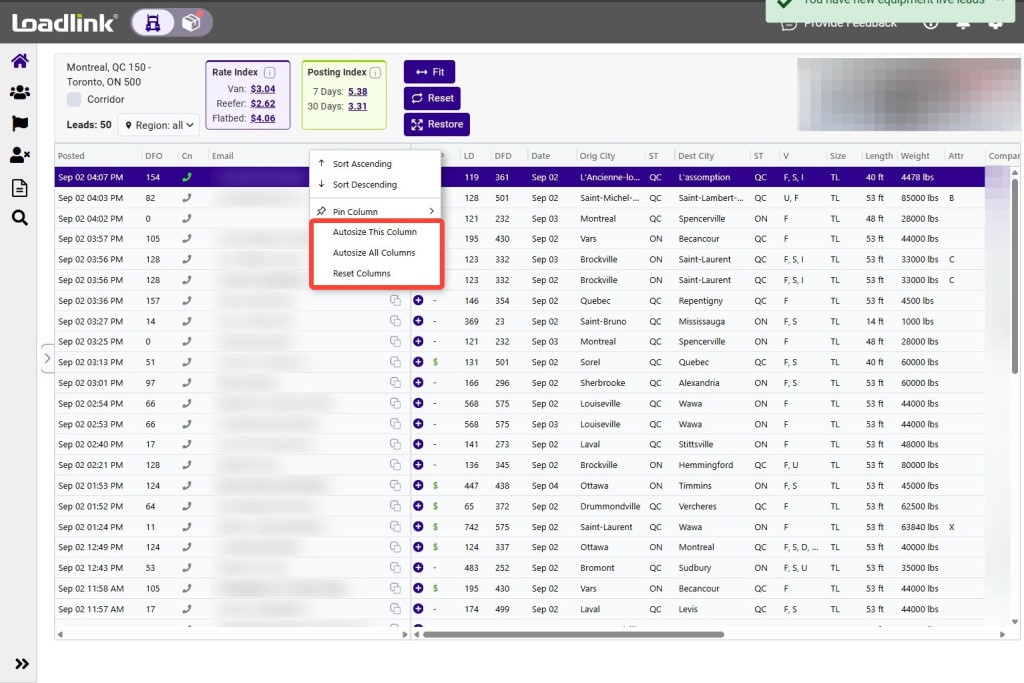
To resize a column automatically, right-click its heading and select “Autosize This Column.” To resize every column, select “Autosize All Columns.”
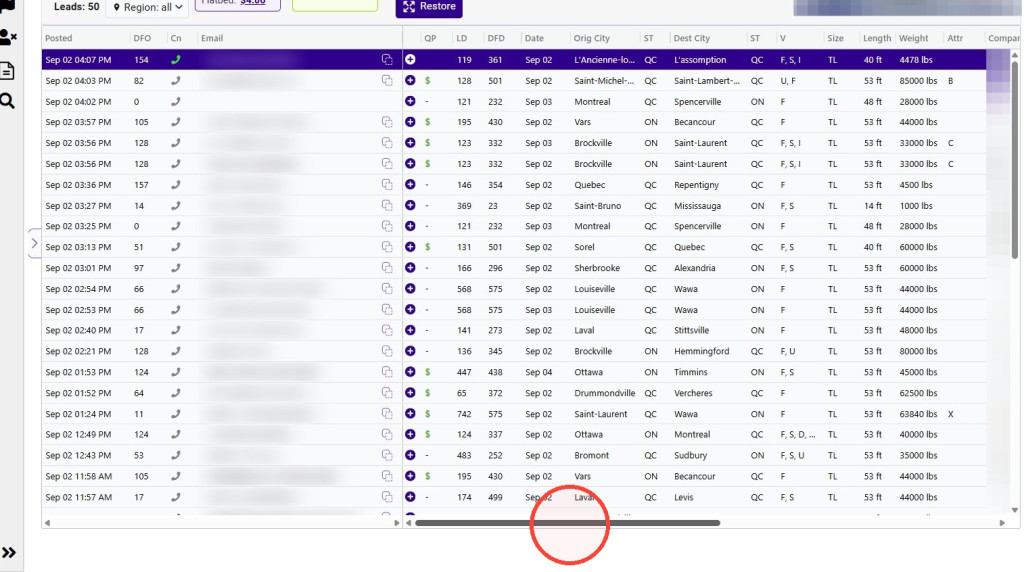
To keep a column visible while scrolling, right-click its heading and select “Pin Column.” Then choose whether to pin it to the left or right side of the grid.
Tip!
Pin the columns you check most often so important information stays visible while you scroll.
Adjust the Grid View
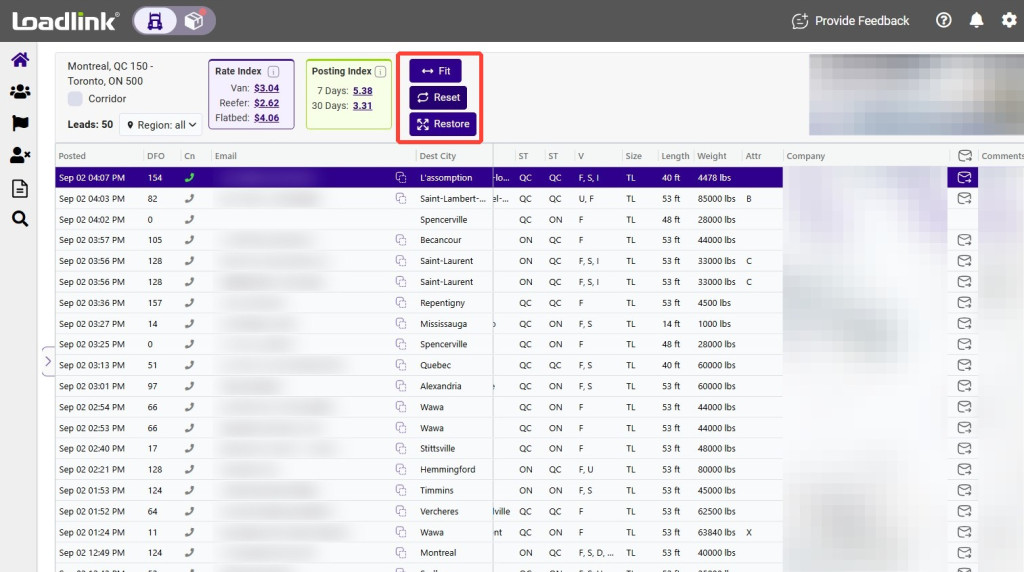
Use the controls above the Leads Grid to adjust the layout:
– Fit: Adjust the columns to fit the available space. – Reset: Restore the default column order, sorting, pinning and visibility. – Maximize: Hide the postings panel and expand the Leads Grid. – Restore: Reopen the postings panel and return to the standard view.
Remove or Rearrange Columns
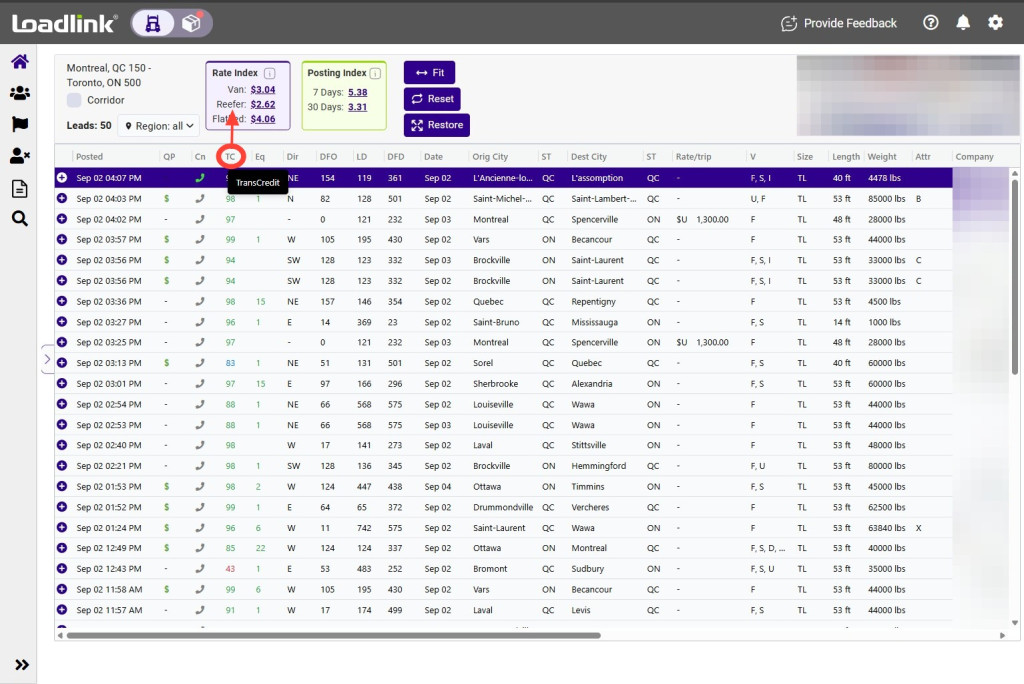
To remove a column, drag its heading out of the grid and release it in the area above the column headings.
To restore removed columns and return to the default grid layout, select “Reset.”
Tip!
If a column is missing, select Reset to restore the default grid layout.
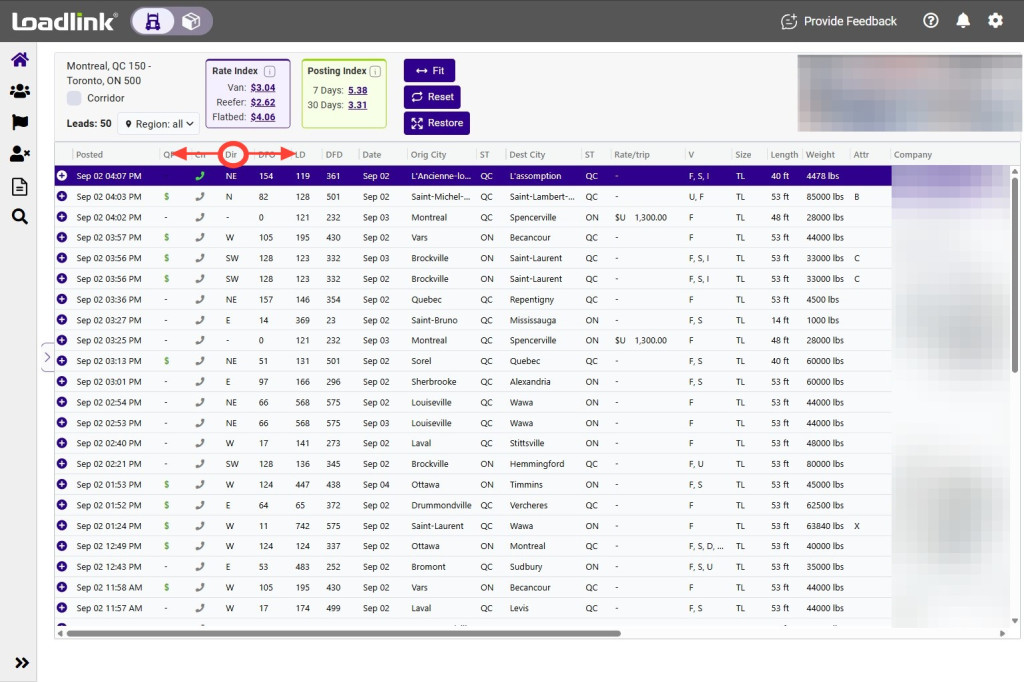
To rearrange the columns, drag a column heading to the position you want.