Use Live Leads to review matches for your postings, open company profiles, and narrow your results. This guide explains how to view leads across your postings, monitor a specific posting, and adjust your Live Leads view.
Open Live Leads
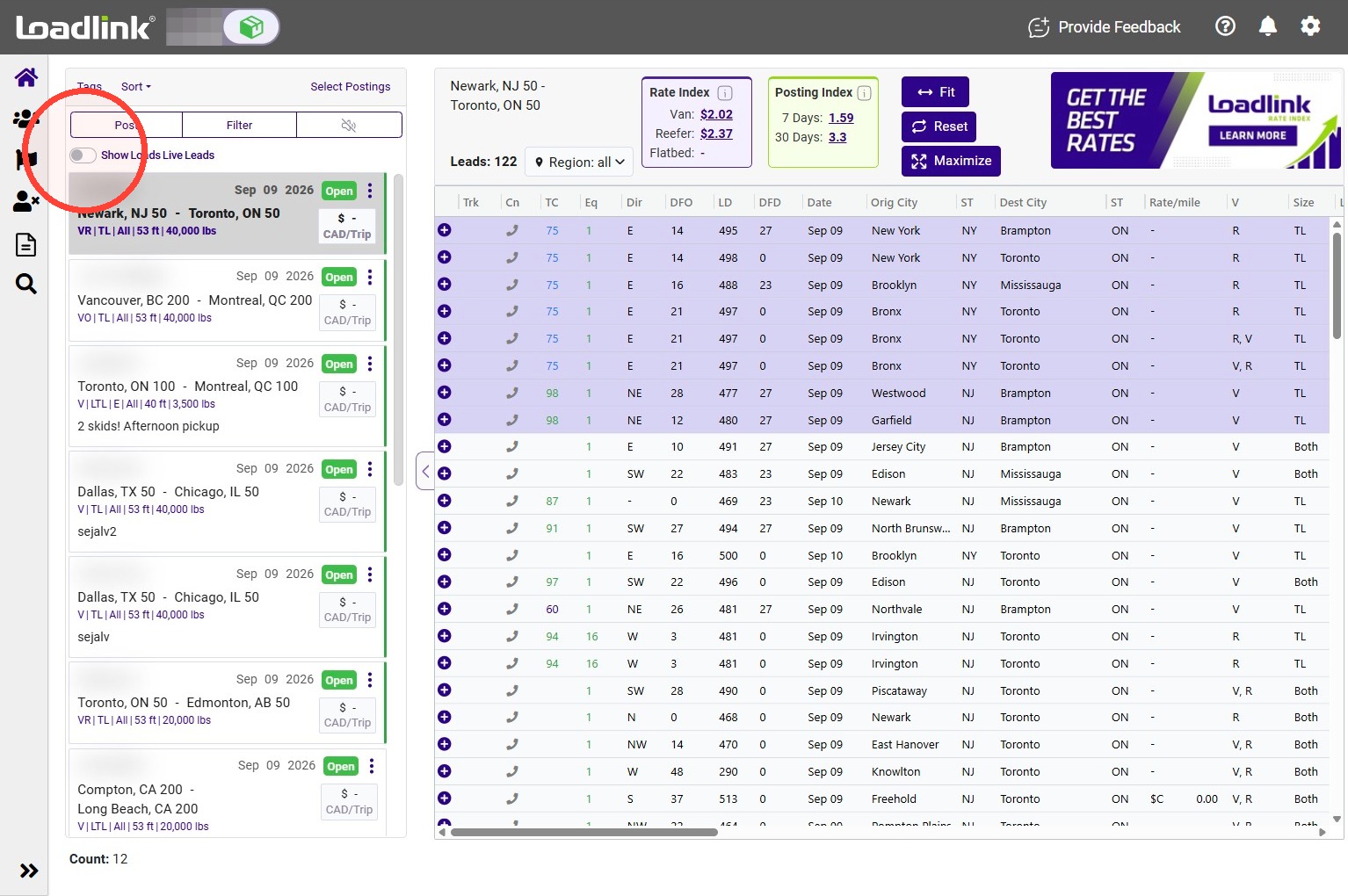
Click the “Show Loads Live Leads” toggle to view leads matched to your postings within the last 30 minutes
Note:
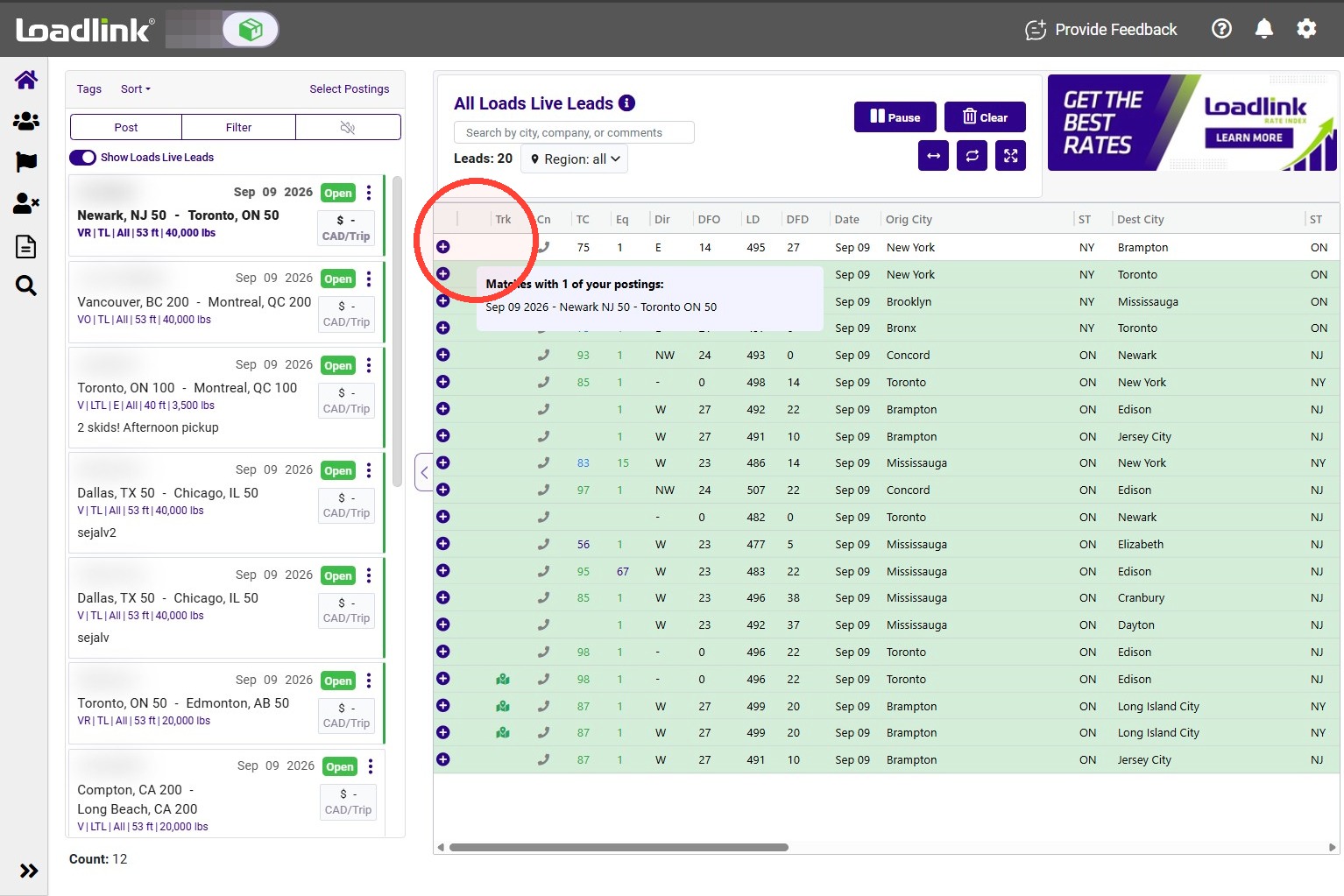
A green background indicates the Loads Live Leads page is enabled.
See which postings matched a lead
Hover over the starter column next to a lead to see the postings that matched it.
View leads for one posting
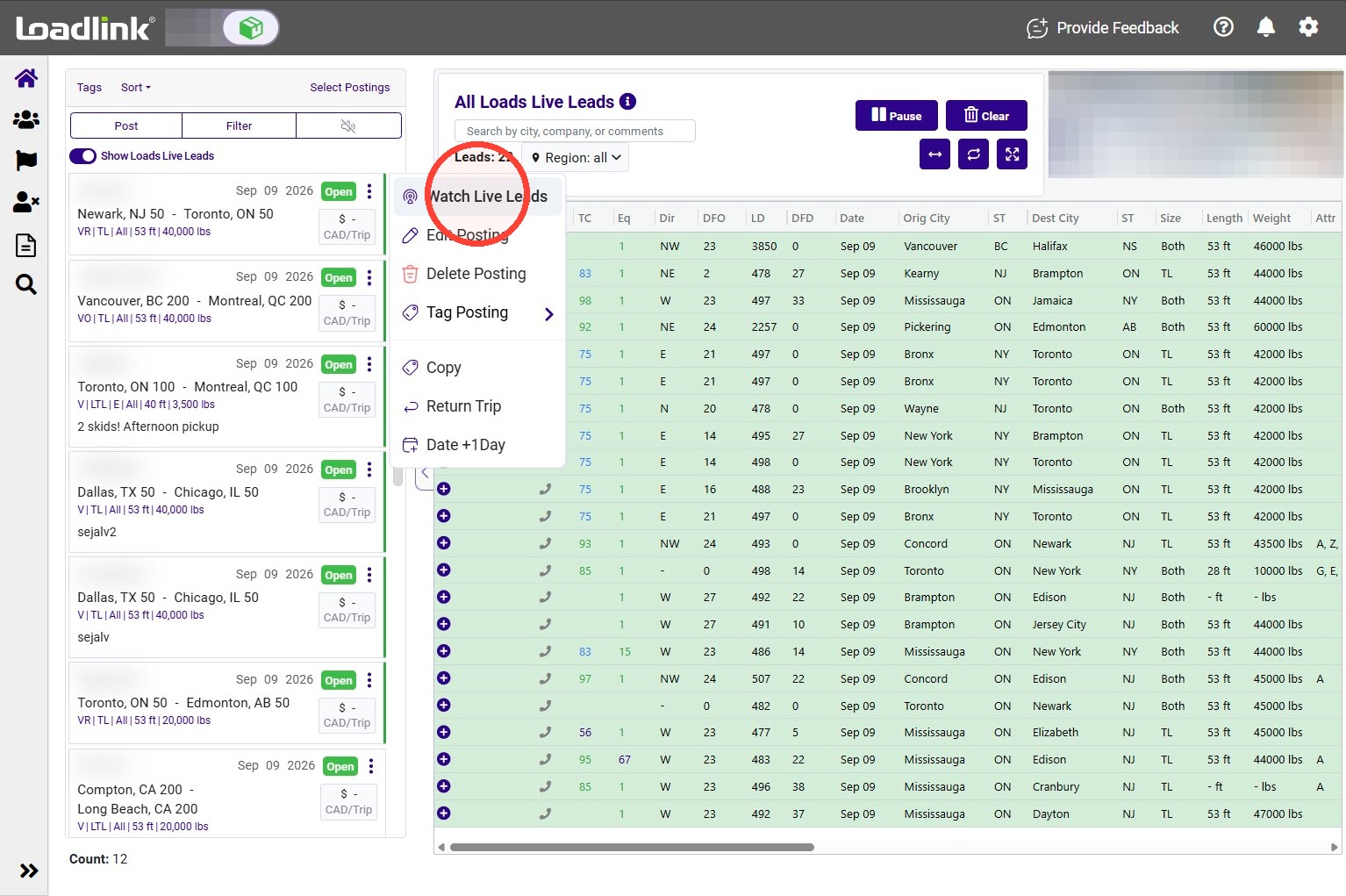
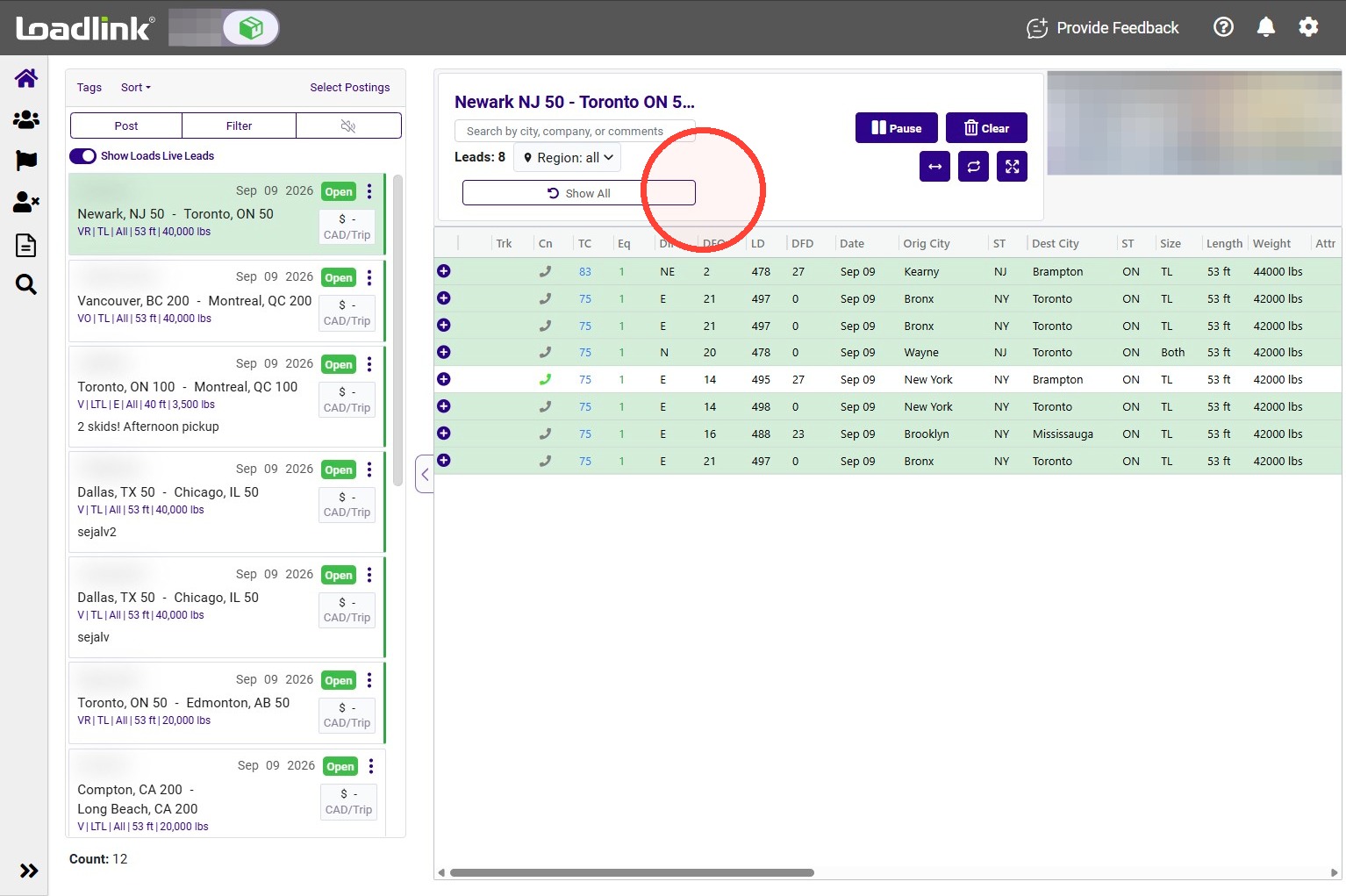
To focus on a specific posting, open its three-dot menu and select Watch Live Leads.
Click “Show All” to return to the full list of Live Leads.
Review Lead Details
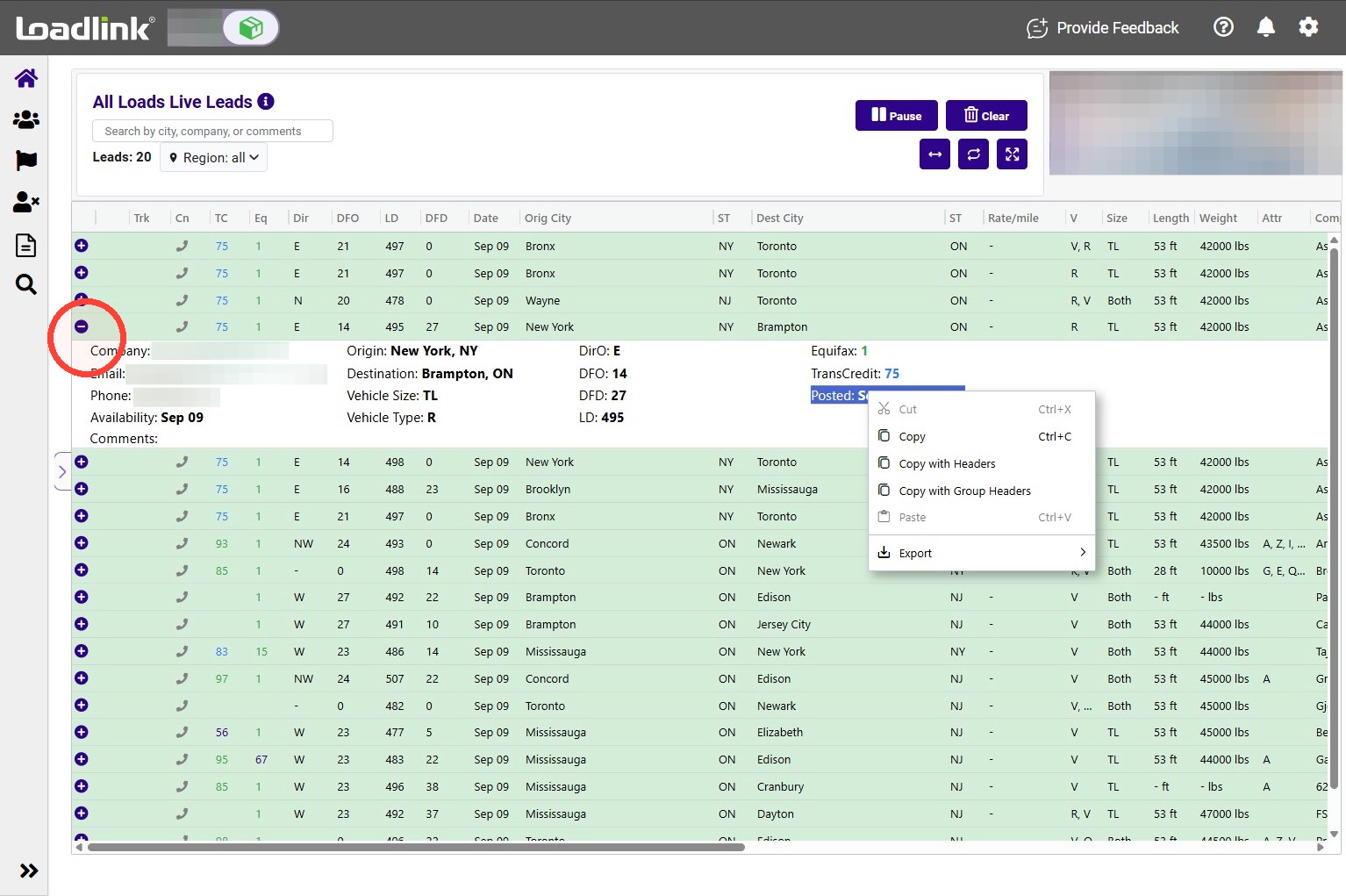
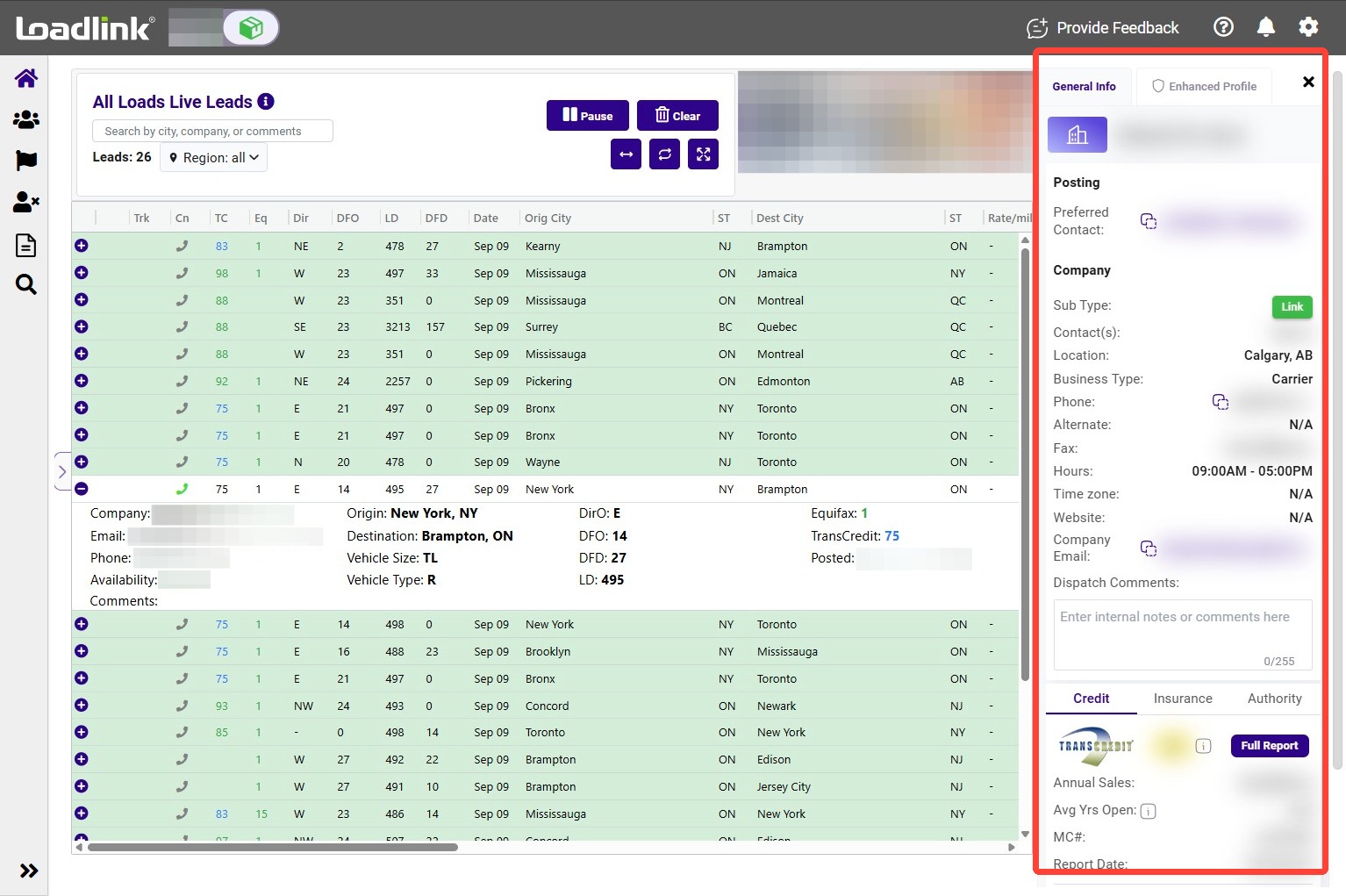
Open a lead summary: Click the expand icon next to a lead to view its summary.
To copy the lead’s details, highlight the details and right click to select your copy preferences.
Open a company profile
Click a lead’s row to open the company profile and review the available details.
Search and filter leads
Live Leads uses the same sorting, filtering, and grid customization options as the main grid.
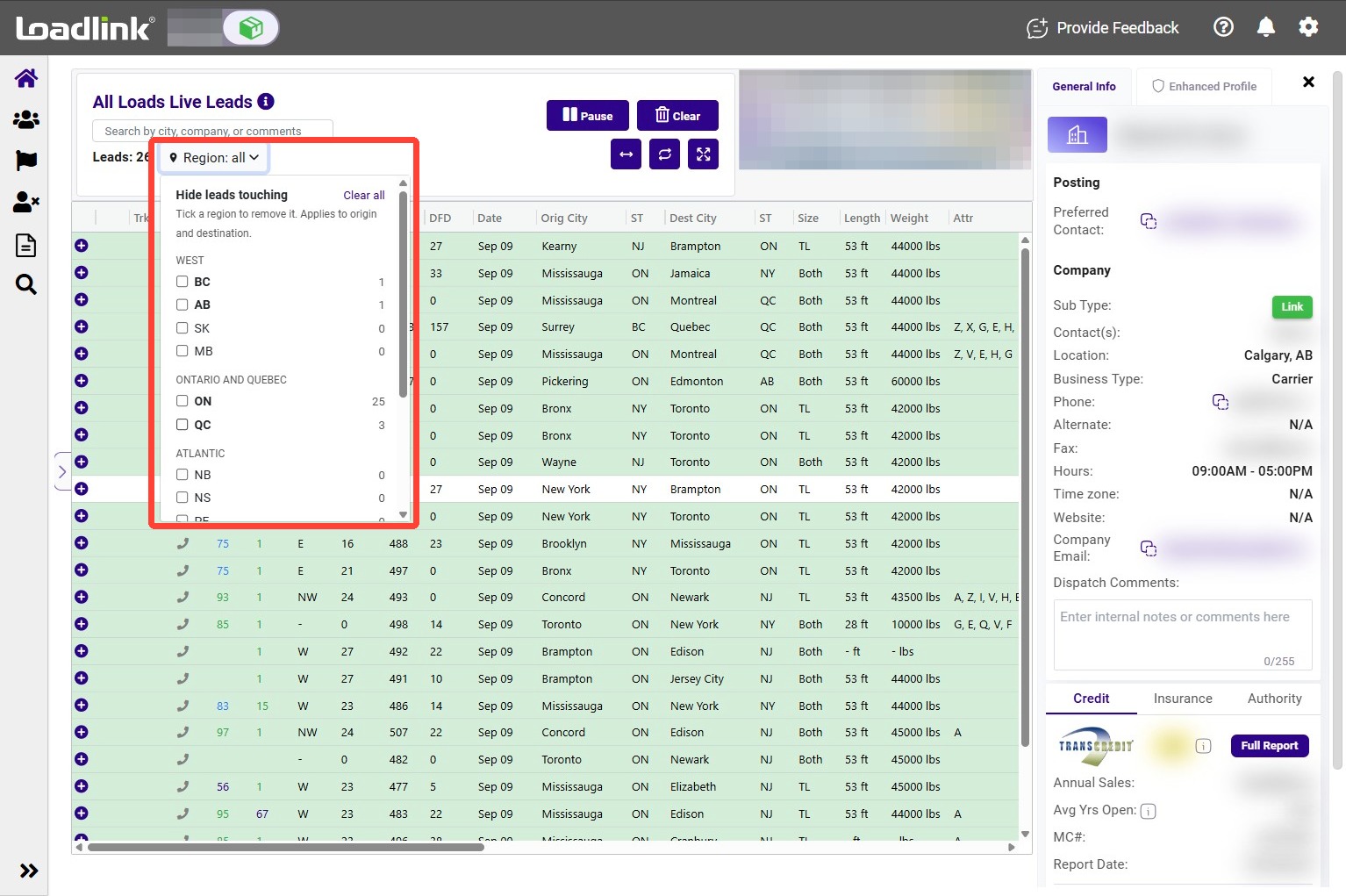
Open Region and select the regions you want to exclude from your results.
Select Clear all to remove the region selections.
Manage your Live Leads view
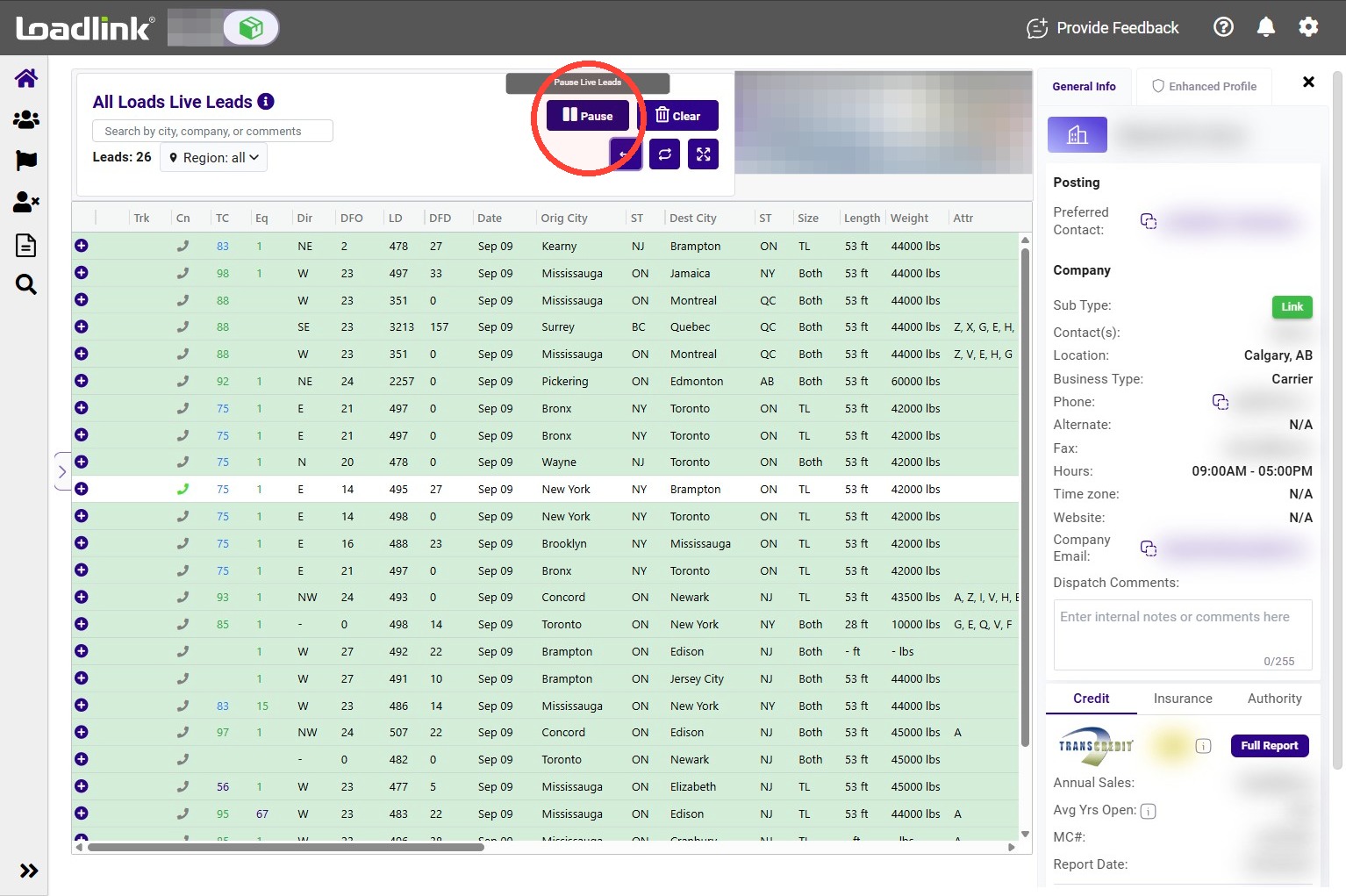
Click Pause to temporarily stop new leads from appearing in the list.
Click Play to resume updates.
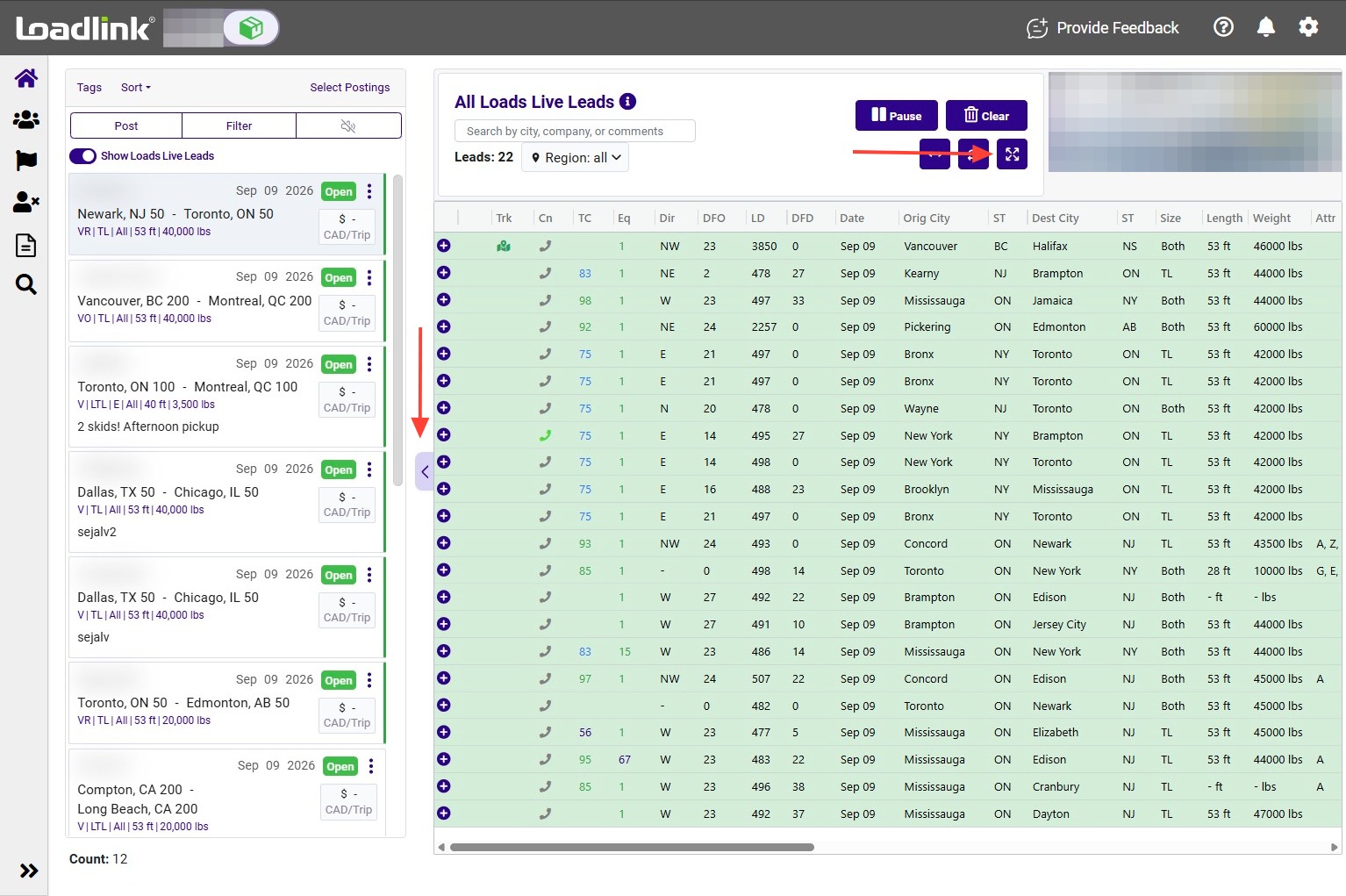
Click the arrow to the left of the leads grid or the maximize icon to collapse the Postings panel and give the leads grid more space.
To restore the original view, click the arrow again or click the minimize icon.
Quick Search: Type into the Search field to filter leads by key city, company name, or comment.
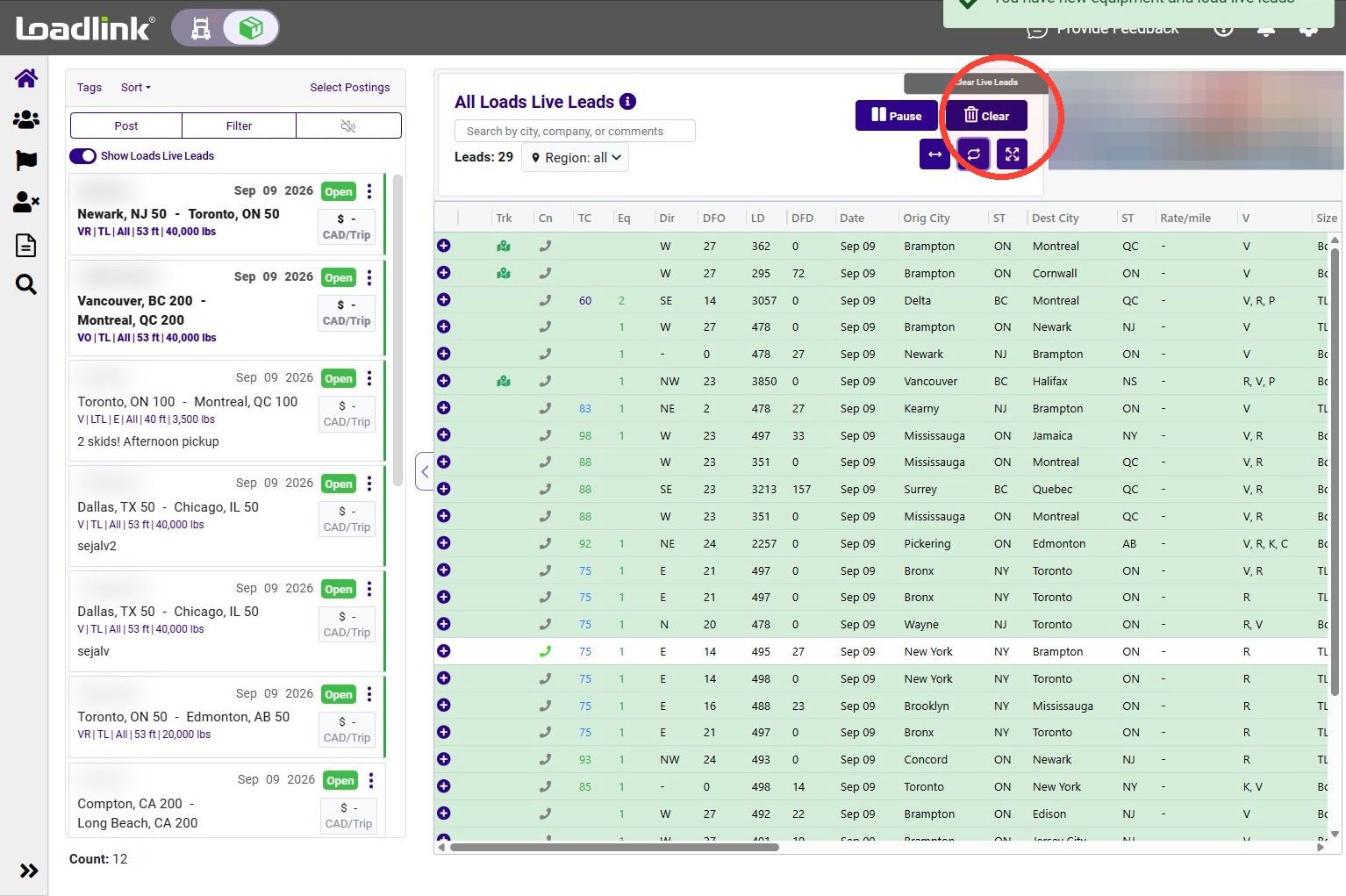
Clear all leads
Click Clear to remove all leads currently displayed in Live Leads.
Important: This clears the entire Live Leads list, not just an individual lead.
What you should see
The Live Leads grid shows results for the newest postings and is fully customizable to your filter and sort preferences. You can open a lead’s summary or company profile to review more information.
No leads showing?
– Review your Search field for terms that may be narrowing your results. – Check your region selections. – Check whether you are viewing one posting or all postings. – If updates are paused, click Play to resume them.