Use templates to save frequently used equipment posting details. You can quickly update and repost saved equipment without creating each posting from scratch.
Open Templates
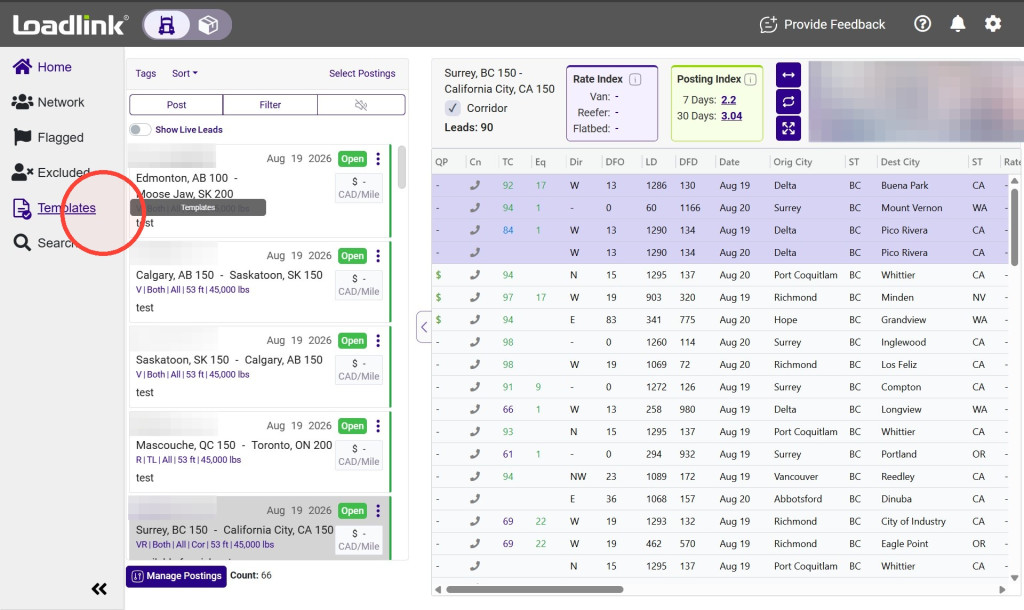
From the left navigation menu, select Templates.
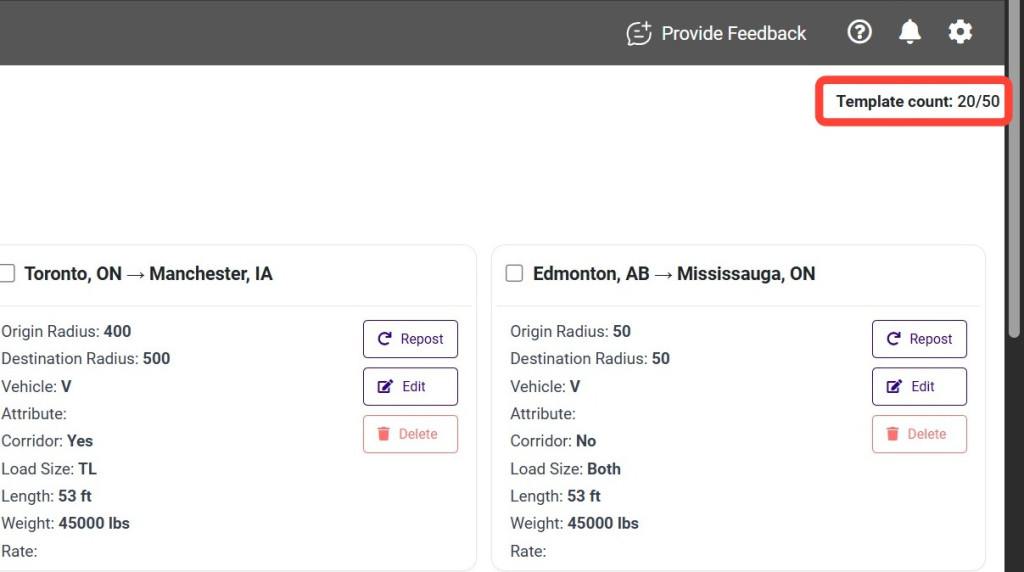
You can save up to 50 templates on your account.
Create a Template
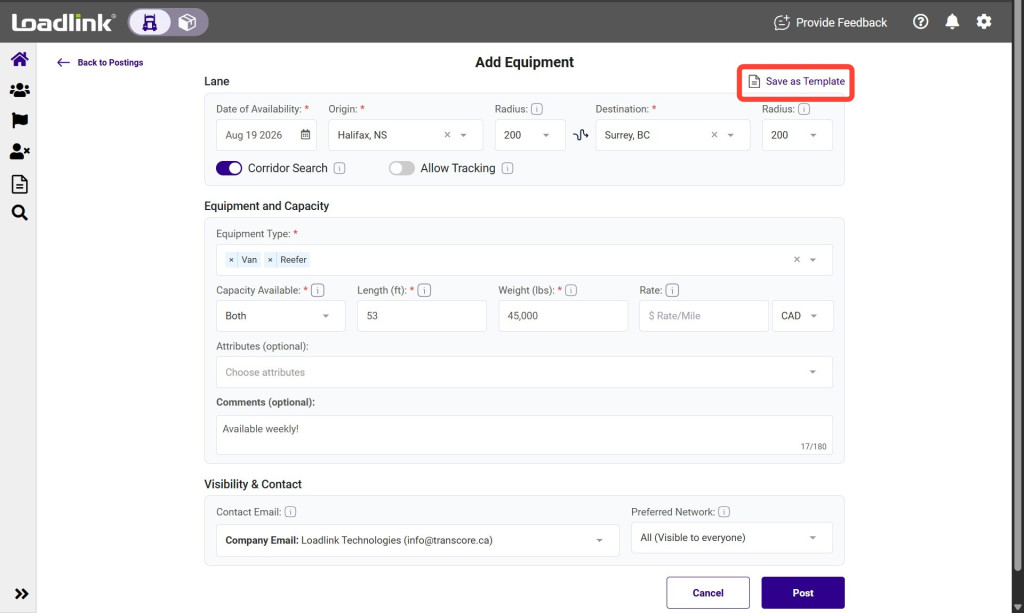
When creating an equipment posting, select Save as Template before publishing it.
Find a Template
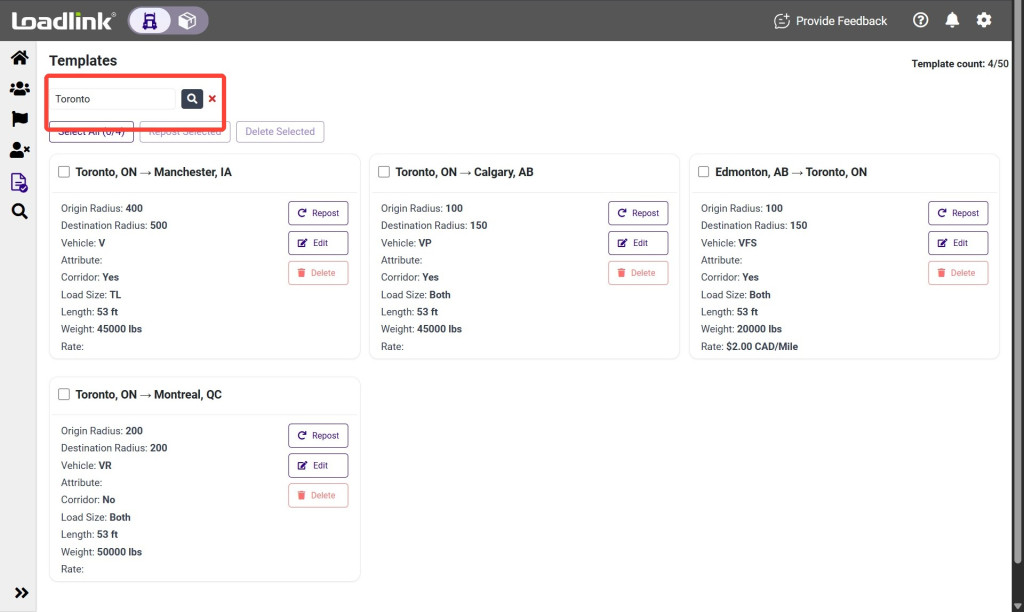
Enter a city in the search bar to filter your saved templates.
Repost Templates
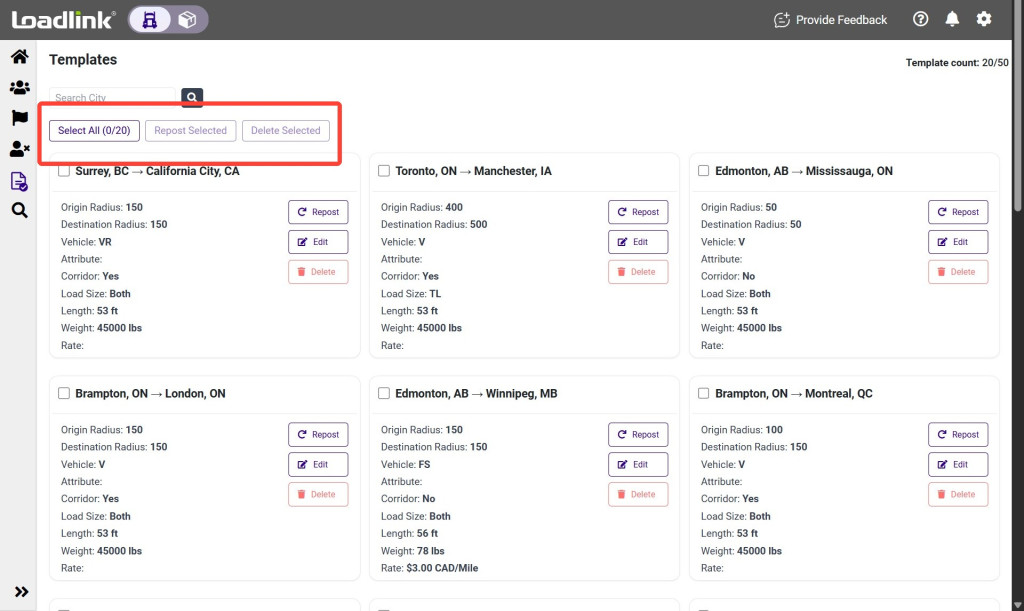
You can repost or delete multiple templates at the same time. To manage every template shown, click Select All.
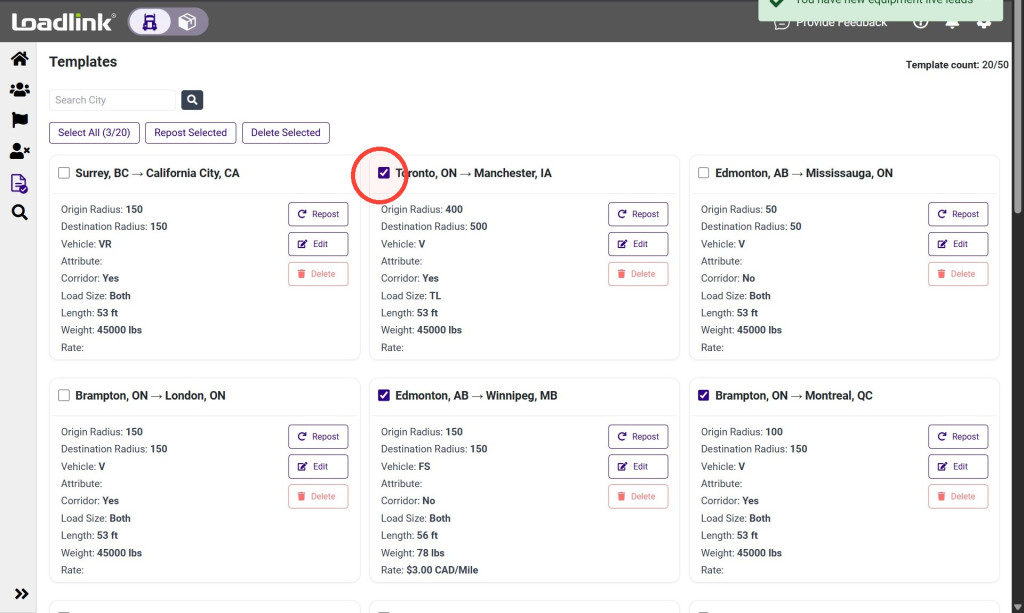
To select specific templates, use the checkbox on each template card.
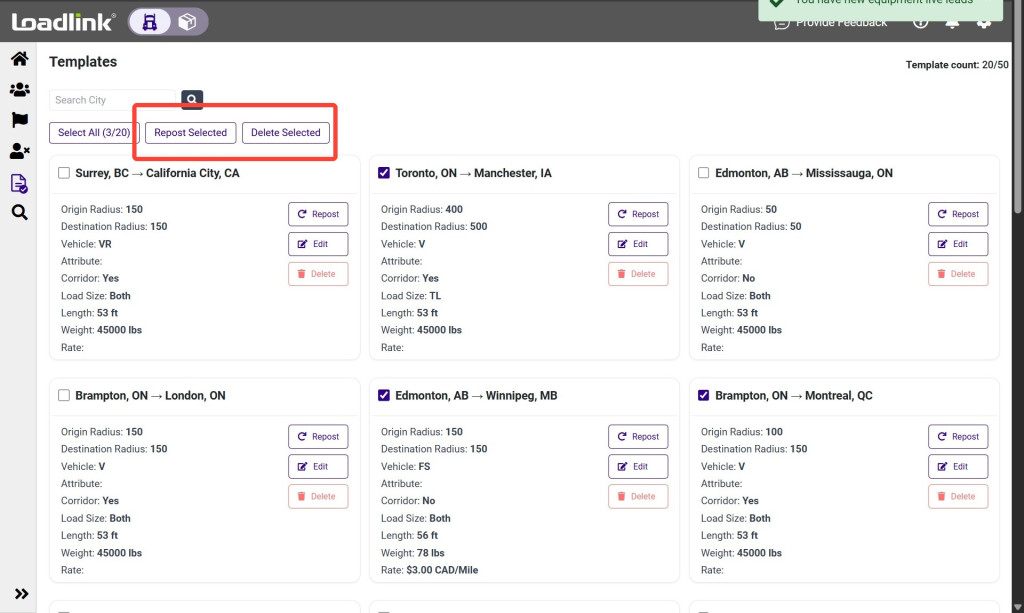
After selecting your templates, choose one of the following:
– Click Repost Selected to publish the selected load postings. – Click Delete Selected to remove the selected templates.
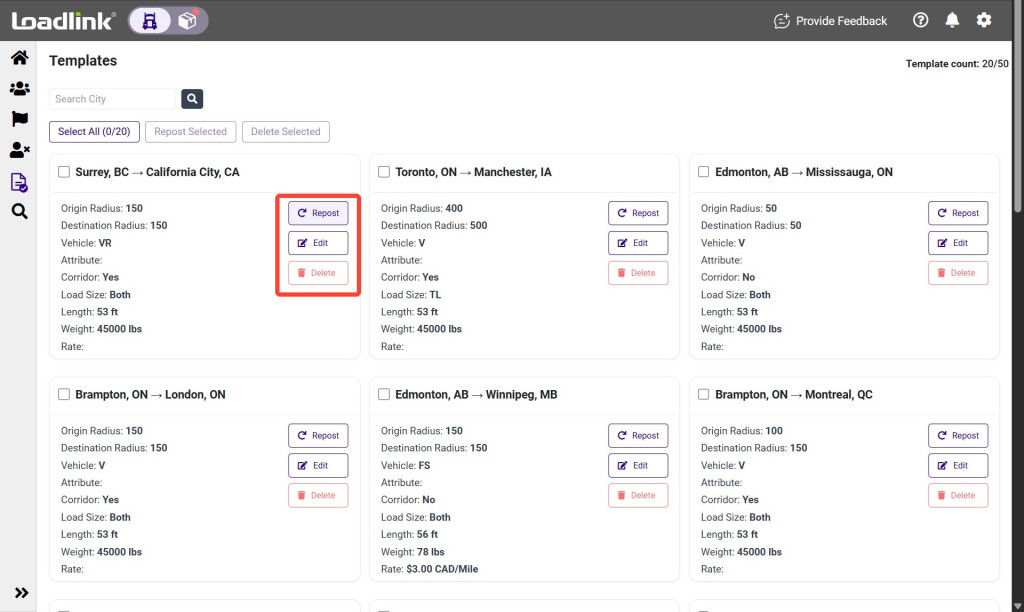
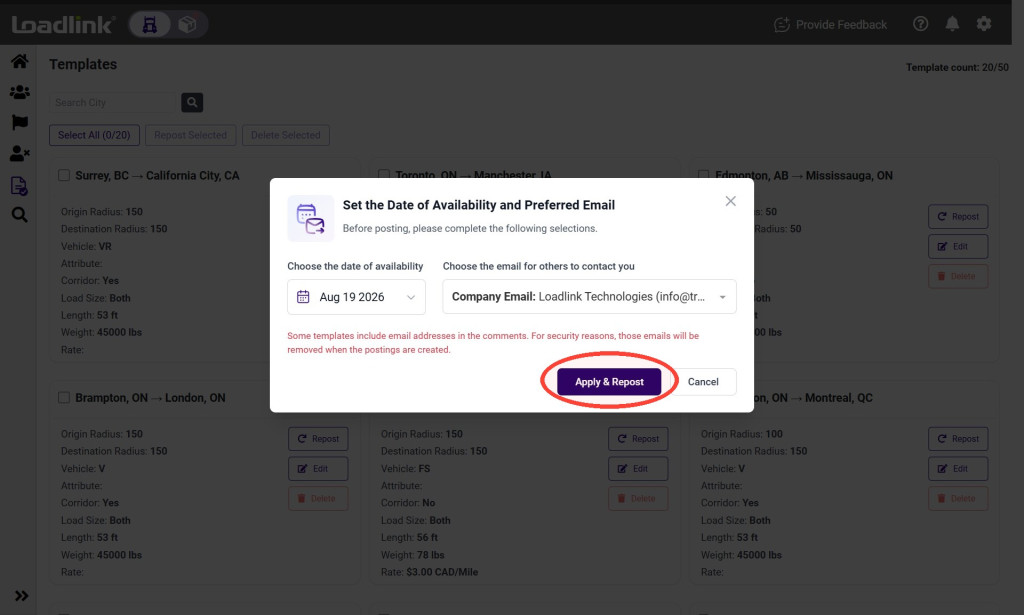
To repost one template, click Repost on its template card.
Confirm the availability date and select your preferred contact. Then click Apply & Repost.
The equipment posting will become active immediately.
Edit a Template
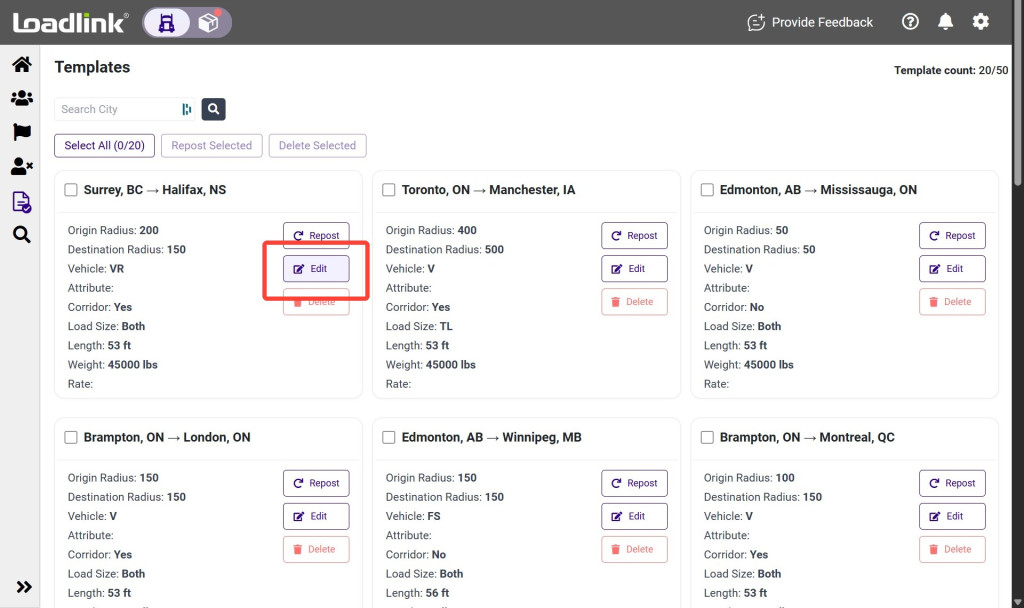
To change a template’s saved details, click Edit on its template card.
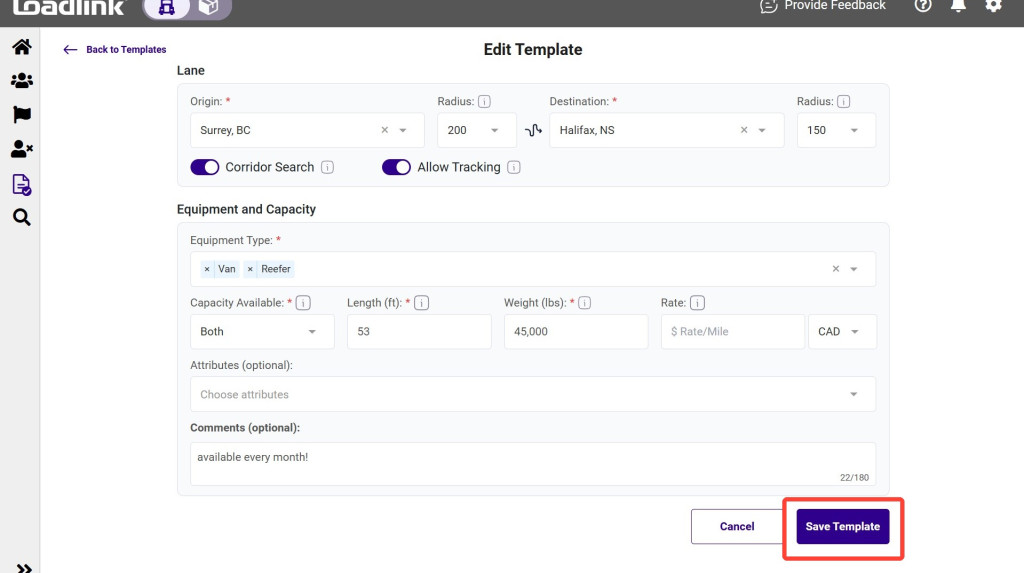
Update the necessary information, such as the search radius, origin, destination, equipment details, or posting comments. Then click Save Template.
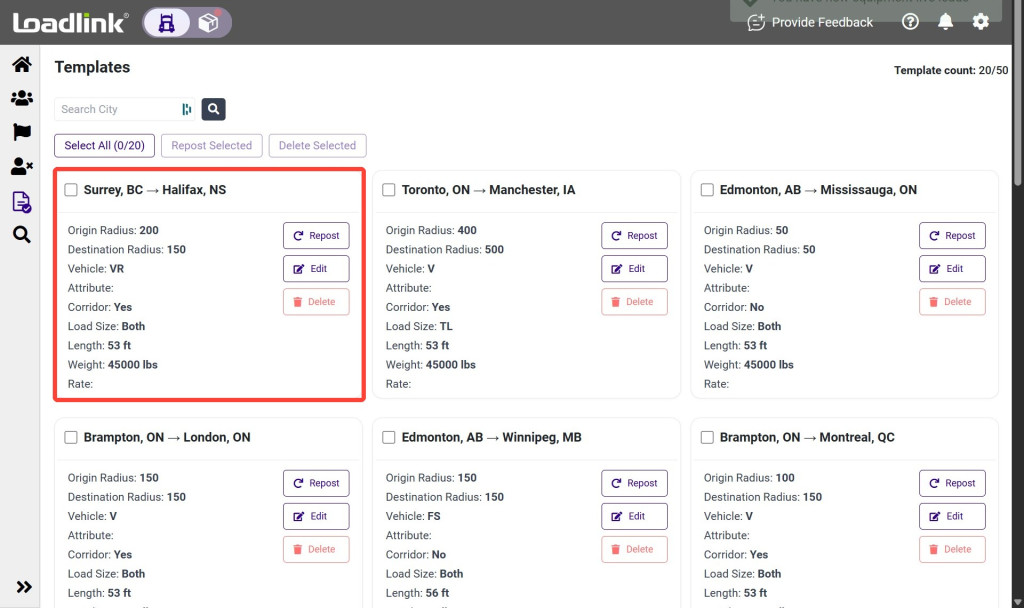
The updated information will appear on the template card.
Delete a Template
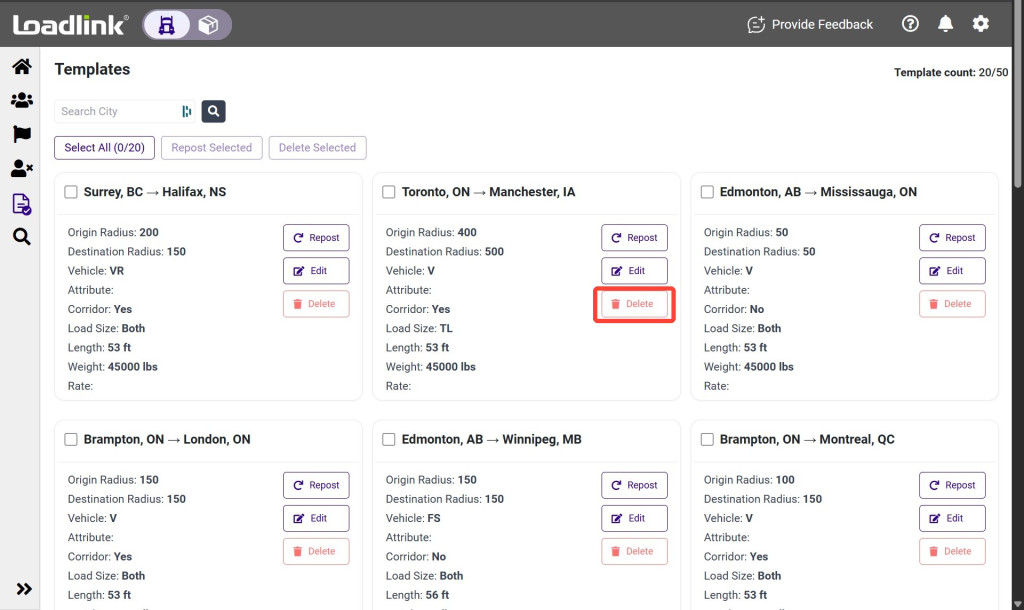
To remove one template, click Delete on its template card.
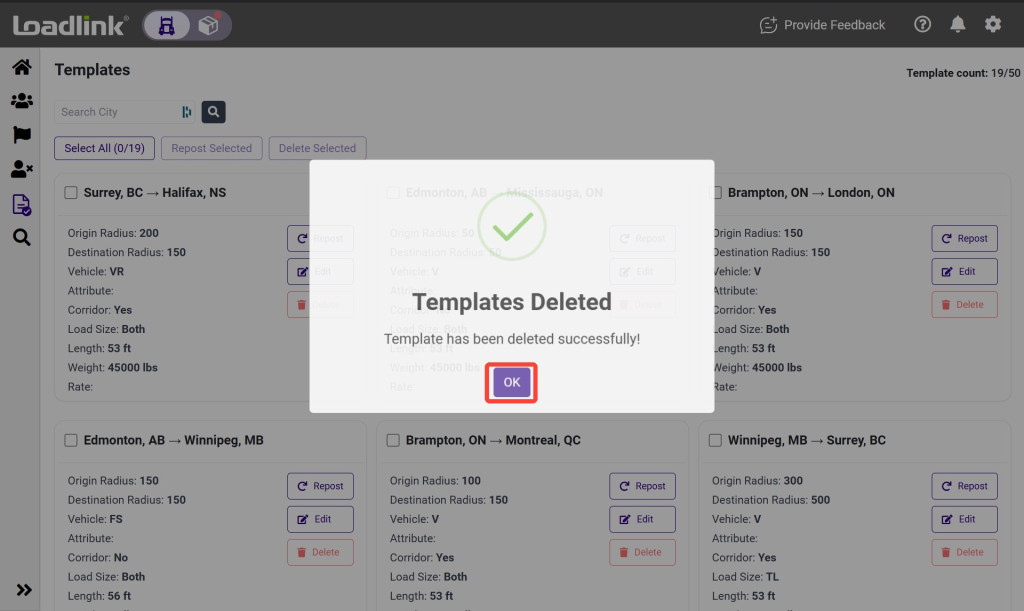
Click OK to confirm. The template will be permanently deleted.