BROKER LOAD BOARD
Manage Load Postings with Quick Actions
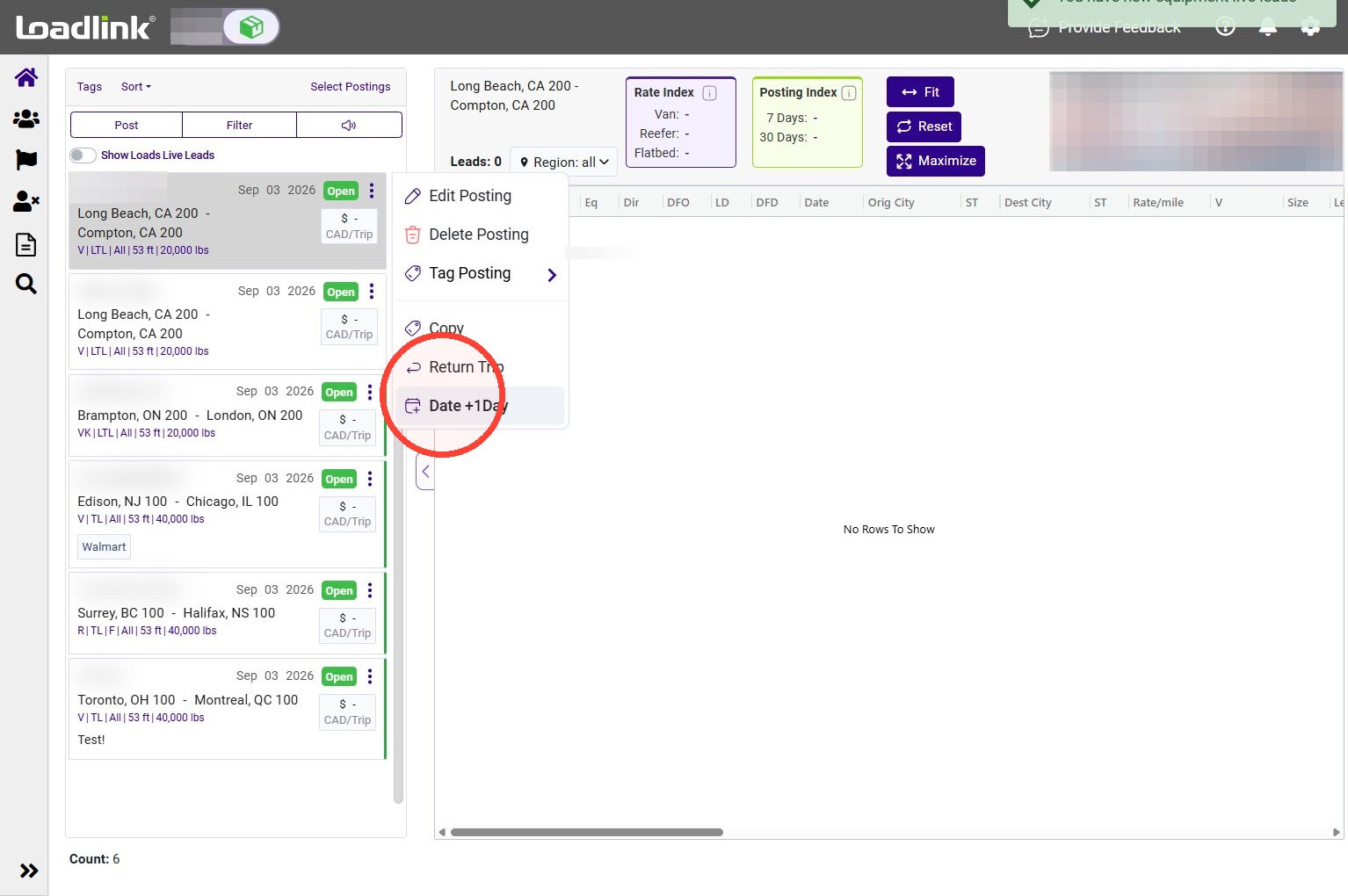
Use the quick-action menu to edit, delete, organize, or copy a loadposting without creating a new posting from scratch.
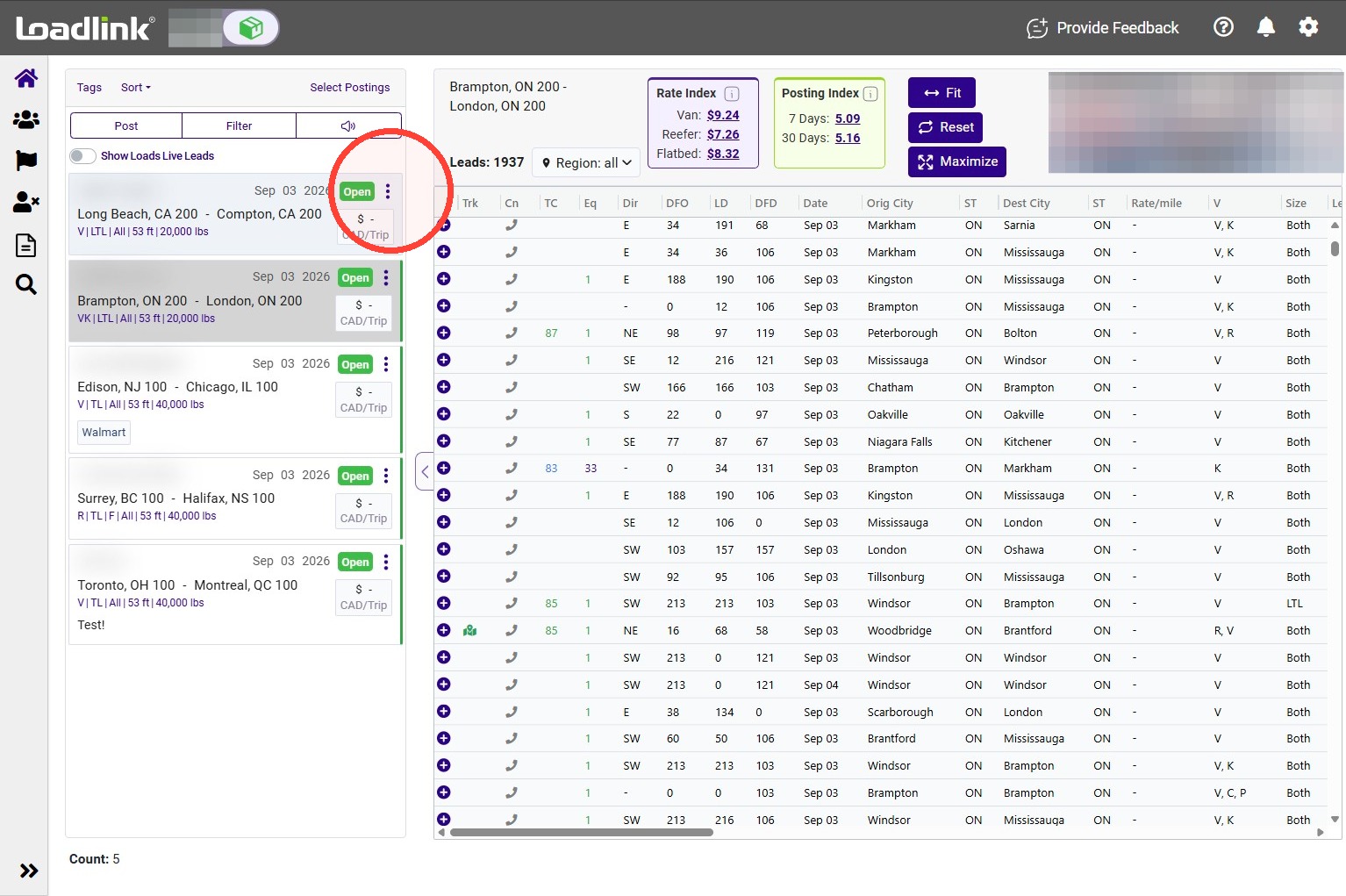
Find the load posting you want to manage.
Select the three-dot-menu on the posting card to view the available actions.
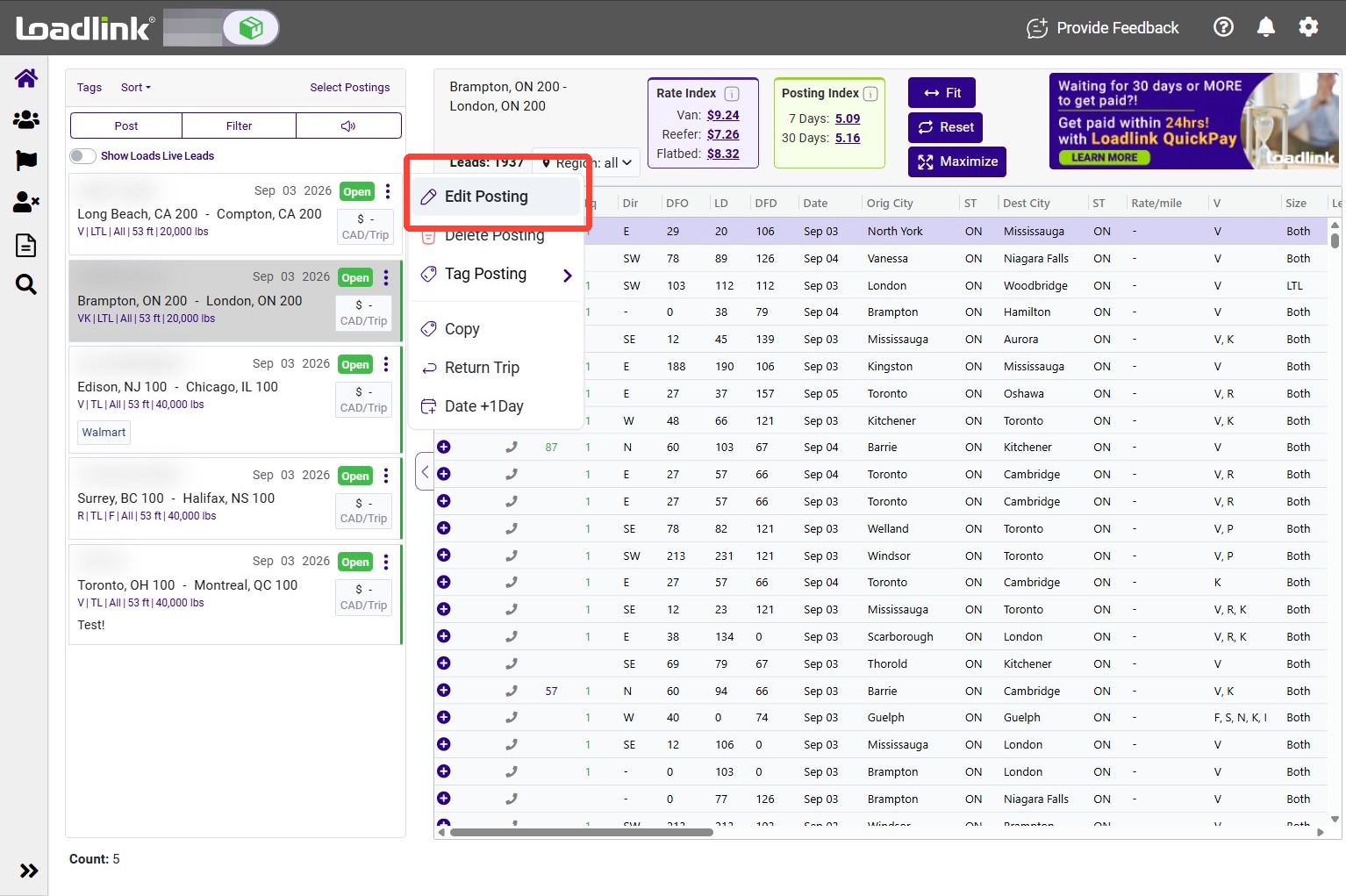
Edit a Posting
Select Edit Posting to change the details of the load posting. Update the necessary information, then save your changes
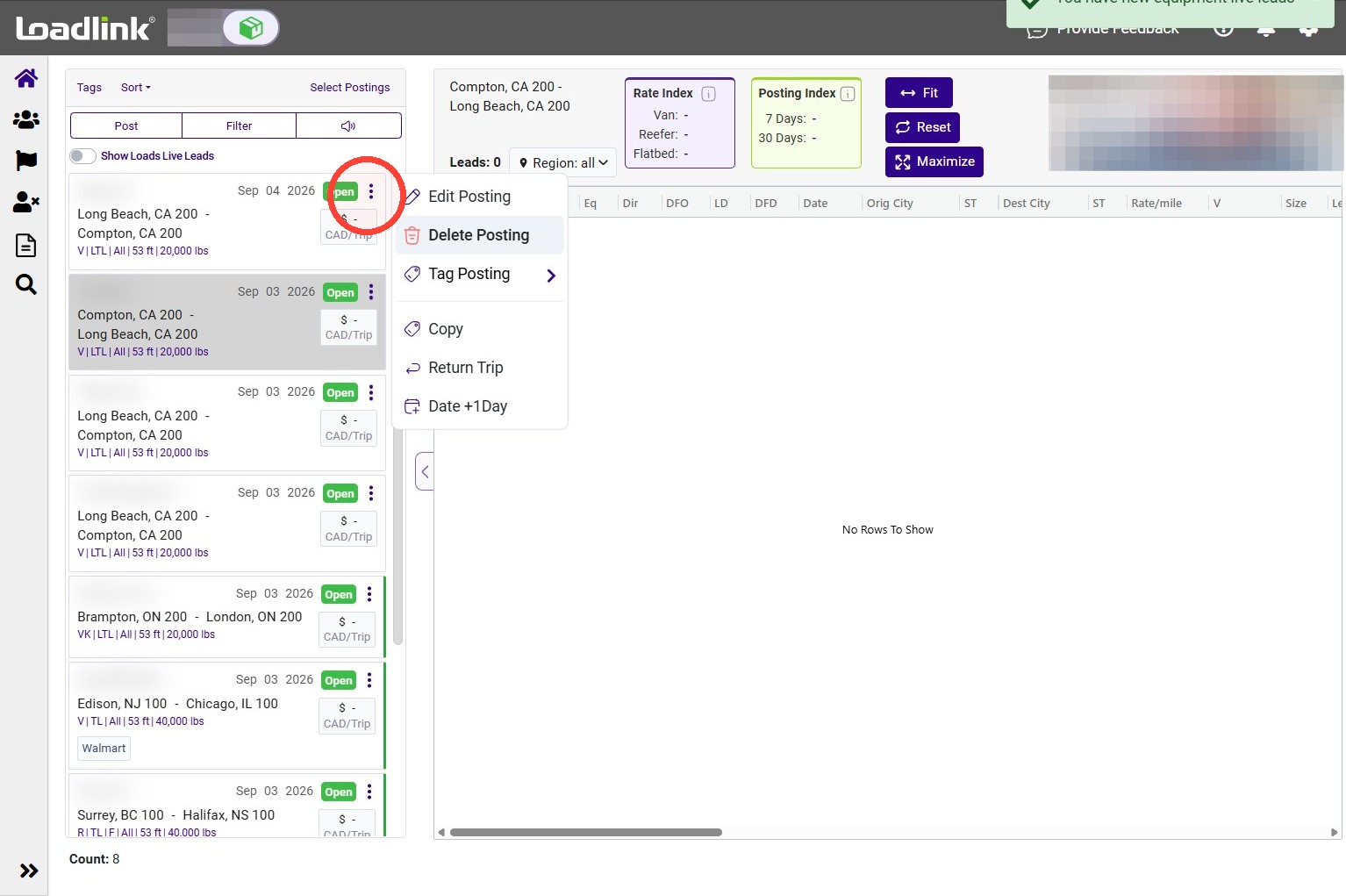
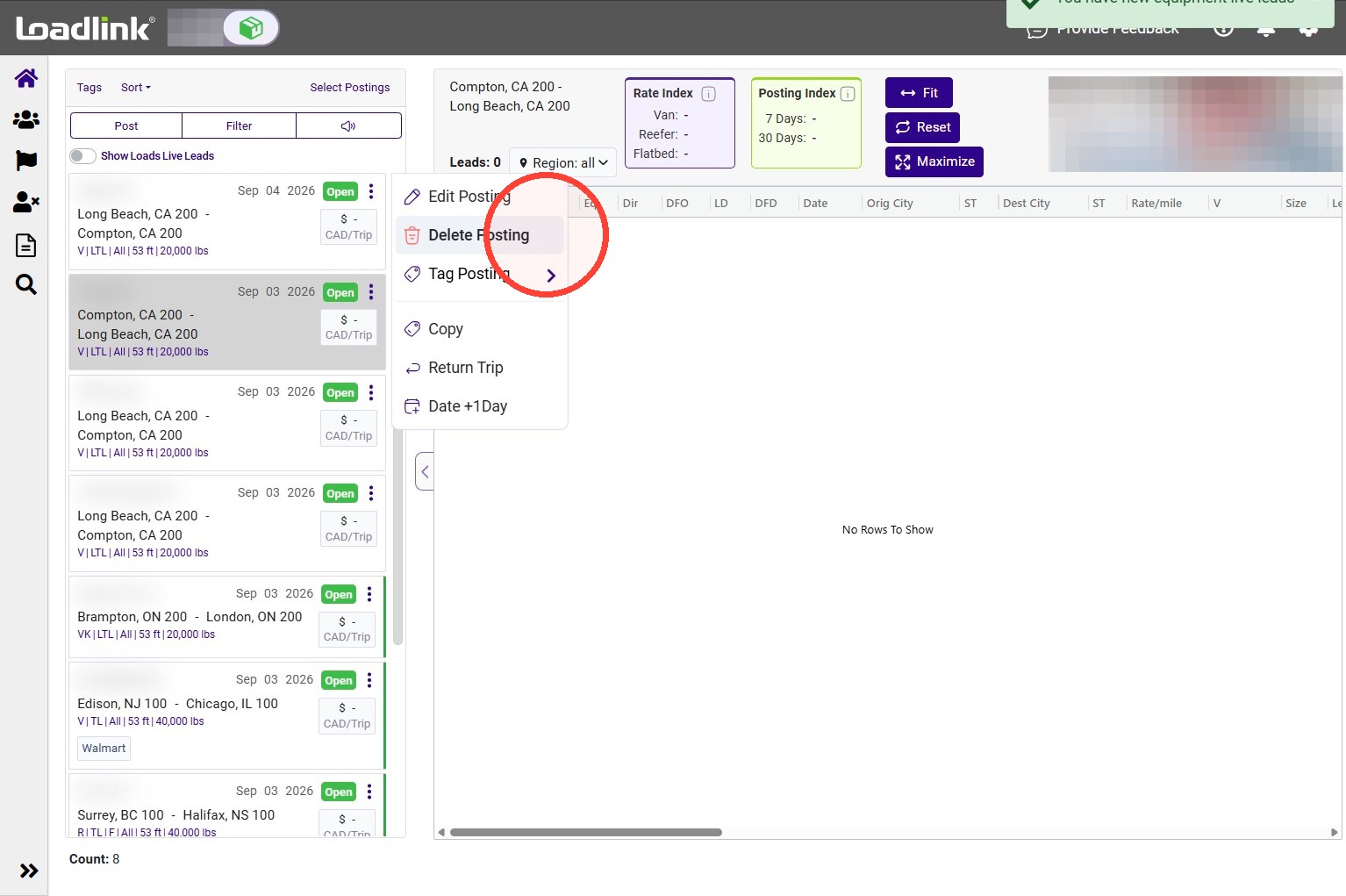
Delete a Posting
When the load is no longer available or the posting is no longer needed, open the quick-action menu and select Delete Posting.
Confirm the deletion when prompted
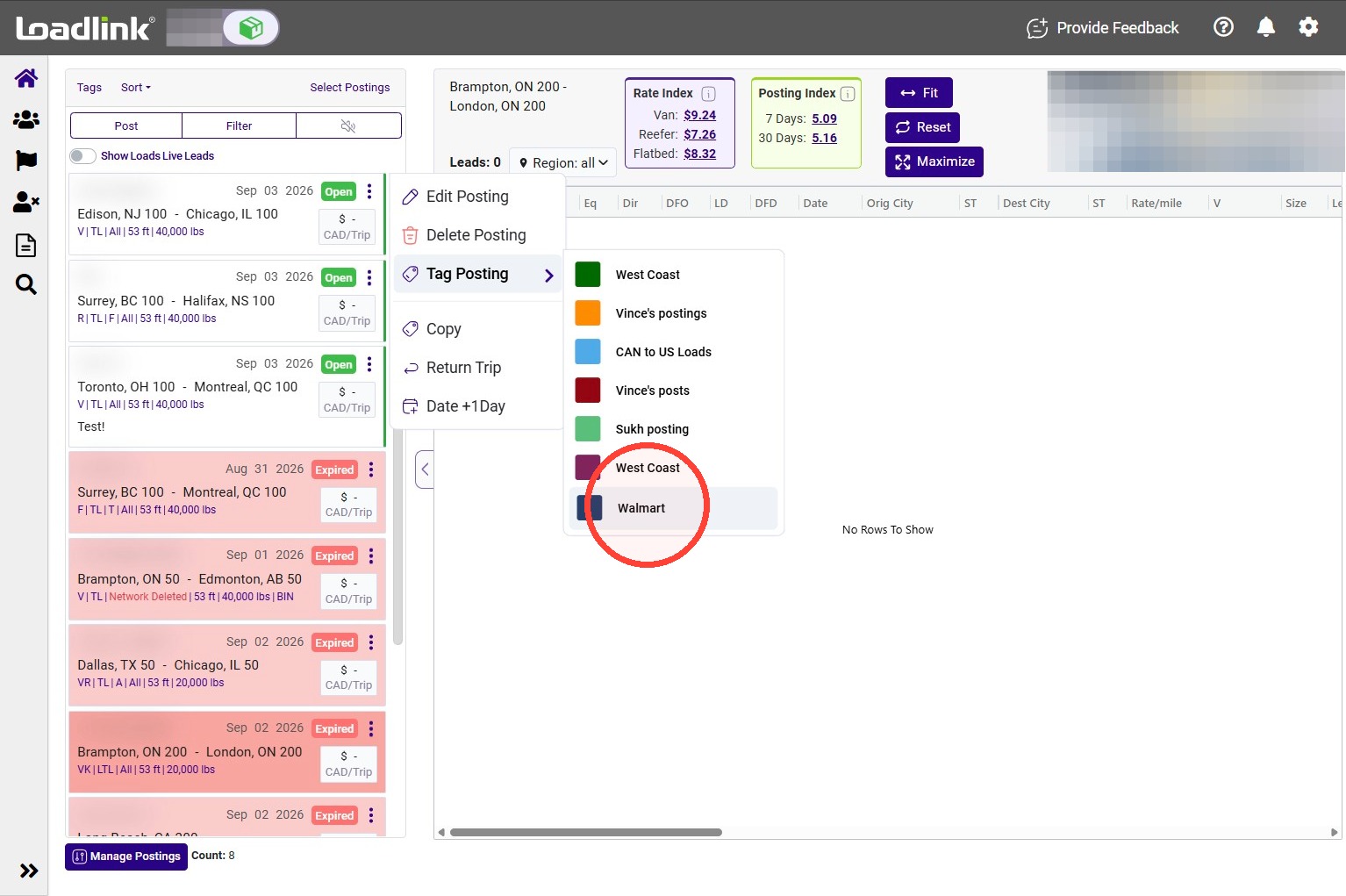
Organize Postings with Tags
Tags are optional labels that help you organize and filter your equipment postings.
To add a tag, open the quick-action menu and select the tag you want to apply.
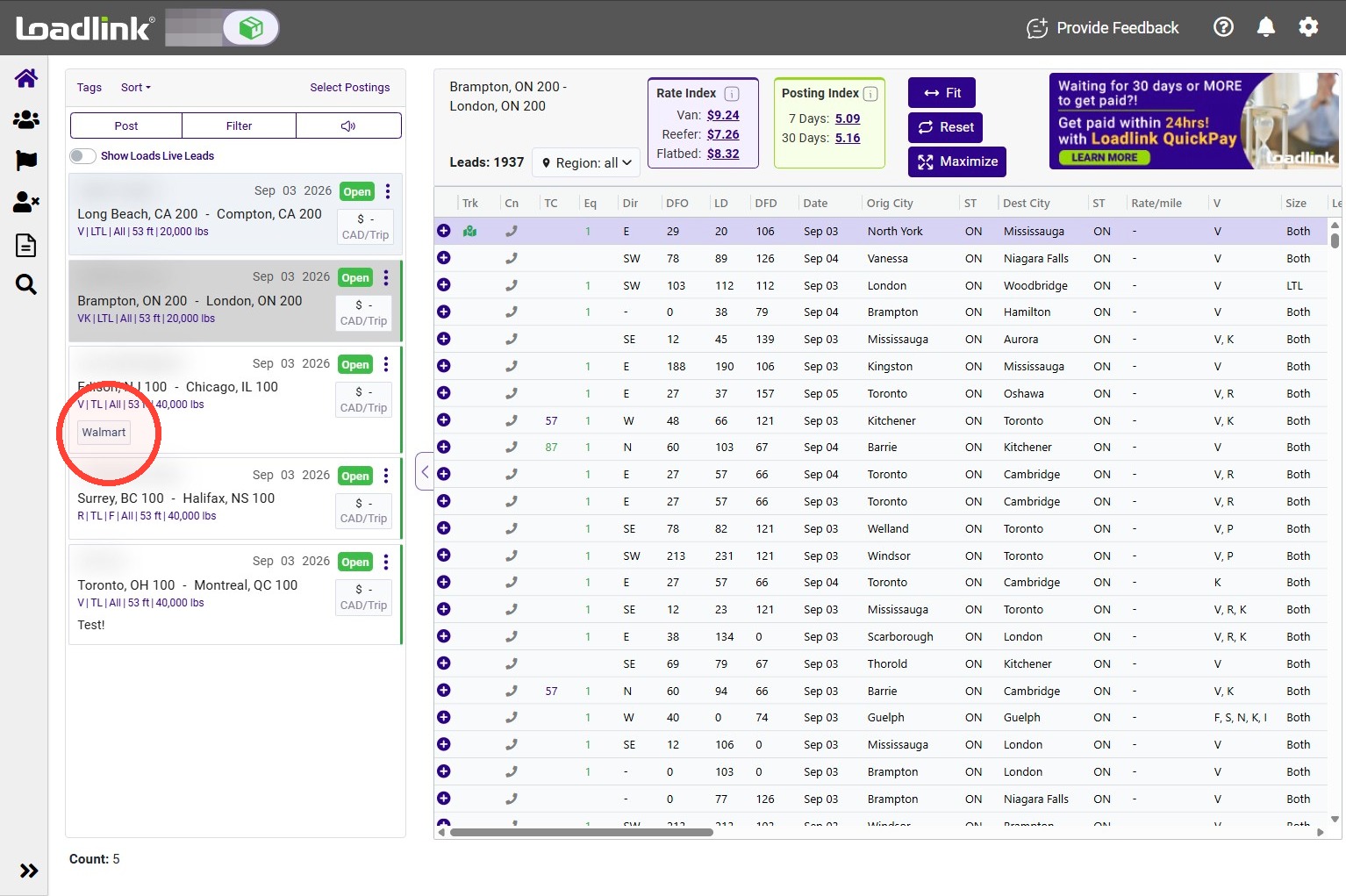
The selected tag will appear on the posting card.
You can use Filter to view postings with a specific tag.
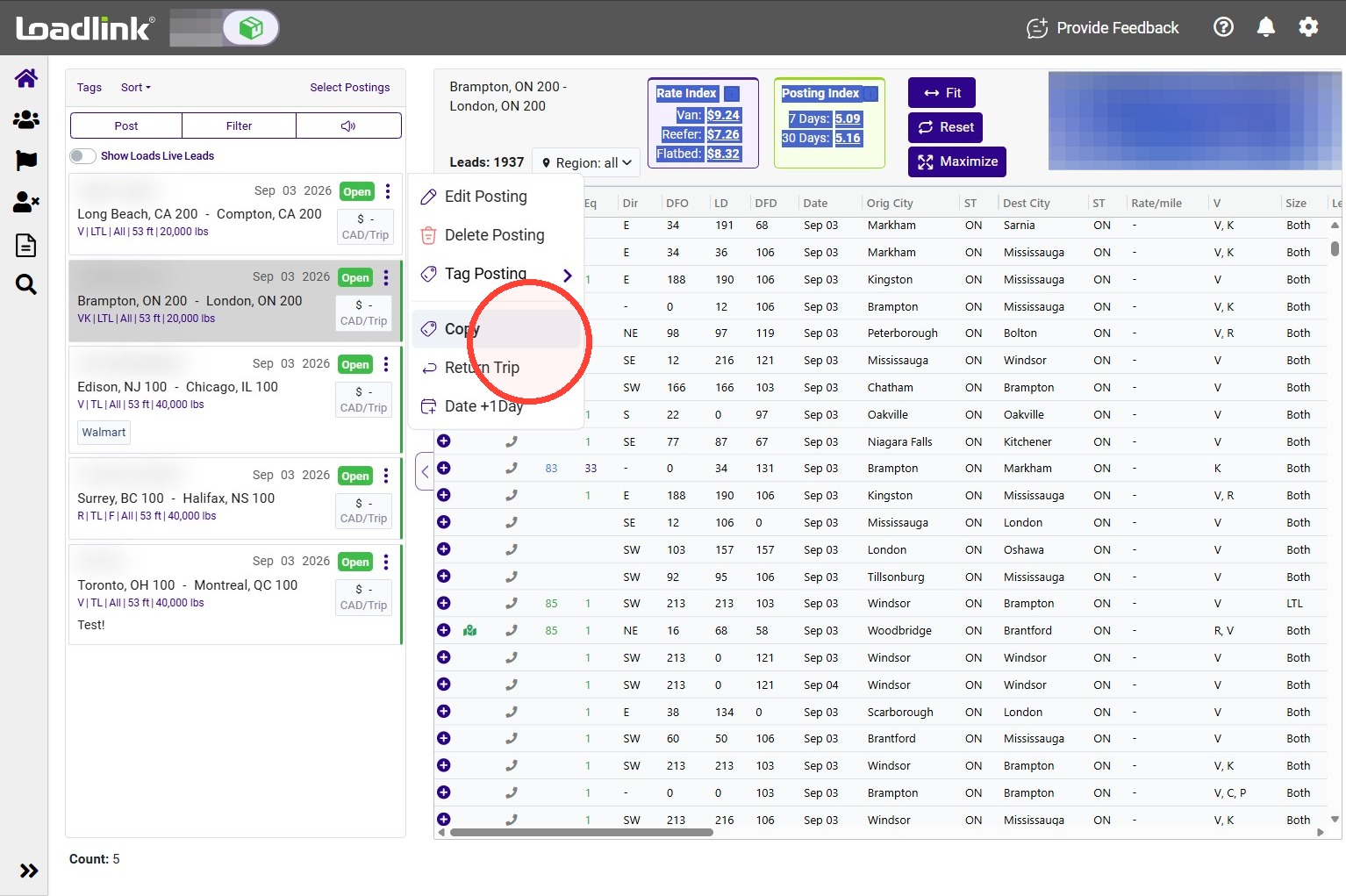
Copy a Posting
Select Copy to create a new draft using the details from the current equipment posting.
Review and update the copied details before publishing the new posting.
Copying can save time when posting multiple loads with the same details
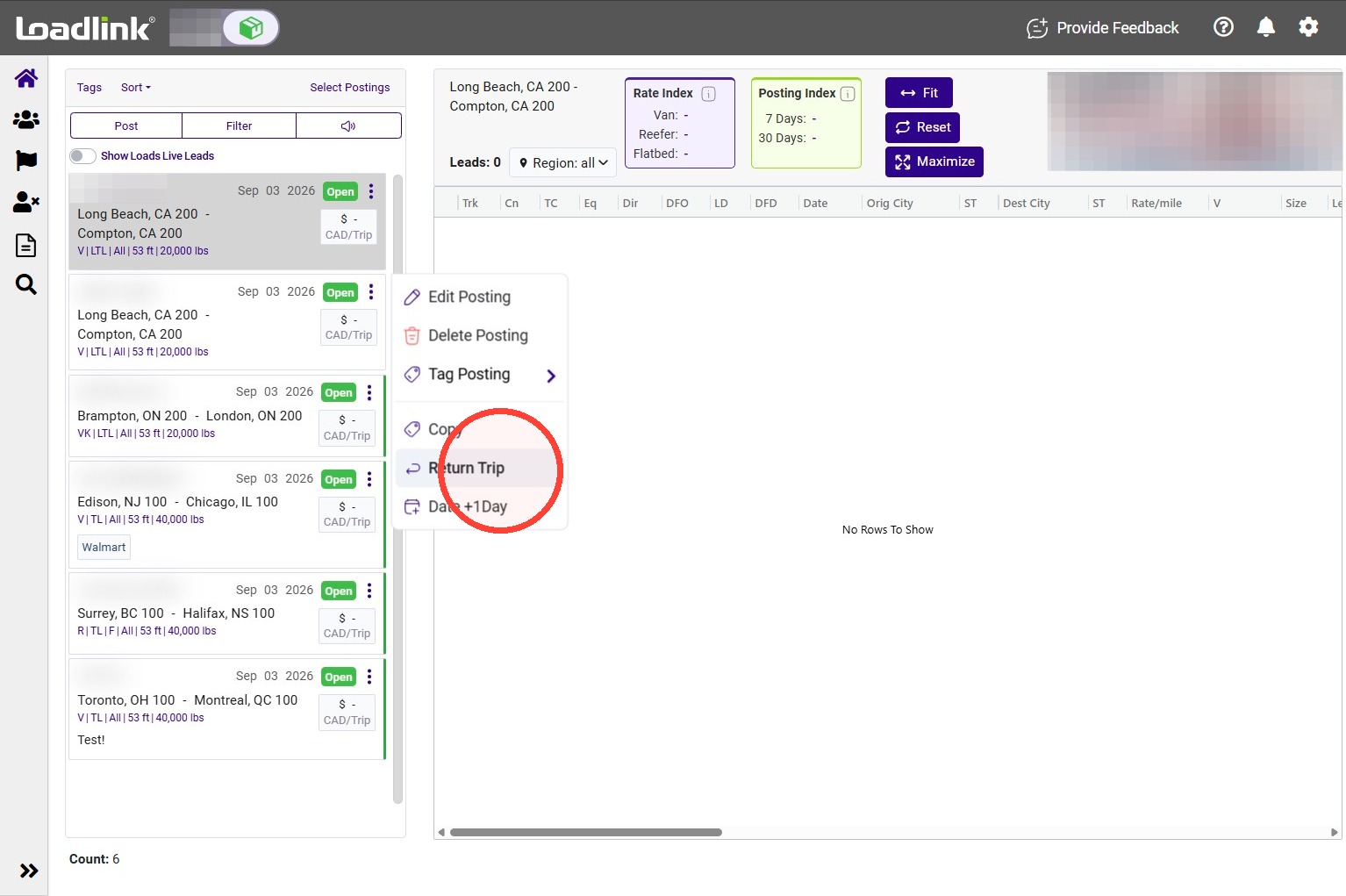
Creating a Return-Trip Posting
Select Return Trip to create a new draft with the origin and destination reversed.
The new posting will be published immediately.
Copy a Posting to the Next Day
Select Date + 1 Day to create a new draft with the availability date moved ahead by one day.