Use the Leads grid to review carriers whose equipment postings match your load. Compare their availability, routes, equipment, rates, company information, and contact details before following up.
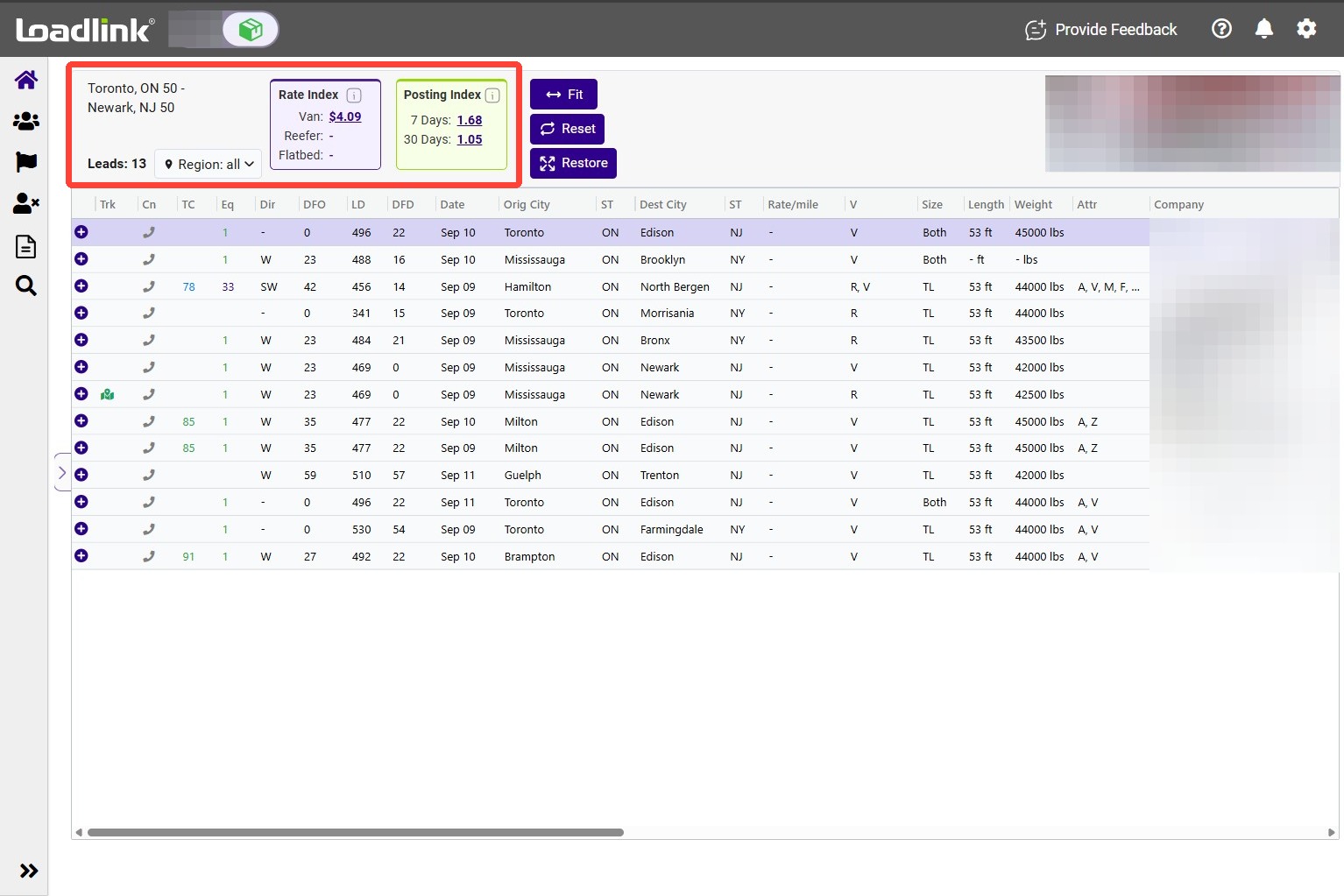
Check the posting information box to confirm which load’s matches you are viewing.
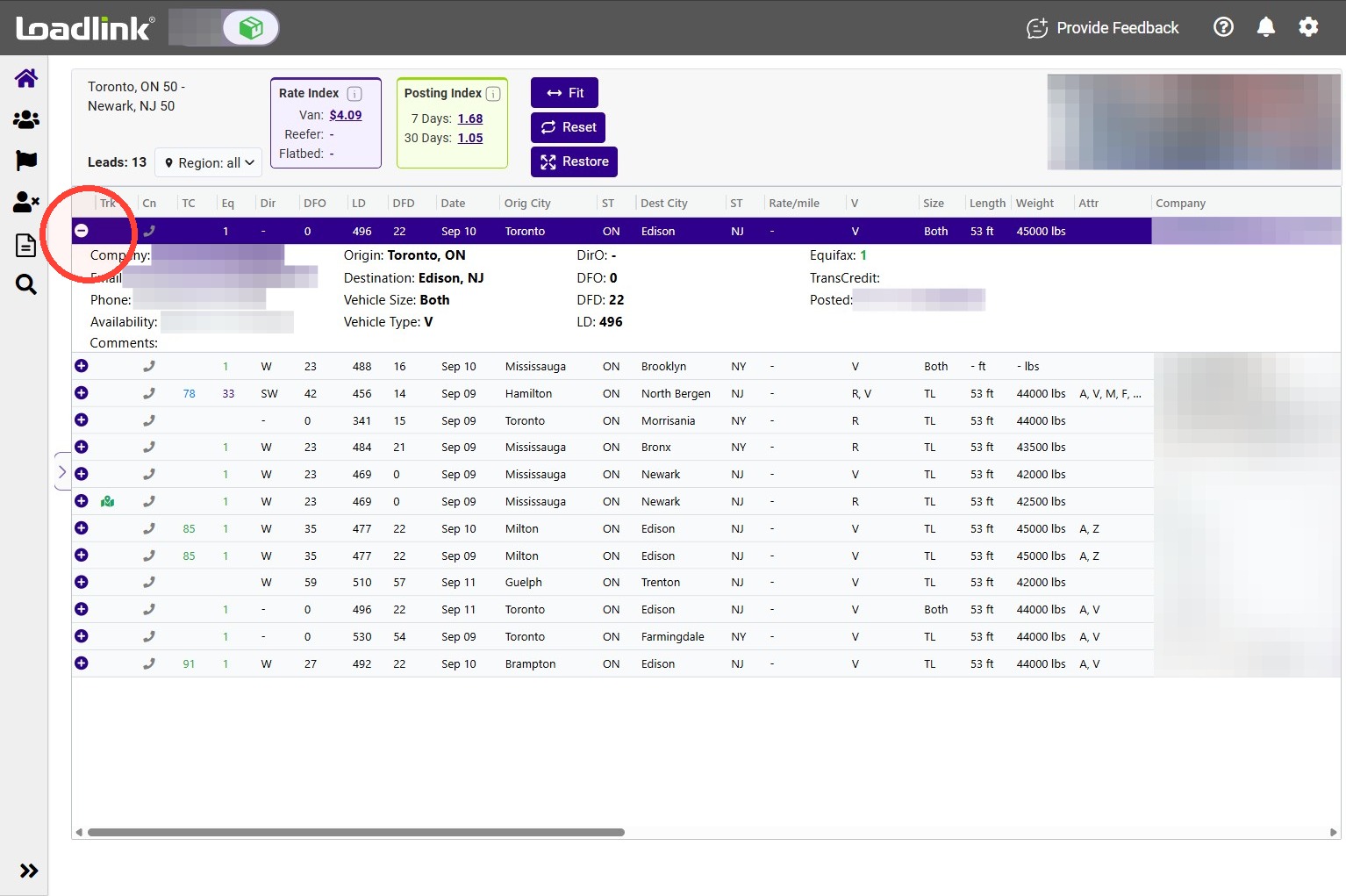
Leads appear from newest to oldest by default. Select the expand icon beside a lead to view a summary of its details.
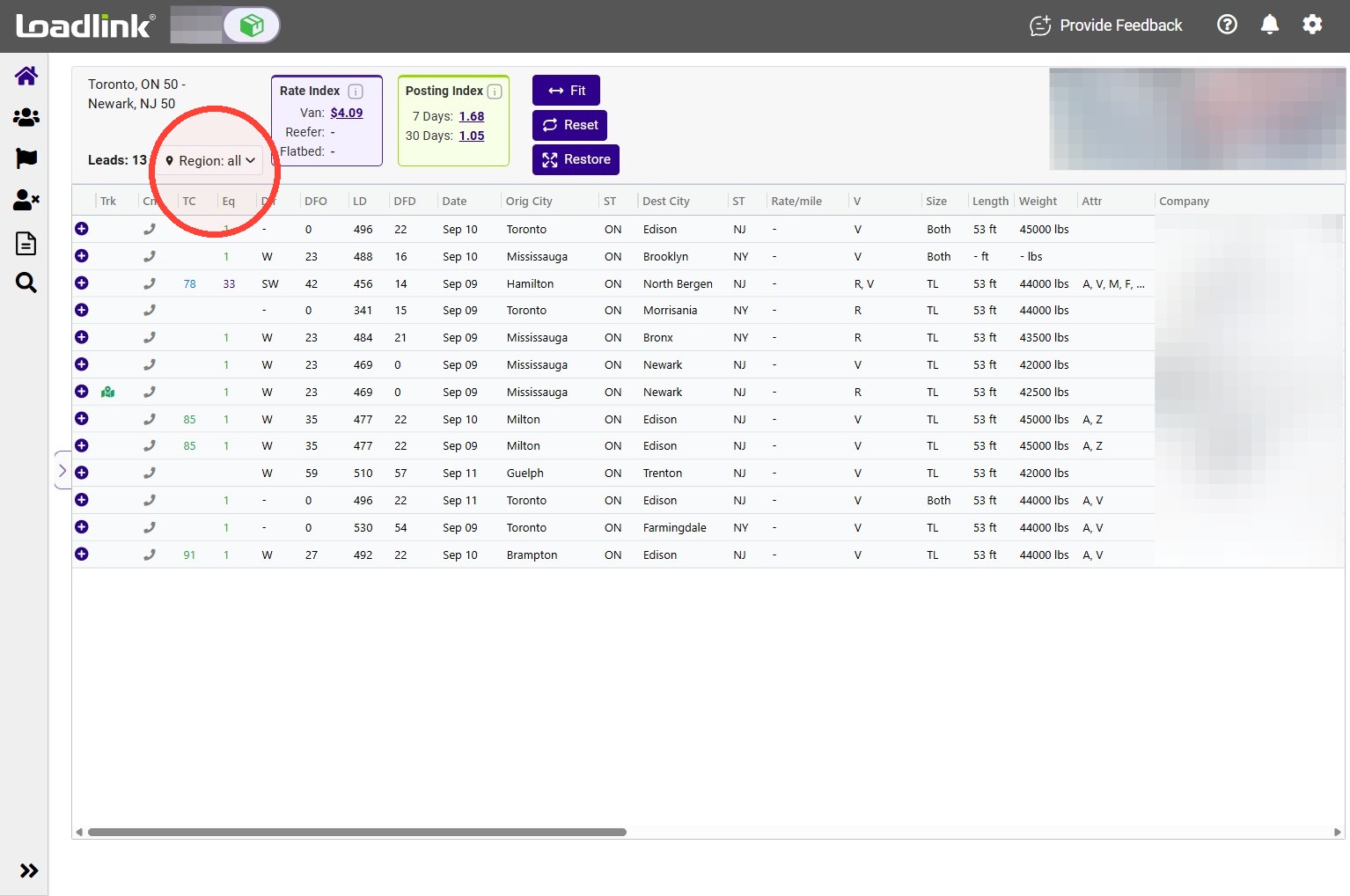
Use the Region filter to control which origin and destination regions appear in your results.
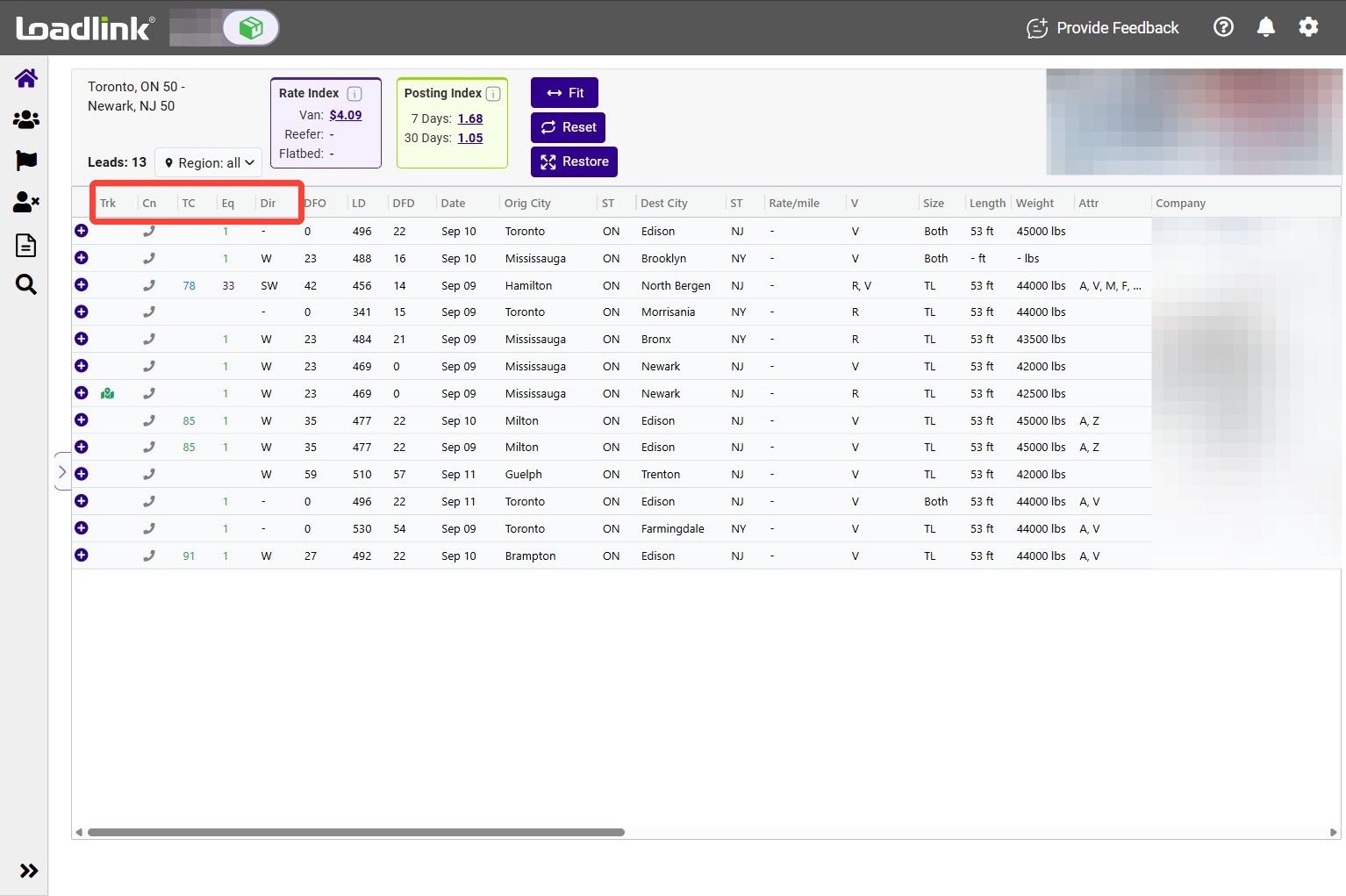
The first columns provide shortcuts and company indicators:
Trk: this icon indicates if a carrier provides dedicated tracking Cn: Contacted status TC: The carrier’s TransCredit score. Eq: The carrier’s Equifax score.
Tip! Credit information is colour-coded:
– Green indicates Good – Blue indicates Moderate – Purple indicates High – Red indicates Extreme.
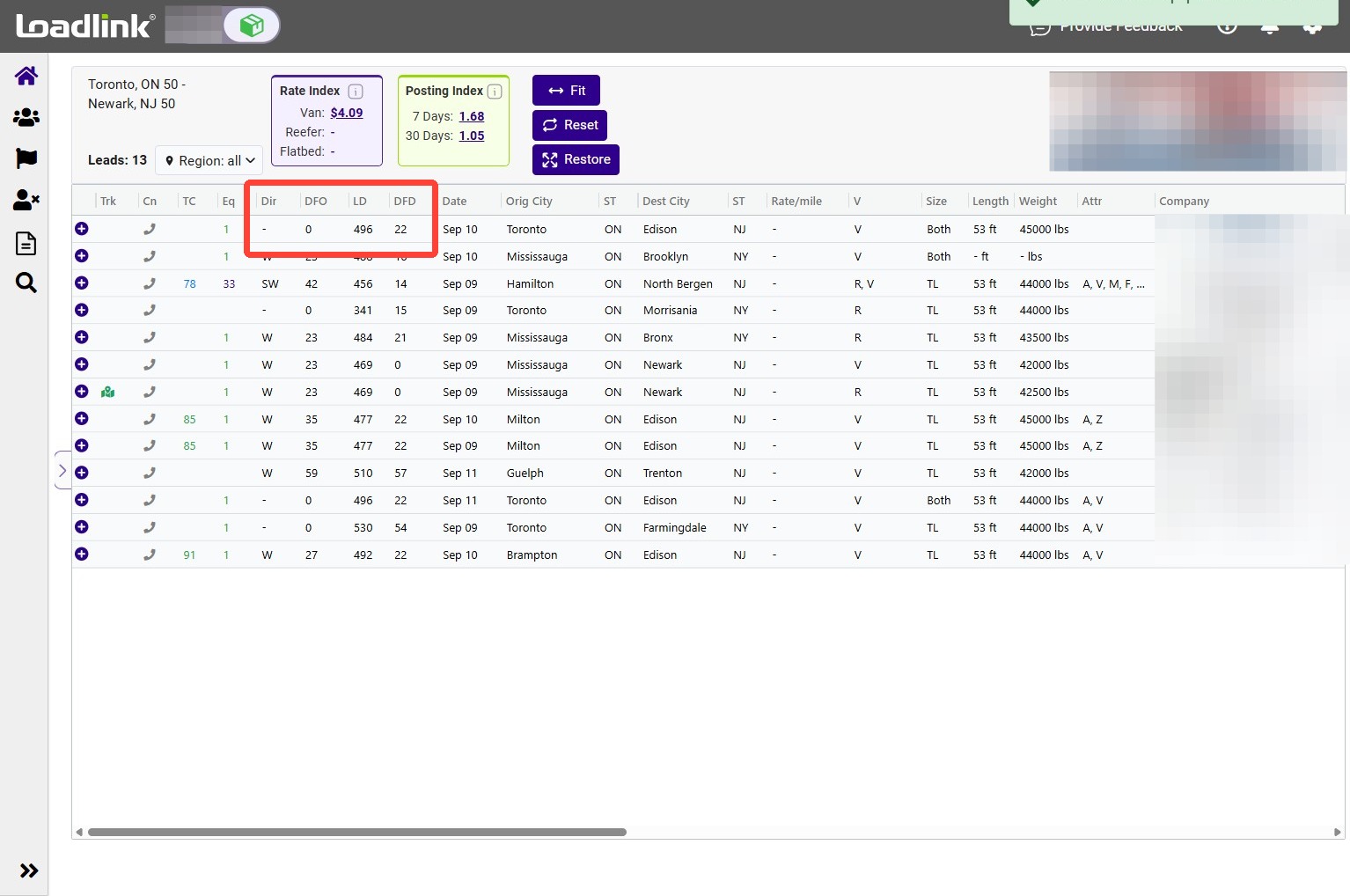
Use the distance columns to understand how close the lead is to your posting:
The first columns provide shortcuts and company indicators:
Dir: Direction DFO: Distance from Origin
LD: Lane Distance DFD: Distance from Destination
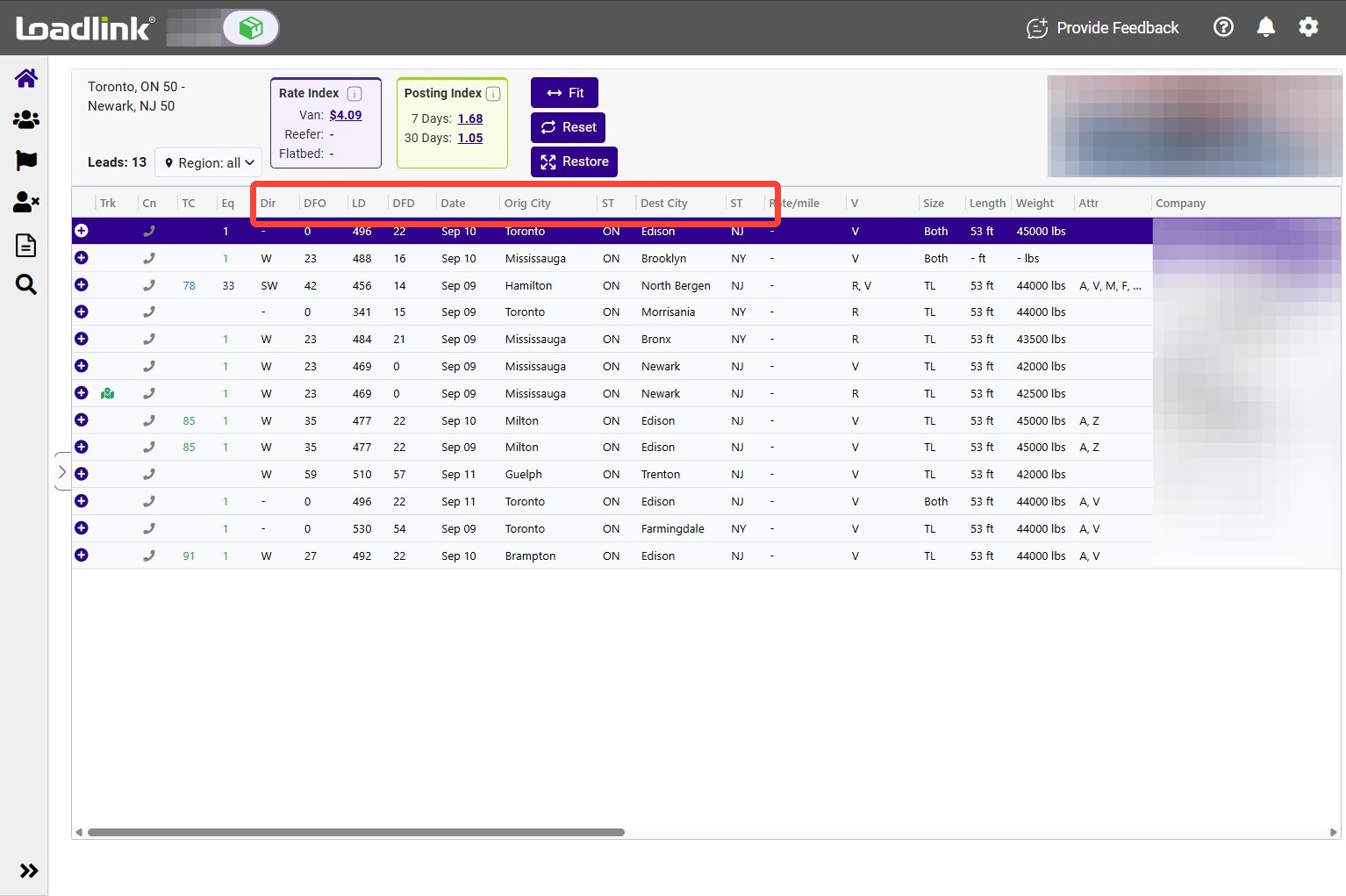
Review the carrier’s route and availability:
Date: The equipment availability date. Orig City: The carrier’s posted origin city. ST: The origin state or province. Dest City: The carrier’s posted destination city. ST: The destination state or province.
Use these fields to compare the carrier’s availability and preferred route with your load.
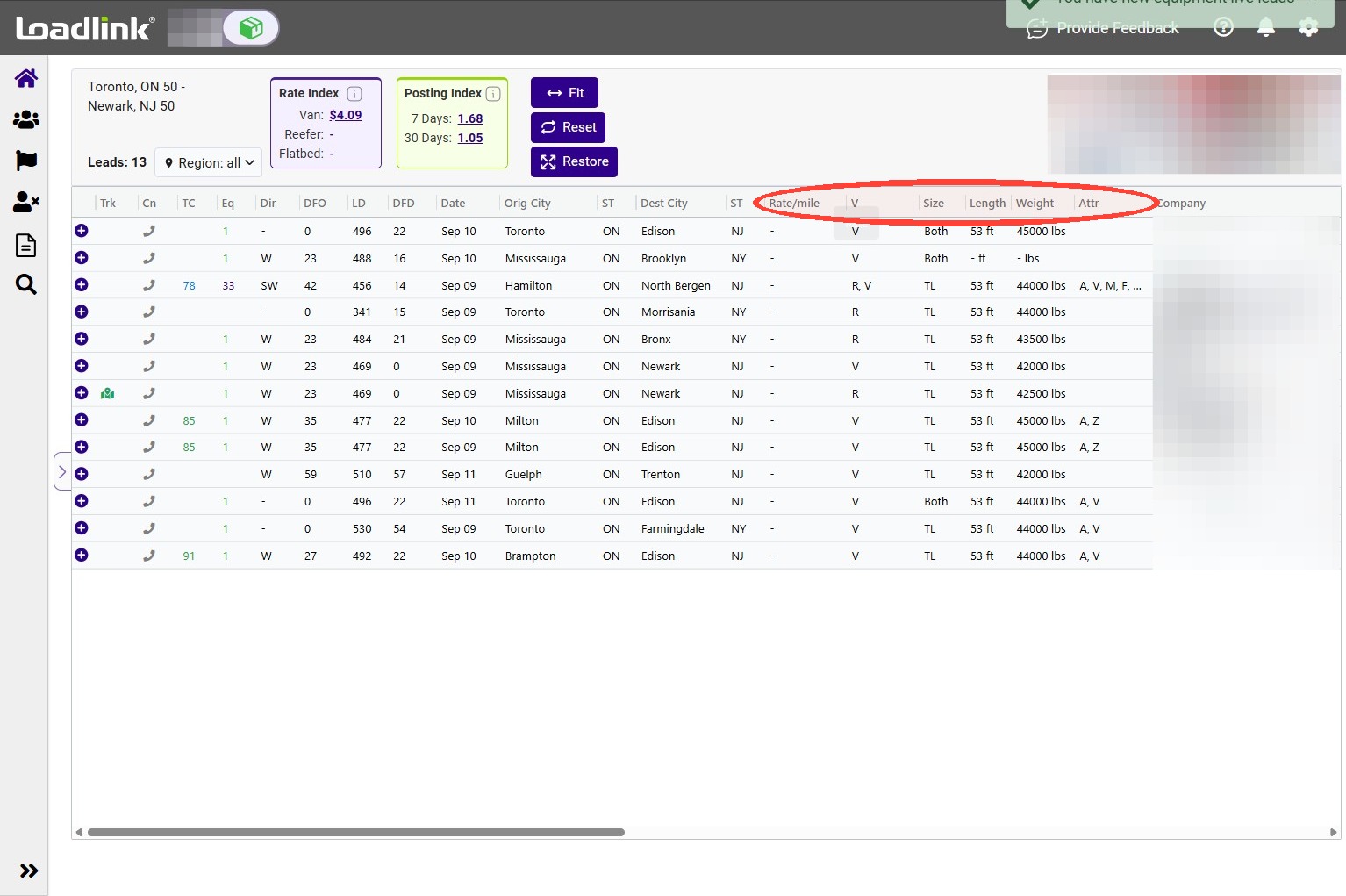
Compare the carrier’s rate and available equipment:
Rate/mile: The carrier’s requested rate per mile, when provided. V: The posted vehicle or equipment type. Hover over the value to see the full description. Size: The carrier’s load-size preference, such as TL, LTL, or Both. Length: The available equipment length in feet. Weight: The posted weight capacity in pounds. Attr: Additional equipment attributes or services. Hover over the value to see the full description.
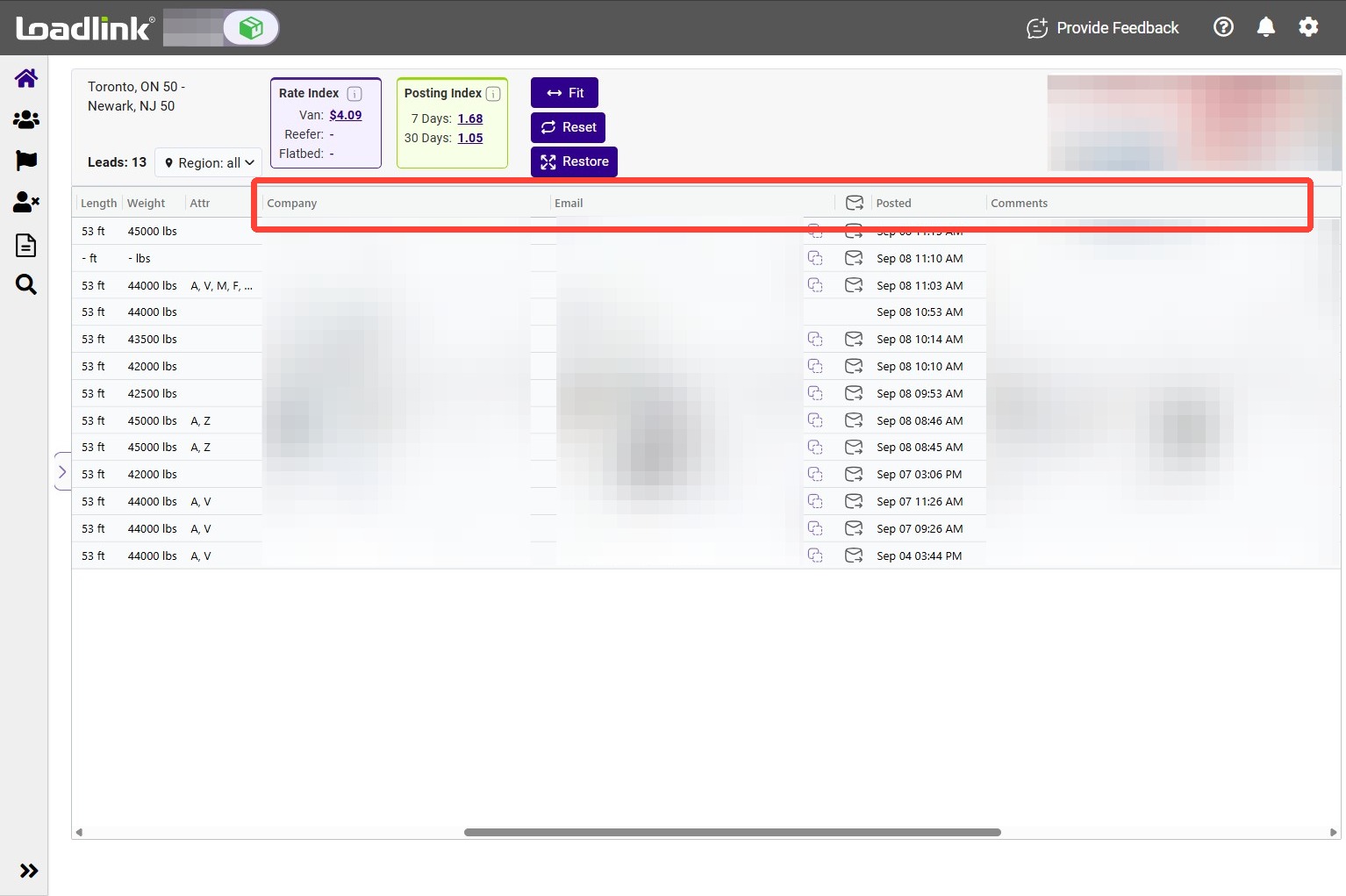
Use the final columns to review the carrier’s company and contact information:
Company: The carrier’s company trade name. Email: The preferred contact email. Envelope icon: Opens Loadlink’s Connected Email tool so you can email the lead from the platform. Posted: The date and time the equipment was posted. Comments: Additional information supplied by the carrier.