Length, Weight & Rate Inputs 

Overview

We’ve introduced two new mandatory fields — Length, Weight, and Rate — to enhance your posting experience and ensure compliance with industry standards. These updates provide greater transparency and efficiency for both carriers and brokers on the Loadlink platform.

What’s Changed

  • Length (measured in feet)
  • Weight (measured in pounds)
  • Rate (per mile for equipment postings, optional per trip for load postings)

Click on the box to navigate between the chapters

Creating and Editing Postings

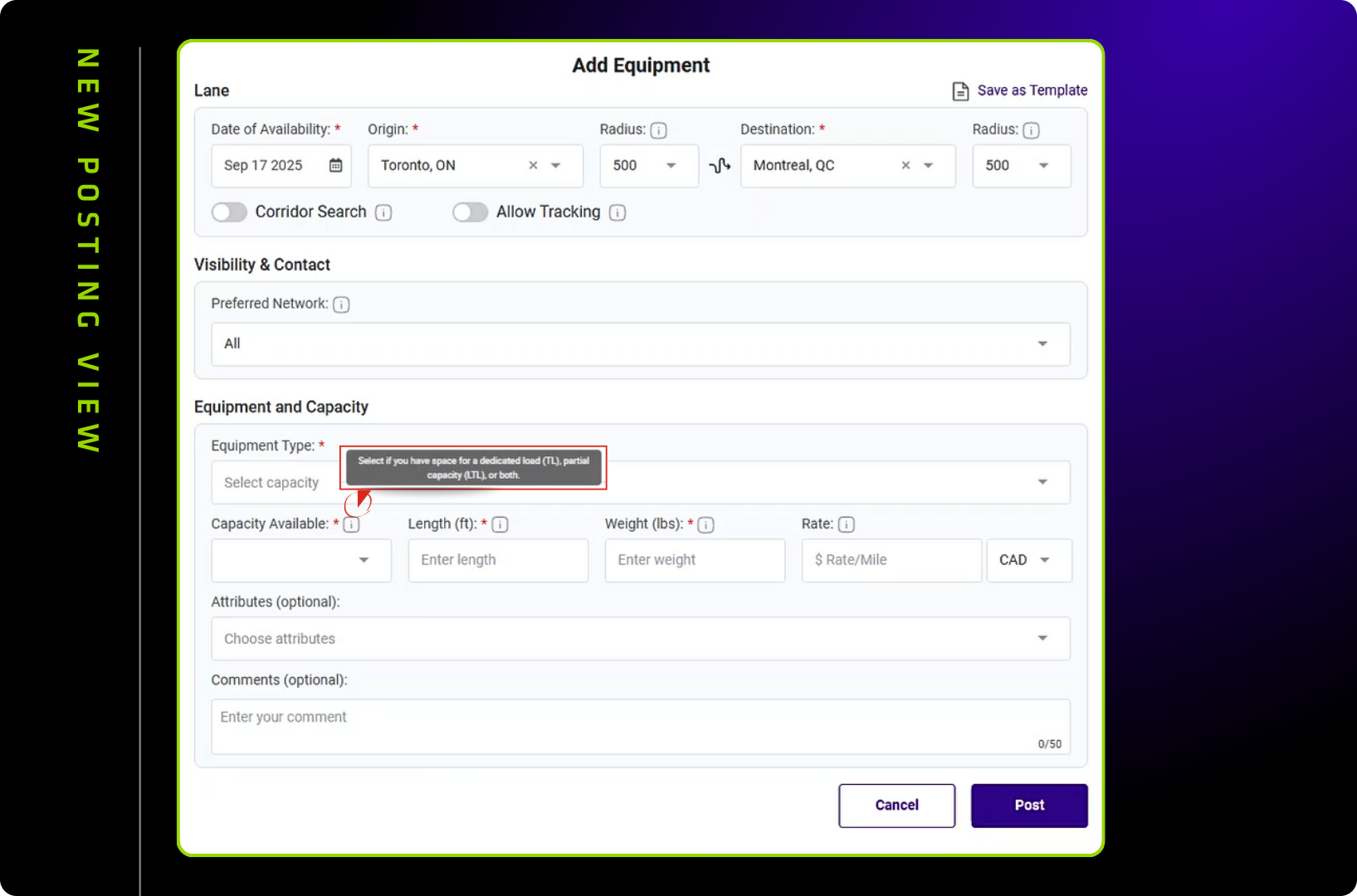
New Posting Interface

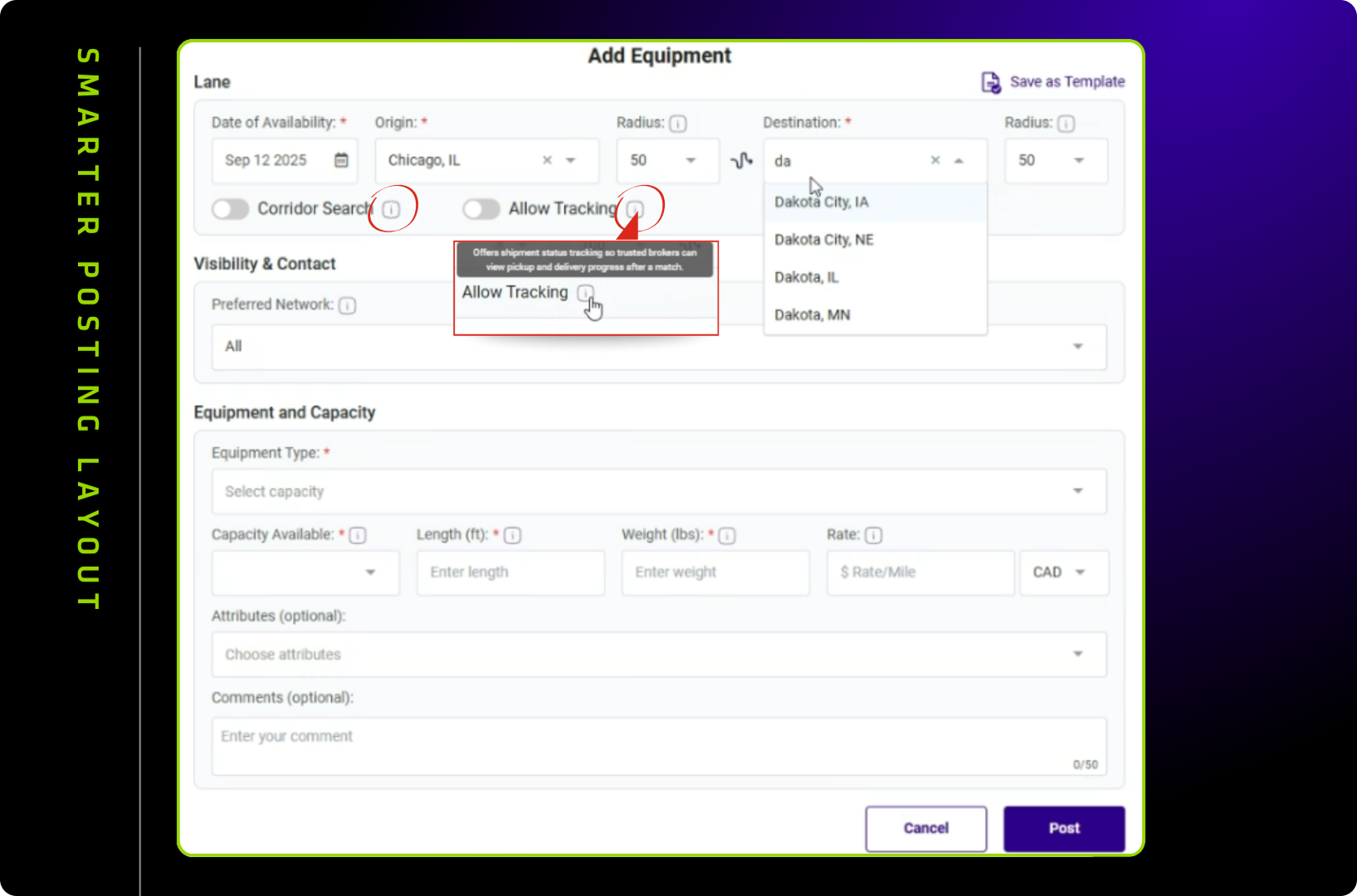
When you create or edit a posting, you’ll now see a full-screen interface instead of the previous modal window. This new layout includes:

  • Organized sections: Lane, Visibility, and Equipment details are clearly separated
  • Required field notifications: You’ll receive error alerts if mandatory fields aren’t completed
  • Info hovers: Hover over certain fields (like Corridor & Tracking) for helpful descriptions
  • Streamlined equipment selection: More condensed view for equipment and attributes

Adding Length, Weight & Rate

  1. Length: Enter the load length in feet in the Equipment section
  2. Weight: Enter the load weight in pounds in the Capacity section
  3. Rate:
    • For Equipment postings: Enter rate per mile
    • For Load postings: Optionally enter rate per trip

Length and Weight fields are now mandatory for all new postings, helping to improve matching accuracy between carriers and brokers.

Save as Template

An icon for a cleaner interface now represents the “Save as Template” option.

Updated Posting Panel

New Features

  • Improved post options menu: Access all posting controls from a streamlined panel
  • Focused Live Leads: The Live Lead icon has moved into the menu (visible only when Show Live Leads is enabled)
  • Tag selection: Enhanced submenu for better organization

Managing Live Leads

To focus on Live Leads for a specific posting:

  1. Ensure the “Show Live Leads” toggle is ON
  2. Click the focused Live Lead icon in the posting menu
  3. Turn off focus as needed to view all Live Leads
Viewing Leads

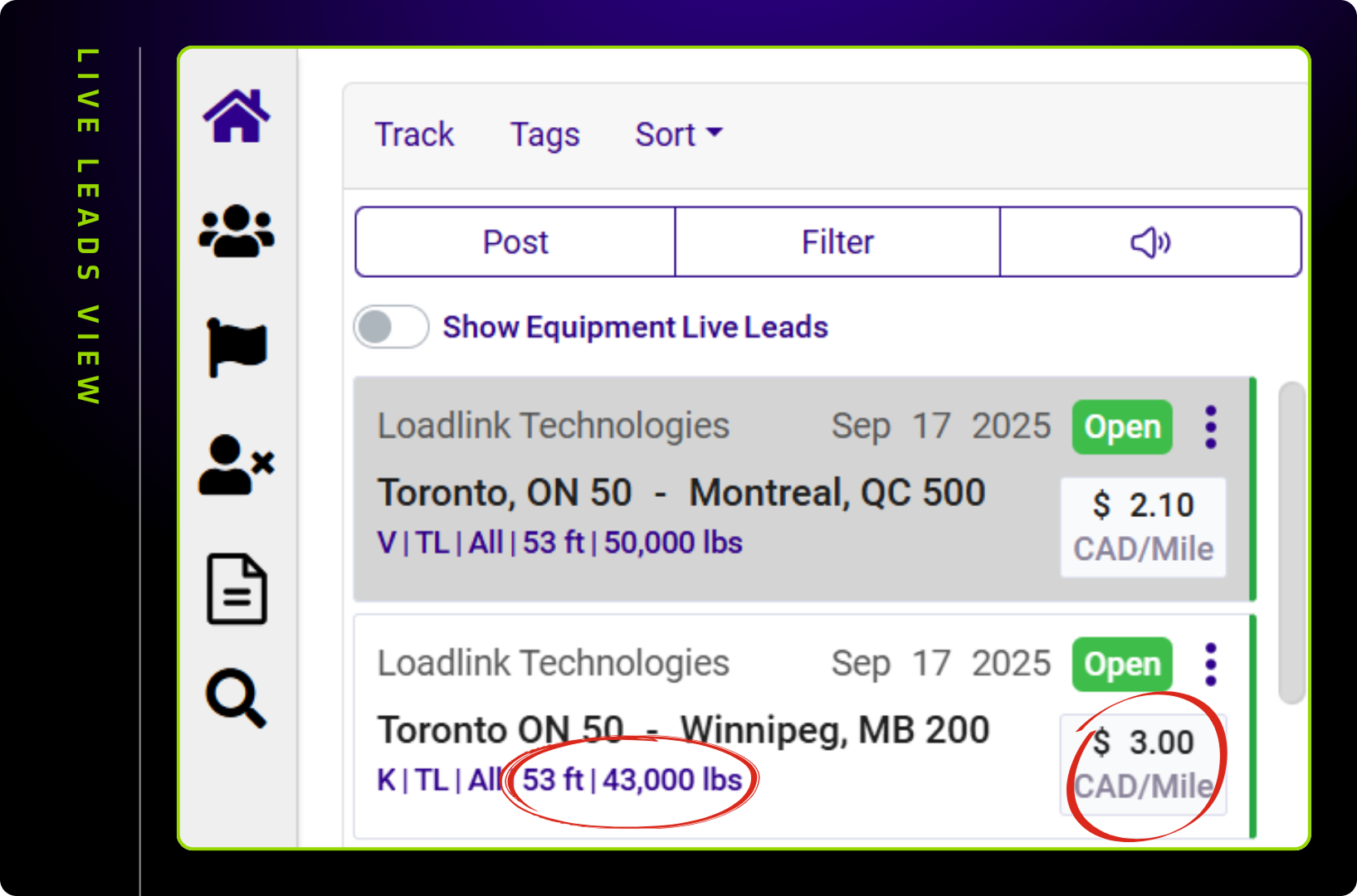
All leads now display the new Length, Weight, and Rate metrics for better decision-making.

Note: Leads from older versions (.NET, LLW3, Mobile) and some DAT leads may show “-” for these fields until systems are updated.

Managing Expired Postings

Reposting Process

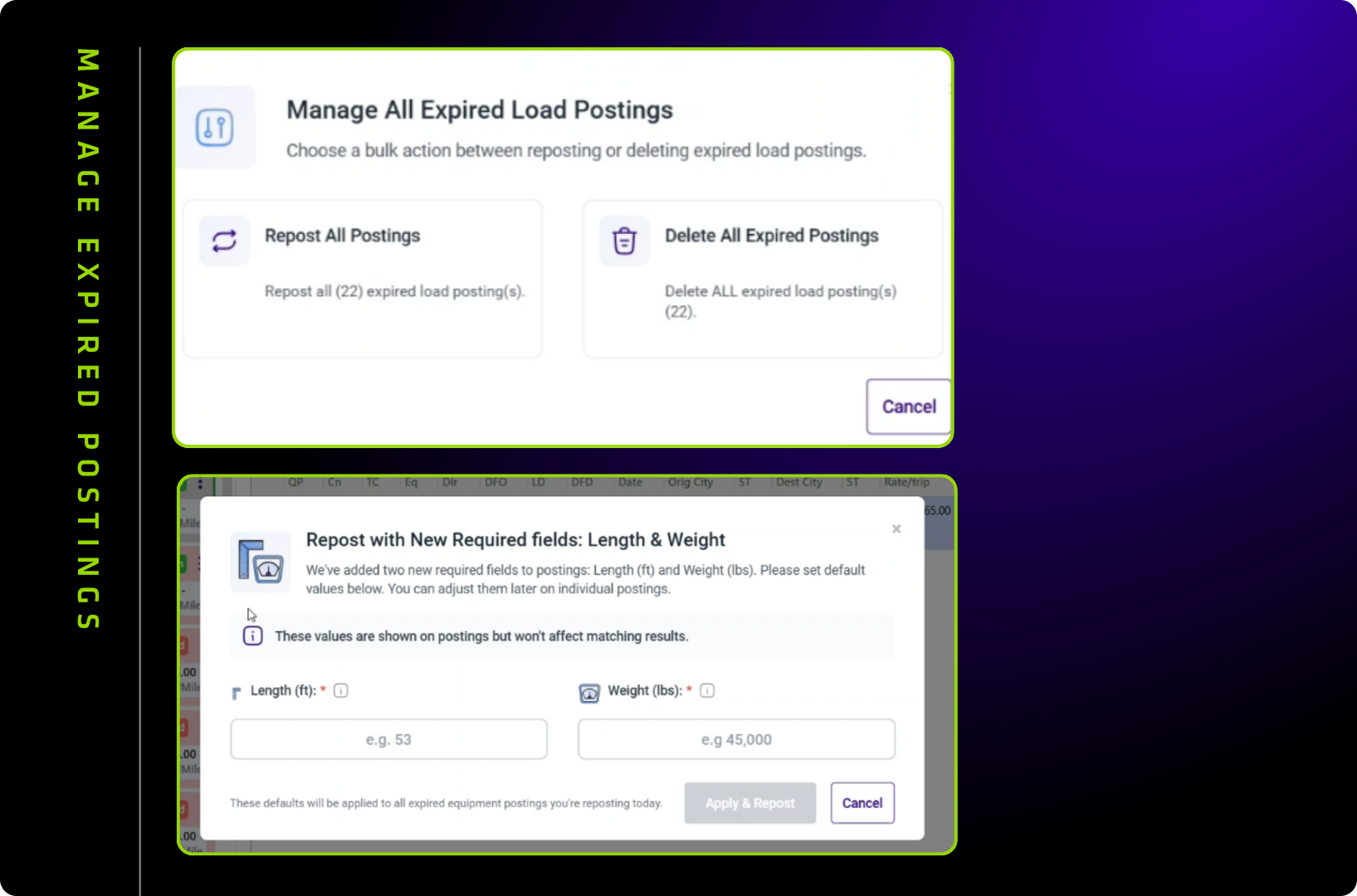
The “Expired” button is now called “Manage Postings” and offers enhanced functionality:

  1. First-time users: If you have expired postings missing Length & Weight data, you’ll see a dialog to enter blanket values for all postings
  2. Subsequent use: Choose from three options:
    • Repost all postings
    • Delete my postings (visible for multi-user accounts)
    • Delete all expired postings

Important: Expired postings are automatically removed after 7 days (unchanged from previous functionality).

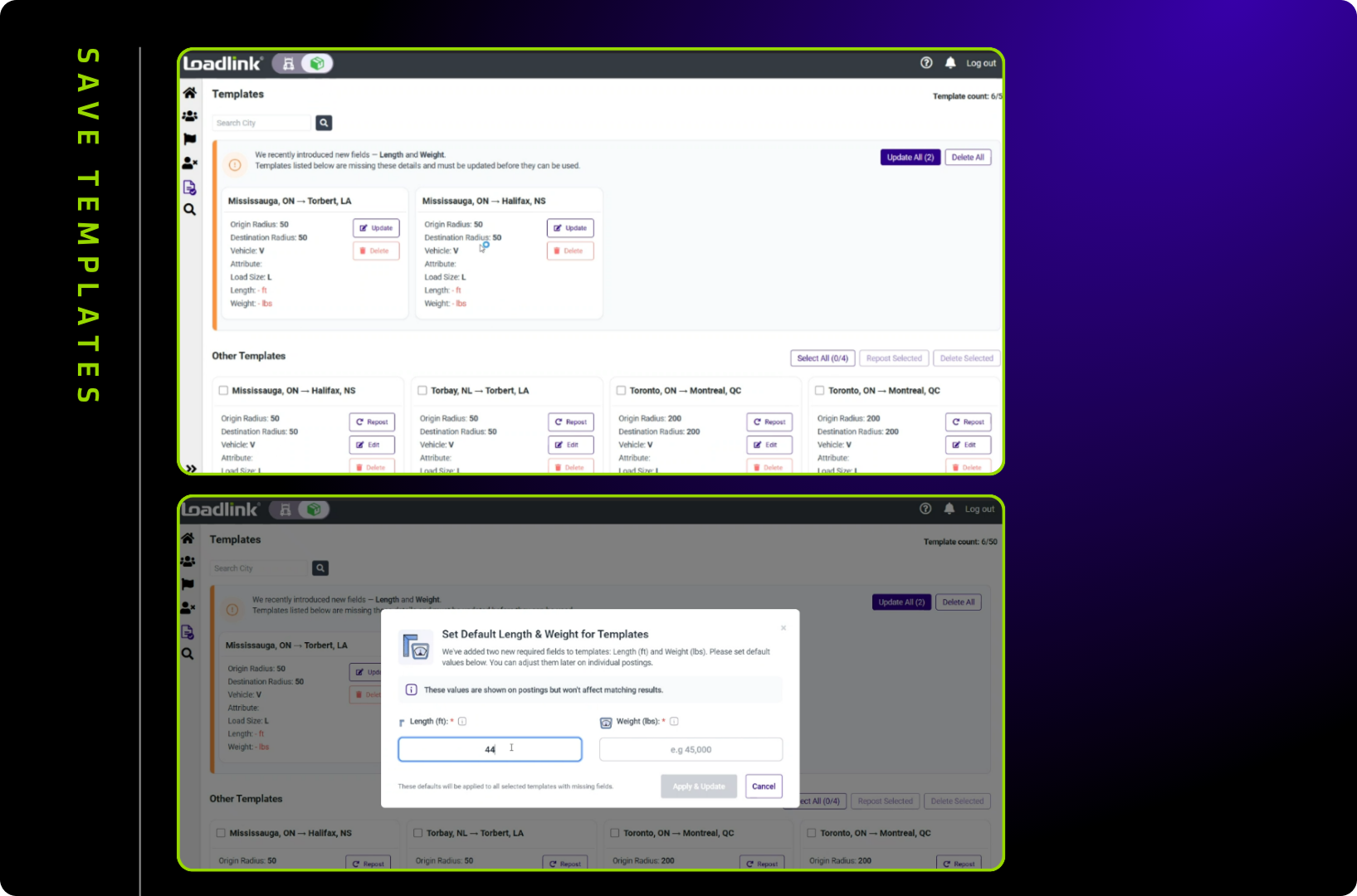
Working with Templates

Existing Templates

If you have pre-existing templates, they’ll need updating for the new Length & Weight fields:

  • Old templates appear grouped at the top with update notifications
  • Options available:
    • Update one template at a time
    • Update all templates with blanket Length & Weight values
    • Delete all old templates

New Templates

All new templates automatically include the mandatory Length and Weight fields.

Loadlink Dispatch Integration

Users posting from Loadlink Dispatch will see the same new posting interface, displayed as a modal window over their order for seamless integration.

Need More Help? 
Contact Customer Support at 1.800.263.6149 for assistance.